
SSD Not Showing Up or Not Detected in BIOS: What It Means, What to Check, and When the Data Is Still There

Yesterday the computer started normally. Today it says there is no boot device, or the SSD that held Windows, your photos or your work files is simply missing from the BIOS. Sometimes it happens overnight with no warning, sometimes right after a Windows or BIOS update, and sometimes after a power cut. An SSD, NVMe drive or Optane-equipped system that is not detected in BIOS is the most serious version of “SSD not showing up”, because it means the drive’s controller is no longer giving the computer a sensible answer. It does not mean the data is gone. Where the drive drops out, and what the setup screen still shows, tells you a lot about what failed and what to do next.
SSD not detected in BIOS?
If the drive held files you need, stop troubleshooting and leave it powered off. Our engineers will diagnose it for free and tell you what can be recovered.
The short version:
- If the drive held files you need, check the BIOS once, try one other slot, computer or adapter once, and then power it off.
- Do not update the SSD’s firmware, run a vendor “reset” or secure-erase tool, reinstall Windows, or initialize or format the drive.
- Do not keep restarting the computer to see whether the drive comes back. Every power-on gives a failing controller more work to do.
- A brand-new, empty SSD that isn’t detected is a setup problem, and the setup checks below are safe for it.
- Many SSDs that vanish from the BIOS still have their data in the flash chips. Recovering it usually takes firmware-level work in a lab.
First: Is This a New SSD or One That Held Your Data?
Most “SSD not detected in BIOS” advice is written for people who have just installed a new drive. For a new, empty drive that advice is fine: there is nothing to lose, so reseating it, changing BIOS settings, updating its firmware, initializing it and formatting it are all normal setup steps.
On a drive that held data, several of those steps are risky. A firmware update on a controller that is already struggling can leave it unable to start at all. Initializing writes a new partition table over the old one, and formatting writes a new, empty file system. On an SSD there is an extra risk: when the drive is told its space is free, TRIM lets the controller erase the underlying flash in the background. So decide which case you are in before you change anything. The rest of this page assumes the drive held files you need, unless a section says otherwise.
What “Not Detected in BIOS” Actually Means
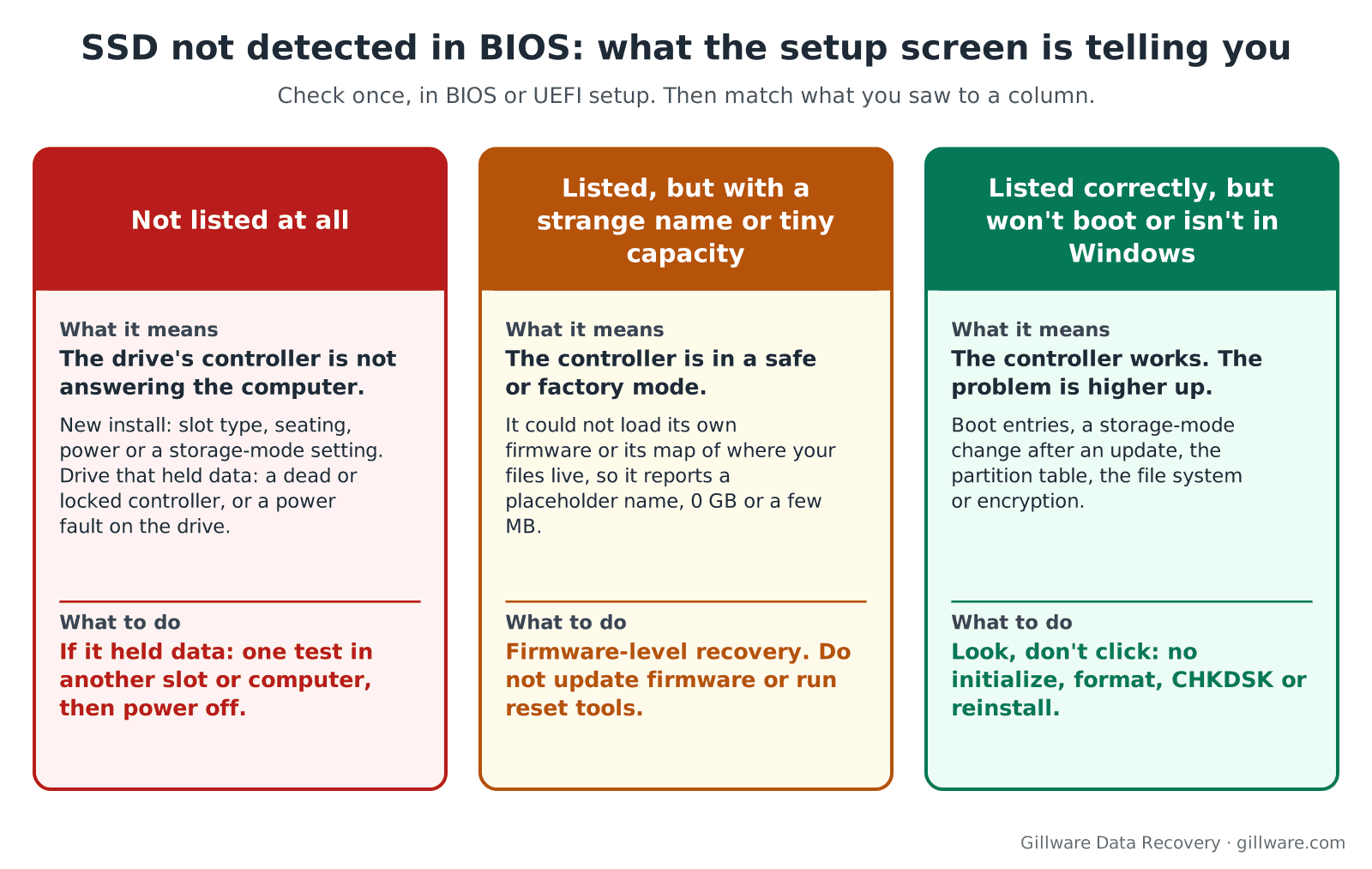
The BIOS or UEFI setup screen lists the storage devices that answer the computer when it starts. It is the lowest level most people can see, below Windows and macOS. If a drive is missing there, nothing in the operating system can bring it back, because the operating system never gets to talk to it. What the BIOS shows falls into one of three cases:
- Not listed at all. The controller isn’t answering. On a new installation that usually means the slot, the seating, the cable or a BIOS setting. On a drive that worked yesterday it usually means a controller that has died or locked up, or a power fault on the drive’s own board.
- Listed with a strange name or a tiny capacity. The drive answers, but with a generic or factory name, a capacity of 0 GB, or a few megabytes. The controller has dropped into a safe or factory mode because it couldn’t load its own firmware or its map of where your data lives. Our posts on the SATAFIRM S11 error and the Intel SSD 8MB bug describe two well-known versions of this.
- Listed correctly, but the computer won’t boot from it or Windows doesn’t show it. The controller is working. The problem is higher up: the boot entries, a storage-mode setting, the partition table, the file system or encryption. That is usually the most recoverable of the three.
When the SSD Disappeared Overnight, After an Update or After a Power Cut
What happened just before the drive vanished is the best clue to which of those cases you are in.
It was fine yesterday and gone this morning
An SSD that disappears with no warning, after a normal shutdown or while the computer slept, most often has a controller or firmware problem. SSDs keep a translation table, sometimes called the mapping table, that records where every piece of every file currently sits in the flash. The controller updates it constantly. If the table or the firmware that manages it is damaged, many drives stop presenting themselves normally rather than risk returning the wrong data. Some SSDs give warnings first, such as freezes, very slow file copies or a drive that drops out and comes back; our guide to the signs of SSD failure covers them. Many give none.
It vanished right after a Windows update or a BIOS update
Updates can change how the computer talks to its storage. A BIOS update often restores default settings, which can switch the storage controller mode (for example between AHCI and Intel RST, RAID or VMD). Windows may then fail to start with an “inaccessible boot device” error, or a new installer may not see an NVMe drive at all, even though the drive and its data are fine. A Windows update can also change the storage driver in use. Sometimes, though, the restart after an update is simply the moment a controller that was already failing stops answering. If the BIOS still lists the drive with its correct name and capacity, a settings change is the more likely cause; if the drive is gone from the BIOS altogether, treat it as a drive fault. Either way, don’t reinstall Windows onto it or let a recovery tool “repair” the startup files until you know your data is safe.
It happened after a power cut, a surge, a drop or a spill
Two things can go wrong here. An unexpected power loss can interrupt the controller while it is updating its mapping table, and a surge or liquid can damage the power circuits on the drive’s board. In both cases the BIOS often shows nothing at all. Leave the drive unpowered; a damaged power circuit can do more harm each time it is energized.
Systems with Intel Optane memory
Some computers use Intel Optane memory, either a small Optane module that speeds up a slower drive or an M.2 stick that combines Optane and regular flash. These setups depend on Intel’s storage driver and the BIOS storage mode to present the pieces as one drive. A BIOS reset, a BIOS update or a change in storage mode can break that pairing, and the system may report no boot device or show unfamiliar separate devices. On a system whose data you need, don’t disable, re-enable or “clear” Optane acceleration and don’t pull either device: the pairing settings decide how the data is put back together. Our article on data loss on Intel Optane drives covers other Optane failures.
The Laptop Won’t Boot: “No Bootable Device” or “Boot Device Not Found”
In a laptop with one SSD, a drive missing from the BIOS usually shows up as a boot error rather than a missing drive letter. If you see “no bootable device”, “boot device not found” or a laptop that goes straight to the BIOS screen, open the BIOS once and look for the SSD in the storage or boot section. Our article on boot device not found errors walks through what each version of the message means, and our guide to a laptop drive that isn’t detected covers the laptop-specific checks.
Many recent laptops, including every current MacBook and a growing number of thin Windows laptops, have the storage soldered to the motherboard. There is no drive to move to another computer, and on many of them the data is encrypted by a chip on that same board. Don’t let anyone replace the motherboard before the data is recovered: on these designs a new board means the old data can’t be read. Our MacBook data recovery and laptop data recovery pages explain why.
Not Seen on a USB Adapter or Another Computer Either
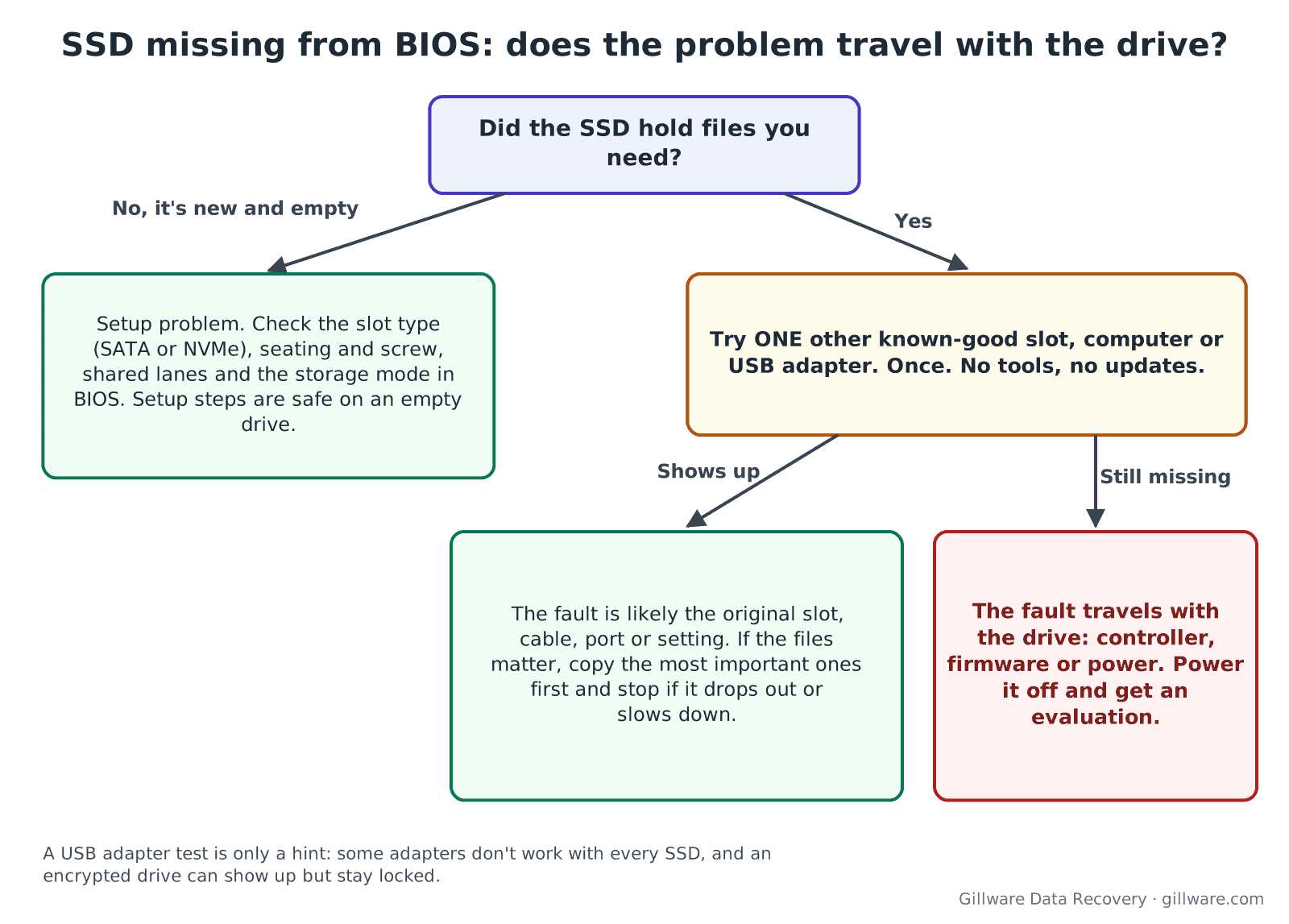
If the SSD is removable, one test tells you whether the problem is the computer or the drive: put the SSD in one other known-good slot or computer, or connect it with a USB adapter or enclosure that matches the drive (an NVMe drive needs an NVMe adapter; a SATA drive needs a SATA one). Do it once.
- It shows up there. The fault is probably the original slot, port, cable or a setting on the first computer. If the files matter, copy the most important ones off first, before you troubleshoot the computer, and stop if the drive drops out or slows to a crawl.
- It’s still missing. The fault travels with the drive: its controller, its firmware or its power circuit. Power it off. More attempts on more computers won’t change the answer and do add wear.
Treat the adapter test as a hint, not proof. Some USB adapters don’t work with every SSD, and a drive that was encrypted in its original computer (BitLocker, for example) can appear on the adapter but stay locked. If you see a request for a recovery key, our BitLocker data recovery article explains where the key is usually stored.
Drive gone from BIOS and it held files you need? Power it off and talk to a recovery advisor before trying anything else.
Setup Checks for a New, Empty SSD
If the drive is new and holds nothing you need, these are the usual reasons the BIOS doesn’t list it:
- The M.2 drive isn’t fully seated, or its standoff or retaining screw is missing, so the connector is only partly engaged.
- The slot and the drive don’t match. Some M.2 slots accept only SATA drives and some only NVMe drives. Many motherboards switch off a SATA port or an M.2 slot when another slot is in use; the motherboard manual lists which slots share lanes.
- A 2.5-inch SATA drive is missing its power or data cable, or is on a cable or port that has failed.
- The storage mode hides it. Intel RST or VMD modes can hide an NVMe drive from the Windows installer. The motherboard or laptop maker’s documentation explains which mode to use and which driver to load.
- An older system can’t use it. Some older motherboards can’t boot from an NVMe drive, even if the operating system can see it once it’s running.
Once the BIOS lists a new drive, initializing and formatting it in Disk Management is the normal next step. That step is only safe on a drive with nothing on it.
When the SSD Shows in BIOS but Not in Windows
If the BIOS lists the drive with its correct name and capacity, the controller is working. The computer can’t read the layer above it: the partition table, the file system or the encryption. Disk Management (or Disk Utility on a Mac) tells you which:
- “Not Initialized” or “Unknown”: the partition table can’t be read. Windows will offer to initialize the disk. On a drive that held data, cancel that prompt.
- Unallocated across the whole drive: the partitions aren’t where Windows expects them. That is a recovery situation, not a setup step.
- A partition marked RAW: the file system is damaged. See our guide to recovering a RAW drive.
- The wrong capacity: the controller’s safe mode described above, even though the drive made it this far.
Our article on a drive that shows in Disk Management but not in File Explorer explains each label in detail. The rule for an SSD with data on it is short: look, don’t click. Initializing, creating a new volume, formatting and running CHKDSK all write to the drive.
Why SSDs Fail This Way, and What It Means for Your Data
A hard drive keeps your files in fixed places on its platters. An SSD doesn’t. Its controller moves data around the flash chips all the time to spread out wear, and it relies on the mapping table to find anything. The most common serious SSD failure isn’t a dead flash chip. It is damage to that table or to the firmware that manages it. The data can still be sitting in the flash, but without the table it is a scrambled set of fragments, which is why the drive stops presenting itself.
Two more facts matter, and we would rather say them plainly:
- Many modern SSDs encrypt everything they store with a key held inside the controller, even if you never turned encryption on. When the controller is damaged, the data usually has to be recovered through that same controller, because reading the flash chips directly gives back only encrypted data. Combined with firmware that the drive will only accept with the manufacturer’s signature, this makes some SSD cases complex and expensive, and some can’t be recovered at all. An honest evaluation will tell you which kind of case yours is.
- TRIM works against you after a delete, a format or a reinstall. If the SSD went missing because it was reformatted, reinstalled over or “cleaned up”, the controller may already be erasing the flash behind the scenes. Power it off immediately and don’t run recovery software on it. Software keeps the drive powered and busy, which is exactly what lets the erasing continue.
What Not to Do
- Don’t update the SSD’s firmware to “fix” detection. On a struggling controller, an update can leave the drive permanently unable to start and can overwrite structures a recovery depends on.
- Don’t run reset, secure-erase or “revive” tools from the drive maker or from forums. Several of them work by wiping the drive’s tables.
- Don’t power-cycle it over and over, or leave it powered on in the hope that it wakes up.
- Don’t reinstall Windows or macOS onto it, and don’t initialize or format it.
- Don’t open a portable SSD or swap boards. Many portable SSDs have the USB connection and the flash on one board and encrypt the data through it; our post on the SanDisk Extreme Portable SSD shows how that plays out.
What to Do Right Now
- Decide whether the drive held data you need. If it’s new and empty, use the setup checks above.
- Check the BIOS once and note exactly what it shows: nothing, a strange name or capacity, or the correct drive.
- Try one other slot, computer or matching adapter, once, if the drive is removable.
- Power it off. Shut the computer down and leave it off, or unplug the external drive.
- Write down what happened just before, such as an update, a power cut, a drop, a spill or a reinstall. That history helps an engineer narrow down the failure quickly.
- Get an evaluation before anyone else works on it.
How Gillware Recovers Data From an SSD That Isn’t Detected
An engineer first checks the drive’s power circuits and controller, then works out whether the problem is electrical, a firmware or mapping-table fault, or damage to the flash itself. Most SSDs that have vanished from the BIOS need firmware-level work: the controller is put into a state where its own records can be read and rebuilt, so the drive can present your data again. Soldered and controller-encrypted storage is recovered through its own board. The recovered files are checked and returned to you on an encrypted drive.
Gillware has been recovering data for more than two decades. Since 2004 we have recovered data from more than 100,000 storage devices, and more than 1,500 IT professionals nationwide refer their clients to our lab in Madison, Wisconsin. Every case is quoted after a free evaluation, so you know the cost before any recovery work begins. Our page on how much SSD data recovery costs explains what shapes the quote. For drive-specific notes, see our Samsung SSD, Crucial SSD and WD and SanDisk SSD recovery pages, or start at our SSD data recovery overview.
SSD Not Showing Up in BIOS: FAQ
Why is my SSD not showing up in BIOS?
On a new installation, the usual causes are a drive that isn’t fully seated, a slot that doesn’t support that type of drive, a slot disabled by shared lanes, or a storage-mode setting. On a drive that was working, the usual causes are a failed or locked controller, firmware that can’t load its own records, or a power fault on the drive’s board.
My SSD disappeared after a Windows update. Is the data gone?
Not necessarily. If the BIOS still lists the drive correctly, an update may have changed the storage driver or a BIOS setting, and the data is usually intact. If the BIOS no longer sees the drive at all, the update probably just coincided with a controller failure. In both cases, don’t reinstall Windows onto the drive.
Can data be recovered from an SSD that isn’t detected in BIOS?
Often, yes. Many SSDs that vanish from the BIOS have a firmware or mapping-table problem with the data still in the flash chips. Some can’t be recovered, most often because the controller is badly damaged on a drive whose data is encrypted by that controller. An evaluation is the only way to know which applies to yours.
My NVMe drive shows up on a USB adapter but not in the computer. What does that mean?
The drive’s controller is working, so the problem is probably the computer’s slot, a BIOS setting or a driver. If the files matter, copy them off while the drive is on the adapter, before you troubleshoot the computer. If the drive is encrypted and asks for a key you don’t have, stop there.
Should I update the SSD’s firmware to get it detected again?
Not if the drive held data you need. A firmware update on a failing controller can leave the drive permanently unable to start. Firmware updates are for healthy drives with backups.
Why does my SSD keep disappearing and coming back?
An SSD that drops out and returns, especially after sleep or under load, often has a controller or power fault that is getting worse. Copy anything critical only if everything else is already backed up, and treat the next disappearance as possibly the last.
SSD still not detected? Let’s get your files back.
Our highly experienced engineers strive for the highest success rates in the industry. Send us the device and we’ll diagnose it for free.
- More than 20 years recovering data from failed drives
- Trusted by 1,500+ IT professionals nationwide
- Whatever failed, we’ve seen it hundreds of times
- Pay only if we meet your recovery goals
