
Dell PowerVault Data Recovery
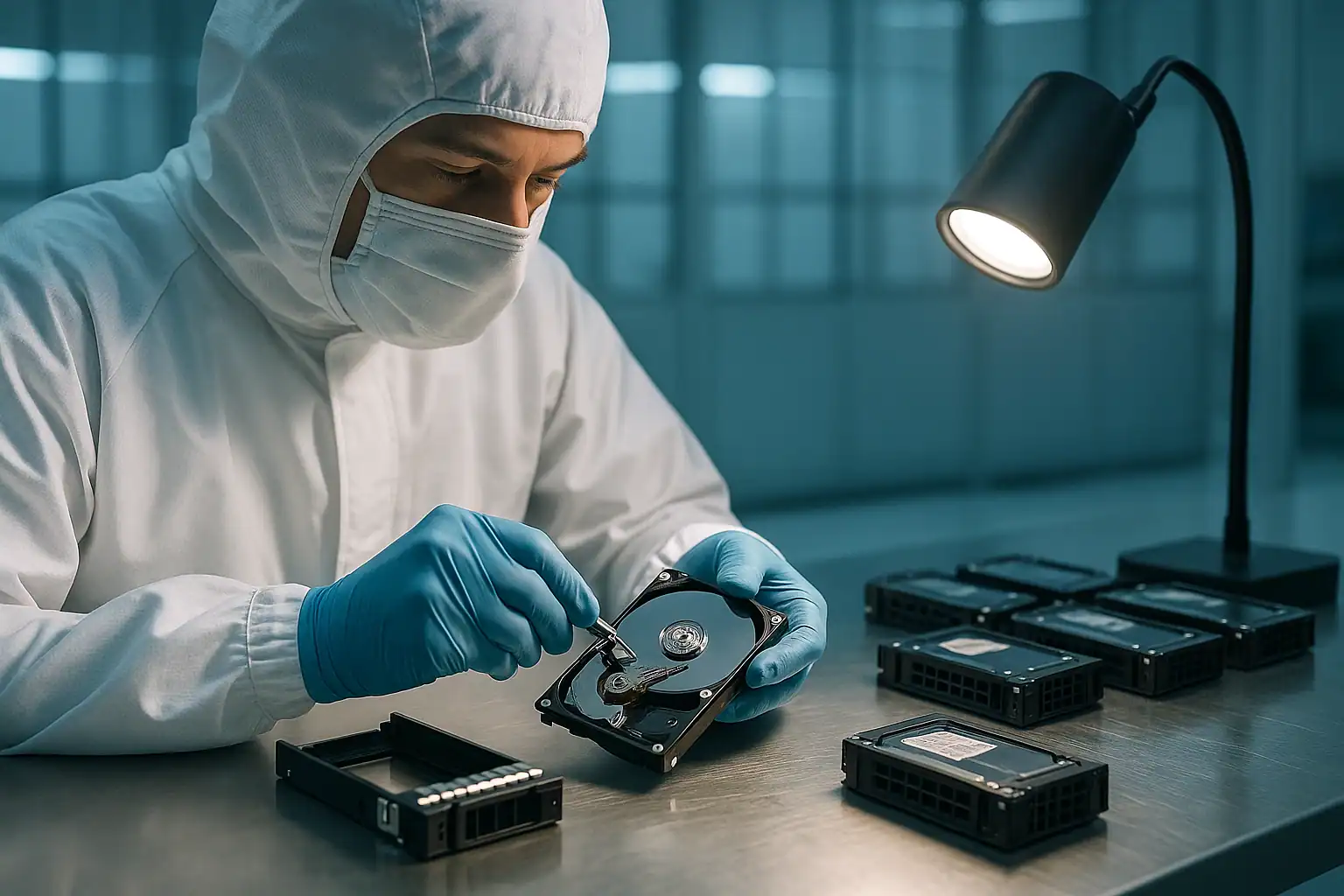
Dell PowerVault arrays are the direct-attached storage backbone of small and mid-sized business IT. A PowerEdge server with one or two PowerVault enclosures behind it is one of the most common storage architectures we see — and when the PowerVault fails, an entire business operation often stops with it. Production databases, file servers, virtualization datastores, backup repositories: all of it depends on whatever’s on those drives continuing to be reachable.
This page covers Dell PowerVault data recovery across the MD-series JBOD and RAID arrays we work on most often: MD3000, MD3200/MD3220, MD3400/MD3420, MD3600/MD3620, ME4012/ME4024, ME5012/ME5024, and the various MD1000/MD1200 expansion enclosures. PowerVault recovery is part of our broader Dell server data recovery services, alongside PowerEdge, EqualLogic, and Compellent platforms. PowerVault failures share recovery fundamentals with other Dell enterprise storage, but the dual-controller modular architecture introduces failure modes that don’t exist on simpler hardware. We’ll walk through what those failures look like, how to recognize them early, and what professional recovery can do when the standard Dell tooling has stopped working.
The PowerVault Failures We Recover Most Often
PowerVault failures cluster around a few recognizable patterns. Recognizing which one you’re looking at shapes the right next step.
Multiple drive failures in a RAID 5 or RAID 6
The most common single PowerVault recovery scenario. RAID 5 tolerates one drive failure, RAID 6 tolerates two — when more drives fail than the array can handle, the virtual disk goes offline. PowerVault MD3-series arrays running RAID 5 with 6-12 drives, deployed 6+ years ago, are at very high risk of this scenario because their drives age together and tend to start failing in clusters.
Controller module failure
PowerVault MD-series arrays use a dual-controller design — two controller modules in the same chassis, typically running active-active. When one controller fails, the surviving controller carries the load alone. When the second controller fails, the array goes dark. Single-controller deployments (some MD3000 and MD3200 configurations) have no redundancy at all.
We see controller failures present in several ways: the array reports a controller as “Failed” or “Not Optimal” in Modular Disk Storage Manager (MDSM), one controller’s status LED is amber while the other’s is green, the array fails over to the surviving controller but doesn’t fail back cleanly, or both controllers report errors and the array won’t initialize on power-up.
Failed rebuilds and punctured stripes
Same fundamental scenario as PowerEdge with PERC controllers: a drive fails, a rebuild starts, and during the rebuild surviving drives encounter unreadable sectors. The rebuild either fails outright or “completes” with punctures — stripes where the controller wrote zeros to preserve redundancy at the cost of permanently destroying data in those locations.
Backplane and SAS signal failures
Aging PowerVault backplanes can develop signal quality issues that cause drives to drop offline intermittently. The customer sees multiple drives reporting “Failed” simultaneously and reasonably suspects multi-drive failure — but the real cause is a deteriorating backplane producing intermittent reads. Replacing the supposedly-failed drives doesn’t fix the underlying issue.
Expansion enclosure cascading failures
PowerVault arrays often have one or more expansion enclosures (MD1200, MD1220, MD3060e) chained behind the main array via SAS. When an expansion enclosure loses power, an EMM (Enclosure Management Module) fails, or a SAS link between enclosures degrades, drives in the expansion shelves appear to fail en masse. The drives themselves are usually fine; the connectivity between enclosures has broken down.
Host connectivity failures
The PowerVault is healthy but the host PowerEdge server can’t see it. Could be a failed PERC H800/H810 host adapter, a damaged external SAS cable, a corrupted SAS topology in the host’s view, or a multipath driver issue on the OS side. Diagnostic clue: another host plugged into the same PowerVault sees it correctly.
Configuration loss after maintenance
The PowerVault is working, but after a controller replacement, a firmware update, or moving the array between hosts, the virtual disk configuration is no longer recognized. The drives are still there. The metadata that organized them into RAID arrays is what’s been disrupted.
Accidental virtual disk deletion
An administrator opens MDSM intending to manage one virtual disk and deletes another by mistake. The drives still hold the data — virtual disk deletion in MDSM removes the configuration, not the underlying drive contents — but the metadata that defined how those drives combined into the array is gone.
The PowerVault MD-Series Architecture and Why It Matters for Recovery
Unlike the simpler PERC-on-server architecture we cover for PowerEdge, PowerVault MD-series arrays are independent storage systems with their own controllers, their own firmware, and their own configuration metadata. Understanding that architecture helps explain why some recovery scenarios are straightforward and others require specialized work.
Each PowerVault MD3-series array contains two RAID-on-Chip (RoC) controllers, typically called Controller 0 and Controller 1, working in an active-active configuration. The controllers communicate with each other across a backplane interconnect to coordinate ownership of virtual disks. The host (a PowerEdge running PERC H800, H810, or similar external-SAS controller) sees the PowerVault through one or both controllers depending on the multipathing configuration.
The configuration metadata — which drives belong to which virtual disk, the RAID level, stripe size, and parity layout — is stored redundantly on the physical drives themselves, in dedicated metadata regions. This is a critical detail for recovery: even if both controllers fail catastrophically, the drives still contain enough information for the array to be reconstructed in software.
What this means in practice: PowerVault recovery often doesn’t require a working PowerVault chassis. We read the drives directly with the drives removed from the enclosure, reconstruct the array from the metadata on the drives, and extract data without depending on the original hardware to cooperate.
How Our PowerVault Recovery Process Works
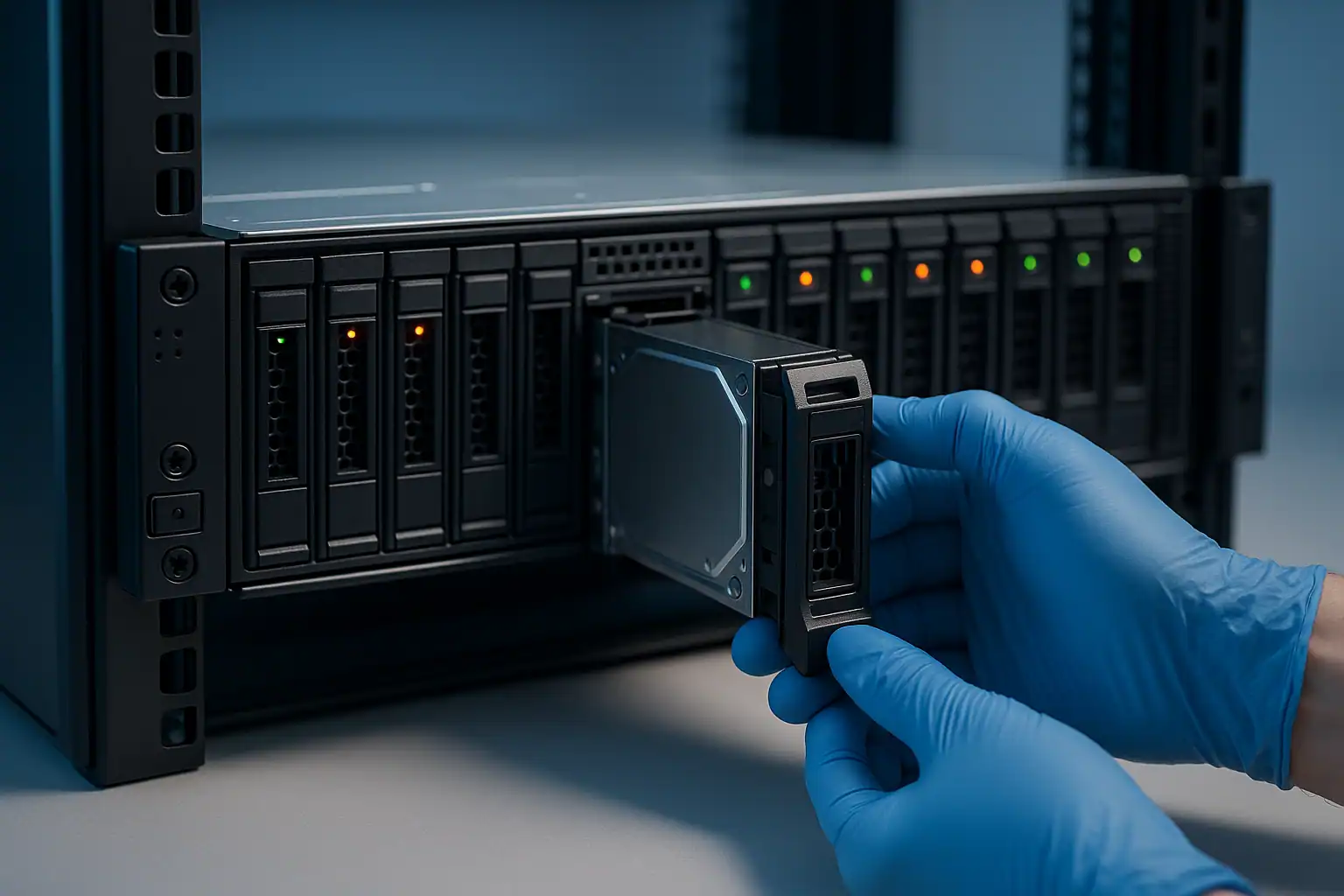
PowerVault recovery follows the same fundamentals as our other Dell storage work, with MD-series-specific tooling and process applied throughout.
1. Free consultation to scope the case. We need to understand the specific PowerVault configuration: which MD-series model, what RAID levels were configured, what controllers were in use, what expansion enclosures (if any) were attached, what failed and in what order, and what’s already been attempted. This determines the engagement structure. For larger PowerVault recoveries — multiple enclosures, dozens of drives, complex configurations — we provide a clear upfront quote based on projected engineering hours, machine hours, and data transfer time.
2. Temporary hardware repairs in our ISO 5 cleanroom. For drives with mechanical or electronic failures, our engineers perform temporary repairs — head transplants, PCB repairs, firmware adjustments — just long enough to make the drives readable. The drives don’t need to be restored to long-term function; they need to be readable long enough to image.
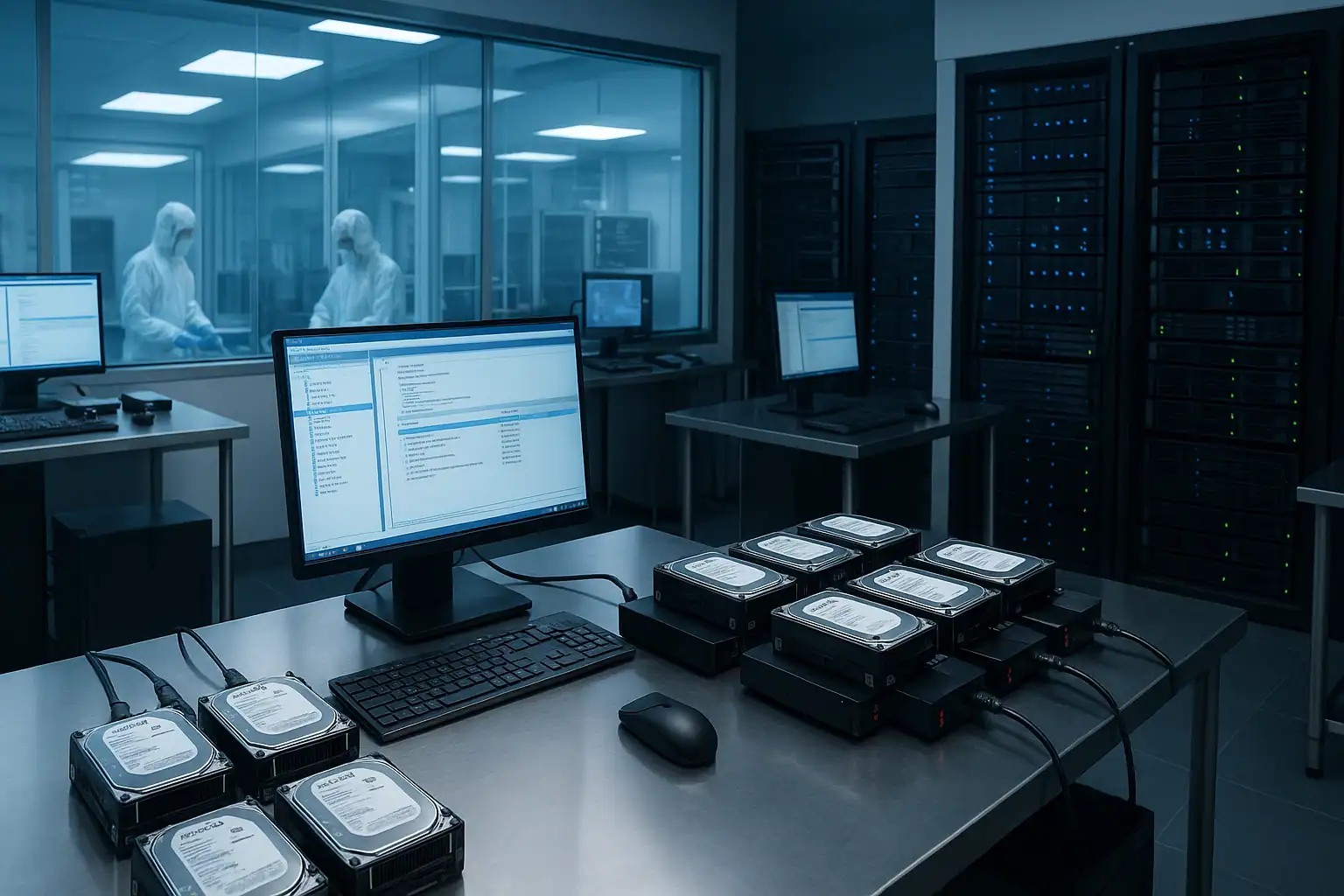
3. Write-blocked forensic imaging of every drive. Each drive in the array — including drives the PowerVault marked as failed — is connected through a hardware write-blocker and imaged bit-for-bit. The original drives are never written to. All subsequent recovery work happens against the images. If anything makes the situation worse, we roll back to the baseline images and try a different approach.
4. Array reconstruction with Hombre. Our proprietary tool, Hombre, performs the work of a PowerVault controller in software — reading the MD-series configuration metadata from the drive images, identifying stripe size, parity rotation, drive order, and offsets, and reconstructing the virtual disks even when:
- Both controllers are dead and the original chassis isn’t available
- The drives were extracted in unknown order and the original arrangement was never documented
- One or more drives are partially unreadable, leaving gaps that Hombre fills from parity where possible
- The configuration was deleted or partially corrupted
- The array spans multiple expansion enclosures and the topology has to be reconstructed
5. File system extraction. Once the array is reconstructed, Hombre parses the file system on top — NTFS, ReFS, ext4, XFS, VMFS, ZFS, or whatever the host server was running — and extracts individual files, virtual machine images, database tables, and mailboxes from the reconstructed volume.
What to Do Right Now If Your PowerVault Is Failing
The first hour of decisions often determines what’s recoverable. The actions that protect your data are mostly about not doing things:
Don’t initiate any rebuild on a degraded PowerVault array unless you’re confident every surviving drive is healthy. Rebuilds on aging arrays frequently fail or puncture stripes. Run SMART checks on every surviving drive before approving a rebuild. If any drive shows reallocated sectors climbing or pending sector counts, the rebuild is likely to make things worse.
Don’t accept any “Foreign” configuration prompts without thinking carefully. Same risk as PowerEdge PERC controllers — clearing a foreign configuration destroys the array’s metadata. When in doubt, leave the system at the prompt and contact us before making a choice.
Don’t update PowerVault firmware on a degraded array. Firmware updates write to controller metadata regions. On an array that’s already in a problematic state, updates can compound the issue or trigger additional failures. If you want to update firmware, do it before the failure — not during.
Don’t run host-level filesystem repair tools. Chkdsk, fsck, or ESXi datastore repair against a PowerVault-backed volume that’s having issues can permanently alter metadata that recovery depends on. Image the storage forensically before attempting any repair.
Don’t replace drives based on PowerVault LEDs alone. A failed LED indicates the controller has marked a drive bad — which might be accurate or might be the result of a backplane signal issue. Pulling and replacing the supposedly-failed drive on a backplane-issue scenario doesn’t fix anything and can move the array further from a recoverable state.
If drives are clicking, beeping, or grinding, power off the enclosure. Mechanical failures get worse with every minute of runtime, and the cooling and power dynamics inside a multi-drive enclosure can cascade one drive’s failure into others.
Document the configuration before intervening. Which drives were in which physical slots, what RAID levels were configured, which expansion enclosures were attached and in what order, what controllers were in which slots, the firmware versions in use, and the timeline of events that led to the failure. This information shortens diagnosis significantly.
PowerVault Models We Recover
The PowerVault customer base in active failure today spans roughly four generations of MD-series and ME-series arrays. For the most commonly failing models, we have dedicated recovery pages with model-specific error references and known failure patterns:
- PowerVault MD3200 / MD3220 Data Recovery — the small-business workhorse of the 2010-2016 era, dual-controller MD-series, MD3200 LFF and MD3220 SFF variants
- PowerVault MD3400 / MD3420 Data Recovery — successor generation, 12Gbps SAS, deployed 2014-2018, common in mid-market environments
Other PowerVault models we handle
We also recover from PowerVault models not yet covered by dedicated pages, including:
MD3000 series (2008-2012): MD3000, MD3000i (iSCSI variant), MD3000c — Dell’s first-generation MD-series arrays. Still in production at many small businesses.
MD3600 / MD3620 series (2012-2016): Mid-range MD arrays with native 6Gbps SAS host connectivity.
ME4012 / ME4024 series (2018-2022): The successor to the MD3-series line, supporting larger capacities and newer interconnects. Still under support but increasingly in our caseload as deployment ages.
ME5012 / ME5024 series (2021+): Current Dell entry/mid-market storage. Less common in our caseload by virtue of being newer.
MD1000 / MD1200 / MD1220 / MD3060e expansion enclosures: JBOD shelves attached to MD3-series arrays or directly to PowerEdge servers via PERC H800/H810. Recovery from expansion-enclosure-related failures is a common scenario in larger PowerVault deployments.
For PowerVault-related case studies, see our PowerVault RAID configuration recovery case study.
How PowerVault Recovery Pricing Works
PowerVault recovery pricing varies dramatically with the scope of work. A small MD3200 with a single failed drive in a RAID 1 is a very different job from a multi-enclosure MD3400 with a double-fault RAID 6 condition and 100TB of recovery target data. The work scales with drive count, capacity, complexity of the configuration, condition of the drives, and time-sensitivity.
Every engagement starts with a free consultation. We use that conversation to scope the work and provide a clear upfront quote before any recovery work begins. The consultation is never billed. For cases that aren’t feasible, we tell you honestly during the consultation rather than billing for work that can’t succeed.
Frequently Asked Questions
Can you recover from a PowerVault where both controllers have failed?
Yes. The controllers are independent of the data on the drives. We read the drives directly without depending on the controllers, then reconstruct the array in software using the metadata still present on the drives themselves. The controllers becoming inoperable doesn’t make the data unrecoverable.
What about a PowerVault that’s been quick-formatted or had its configuration cleared?
Often recoverable. Quick formats and configuration clears at the array level don’t immediately erase the underlying drive contents — they invalidate the metadata that organized those contents into a recognizable structure. The data persists until something writes over it. The faster we can image the drives after the event, the more we can recover.
What if my PowerVault is connected to a PowerEdge server that also failed?
We handle both. PowerEdge server failures and PowerVault array failures are independent storage layers — we can recover from one without the other. For PowerEdge-side issues, see our PowerEdge data recovery page.
Do I need to ship the entire PowerVault chassis, or just the drives?
Usually just the drives. The metadata needed for reconstruction lives on the drives themselves, not in the chassis. We provide guidance on safely packaging drives and the documentation needed to identify drive positions for reconstruction. For some specialized cases (failed controllers with non-standard firmware, unusual chassis configurations), we may ask for the chassis as well.
What about PowerVault arrays with self-encrypting drives (SEDs)?
Recoverable when we have the encryption keys. PowerVault arrays that used PERC-managed encryption or Dell’s Local Key Management have keys stored in the array or on a key management server. With keys available, recovery proceeds normally. Without keys, encrypted data is mathematically inaccessible — that’s the design of SED.
How long does PowerVault recovery typically take?
For straightforward cases on smaller arrays, days. For complex cases on large arrays with multiple failures and physical damage, weeks. Our expedited service tier compresses these timelines significantly for time-critical cases. The consultation will give you a realistic estimate based on your specific situation.
What if my PowerVault has been running degraded for months?
Common scenario, and usually still recoverable. The longer an array runs degraded, the higher the risk that additional drives will fail before recovery can happen — so the right move is to image the array now while it’s still partially functional, rather than continuing to run it until something else fails. Coming to us with a degraded-but-still-running array gives us much more material to work with than coming to us with a fully-failed one.
Start Your Free PowerVault Recovery Consultation
If your Dell PowerVault is down — failed RAID, controller errors, multiple drive failures, expansion enclosure issues, or anything else — get a free consultation with our server team. We’ll walk through your specific configuration and tell you what’s possible.
Free consultation · Clear upfront pricing · ISO 5 cleanroom recovery
Or call 1-877-624-7206 to speak with our server team directly