
The virtualization host stopped responding overnight. When it came back, the guest that ran the accounting department mounts, boots partway, and hangs. Or the VM’s disk chain is broken because someone deleted what looked like a stale AVHDX file. Or the whole cluster came back from a power event with several VHDX files that Windows will now open and read, but the guest filesystems inside them are somewhere between “checkdisk on boot” and “not a valid volume.” Or an intruder hit the host directly, encrypted every VHDX in place, and moved on.
Hyper-V data loss is rarely one problem. It’s usually three problems stacked, because Hyper-V storage is three problems stacked by design — the host’s own file system, the VHDX container that lives on top of it, and the guest file system that lives inside that. A failure at any one layer can look, on the surface, like a failure at any of the others. That’s what makes Hyper-V recovery different from recovering a physical Windows machine, and it’s why the tools that fix a broken NTFS volume on bare metal can quietly make a broken VM permanently unrecoverable.
This page walks through how the VHDX container actually works, the small set of self-inflicted disasters we see most often, and what recovery looks like when a virtualization host has failed in a way the built-in tools can’t undo.
The three layers of a Hyper-V failure
When a Hyper-V guest won’t boot, the interesting question is which layer the failure lives on.
The host storage. The physical storage that holds the VHDX files — a local RAID array, a SAN LUN, a Storage Spaces pool, a Cluster Shared Volume, or a plain NTFS or ReFS volume on the hypervisor itself. If this fails — a failed disk in a degraded array, a corrupted CSV, a Storage Spaces column offline — the VHDX files may be intact but unreachable, or they may be present but partially damaged. This is a RAID or Windows filesystem problem first; the fact that the volume happens to hold virtual machines is incidental to the recovery approach.
The VHDX container. The virtual disk file itself. VHDX is a structured file format with its own headers, its own metadata region, its own block allocation table, and its own internal log. When the container’s metadata is damaged — usually because writes were interrupted or because the file was truncated — Hyper-V will refuse to open the disk, or open it and expose garbage. This is a container-format problem, and it doesn’t matter what file system is inside; the recovery happens at the VHDX layer.
The guest file system. Whatever runs inside the VHDX — NTFS, ReFS, ext4, XFS, sometimes a nested VHDX. Even with a perfectly intact container, the guest file system inside can be corrupted the same way any physical file system corrupts: interrupted writes, journal damage, MFT damage, dirty shutdown. Recovery here looks like a normal file system recovery, just performed against a virtual disk instead of a physical one.
The reason this matters: repair tools that are safe at one layer are actively dangerous at another. Running chkdsk against a mounted guest volume can make sense; running it against a VHDX that Hyper-V won’t mount because the container itself is damaged is a good way to destroy the container. The first step in any real recovery is figuring out where the damage actually lives.
Inside a VHDX file
VHDX is Microsoft’s second-generation virtual disk format, introduced with Windows Server 2012 and now the default for Hyper-V. The internals are worth understanding, because almost every non-trivial recovery starts by parsing them by hand.
A VHDX file begins with a file identifier and then a pair of headers. Only one header is active at a time; the other is the previous version, kept for atomic updates. Both headers carry a sequence number, and Hyper-V picks the higher one on open. This is the same “dual superblock” idea used by other modern filesystems, and when the active header is bad but the alternate is still consistent, recovery is often just a matter of parsing the alternate and reading the file with it.
After the headers comes the metadata region, which holds the disk’s logical geometry, sector size, physical sector size, virtual disk type, and — for dynamic and differencing disks — the size and layout of the block allocation table.
The Block Allocation Table, or BAT, is the structure we spend the most time on. It’s a flat array of 64-bit entries, one for each fixed-size block of the virtual disk, and each entry either points to the offset in the VHDX file where that block’s data lives, marks the block as zero, or marks it as unallocated. The BAT is, effectively, the MFT of the container — the map that tells Hyper-V where every piece of the virtual disk actually sits inside the file. A damaged or truncated BAT looks, from the guest’s point of view, like large chunks of the virtual disk have been randomly zeroed or replaced with unrelated data. Guest file system tools have no way to reason about this; they’ll try to “repair” what they see, and they’ll rewrite metadata based on garbage.
Between metadata and BAT sits the log region. VHDX carries its own write-ahead log for metadata changes, which is why the format survives most host power losses cleanly — on next mount, Hyper-V replays the log and the container is consistent again. Almost every VHDX corruption case we see with the log region intact is recoverable at the container layer without heroics; almost every case where the log itself is damaged requires manual parsing.
VHDX comes in three flavors, and the flavor changes the recovery approach.
Fixed disks are allocated in full at creation. The virtual disk’s bytes live at fixed offsets inside the file. Corruption of the container metadata is comparatively easy to recover from, because we can often read the guest data even without a valid BAT — the layout is known.
Dynamic disks grow on demand. The BAT is essential; without it, the file is an unmapped pile of blocks. A dynamic VHDX with a damaged BAT is where most of our container-level work happens.
Differencing disks contain only the blocks that have changed relative to a parent VHDX. They’re used everywhere in production — checkpoint files are differencing disks, and Microsoft’s own Virtual Machine Manager creates them for template-based deployment. A differencing disk in isolation is meaningless data; it’s only interpretable against its parent.
The last point is what makes checkpoint chains the single biggest source of self-inflicted VHDX disasters we see.
Checkpoint chains, AVHDX files, and how to break them
A Hyper-V checkpoint isn’t a snapshot in the storage-array sense. It’s a mechanical operation: Hyper-V freezes writes to the current VHDX, marks it read-only, creates a new differencing disk that points at the frozen one as its parent, and points the running VM at the new disk. All subsequent writes go to the new file — the AVHDX — while the original VHDX is preserved unchanged. Take another checkpoint and the pattern repeats: the current AVHDX becomes read-only and a new AVHDX is spawned on top of it. A long-running VM with a checkpoint policy can accumulate dozens of these files, and every one of them is a differencing disk whose usefulness depends entirely on every parent above it in the chain remaining intact.
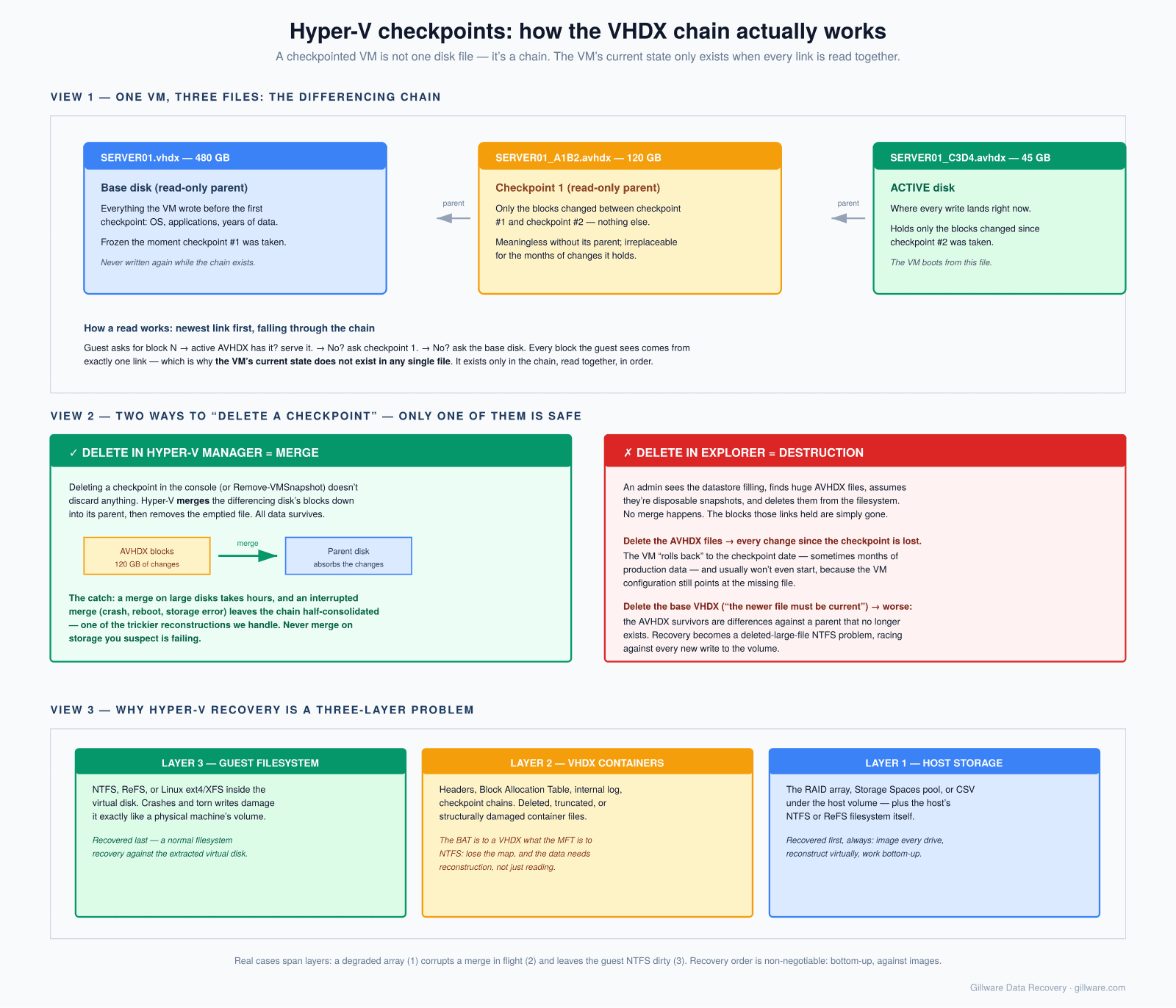
There are two ways this goes wrong, and we see both every month.
The first is manual deletion of AVHDX files. An administrator sees a VM directory cluttered with .avhdx files, notices that the VM appears to run fine, and decides to clean up what looks like disk debris. Deleting an AVHDX file through Explorer is not the same operation as deleting a checkpoint through the Hyper-V console. When the console deletes a checkpoint, it starts a merge — the differencing disk’s changes are written down into its parent, and only after the merge completes is the file removed. When Explorer deletes the same file, nothing merges. The next time the VM tries to start, Hyper-V looks for the differencing disk that the configuration references, doesn’t find it, and refuses to start the guest. If the deleted AVHDX was the current top of the chain, every write from the last checkpoint forward is gone. If it was mid-chain, the entire branch above it is now uninterpretable.
The second is the interrupted merge. A checkpoint delete kicks off a merge, the merge runs for hours because the differencing disk is large, and something interrupts it — a host reboot, a storage timeout, a network hiccup on the CSV, an administrator who cancels the operation because it “looks stuck.” The parent VHDX is now in a partially-merged state, the differencing disk has been partially consumed but not deleted, and Hyper-V may or may not be able to figure out how to recover. In the worst cases the parent is left with a mixture of pre-merge and post-merge blocks, and every subsequent attempt to open the VM writes further damage.
Recovery from either scenario is a container-layer job. We parse the entire chain — every VHDX and AVHDX — reconstruct the differencing relationships from the metadata regions of each file, and rebuild the composite view the running guest would have seen. In the interrupted-merge case we identify which blocks live in the parent and which still live in the child, and we reconstruct the pre-merge state so the guest file system is consistent. Only after the container-layer view is coherent do we start looking at the guest file system.
There is one prevention rule we would ask every Hyper-V administrator to internalize: never delete an AVHDX file from Explorer, or from PowerShell’s Remove-Item, ever. Checkpoint management belongs in Hyper-V’s own tooling. If a VM has stale checkpoints, remove them through the console or through Remove-VMSnapshot and let the merge complete before touching anything.
Ransomware and the hypervisor as a target
The pattern has been consistent for the last several years: modern ransomware crews target the hypervisor, not the guests. Encrypting a hundred Windows VMs inside their own guest file systems is slow and noisy. Encrypting the underlying VHDX files on the host is fast, quiet, and takes every VM in the environment down at once. If the host is also running the backup software, or if the backup repository is a share the host can reach, those files get encrypted too.
What arrives at our lab in these cases is usually a host with intact but encrypted VHDX files, and a set of backups that are either encrypted, deleted, or truncated. The recovery approach is not decryption — no data recovery lab is decrypting modern ransomware without the attacker’s key, and any provider that claims otherwise is not being honest about what they do. The recovery approach is scanning the free space of the host’s underlying storage for the surviving fragments of the VHDX files that existed before encryption, and for the fragments of any backup files or shadow copies the attacker deleted or truncated. Modern host filesystems don’t overwrite most of that data immediately; a large fraction of it is still on the drive as unallocated blocks, waiting to be found. We’ve built our recovery process around finding it. For a deeper look at how we handle these cases, see our ransomware data recovery page.
What Hyper-V recovery actually looks like at Gillware
When a virtualization host arrives here, the first thing that happens is a forensic image of every drive in the array — before we mount anything, before we power the host up in a normal way, before any repair tool has a chance to run. Everything else in the recovery happens against those images.
From there we work top-down through the three layers. The physical storage is reconstructed if the underlying RAID, Storage Spaces pool, or CSV was damaged. The VHDX files are extracted or reassembled from the reconstructed volume. The container metadata for each VHDX is parsed by hand; damaged headers are recovered from the alternate copy, damaged BATs are rebuilt from the log region and from structural signatures inside the file, differencing chains are reassembled and merged forward or back to whichever point produces a coherent view. Only then do we treat the resulting virtual disk as a normal disk and hand it to the file system recovery workflow — the same workflow that would run against a physical NTFS, ReFS, or Linux volume of the same shape.
That’s why Hyper-V recovery is inseparable from the rest of the Windows data recovery cluster on this site. The guest file system work draws on the same tooling as our NTFS and ReFS recovery workflows. The host storage work draws on our RAID data recovery infrastructure. If the host was running VMware rather than Hyper-V, the shape is the same. And when Hyper-V is hosting Exchange Server, our Exchange Server recovery workflow picks up once the VHDX is coherent and the guest volume is mountable.
When to send a host to us
The clearer the sooner. There are a few situations where the right move is to stop and pick up the phone before doing anything else:
- Any VM that mounts but shows a guest file system Windows or Linux won’t accept — do not run in-guest repair tools, and do not run host-side repair against the VHDX.
- Any checkpoint chain where an AVHDX file has been deleted through Explorer, PowerShell, or any other tool that is not Hyper-V’s own snapshot management.
- Any merge that was interrupted and left the VM unbootable — every additional start attempt writes more damage into the parent.
- Any host that has failed with more than one physical disk in a degraded state, whether on local RAID, Storage Spaces, or a SAN LUN.
- Any hypervisor that has been hit by ransomware, particularly where the backups are also inaccessible.
Cases in these categories are handled under our complex-case engagement terms. Every case starts with a no-cost evaluation — the host or a forensic image of it comes in, we scope the recovery, and you get a firm quote before any work is authorized. If we don’t recover data, there’s no charge for the attempt. Gillware has been recovering data from virtualized Windows environments for more than two decades, from the earliest Virtual Server VHD files through the modern VHDX and clustered deployments that live in most environments today.
Hyper-V host down or a VHDX that won’t mount?
Get a no-cost evaluation from Gillware’s engineers. Call 877-624-7206 or start a case online.