
A laptop that will not boot is a different problem from a desktop that will not boot. The storage inside is smaller, runs hotter, gets carried around, and in many newer machines cannot be removed at all. When a laptop dies, the question is rarely “can the laptop be fixed” — it is “can the data come off the drive.” That is the question this page answers.
Gillware has recovered data from laptop drives for more than two decades: spinning 2.5-inch hard drives, SATA and NVMe M.2 SSDs, and storage soldered directly to the motherboard. This page explains what is inside your laptop, why it fails, what to do right now, and how a professional hard drive data recovery lab approaches each type.
What kind of storage is inside your laptop?
Laptop recovery starts with identifying the drive, because the recovery method depends on it. There are four common cases.
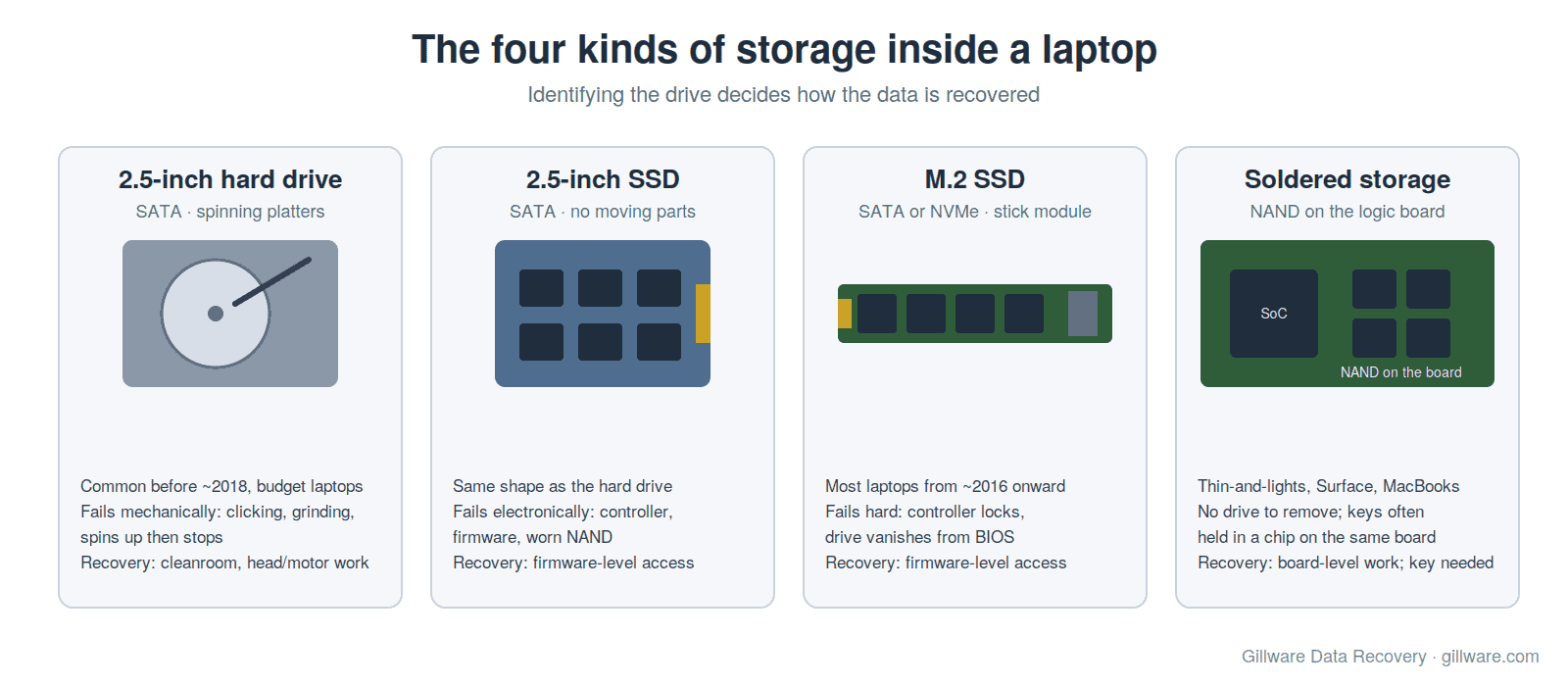
2.5-inch hard drive (SATA)
Standard in most Windows laptops built before roughly 2018 and still common in budget machines. It is a miniature spinning hard drive: platters, a spindle motor, and read/write heads that float a few nanometers above the surface. Mechanical failure — clicking, grinding, a drive that spins up and stops — means the heads or motor have failed and the drive needs a cleanroom.
2.5-inch SSD (SATA)
Same physical shape, no moving parts. Failures are electronic: a controller that stops responding, firmware that corrupts, or NAND flash that has worn out. The drive may show up with the wrong capacity, appear as a generic name in the BIOS, or vanish entirely.
M.2 SSD (SATA or NVMe)
The small stick-of-gum module found in most laptops from about 2016 onward. NVMe drives are fast and dense, and when they fail they usually fail hard: the controller locks up and the drive becomes invisible to the system. Recovery is firmware-level work, and the approach is covered in detail on our SSD data recovery page.
Soldered storage
Thin-and-light laptops, many Microsoft Surface models, and every modern Apple MacBook solder the flash memory directly to the logic board. There is no drive to remove. Recovery means working at the board level, and on some platforms the data is encrypted with keys held in a chip on the same board. For MacBooks specifically, see our MacBook data recovery page, which covers the T2 and Apple silicon cases in depth.
Why laptop drives fail differently
Laptops live harder lives than desktops, and their storage fails for reasons that desktop drives rarely see.
- Drops and impacts while running. A desktop drive is stationary. A laptop drive gets knocked off a table while its heads are moving. On a spinning drive that can leave head damage and scratched platters; a laptop that was dropped and now clicks should not be powered on again.
- Heat. Laptop drives sit millimeters from a CPU and a battery, in a chassis with limited airflow. Sustained heat shortens the life of both spinning drives and NAND flash.
- Liquid. Coffee and water go through the keyboard and onto the motherboard. The drive itself often survives, but the board that powers it does not, and the owner cannot tell which one failed.
- Battery and charging events. A failing battery or a bad charger can cause repeated abrupt power loss during writes, which corrupts SSD firmware tables and file systems over time.
- Wear. Consumer NAND has a finite write life. A five-year-old laptop SSD that has been used as a primary work machine is well into it.
Signs the drive has failed
- The laptop powers on but stops at a black screen or a message such as No bootable device, Boot device not found, Operating system not found, or a manufacturer error code.
- Clicking, ticking, or grinding from the drive area (spinning drives only).
- The drive is not detected in the BIOS or UEFI setup at all.
- Windows boots but freezes for long stretches, or files take minutes to open. This is a drive struggling with read errors, and it is getting worse each time it runs.
- A BitLocker recovery screen appears unexpectedly at startup.
- The drive is detected but reports the wrong size (often 0 bytes or a tiny fraction of its real capacity) — a classic SSD controller or firmware failure.
If the drive is detected but the laptop cannot see your files, our article on a laptop hard drive that is not detected walks through the triage.
What to do right now (and what not to do)
The single most important rule: the fewer times a failing drive is powered on, the more data comes back. Every additional attempt to boot a drive with failing heads or failing NAND destroys data that was recoverable a minute earlier.
- Do not keep rebooting. One failed boot is diagnostic. Ten is damage.
- Do not run disk-check or “startup repair” tools on a drive that is making noise or freezing. Those tools write to the drive, and writing to a failing drive is how partially recoverable cases become unrecoverable ones.
- Do not put the drive in the freezer. This is old advice that never worked on modern drives and introduces condensation onto the platters.
- Do not open the drive. A spinning drive opened outside a cleanroom picks up dust that destroys the platter surface within minutes of spinning.
- Do not attempt to clone a clicking drive yourself. Imaging a failing drive safely requires hardware that manages read timeouts and head behavior; a consumer clone attempt hammers the same bad sectors until the heads fail completely.
- Do remove the drive from the laptop if it is removable and you are comfortable doing so — a 2.5-inch drive or M.2 stick can be sent to us on its own. If the storage is soldered, or you are unsure, send the whole laptop. We would rather receive an intact machine than a board damaged in disassembly.
Encrypted laptops: BitLocker and what to have ready
Most business laptops, and an increasing number of consumer Windows machines, ship with BitLocker enabled by default. Encryption is not the failure, and it does not prevent recovery of the underlying hardware — but it does mean that once we have imaged your drive, the data is still locked until it is unlocked with your key.
Before you send a Windows laptop, locate your BitLocker recovery key. For personal machines it is usually stored in your Microsoft account at account.microsoft.com under Devices; for work machines it is held by your IT department in Active Directory or Intune. If you have the key, recovery proceeds normally. If the key is gone and the laptop’s TPM is what held it, the situation is more serious; our Surface data recovery page describes that scenario, which applies to any TPM-bound BitLocker volume.
How Gillware recovers laptop data
Every case begins with a free evaluation. You send the drive or the laptop, we diagnose the failure, and you receive a firm quote before any billable work starts. You pay only if we recover your data.
- Diagnosis. We identify the storage type and the failure mode: mechanical, electronic, firmware, or logical.
- Stabilize and image. For spinning drives with mechanical failure, our ISO 5 Class 10 cleanroom engineers replace the failed heads or motor with donor parts and then image the platters sector by sector with hardware that adapts to bad areas rather than pounding on them. For SSDs, our engineers work at the firmware level to bring the controller back to a state where the NAND can be read, or read the NAND directly when the controller cannot be revived.
- Soldered storage. On board-level cases we work on the logic board itself, repairing the power path where liquid or a surge has damaged it, or removing and reading the flash chips directly where the platform allows it.
- Rebuild the file system. With a complete image in hand, we reconstruct the partition and file system and verify the files you told us matter most.
- Delivery. Your data is returned on a new drive, along with a file listing you can review before approving the case.
Laptop drives are small, but they are not simple. Two-platter 2.5-inch drives with high-density heads, NVMe controllers with proprietary firmware, and soldered flash all require tooling and experience a general computer shop does not have. That experience is what you are paying for.
Laptop data recovery by manufacturer
The failure patterns above apply to every brand, but manufacturers make different storage choices and produce different error codes. We maintain brand-specific pages for the machines we see most often:
- Dell laptops and desktops — Inspiron, Latitude, XPS, Precision; PSA and ePSA error codes 2000-0141 and 2000-0142.
- HP — Pavilion, Envy, EliteBook, ProBook; “Boot Device Not Found” and SMART hard disk errors.
- Lenovo — ThinkPad, IdeaPad, Yoga; “No operating system found” and drives not detected after a BIOS update.
- ASUS and Acer — frequently M.2 NVMe; controller failures that make the drive disappear from the BIOS.
- Microsoft Surface — soldered storage and TPM-bound BitLocker.
- Apple MacBook — soldered SSDs, T2 and Apple silicon encryption, liquid damage.
Get your laptop data back
If your laptop will not boot, is clicking, has been dropped or spilled on, or is showing a drive error you do not recognize, stop powering it on and get it evaluated. The evaluation is free, the quote is firm before any work begins, and you only pay if we recover your data.
Call 877-624-7206 or submit a case online and we will send you shipping instructions for the drive or the whole laptop.