
Signs of SSD Failure: Symptoms That Mean Back Up Now and Symptoms That Mean Stop Powering It On

Hard drives usually warn you before they fail. They click, grind, slow to a crawl or throw read errors for weeks. SSDs often don’t. A solid-state drive can work perfectly on Monday and be gone on Tuesday, or quietly switch itself into a mode where you can read your files but not save anything new. Knowing the real signs of SSD failure matters because they come in two very different groups. Some mean “back up today while the drive still works.” Others mean “stop powering it on, because every start-up can make recovery harder.”
Seeing signs your SSD is failing?
If the drive holds files you can’t lose and it has gone read-only, vanished or shows the wrong size, power it off. Our engineers will diagnose it for free.
This guide explains why SSDs fail differently from hard drives, which symptoms put you in each group, which “signs” are myths, how to check an SSD’s health without making things worse, and what to do in the first hour once you suspect the drive is going.
Why SSDs Fail Differently From Hard Drives
A hard drive stores data on spinning platters and reads it with heads that float a hair’s width above the surface. When it starts to fail, the trouble is usually mechanical and gradual, and you can often hear it. Our guide to the signs a hard drive is failing covers those warnings.
An SSD has no moving parts. Your files live in NAND flash memory chips, and a small processor called the controller sits between those chips and your computer. The computer never talks to the flash directly. It asks the controller for a file, and the controller looks up where that file actually lives in a constantly changing internal map, often called the mapping table or flash translation layer. The controller spreads writes across the chips on purpose so they wear evenly, moves data around in the background, and retires worn-out blocks as it goes.
That design is why SSDs are fast. It is also why they can fail without warning. If the controller’s firmware hits a bug, or the mapping table is damaged (a sudden power loss on a drive without power-loss protection is a common trigger), the controller can no longer find anything. The data may still be sitting in the flash chips, but the drive has lost its own index to it. From the outside, the SSD simply disappears, locks up or reports something strange about itself.
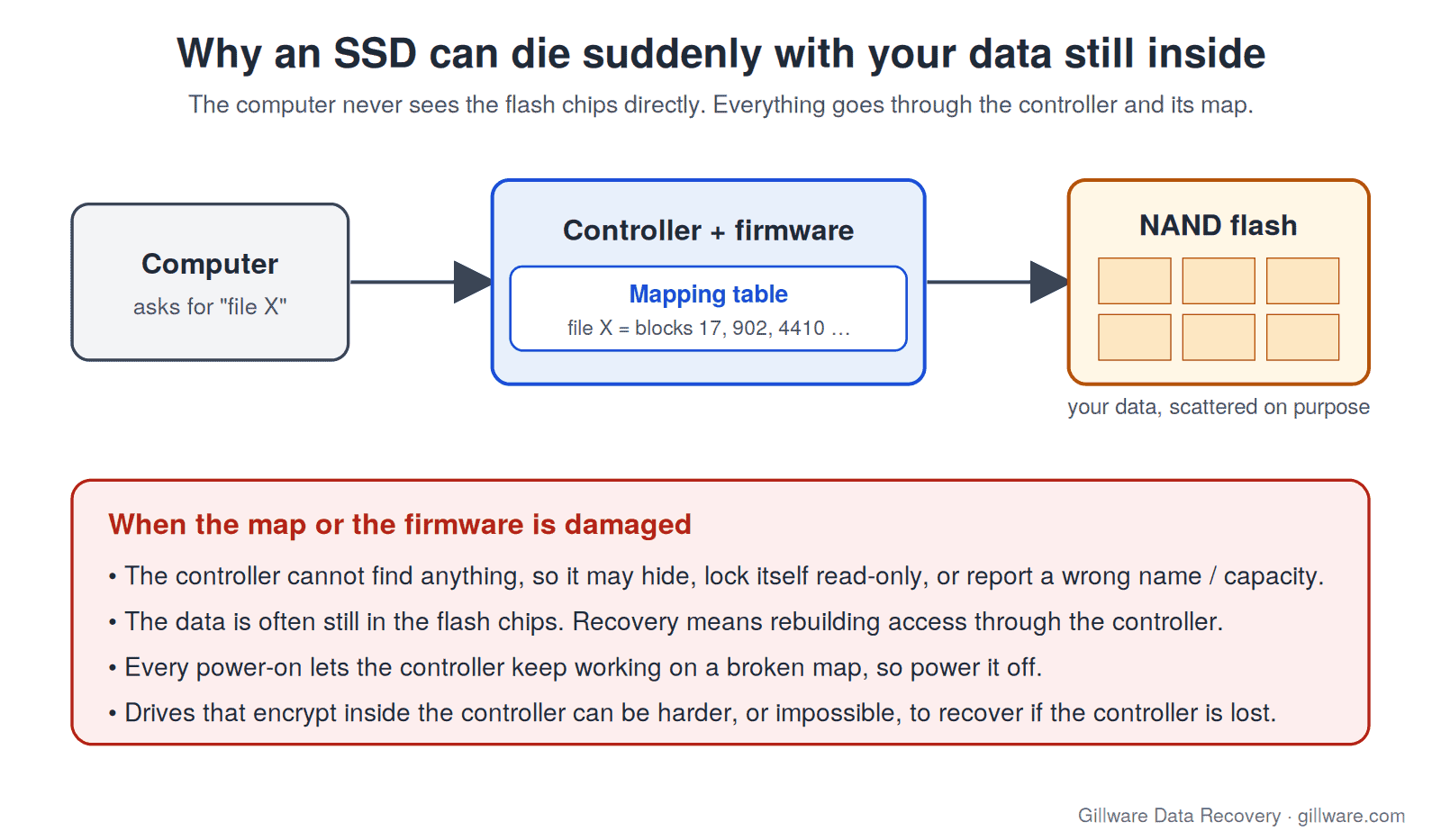
The most common SSD failures we see are exactly this kind: firmware and mapping-table corruption, not worn-out flash. The second most common is a reformatted or deleted SSD, where a feature called TRIM is actively erasing the data in the background (more on that below).
Two Kinds of Signs: Back Up Now, or Stop Powering It On
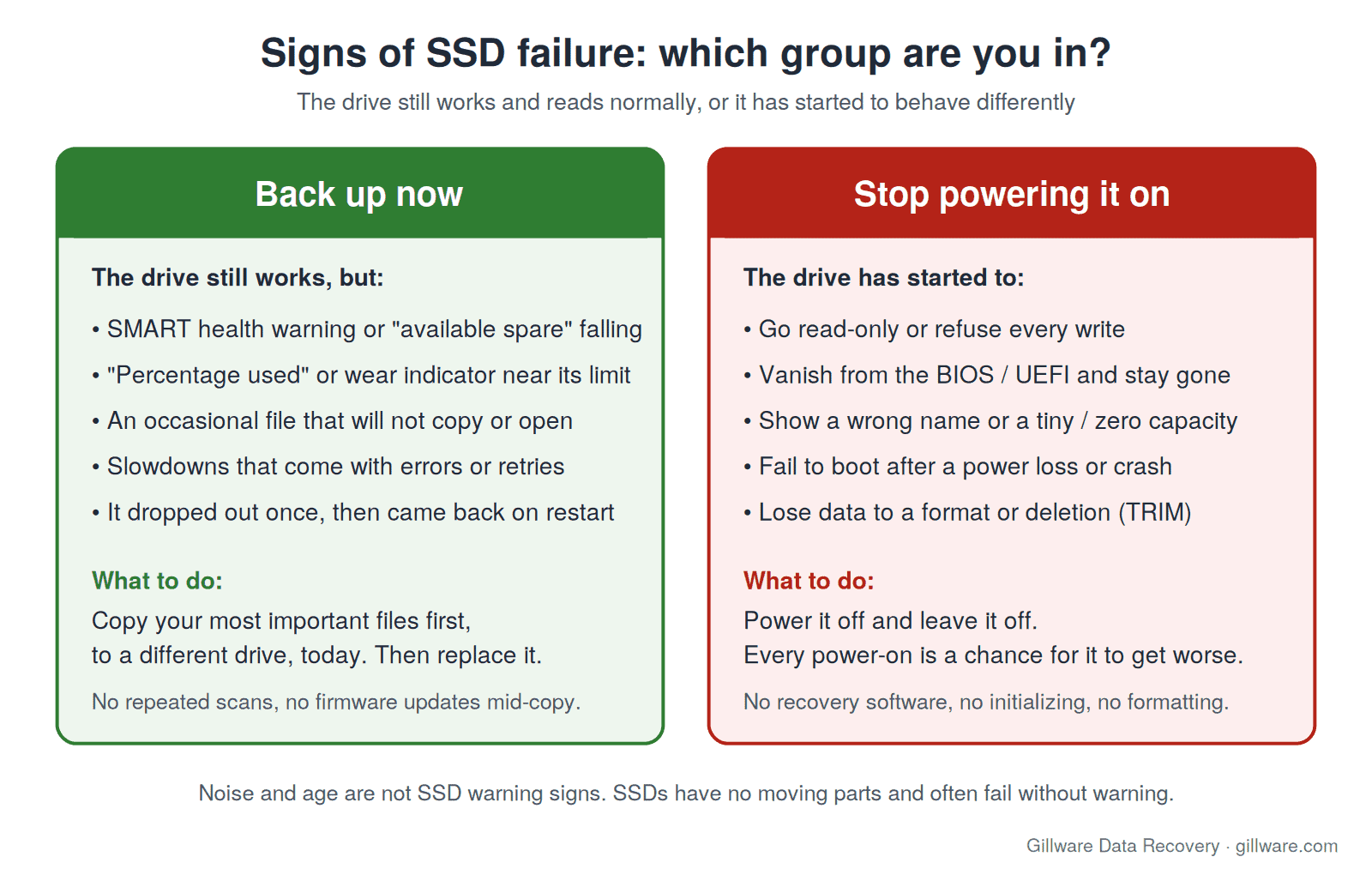
The single most useful thing you can do is decide which group your symptoms fall into. If the drive still reads normally and the warning signs are early, the right move is to copy your important files off it today. If the drive has started behaving differently, every power-on is a risk, and the right move is to turn it off.
Signs That Mean “Back Up Now”
These are the warnings you are lucky to get. The drive still works, which means you can still copy files off it normally. Do that first, before you troubleshoot anything else.
A SMART health warning
SSDs keep internal health statistics called SMART data. On NVMe drives, the fields that matter most are Available Spare (the reserve of fresh blocks the controller uses to replace worn ones), Percentage Used (the drive’s own estimate of how much of its rated endurance has been consumed), Media and Data Integrity Errors, and the Critical Warning flag. SATA SSDs report similar values under different names, such as reallocated or retired blocks, wear leveling count and uncorrectable errors. A falling spare count, a rising error count or any critical warning is a reason to back up today.
The wear indicator is near its limit
Every SSD is rated to absorb a certain amount of writing over its life, usually expressed as terabytes written (TBW). Most people never come close, but drives used for video editing, databases, virtual machines or constant downloads can. When “Percentage Used” approaches 100 percent, the drive isn’t guaranteed to die, but it is past what its maker promised. Plan the replacement now, while copying is easy.
An occasional file that won’t copy or open
One file that fails with a read error, a photo that opens half grey, or a copy that stalls at the same file every time can mean the controller is struggling to read some blocks. On an SSD this is worth taking seriously, because the controller’s error correction hides problems until it can’t anymore. Copy your most important files first, not the whole drive in folder order.
Slowdowns that come with errors
Slowness on its own is rarely a failure sign (see the myths below). Slowness that comes with freezes, error messages, retries in the middle of a copy or the system hanging when you open certain folders is different. That pattern can mean the controller is retrying reads over and over.
It dropped out once, then came back
An SSD that vanished after sleep or under heavy load, then reappeared after a restart, may have a controller or power fault that is getting worse. Treat the next disappearance as possibly the last one, and get your files off while it is visible.
Drive already read-only, missing or showing the wrong size? Power it off and talk to an engineer before trying anything else.
Signs That Mean “Stop Powering It On”
These symptoms mean the drive has moved past early warnings. Continuing to use it, troubleshoot it or run software on it can turn a recoverable problem into an unrecoverable one.
The drive has gone read-only
Many SSD controllers deliberately switch into a read-only mode when they run out of spare blocks or detect a serious internal problem. You will see errors that the disk is write-protected, saves that fail, or an operating system that boots but can’t update anything. Read-only mode is the controller protecting what it still has. If you can still see your files, copy the critical ones off once, carefully, and then stop. Do not try to “fix” write protection with disk utilities or firmware tools.
It has vanished from the BIOS or UEFI and stays gone
If the computer’s firmware setup screen no longer lists the drive at all, the controller is not starting or not answering. On a drive that held data, that is a firmware, controller or power fault until proven otherwise. Our guide to an SSD not showing up walks through where a drive can disappear and what each level means.
It shows the wrong name or a tiny capacity
An SSD that suddenly identifies itself with a generic or factory name, or reports a capacity of a few megabytes or zero, has usually dropped into a firmware safe mode because it can’t load its own configuration. Two well-known examples are drives that appear as SATAFIRM S11 and the Intel 320 “8MB” bug. The data is often still in the flash. Initializing or formatting the drive in this state writes to it, which can destroy what a recovery would need.
It won’t boot after a power loss or crash
Sudden power loss is one of the most common triggers for mapping-table corruption. If the computer lost power, blue-screened or was forced off and the SSD now won’t boot, won’t mount, or shows up as RAW or unformatted, don’t let the operating system “repair” the volume and don’t reinstall onto the drive.
The files were deleted or the drive was reformatted
This is the one situation where the drive itself may be perfectly healthy and the data is still at risk. When files are deleted or a drive is formatted, the operating system sends a TRIM command telling the SSD which blocks are no longer needed. The controller is then free to erase those blocks in the background, often within minutes. Unlike a hard drive, an SSD doesn’t leave deleted data sitting around waiting to be overwritten. Power it off immediately, and don’t run recovery software on it. Every minute it stays powered gives the controller more time to erase.
What Is Not a Sign of SSD Failure
A lot of advice online borrows hard drive symptoms that don’t apply to SSDs.
- Clicking, grinding or buzzing. SSDs have no moving parts, so they don’t make mechanical noise. If you hear clicking from inside a computer, it is coming from a hard drive or a fan. Our page on a clicking hard drive covers that case.
- Slowness alone. A nearly full SSD, a heavy background update, an old operating system or thermal throttling on a hot laptop can all slow things down without anything being wrong with the drive. Slowness matters when it comes with errors or freezes.
- Age alone. SSDs don’t wear out by sitting in a computer. Wear comes from writing data. A five-year-old drive that has seen light use can be in better shape than a one-year-old drive that has handled constant video work.
- “It finally ran out of writes.” Wearing out the flash is gradual and shows up in the SMART values first. Sudden death is almost always a firmware, controller or power problem, which is why the data is often still recoverable.
How to Check an SSD’s Health Without Making Things Worse
Checking is safe as long as the check only reads. Good options:
- Windows 11: Settings > System > Storage > Advanced storage settings > Disks & volumes, then open the drive’s Properties. NVMe drives show an estimated remaining life, available spare and temperature here.
- Mac: Apple menu > About This Mac > More Info > System Report, then Storage or NVMExpress. Look at the SMART Status line. Disk Utility’s First Aid is a repair tool that writes to the drive, so don’t use it as a health check on a drive you are worried about.
- The drive maker’s own utility, if you already have it installed, will show the same SMART values in plain language.
What to avoid: repeated full-surface scans, “optimize” or “repair” functions, firmware updates on a drive that is already misbehaving, and any tool that offers to fix errors. On a healthy drive these are routine. On a failing one they put extra load on a struggling controller or write to the very structures a recovery depends on.
On many newer laptops, including recent MacBooks and Surface devices, the SSD is soldered to the logic board and the data is encrypted by the computer’s own security chip. If one of those machines shows failure signs, the drive can’t simply be pulled and copied elsewhere, which makes backing up early even more important. Our laptop data recovery and MacBook data recovery pages explain how those cases work.
What to Do Right Now
- Decide which group you’re in. Drive still reads normally with early warnings: back up now. Read-only, missing, wrong size, won’t boot, or files deleted or formatted: power it off.
- If you’re backing up, copy the most important files first. Copy them to a different physical drive or to cloud storage, never to another partition on the same SSD. Don’t start with a full-drive clone if the drive is already throwing errors. Get the files you can’t replace first.
- Don’t keep rebooting to see if it comes back. Each power cycle on a failing controller is another chance for it to get worse.
- Don’t initialize, format, update firmware or run recovery software on a drive that held data you need. A corrupted SSD is a different problem from a failing one, and the “fixes” for one can destroy data on the other.
- If the data matters and the drive is in the “stop” group, get an evaluation. Recovery software exists, but it can’t help a drive the computer can’t see, and on a deleted or formatted SSD it keeps the drive powered while TRIM erases. An expert can work on the drive without that risk.
How Gillware Recovers Failed SSDs
Most failed SSDs that come to our lab have a firmware or mapping-table problem rather than physically destroyed flash. Our engineers work at the controller level: getting the drive to start in a state where it can be read safely, rebuilding the controller’s view of where each piece of data lives, and imaging the contents to a healthy drive. When a controller is beyond saving, some drives can be recovered by reading the flash chips directly and reassembling the data, which takes far more engineering time.
We’ll be straight with you about the limits. Many modern SSDs encrypt everything inside the controller, and some use signed firmware that resists any modification. On those drives, severe controller damage can make a case expensive or, in some cases, impossible to recover. The free evaluation is how you find out which situation your drive is in before you commit to anything. We have worked on drives from every major SSD maker, including Samsung, WD and SanDisk and Crucial, for more than two decades of data recovery work. Our SSD data recovery service page explains the process in more detail.
Every case is quoted after a free evaluation, so you know the cost before any recovery work begins. If you want to understand what shapes that quote, see how much SSD data recovery costs.
Frequently Asked Questions
Do SSDs give any warning before they fail?
Sometimes. A falling Available Spare value, rising error counts, unreadable files or a drive that switches itself to read-only are real warnings. But many SSD failures are sudden, caused by a firmware fault, a controller problem or a power event, with no warning at all. That is why backups matter more with SSDs, not less.
Can data be recovered from a dead SSD?
Often, yes. Many SSDs that stop working have a firmware or mapping-table problem with the data still in the flash chips. Some can’t be recovered, most often when a controller that encrypts the data is badly damaged. An evaluation is the only reliable way to know.
My SSD went read-only. Is my data safe?
For the moment, usually. Read-only mode is the controller protecting the data it still has. Copy your most critical files off once, then stop using the drive. Don’t try to remove the write protection with disk tools or firmware updates.
Does a slow SSD mean it’s failing?
Not on its own. A full drive, background updates or overheating can all slow an SSD down. Slowness that comes with freezes, errors or files that won’t open is a different story and is worth backing up for.
How long do SSDs last?
It depends on how much data is written to them, not on age. Most consumer drives outlast the computer they’re in under normal use. The drive’s SMART “Percentage Used” value is the best guide to how much of its rated endurance is gone.
I deleted files from my SSD by accident. What should I do?
Power the computer off as soon as you can, by holding the power button if you have to. Don’t install or run recovery software on it, and don’t keep using the computer. TRIM can erase deleted data on an SSD within minutes, so time matters more than it does on a hard drive.
Signs your SSD is failing? Let’s get your files back.
Our highly experienced engineers strive for the highest success rates in the industry. Send us the device and we’ll diagnose it for free.
- More than 20 years recovering data from failed drives
- Trusted by 1,500+ IT professionals nationwide
- Whatever failed, we’ve seen it hundreds of times
- Pay only if we meet your recovery goals
