
Signs Your Hard Drive Is Failing: A Plain-English Guide to the Warnings, Errors, and Noises You Shouldn’t Ignore

If your computer is doing something it didn’t used to do — making a strange noise, refusing to boot, showing an error message you’ve never seen — there’s a good chance your hard drive is trying to tell you something. The good news is that most failing hard drives give warning before they stop working completely. The bad news is that those warnings are easy to miss or misread until the drive is past the point where you can rescue your files at home.
This guide walks through the actual signs your hard drive is failing in the order most people notice them: the sounds, the screen messages at startup, the warnings that pop up in Windows or macOS, and the small day-to-day glitches that turn out to be the beginning of the end. We’ll translate the error codes and warning text you might see into what’s actually happening inside the drive — and we’ll be honest about which symptoms you can safely investigate yourself and which ones mean: stop now, before it gets worse.
The two kinds of hard drive failure (and why it matters which one you have)
Before getting into the specific signs, there’s one thing worth understanding. Hard drives fail in two very different ways, and the right response depends on which kind of failure you’re dealing with.
Mechanical failure means something inside the drive is physically broken. The read/write heads are damaged, a motor has seized, a bearing has worn out. These are the failures that make noise. They’re also the ones where every extra minute the drive stays powered on can turn a recoverable situation into an unrecoverable one.
Logical failure means the hardware is fine but the data is scrambled. File system corruption, a bad Windows update, a failed format, deleted partitions. The drive still spins up and gets recognized, but it can’t show you your files. Logical failures are usually less time-sensitive — the drive isn’t getting worse on its own.
Many of the warnings below can mean either. When in doubt, treat the drive as fragile.
Signs you can hear: noises a healthy drive should never make
A healthy hard drive makes a soft, steady whirring sound and a faint hum. If yours has started doing any of these, take it seriously:
Clicking — sometimes called the “click of death.” A rhythmic click, click, click coming from the drive almost always means the read/write heads inside have failed or come out of alignment. The clicking is the actuator arm repeatedly trying to find its bearings on the platter and failing. If you hear clicking, power the drive off right away. Every additional spin-up risks the heads physically scraping the surface where your data lives. Once that happens, the data underneath is gone for good.
Beeping. A high-pitched beep — often three short beeps, then a pause, then three more — typically means the drive’s motor can’t spin the platters up. It’s trying, drawing too much power, and giving up. This is also a mechanical failure. Power it off.
Grinding, scraping, or a loud whine. Any new mechanical noise that wasn’t there before is a sign that something inside the drive’s casing is rubbing where it shouldn’t. Same advice: power it off.
Silence from a drive that used to spin up. If you can normally hear or feel the drive spin up when you turn the computer on and now there’s nothing, the motor or controller board may have failed.
A quick way to test whether a noise is coming from your hard drive specifically rather than a fan: shut down, unplug everything, listen for which component is the source when you boot up. (Don’t keep restarting just to check, though — once is enough.)
Signs at startup: BIOS messages and boot errors
The first time many people learn their drive is in trouble is when they turn the computer on and get a screen they’ve never seen before, often with a manufacturer’s logo at the top and an error message in the middle. These boot-time messages are coming from your computer’s BIOS or UEFI firmware — the software that runs before Windows or macOS loads — and they almost always mean the drive isn’t being detected, can’t be read, or has failed a hardware self-test.
The most common ones consumers see:
“No bootable device” / “Operating system not found” / “A disk read error occurred.” Variations on the same theme: your computer started up, looked for a hard drive to boot from, and either didn’t find one or found one it can’t read. Sometimes this is a loose cable. Often it’s the drive itself.
HP 3F0 (“Boot Device Not Found” or “Hard Disk 3F0 error”). A standard HP message that means the drive didn’t respond to the BIOS during startup. If the drive is brand new or the cable was recently disturbed, it could be a connection issue. On an older drive, it usually means hardware failure.
Dell error code 2000-0142, 2000-0141, or similar 2000-0xxx codes. These come from Dell’s built-in hardware diagnostic (the one that runs when you press F12 at boot and choose “Diagnostics”). The 2000-0142 code in particular means the drive failed a self-test — usually because of bad sectors or a mechanical problem. A drive that throws this code should be backed up immediately, before it deteriorates further.
Lenovo error 1962 (“No operating system found. Boot sequence will automatically repeat.”) A common Lenovo message that means the BIOS sees the drive but can’t find a valid bootloader on it. Sometimes a Windows update or a corrupted boot record causes this. Sometimes the drive is failing.
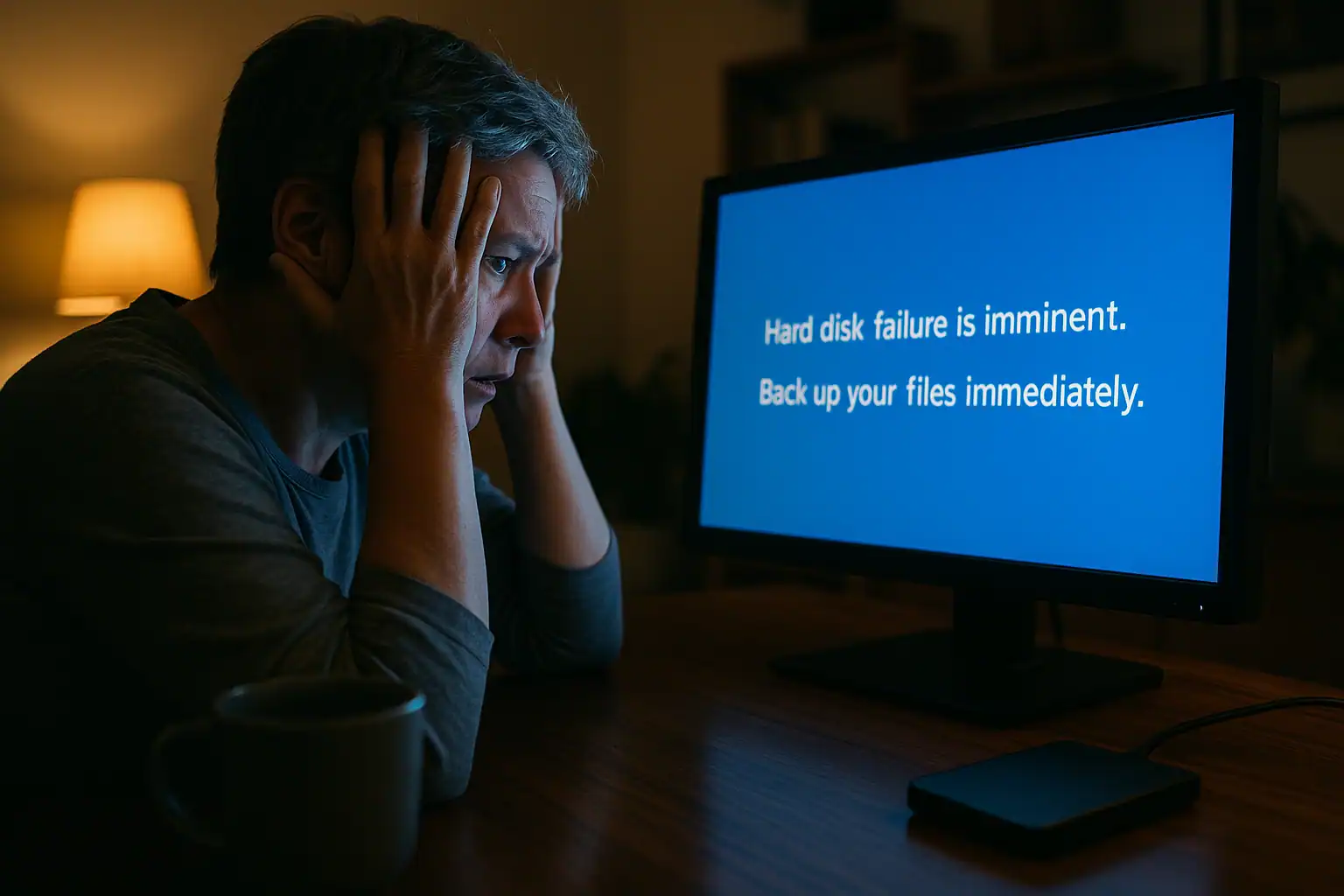
“Hard disk failure is imminent. Press F1 to continue.” This one is different — it’s not a boot failure, it’s an early warning. The drive itself has reported through SMART (more on that below) that it’s predicting its own failure. You can press F1 and keep using the computer, but you shouldn’t. This message is the drive telling you to back up now.
Signs from SMART: when your drive predicts its own death
Every modern hard drive runs a continuous self-diagnostic system called S.M.A.R.T. (Self-Monitoring, Analysis and Reporting Technology). It tracks dozens of indicators — temperature, spin-up time, the number of sectors that have started failing — and uses those readings to decide whether the drive is healthy or in trouble.
When SMART decides a drive is failing, you might see any of the following:
- A startup popup that says “Windows detected a hard disk problem” or “A hard disk failure is imminent. Back up your files immediately.”
- A BIOS message at boot saying the drive failed a SMART check
- In a tool like CrystalDiskInfo (Windows) or DriveDx (Mac), a status of “Caution” or “Bad” on attributes like Reallocated Sectors Count, Current Pending Sector Count, or Uncorrectable Sector Count
If you want to check your drive’s SMART status yourself, CrystalDiskInfo is the easiest free tool on Windows; on Mac, the built-in Disk Utility shows basic SMART status (look for “Verified” vs “Failing”). Pay attention to any nonzero value in the “Reallocated Sectors,” “Pending Sectors,” or “Uncorrectable” rows. Those numbers should be zero on a healthy drive. If they aren’t — and especially if they’re growing over time — the drive is wearing out.
A SMART warning isn’t a guarantee the drive will fail tomorrow. But it does mean the drive has detected enough degradation that it’s no longer confident in itself. Treat the warning as a deadline.
Signs in Windows: the error codes that point to a failing drive
If your drive is failing while Windows is running, the symptoms usually show up as error codes, blue screens, or files that won’t open. The most common consumer-facing ones:
0xc00000e9 (“An unexpected I/O error has occurred”). A Windows boot-time error that means Windows tried to read something from the drive and the drive didn’t respond. Sometimes it’s a loose SATA cable. Often it’s the start of drive failure.
0xc0000185 (“Boot Configuration Data file is missing required information”). Means the part of the drive that tells Windows how to start up has been damaged or can’t be read. Sometimes repairable, sometimes a sign the drive is degrading.
0x800701e3 (“The request could not be performed because of an I/O device error”). Usually shows up when you try to copy a file off the drive and the copy fails. The “I/O” stands for input/output — meaning the drive physically can’t read the data at that location. This is one of the clearest signs of bad sectors developing.
“Inaccessible Boot Device” blue screen of death. A BSOD with this stop code at startup means Windows successfully started loading but then couldn’t read the drive containing the rest of itself. On a drive that’s been working fine and suddenly throws this, it’s often a sign the system files are sitting on sectors that are starting to fail.
Code 43 in Device Manager (for external drives and USB sticks). When Windows shows a yellow exclamation mark next to a USB drive with the message “Windows has stopped this device because it has reported problems (Code 43),” the drive’s controller has failed or is failing. Common on flash drives and external hard drives that have been heavily used.
Files that won’t copy, open with errors, or come back corrupted. Even without an error code, a failing drive often loses readability one sector at a time. A photo that opens with corrupted bands across it, a Word document that opens then errors out at the same spot every time, a video that plays for ten seconds and then stops — these all point to physical damage to the part of the platter holding that file.
Signs on Mac: the error codes Apple users actually see
Mac users see fewer error codes than Windows users, but the ones they do see are unmistakable.
Error code 36 in Finder (“The Finder can’t complete the operation because some data in [file] can’t be read or written”). The most common consumer-facing Mac drive-failure message. It means Finder tried to copy a file and the source drive physically couldn’t read part of it. Usually points to bad sectors. If you’re getting error 36 on multiple files, the drive is degrading.
Error code -50 (“The operation can’t be completed because an unexpected error occurred”). A more generic read/write error that often shows up on external drives and USB sticks. Sometimes a formatting issue, sometimes a sign the drive is failing.
“File system check exit code is 8.” This appears when you run First Aid in Disk Utility and the repair fails. Exit code 8 from fsck (the underlying repair utility) means the drive’s file system is corrupted in a way Disk Utility couldn’t fix. The drive may still mount, but recovery from this point usually requires more specialized tools.
The folder with a flashing question mark at startup. A Mac that boots to a folder icon with a question mark in it is telling you it can’t find a system to boot from — which usually means it can’t find the internal drive. On a drive that was working yesterday, this is a serious symptom.
Kernel panic on startup. A gray screen telling you to restart your computer in several languages. Kernel panics have many causes, but a drive that’s failing while the system is trying to load files from it is one of them — especially if the panics are getting more frequent.
Signs you can feel in everyday use
Not every warning shows up as an error code. Some of the most reliable signs of a failing drive are the day-to-day frustrations that creep in slowly:
- Programs that used to launch instantly now take 30 seconds
- Folders that take a long time to open, or that freeze the file manager momentarily
- Files that disappear and then reappear, or that the system can’t seem to make up its mind about
- Frequent freezes or crashes that didn’t used to happen
- The computer running noticeably hotter, or its fans running harder, with no obvious cause
Any one of these on its own is probably nothing. Several of them together, on a drive that’s more than a few years old, usually means it’s time to start thinking about backup and replacement.
What to do if you’re seeing any of these signs
The right order of operations matters. In rough priority:
- If you hear clicking, beeping, or grinding, power off immediately. Don’t restart “just to check.” Skip to step 5.
- Stop creating new files on the drive. Every write operation reduces the chances of a clean recovery later.
- Back up what’s irreplaceable, in priority order. Photos, financial records, work files. Copy them to a different physical drive or to cloud storage — not to another folder on the same drive.
- Don’t run repair tools on a drive making mechanical noise. CHKDSK on Windows and Disk Utility’s First Aid on Mac are designed for healthy drives with file system problems. On a mechanically failing drive, they can rewrite damaged sectors and make professional hard drive recovery service much harder than it needs to be.
- If the drive has already failed or your data is critical, stop and get help. Don’t open the drive — the platters inside are precision-engineered to tolerances measured in nanometers, and a single speck of dust on the wrong spot can destroy data permanently. Don’t put the drive in the freezer (a myth that’s been making the rounds for twenty years and has never helped a failing drive). And don’t keep retrying the same operation that failed the first time.
A drive that’s already showing physical symptoms isn’t going to get better. The only question is whether you act on the warning signs while the data is still intact, or wait until the drive stops working entirely.
Frequently asked questions about a failing hard drive
How long can a failing hard drive last?
It depends entirely on the failure mode. A drive that’s just started accumulating a few bad sectors might keep working for months — long enough to back up everything and replace it. A drive that’s clicking or beeping can fail completely within minutes of the noise starting. As a rule, the louder and more sudden the symptom, the shorter the window. The day a drive starts misbehaving is the day to start moving data off of it.
What does “Windows detected a hard disk problem” mean?
That message is Windows passing along a SMART warning from the drive itself. The drive’s internal monitoring has flagged something — usually a growing number of bad sectors, a failing read attempt, or a temperature problem — that exceeds a healthy threshold. It does not mean the drive will fail today, but it does mean the drive is no longer reliable. Back up your important files as soon as you see it, and plan on replacing the drive.
Can a failing hard drive be repaired?
Sometimes, but it depends on the type of failure. Logical problems (file system corruption, bad partition tables) can often be repaired with software, sometimes without any data loss. Mechanical problems (failed heads, motor issues, platter damage) cannot be repaired in any meaningful sense — the drive’s job is finished once those parts give out. What can be done in that case is data recovery, where engineers extract the data in a cleanroom and return it on a new drive. The original drive doesn’t get “fixed” — your files get rescued.
Should I run CHKDSK or Disk Utility’s First Aid on a failing drive?
Not if the drive is making any unusual noise or has SMART warnings. Repair tools are designed for healthy drives with software-level problems. On a drive that’s mechanically failing, repair tools can write to damaged areas and overwrite data that a recovery specialist could otherwise have saved. The rule of thumb: if the drive sounds wrong, don’t run anything that writes to it. If the drive is silent and just showing file system errors, repair tools are reasonable to try — but back up first if you can.
Can data be recovered from a hard drive that won’t turn on?
In most cases, yes. A drive that won’t power up usually has a failed controller board, a seized motor, or a power-related component failure — none of which damages the platters where the data is stored. Recovery in those cases involves repairing or transplanting the components needed to read the drive, in a cleanroom environment, with donor parts. Success rates on drives that are mechanically failed but not physically destroyed are generally good, though every case is different.
Is putting a failing hard drive in the freezer a real fix?
No. It’s an old internet myth that occasionally got lucky decades ago on a very specific type of failure and has been passed down ever since. Modern hard drives are not designed for the temperature shock, and condensation when the drive warms back up can cause shorts that turn a recoverable drive into a destroyed one. Don’t do it.
How can I check if my hard drive is failing before it stops working?
The easiest method is to install a free SMART monitoring tool. On Windows, CrystalDiskInfo will show you the drive’s overall health status and the values of every SMART attribute. On Mac, Disk Utility shows basic SMART status (Verified vs Failing), and the third-party tool DriveDx gives more detail. Run a check every few months on older drives. If you see “Caution,” “Bad,” or any growing values in Reallocated Sectors, Pending Sectors, or Uncorrectable Sectors, the drive is wearing out.
What’s the difference between bad sectors and a failed hard drive?
Bad sectors are small, localized areas of the drive that can no longer hold data reliably. Modern drives have spare sectors built in and automatically swap them in when a sector goes bad — a few bad sectors don’t mean the drive has failed. A failed drive is one where the hardware itself can’t function: the motor doesn’t spin, the heads can’t read, the controller is dead. Bad sectors are a warning sign that the drive is wearing out; a failed drive is the end of the line for that hardware.
When professional recovery is the right call
If your drive is making noise, isn’t being detected, has triggered a SMART failure warning, or is showing repeated error codes when you try to read files, the safest move is to stop and have it evaluated rather than risk doing more damage. Professional recovery is done in a controlled, dust-free cleanroom environment with the specialized hardware needed to read a drive a regular computer can’t, and software designed to reconstruct file systems that ordinary tools would give up on.
Gillware offers a free, no-obligation evaluation — you only pay if we recover your data. There’s no upfront fee, no diagnostic charge, and no commitment to proceed. Send the drive in, our engineers diagnose the failure, and we give you a flat-rate quote based on what the recovery actually requires. If we can’t recover your data, you don’t pay.
If you’re seeing any of the signs in this guide and the files on the drive matter to you, free evaluation is the safest next step.
