
You plug in your Seagate external hard drive and the computer acts as if nothing is there. Maybe the light comes on and you can feel it spin. Maybe it beeps, or ticks quietly, or shows up for a second and disappears. Maybe Windows now says the disk needs to be formatted, or your Mac offers to initialize it. Expansion, Backup Plus, One Touch and Seagate’s other portable and desktop drives all fail in a handful of recognizable ways, and in most of them the files are still on the drive. This page explains what each sign means, the few checks that are safe to try once, and when to stop and send the drive in. The most important point comes first: don’t format it, and if it beeps or clicks, unplug it and leave it unplugged.
Seagate external drive not showing up?
Don’t format it, and stop powering it if it beeps or clicks. Our engineers will evaluate the drive for free and tell you exactly what recovery involves.
The short version
- Try one known-good cable, one other USB port directly on the computer, and one other computer. Once each. If the drive doesn’t appear after that, more attempts won’t change anything.
- Never accept a prompt to format, initialize or “fix” the drive. Those prompts write a new, empty layout over the structures that point to your files.
- If it beeps, clicks, grinds or was dropped, unplug it now. Those are mechanical failures inside the sealed drive, and every power-on can add damage.
- Keep the drive in its case. On some slim portables the USB connector is part of the drive’s own circuit board, and a drive that is failing in its case will fail on a dock too.
Which Seagate external do you have?
Seagate has sold its external drives under several names, and the model on the label matters less than one question: is it a small portable drive powered by the USB cable, or a larger desktop drive with its own power adapter?
- Portable drives (Expansion Portable, Backup Plus Portable and Slim, One Touch, Seagate Portable, Game Drive): a 2.5-inch laptop-class hard drive inside a slim plastic case, powered entirely through the USB cable. These are the drives that get carried in bags, knocked off desks and unplugged while running.
- Desktop drives (Expansion Desktop, Backup Plus Desktop and Hub): a full 3.5-inch desktop hard drive inside a larger case, with a separate power adapter. The adapter is a common point of failure, and a drive that does nothing at all is often an adapter problem first.
- Older models (FreeAgent, GoFlex): the same idea, a standard Seagate drive inside a USB enclosure, and the same failure patterns.
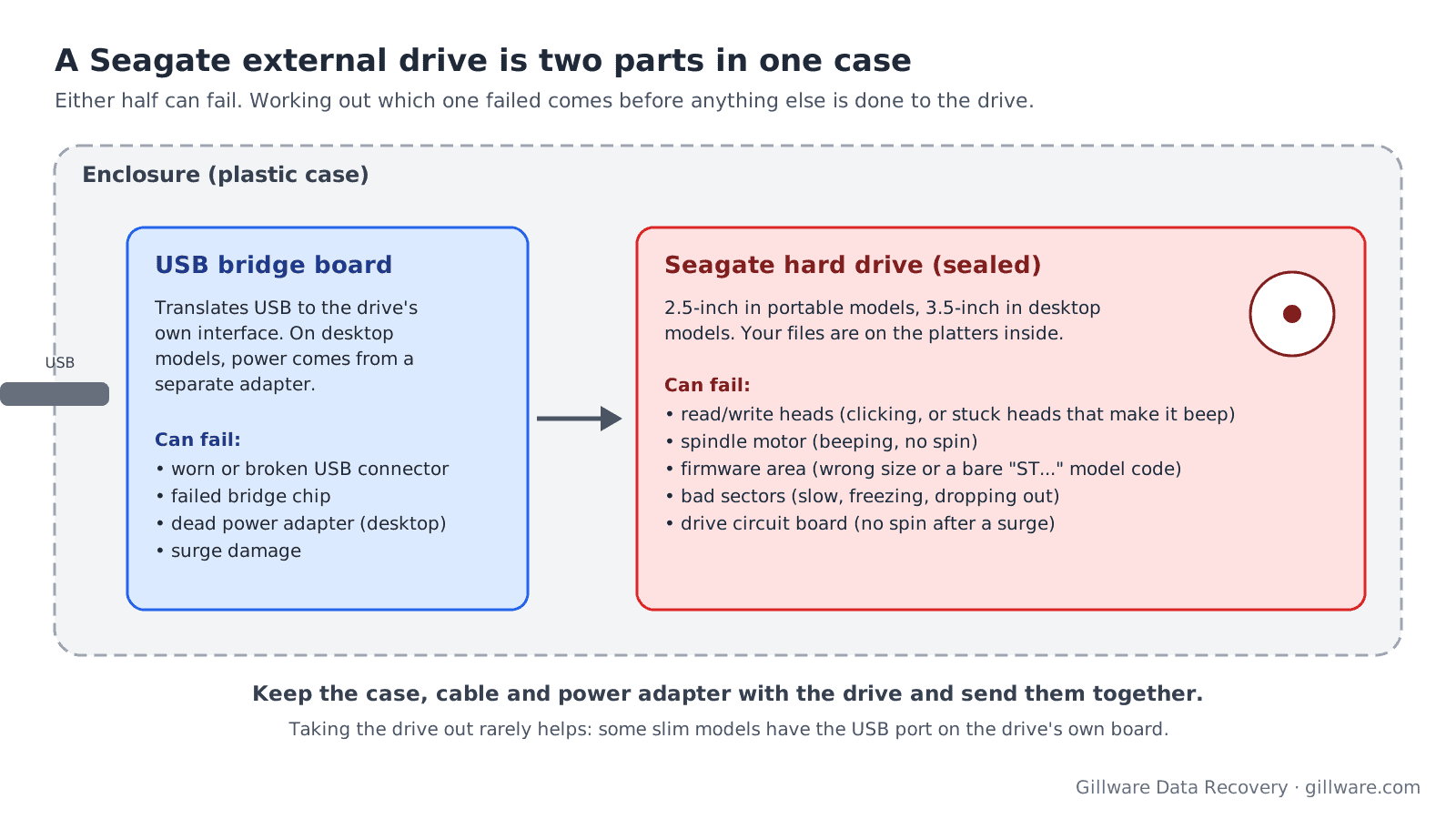
In almost every case, a Seagate external is two things in one box: a standard Seagate hard drive, and an enclosure with a small circuit board, the USB bridge, between the drive and the cable. Either half can fail, and the signs below help tell which one it is. If you’re looking for a specific model line, see our pages on Seagate Backup Plus recovery, Seagate One Touch recovery and Seagate Game Drive recovery.
What the drive does tells you where the problem is
The most useful clue isn’t the error on the screen. It’s what the drive itself does when you plug it in. Connect it once, with a cable and port you trust, and watch and listen.
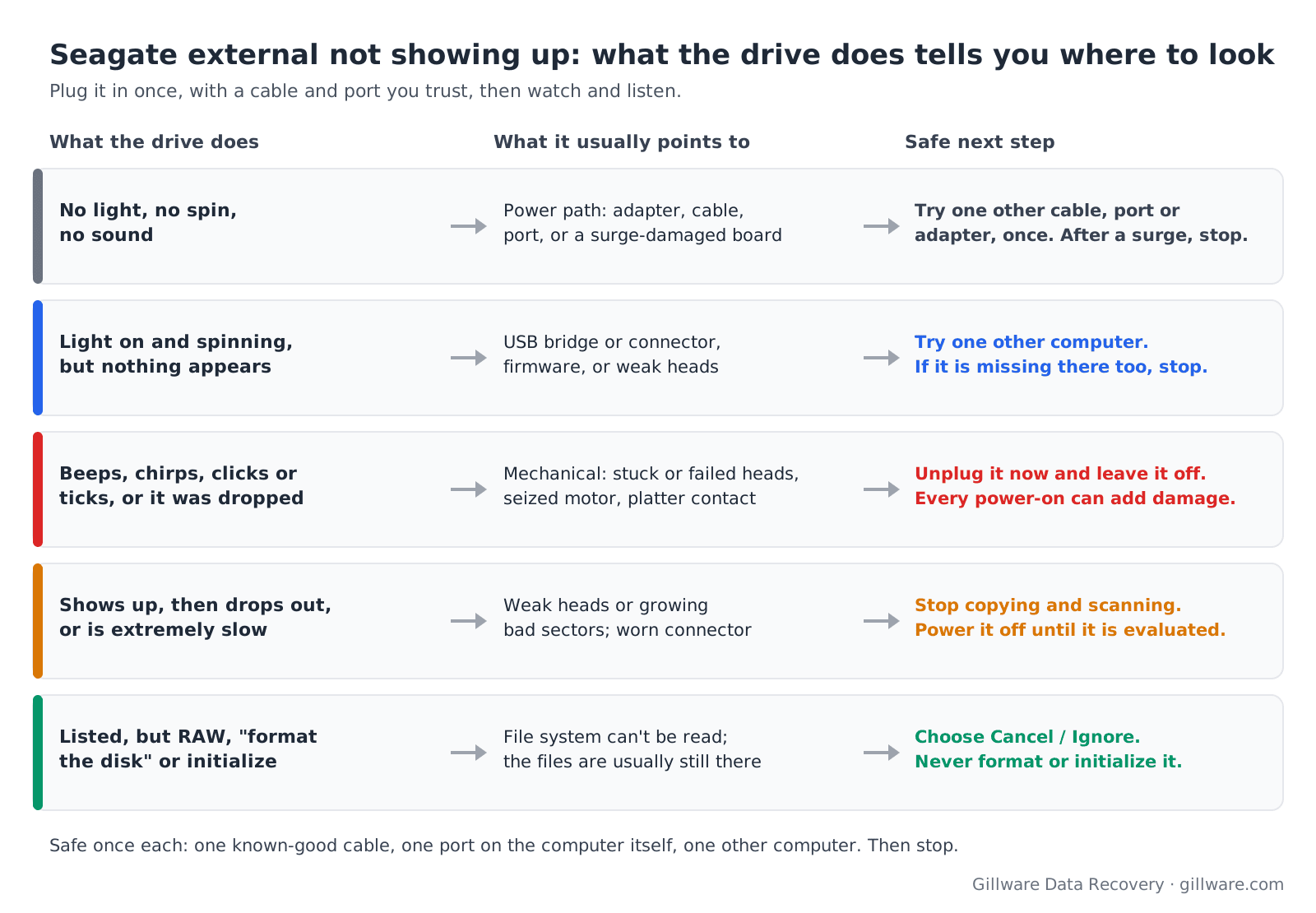
No light, no spin, no sound
The drive isn’t getting power, or something on its power path has failed. On a desktop model, check that the adapter is seated firmly and try another outlet; if you have a known-good adapter with the same voltage and polarity, try that once. A wrong adapter can damage the drive’s electronics, so don’t experiment with whatever adapter happens to fit. On a portable model, try a different cable and a port on the computer itself rather than a hub or a front-panel port. If the drive went dark during a storm, a power outage or a surge, stop there: a surge can damage the enclosure’s board, the drive’s own board, or both. Our page on hard drive recovery after a power surge explains why.
The light comes on and it spins, but nothing appears
Power is arriving and the motor turns, so the break is further along: in the USB bridge or connector, in the drive’s firmware, or in read/write heads that can’t load the drive’s own start-up data from the platters. Try one other computer. If it doesn’t appear there either, the problem is in the drive or its enclosure, not your PC. Our guide to a hard drive that spins but isn’t detected walks through each link in that chain.
It beeps or chirps
A beeping Seagate portable is one of the most common reasons these drives “disappear.” Hard drives don’t normally beep. The sound usually comes from the spindle motor trying to turn platters it can’t move, most often because the read/write heads have come down onto the platter surface and stuck there, sometimes because the motor itself has seized. Less often, a portable drive beeps because it isn’t getting enough power, which is why one other cable and one port directly on the computer is a fair test. If it still beeps, unplug it. Every attempt to spin it strains the motor and drags stuck heads across the platters. See beeping hard drive recovery, why an external hard drive beeps, and our beeping Seagate case study.
It clicks or ticks, or it was dropped
A repeating click usually means the heads can’t read the positioning information they need, so the drive keeps parking them and trying again. Portable Seagates are often dropped while they’re running, and a fall can bring the heads into contact with the platters at the moment of impact. After a drop, the number of times the drive is powered on afterwards often decides how much can be recovered. Unplug it and read what a clicking hard drive means and our dropped Seagate drive case study.
It shows up, then disappears, or it’s painfully slow
A drive that connects and drops out, or that freezes the computer when a folder opens, is often a drive with weak heads or a growing number of bad sectors. It spends so long retrying hard-to-read areas that the computer gives up on it. A worn USB connector can look the same. Don’t keep copying, scanning or reconnecting it. Our guide to a Seagate drive that’s detected but slow covers this pattern in detail, and external hard drive keeps disconnecting explains how to tell a bad connector from a failing drive.
It appears, but Windows or macOS can’t open it
The drive is alive and talking to the computer, but the computer can’t read its file system. This is where a single wrong click does the most damage, so it gets its own section below.
The checks that are safe to try once
These checks don’t write anything to the drive and put very little strain on it. Do each one once.
- Cable. Swap in a cable you know works. The cables that come with portable drives wear at the connector, and a marginal cable can keep a drive from appearing at all.
- Port. Use a USB port directly on the computer; on a desktop, one on the back. Skip hubs, docks, keyboards and extension cables for the test.
- Power. On a desktop model, check the adapter and the outlet.
- Another computer. If the drive appears on a second computer, the problem is on the first one: a driver, a port or a power setting. If it appears nowhere, the problem is in the drive or its enclosure.
- Look, don’t click. Open Disk Management on Windows or Disk Utility on a Mac and see whether the drive is listed, and how. Read what it shows, then close the window without choosing anything it offers.
That’s the whole list. If none of them brings the drive back, stop. Our general guide to an external hard drive not showing up has more on each check.
Tried one cable, one port and one other computer? That’s enough. Our engineers will evaluate the drive for free.
Shows up in Disk Management or Disk Utility, but won’t open
If the drive is listed in Disk Management or Disk Utility, the computer can talk to it, and what it shows there is the next clue:
| What you see | What it usually means | What to do |
|---|---|---|
| A healthy partition with no drive letter (Windows) | Windows simply didn’t assign a letter | Add a letter that isn’t in use with “Change Drive Letter and Paths.” Nothing else on the drive changes. See drive shows in Disk Management but not File Explorer |
| RAW, or “You need to format the disk” | The file system can’t be read; the files are usually still there | Choose Cancel. See RAW drive recovery |
| Unallocated, Not Initialized or Unknown | No valid partition table is found | Don’t initialize or create a new volume on a drive that held your files |
| Wrong capacity, 0 bytes, or a bare “ST…” model code | The drive or its bridge is reporting itself incorrectly: a firmware or electronics fault | Stop; this isn’t a Windows or Mac problem |
| Greyed out, or “the disk you inserted was not readable” (Mac) | macOS can’t mount the volume | Choose Ignore or Eject, not Initialize. See external hard drive not mounting on a Mac |
Two Seagate-specific notes. First, some Seagate drives come formatted for Windows. On a Mac, a drive formatted that way can mount read-only or not at all, even though nothing is wrong with it; that’s a format question, not a failure, and it is never a reason to erase the drive. Second, if your One Touch or Backup Plus was set up with a password through Seagate’s software, the drive can appear locked or unreadable until the password is entered. Without the password, recovery is very difficult, and we’ll tell you honestly what is realistic before any work begins.
Game Drives used with a PlayStation or Xbox are a special case: a console-formatted drive can’t be opened on a PC or Mac even when it’s healthy, and the computer may offer to format it. Don’t. Our Seagate Game Drive page explains how console drives are recovered.
Enclosure or drive? Why taking it apart rarely helps
The internet’s standard advice for a Seagate external that won’t show up is to crack open the case, take the drive out and connect it directly. When the only thing that failed is the USB bridge, that can work. On the drives that end up in a recovery lab, it often doesn’t, for three reasons:
- Some drives can’t come out. On some slim portables, the USB connector is soldered straight onto the drive’s own circuit board, with no standard connector to move to. Prying the case open can damage the one path the data can travel.
- A failing drive fails on a dock too. If the drive beeped or clicked in its case, it will beep or click on a dock, and each spin-up adds to the damage.
- Password-protected units need their own setup. A drive locked with Seagate’s password software won’t open on a bare connection either.
Keep the enclosure, cable and power adapter with the drive, and send them together. Our external hard drive data recovery page explains how enclosures and USB bridges are handled in the lab.
What not to do if the files matter
- Don’t format, initialize or create a new volume. It’s the most common way a recoverable Seagate becomes a hard case.
- Don’t run check-disk, First Aid or recovery software on a drive that’s slow, noisy or dropping out. Recovery software exists, but it can’t fix a mechanical fault, and it forces a failing drive to keep retrying its weakest areas. A recovery lab can get the files back without that risk.
- Don’t keep plugging it in to see if it works now. If it didn’t work the first two times, the next twenty won’t help.
- Don’t open the metal drive inside. A single dust particle is enormous compared with the gap between a head and the platter. Drives are opened only in a cleanroom.
- Don’t freeze, tap or shake it. Condensation and knocks add damage; they don’t free stuck heads.
- Don’t swap in a circuit board from another drive. Modern Seagate drives keep calibration data unique to each drive on the board, so a board from an identical model rarely works and can make things worse.
When to stop and send it in
Stop troubleshooting and have the drive evaluated if any of these are true:
- It doesn’t appear on a second computer.
- Windows or macOS wants to format, initialize or fix it.
- It beeps, clicks, grinds, or was dropped or knocked over.
- It stopped working after a power outage, storm or surge.
- It shows the wrong size or a bare model code, or keeps disconnecting.
- Someone has already tried software, a dock or a board swap and it still isn’t readable.
The files aren’t going anywhere while the drive is unplugged. The risk comes from running it.
How Gillware recovers a Seagate external drive that isn’t showing up
Seagate is one of the two highest-volume drive brands that reach our lab, and our engineers have been recovering Seagate external drives for more than two decades. Every case starts the same way: working out which half of the drive failed before anything else is done to it.
Failed USB bridge or connector. If the drive behind the bridge is healthy, it’s connected to our imaging hardware and read directly. A broken connector on a drive with a soldered USB port is board-level micro-soldering work.
Beeping, clicking and dropped drives. These are opened only in our ISO 5 (Class 100) cleanroom. Stuck heads are freed from the platters, failed heads are replaced with a matched donor set from our donor library, and the platters are inspected before anything is read.
Power damage and firmware faults. Board work on a modern Seagate means moving the drive’s unique calibration data to a compatible donor board. Firmware-area and translator faults, the usual cause of a wrong capacity or a bare model code, are corrected with hardware that talks to the drive below its normal interface, without writing to your data.
Imaging, not using. A failing drive is never “fixed” and handed back. Our engineers image it with HOMBRE, our fault-tolerant imaging platform, securing the readable areas first and returning to difficult ones later. RAW, unallocated and accidentally initialized drives are rebuilt from that image, never on the original.
Gillware has recovered data from more than 100,000 storage devices since 2004. Your drive stays in our Madison, Wisconsin lab from arrival to return, and recovered files come back on a separate, encrypted drive with your original folder structure. Every case is quoted after a free evaluation, so you know the cost before any recovery work begins. Our hard drive recovery cost page explains what goes into a quote, and our main Seagate hard drive data recovery page covers the rest of the Seagate lineup.
Frequently asked questions
Why is my Seagate external hard drive not showing up but the light is on?
The drive is getting power, but the connection isn’t completing. The usual causes are a worn cable or connector, a failed USB bridge, a firmware fault on the drive, or heads that can’t load the drive’s start-up data. Try one other cable and one other computer. If it still doesn’t appear, unplug it and have it evaluated.
Why is my Seagate external drive beeping?
Usually because the motor can’t spin the platters, most often because the heads have stuck to the platter surface. Occasionally a portable drive beeps because the USB port isn’t supplying enough power. Try one port directly on the computer with a known-good cable; if it still beeps, unplug it and don’t try again.
My Seagate Expansion drive is not showing up on my Mac. Is it broken?
Not necessarily. Some Seagate drives come formatted for Windows, and a Mac may mount them read-only or not at all. Check Disk Utility. If the drive is listed there with its correct size, the hardware is talking; if macOS offers to initialize or erase it, choose Ignore or Eject, not Initialize.
Windows says I need to format my Seagate drive. Will I lose my files?
Formatting writes a new, empty file system over the old one, so yes, it puts your files at risk. Choose Cancel. The prompt means Windows can’t read the drive’s file system, which is usually logical damage or a failing drive, not missing data.
Should I take the drive out of the Seagate enclosure?
Only if the drive has never beeped or clicked, wasn’t dropped, and isn’t password-protected, and even then, some slim models have no removable drive at all. If the files matter, leave it in its case and send the whole unit.
Can data be recovered from a Seagate external drive that isn’t detected?
In most cases, yes. The biggest factor is what happened after it stopped showing up. Drives that weren’t formatted, scanned for hours, opened or powered on over and over are usually recoverable, whether the fault is in the enclosure, the electronics or the mechanics.
Related: hard drive data recovery services · hard drive not showing up · dropped hard drive recovery · clicking Seagate drive case study
Seagate drive still missing? Let’s get your files back.
Our highly experienced engineers strive for the highest success rates in the industry. Send us the device and we’ll diagnose it for free.
- More than 20 years recovering data from failed drives
- Trusted by 1,500+ IT professionals nationwide
- Whatever failed, we’ve seen it hundreds of times
- Pay only if we meet your recovery goals