
Seagate Drive Detected but Slow or Not Responding: Why It Crawls and How to Get Your Files Off

Your Seagate drive still shows up. Windows or your Mac sees it, the name and size look right, and sometimes you can even see your folders. But opening anything takes forever, File Explorer says “Not Responding,” a copy that started at normal speed crawls down to a few KB/s, or the whole computer freezes until you unplug it. Here’s the encouraging part: a Seagate that is detected but slow is one of the most recoverable problems we see. The drive is telling you it’s struggling to read, not that your files are gone. What you do next decides how easy the recovery stays.
Seagate drive detected but crawling?
If your files matter and there’s no other copy, stop copying and power it down. We’ll evaluate the drive for free and tell you what’s recoverable.
The short version
- Notice when it’s slow. If only big copies onto the drive slow down and reading your files is normal, the drive may simply be busy. If opening, browsing or copying files off it crawls, the drive is struggling to read.
- Don’t keep retrying the same copy. Each retry sends the drive back over the same weak spots.
- Don’t run CHKDSK, Disk Utility First Aid, a defrag or recovery software on a drive that is struggling to read. They work the drive hard and some of them write to it.
- Clicking, beeping or grinding, or was it dropped? Unplug it now and leave it unplugged.
- Stay optimistic. When the drive still detects, the data is almost always still on the platters, and drives in this state are among the most recoverable we see.
What “detected but slow” looks like
People describe this problem in a lot of different ways. On Windows and Mac forums, and in the descriptions customers send us, the same handful of symptoms keeps coming up:
- The computer can see the drive, but it takes forever to open, or won’t open at all.
- File Explorer or Finder stops responding as soon as you click on the drive or a folder.
- A copy starts at normal speed, then drops to a few MB/s or KB/s, stalls, or freezes partway through.
- The drive sits at 100% activity in Task Manager while almost nothing is actually being read.
- Disk Management takes a long time to load, or hangs, while the drive is plugged in.
- The drive slows down the whole computer, which goes back to normal once you unplug it.
- It drops off the computer after a while, then shows up again after a restart.
- It appears in Device Manager under Disk Drives but won’t open in File Explorer.
We see it on every Seagate line: Expansion and Expansion Desktop drives, Portable and Ultra Touch models, One Touch, the older Backup Plus and Backup Plus Slim, and internal BarraCuda drives in desktops and laptops. If your Seagate isn’t showing up at all, the guide to a Seagate external hard drive not showing up covers that problem instead.
Why a Seagate drive that shows up can still crawl
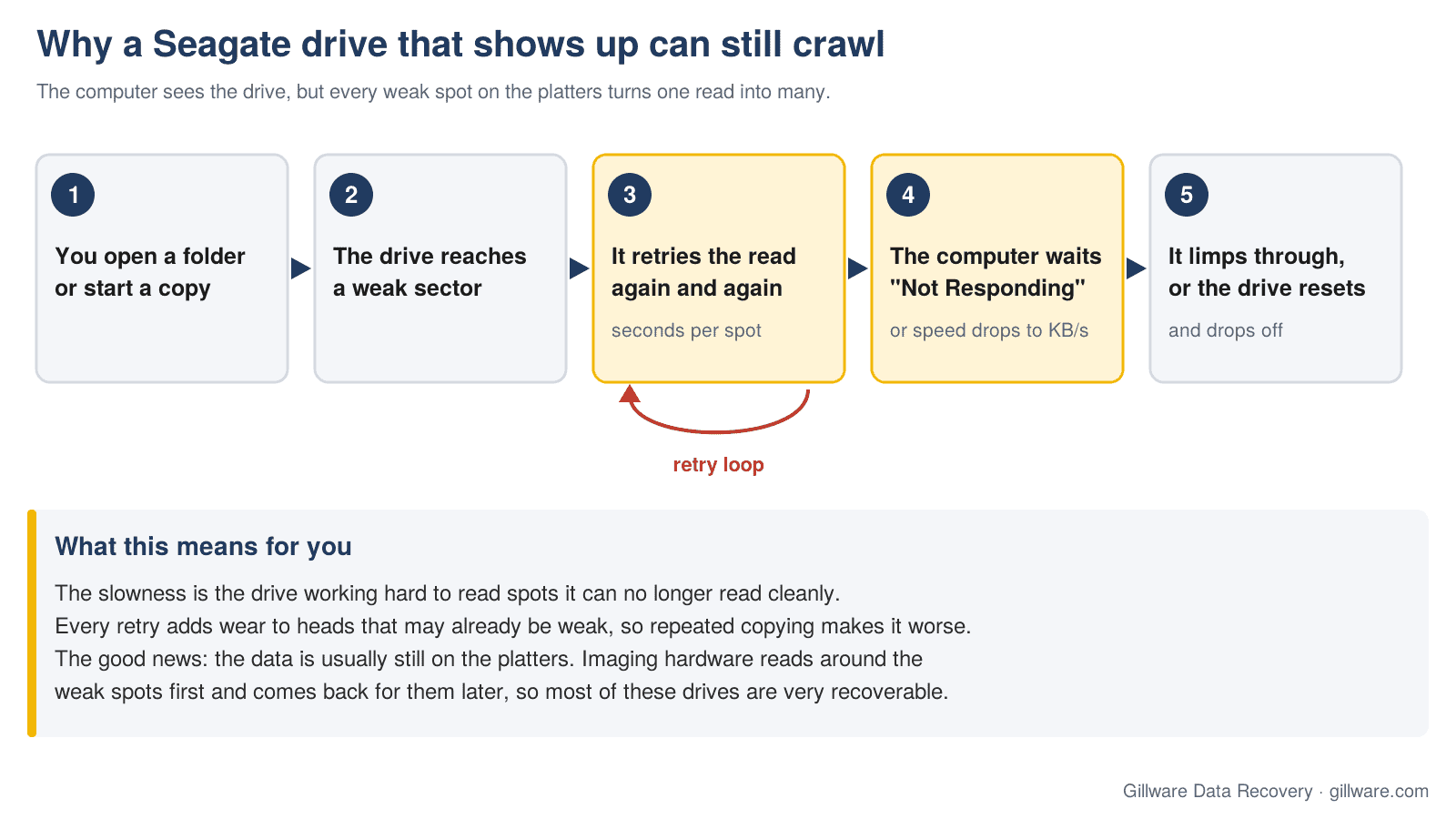
A drive that detects has passed its startup routine: it spun up, loaded its firmware and told the computer its model and size. Reading your files is a separate job, and that’s where these drives get stuck. When the drive reaches a spot it can’t read cleanly, it doesn’t give up right away. It tries again, and again, sometimes for several seconds per spot. Meanwhile the computer waits, which is why Explorer freezes and copy speeds collapse. Four things usually sit behind that.
Weak read/write heads
The heads that read your data float a tiny distance above the spinning platters. As they wear, they still read the easy areas, but everything else takes many attempts. The drive works, slowly, until the heads give out completely. That’s why the most important thing you can do is stop asking a weak drive to read the same data over and over.
Bad sectors piling up
Every drive keeps a small pool of spare sectors and quietly swaps them in for sectors that go bad. Once the spares run out or the damage spreads faster than the drive can remap it, each new bad spot means another round of retries. Our page on data recovery from a hard drive with bad sectors explains what happens to those areas. A passing health check doesn’t rule this out, because the overall health summary only flags a drive after it crosses the maker’s thresholds.
Slow only when writing? It may be shingled recording (SMR)
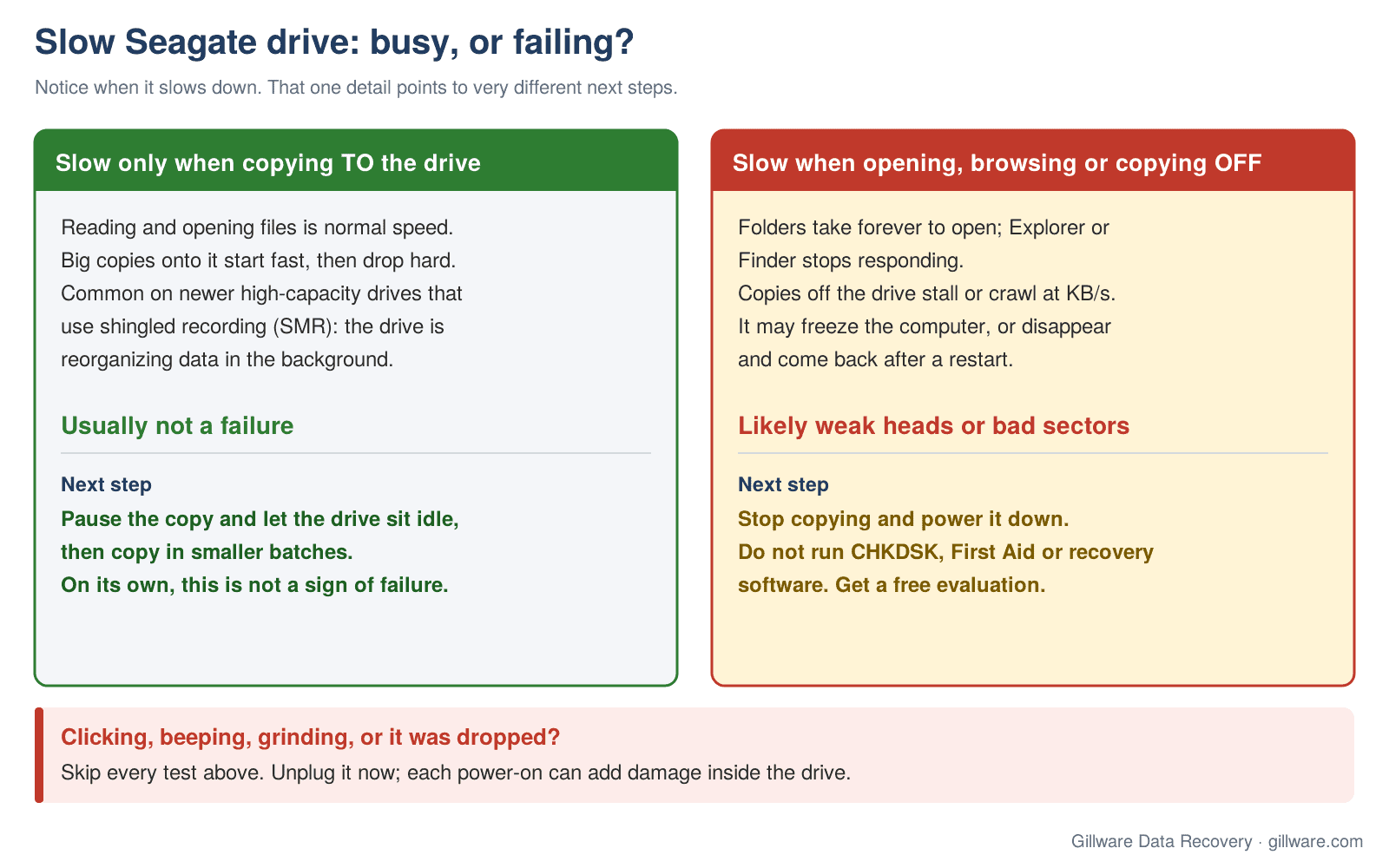
Many newer, high-capacity Seagate desktop and portable drives use shingled magnetic recording (SMR), which packs data tracks so they partly overlap. After a large burst of writing, the drive has to reorganize data in the background, and write speeds can drop sharply during long copies onto the drive. If reading your files is normal speed and only big backups to the drive slow down, this is usually the reason, and it isn’t a failure. Pause the copy, let the drive sit idle for a while so it can finish, then copy in smaller batches.
A failing USB connection
In an external drive, the USB connection is a small circuit board between the computer and the drive. In desktop models it’s a separate board inside the case; in many slim portables it’s part of the drive’s own board. A worn cable, a loose port or a failing USB board can cause dropouts and stalls that look like a slow drive. One short, known-good cable plugged straight into the computer is a fair test. If that changes nothing, the problem is the drive.
Not every slowdown is the drive. Antivirus scanning every file, a cloud sync client or Windows indexing a large drive can all make it feel sluggish. If it’s fast on a second computer, look at the first computer before you worry about the drive.
Busy or failing? One safe way to tell
You don’t need special tools for this. Notice what the drive does when you use it normally:
- Use one short cable plugged straight into a port on the computer, not a hub, dock or front-panel port. For a desktop drive, use its own power adapter.
- Open one folder you care about. If it opens at a normal speed, copy that folder off once. That’s your most important data safe first.
- If the folder takes ages to open, the copy stalls or the speed drops into KB/s, stop. Cancel the copy, eject the drive if Windows or macOS will let you, and power it down. Don’t try again tomorrow “to see if it’s better.” Drives in this state don’t heal; they get slower.
- If it’s only slow while copying onto it and reading is fine, treat it as the SMR case above.
Freezing isn’t unique to Seagate. Our guide to a hard drive freezing your computer or hanging mid-copy covers the same symptom on any brand.
What makes a slow Seagate drive worse
- Copying everything again and again. A full-drive copy that stalls and restarts drags the heads across the worst areas each time. If you copy anything, copy the files that matter most, once.
- CHKDSK, First Aid and other fix-it tools. They assume the drive is healthy and the file system is damaged. On a drive that’s struggling to read, they force it through hours of hard reading and can write changes onto areas that still held your data.
- Recovery software and home cloning tools. Most retry every unreadable spot many times before moving on, which is exactly the wear you want to avoid.
- Defragmenting or “optimizing” the drive. It reads and rewrites data across the whole surface.
- Leaving it plugged in and running. A weak drive keeps wearing while it spins, even when you’re not using it. Unplug it until you decide what to do.
- Opening the case. Taking an external drive apart adds handling and, on some models, doesn’t help at all. Opening the drive itself outside a cleanroom puts dust on the platters.
Copy stalled or folders won’t open? Power it down and let our engineers take a look, free.
Why we’re so optimistic about these drives
A Seagate that still detects has told you a lot already: it powers up, it spins, its firmware loads and it talks to the computer. What’s failing is its ability to read some areas on its own, quickly. The data itself is almost always still sitting on the platters. In our lab, about 99% of Seagate drives with this detected-but-slow symptom are recovered.
That figure is about this symptom, a drive that still shows up but crawls, freezes or stalls. Drives that were opened, run for days, or put through repeated scans and fix-it tools are harder, which is why stopping early matters so much.
How we recover a slow Seagate drive
The work happens in our lab, not on a home computer:
- Imaging hardware instead of Windows or macOS. Our engineers connect the drive to equipment that talks to it directly, so a slow read doesn’t freeze anything and no file system tool touches the drive.
- Read the easy areas first. The imager skips spots the drive can’t read quickly and comes back for them later, so the healthy areas are copied before the drive gets any more tired.
- Fresh heads when needed. If the heads are too weak to finish, they’re replaced with matching donor heads in our ISO 5 (Class 100) cleanroom, and imaging picks up where it left off.
- Firmware work. Seagate drives store part of their firmware on the platters. When that area is part of the problem, our engineers work around it before imaging.
- Your files, organized. The file system is rebuilt from the image, and your recovered files come back on a new drive.
That shared hardware is also why the lab process is the same whether the drive came out of a USB enclosure, a laptop or a desktop tower. These Seagate cases sit inside our broader hard drive data recovery services, which cover drives from every major manufacturer, and our Seagate hard drive data recovery page covers the rest of the Seagate lineup. One example from our case files: a Seagate BarraCuda ST2000DM001 that spun but wouldn’t boot.
Since 2004, Gillware has recovered data from more than 100,000 storage devices, and more than 1,500 IT professionals refer their clients to us. Every case is quoted after a free evaluation, so you know the cost before any recovery work begins.
Frequently asked questions
Why is my Seagate external hard drive not responding?
Most often the drive is stuck retrying areas it can’t read cleanly, because of weak heads or bad sectors, and the computer is waiting for it. A worn cable or a failing USB board can do the same thing. Try one short cable in a port on the computer. If it still hangs, stop using it and power it down.
My Seagate drive is detected but very slow. Is it failing?
If opening and copying files off it is slow, it’s probably struggling to read and should be treated as failing. If only long copies onto it slow down while reading is normal, it may be a shingled (SMR) drive reorganizing data, which is normal behavior.
The health check says my Seagate drive is fine. Why is it so slow?
The overall pass/fail only changes after the drive crosses the manufacturer’s thresholds, and a drive can be slow and struggling well before that. Trust what the drive is doing over what the summary says.
Should I run CHKDSK or First Aid on a slow Seagate drive?
Not if the files matter. Those tools assume the drive is healthy, force it through long, hard reading and can write changes. Copy the most important files once if you can, then stop.
Can data be recovered from a Seagate drive that is detected but not accessible?
Usually, yes. When the drive still detects, the data is almost always still on the platters. The best results come from drives that were powered down early instead of being scanned or copied for hours.
How much does it cost to recover a slow Seagate drive?
It depends on what’s failing. Careful imaging through the original heads is a different job from a head replacement in the cleanroom. Every case is quoted after a free evaluation, so you know the cost before any recovery work begins. See how hard drive recovery is priced.
Seagate still crawling? Let’s get your files back.
Our highly experienced engineers strive for the highest success rates in the industry. Send us the device and we’ll diagnose it for free.
- More than 20 years recovering data from failed drives
- Trusted by 1,500+ IT professionals nationwide
- Whatever failed, we’ve seen it hundreds of times
- Pay only if we meet your recovery goals
