
Hard Drive Spins but Is Not Detected: What a Spinning Drive Is Telling You and What to Do

You plug the drive in and you can hear it working: the motor spins up, maybe you feel a faint vibration, maybe the light comes on. But the computer acts as if nothing is connected. It doesn’t appear in File Explorer or Finder, there’s no new drive letter, and sometimes it isn’t listed anywhere at all. A hard drive that spins but isn’t detected is confusing because it sounds alive. The good news is that a spinning drive tells you a lot about what still works, and in most cases the files on it are still there. This guide explains what spinning proves, where the failure usually is, the few checks that are safe to try once, and when to stop.
Drive spins but your computer can’t see it?
If one cable and port check doesn’t bring it back, stop plugging it in. Our engineers will diagnose it for free and tell you what’s recoverable.
What a spinning drive is telling you
Before a hard drive can show up on your computer, a short chain of events has to happen in order. Power reaches the drive’s circuit board. The board starts the spindle motor and brings the platters up to speed. The read heads move out over the platters and read the drive’s own firmware, part of which is stored on the platters in a reserved area. Once the firmware has loaded, the drive reports that it’s ready and tells the computer its model and capacity. On an external drive, there is one more step: a small bridge board in the enclosure translates the drive’s connection to USB.
When you hear the drive spin, you know the first two links in that chain work. Power is arriving, the board is alive enough to run the motor, and the motor and its bearing turn. When the computer still can’t see the drive, the break is further along: in the heads, the firmware, the drive’s interface electronics, the USB bridge, or the connection to the computer.
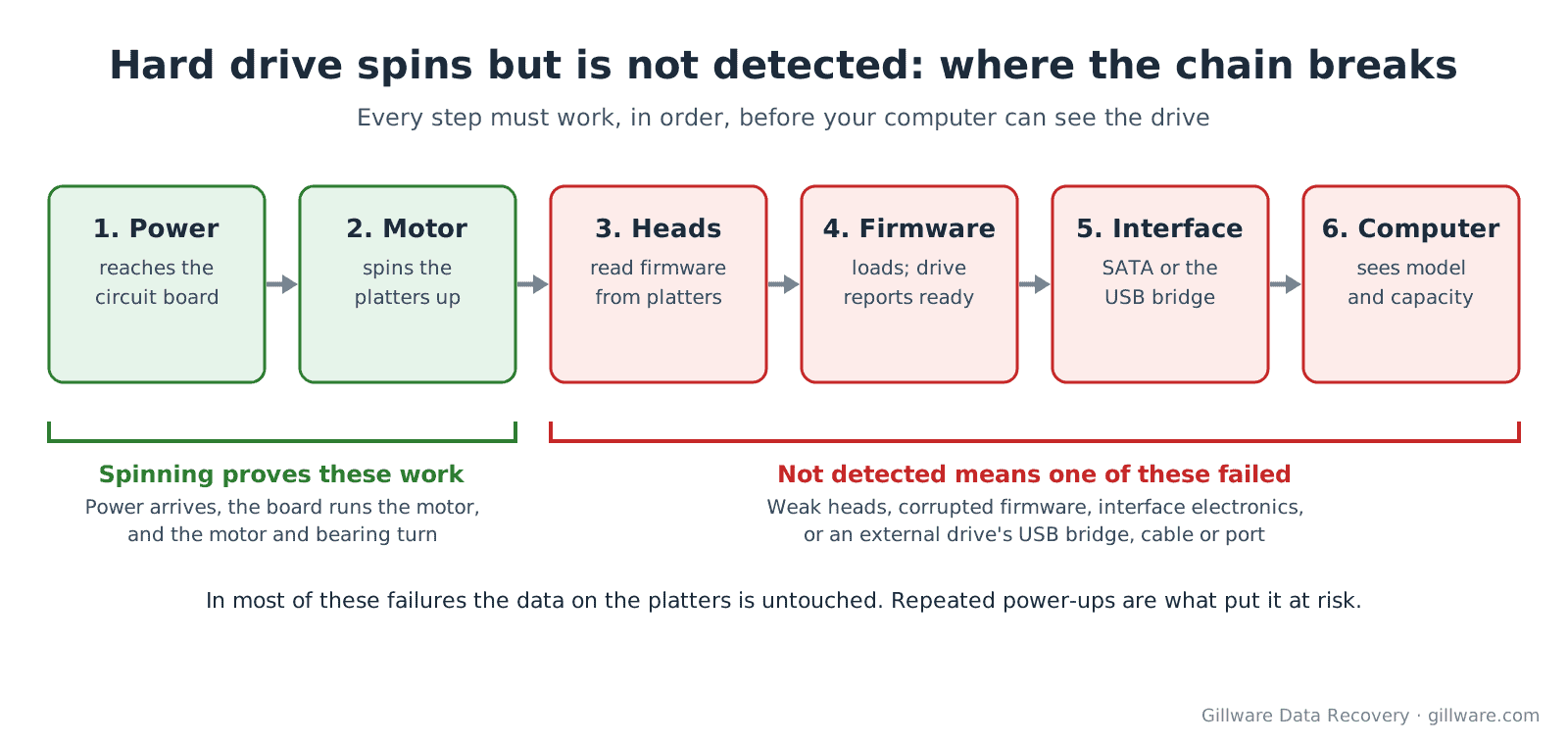
That’s useful, because it rules out some of the worst outcomes. A drive with a seized motor or heads stuck to the platters usually can’t spin at all; it hums, buzzes or beeps instead (see our page on hard drives that won’t spin). A spinning drive that isn’t detected has a different set of problems, and most of them leave the data on the platters intact.
The most common causes
1. The connection or the enclosure (external drives)
On an external drive, the motor can spin up even when the USB side of the enclosure has failed. A damaged USB connector, a worn cable, an underpowered port or a failed bridge board can all produce a drive that spins happily and never appears on the computer. This is the best case, because the disk inside may be completely healthy. It’s also the only cause you can rule out yourself, with a different cable and a different port.
One caution: many external drives encrypt data in the enclosure’s bridge board. On those models, the bare drive taken out of its case can’t be read on its own, even if the drive itself is fine. If you suspect the enclosure, don’t take the drive out of it; leave that to a lab that can work with the original board. Our guide to an external hard drive not showing up covers the enclosure side in more detail.
2. Weak or failing read heads
To finish starting up, the drive must read its firmware from the platters. If the heads are weak or one has failed, the drive spins but never manages to load what it needs, so it never reports ready. Sometimes you’ll hear a faint tick or a few clicks after spin-up. Sometimes the drive spins down after a few seconds and starts over, again and again. Sometimes it just keeps spinning quietly while the computer waits. All three patterns mean the drive is struggling to read, and every attempt makes damaged heads fly over the surface again. If you hear a clear clicking or scraping sound, see our pages on a clicking hard drive and grinding noises.
3. Corrupted firmware
Firmware problems are one of the most common reasons a drive spins normally and still isn’t detected. The heads and platters may be fine, but the drive’s own operating code is damaged, so it stays stuck in a busy state or reports itself incorrectly. Some drives in this state appear in the BIOS or Disk Management with a strange name, a generic factory label or a capacity of 0 GB; others don’t appear at all. Firmware corruption can follow a power interruption, an unclean shutdown, or a growing number of bad areas on the platters that the drive can no longer manage. It’s work for specialized equipment, not for anything you can download.
4. A partial electronics failure
The drive’s circuit board does several jobs. It’s possible for the part that runs the motor to keep working while the part that talks to the computer has been damaged, often after a power surge, a lightning storm or the wrong power adapter. The drive spins, but its interface never answers. Our page on hard drives that stop working after a power outage explains this in more detail.
5. Physical damage after a knock or a drop
A drive that was bumped while running, or dropped, may spin up but have damaged heads or a disturbed head assembly that can’t read. External and laptop drives are especially prone to this. If your drive was dropped, see dropped hard drive recovery and don’t keep powering it on.
“Not detected” can mean different things
It helps to know exactly where the drive is missing, because the places you look tell you different things.
- Not in the BIOS or UEFI setup, and not in Disk Management or Disk Utility: the drive never reported ready, or the connection never reached the computer. This points at the heads, the firmware, the electronics or the enclosure.
- In the BIOS or Disk Management, but with a strange name or a size of 0 GB: the drive is half-starting. This usually points at firmware or at heads that can read some of what they need but not all of it.
- In Disk Management with its correct size, but not in File Explorer: the drive itself is answering, and the problem is the partition or file system. That’s a different situation, covered in drive shows in Disk Management but not File Explorer. On a Mac, see external hard drive not mounting on Mac.
For the wider picture, including drives that don’t spin at all, our guide to a hard drive not showing up covers every version of this problem. If the drive is an SSD rather than a spinning hard drive, the causes are different; see SSD not showing up.
The checks that are safe to try, once
These steps don’t put the data at risk if you do each of them once. The point is to rule out the connection, not to keep trying until the drive comes back.
- Use a different cable and a different USB port, ideally one directly on the computer rather than a hub, a front-panel port or an adapter.
- Use the drive’s own power adapter if it’s a desktop external drive. Don’t substitute an adapter from another device; the wrong voltage can burn out the drive’s circuit board.
- Try one other computer if one is handy. If the drive appears there, copy the files you need most right away, before anything else.
- Look once in Disk Management (Windows) or Disk Utility (Mac). Just look. If a window offers to initialize, format or fix the disk, close it.
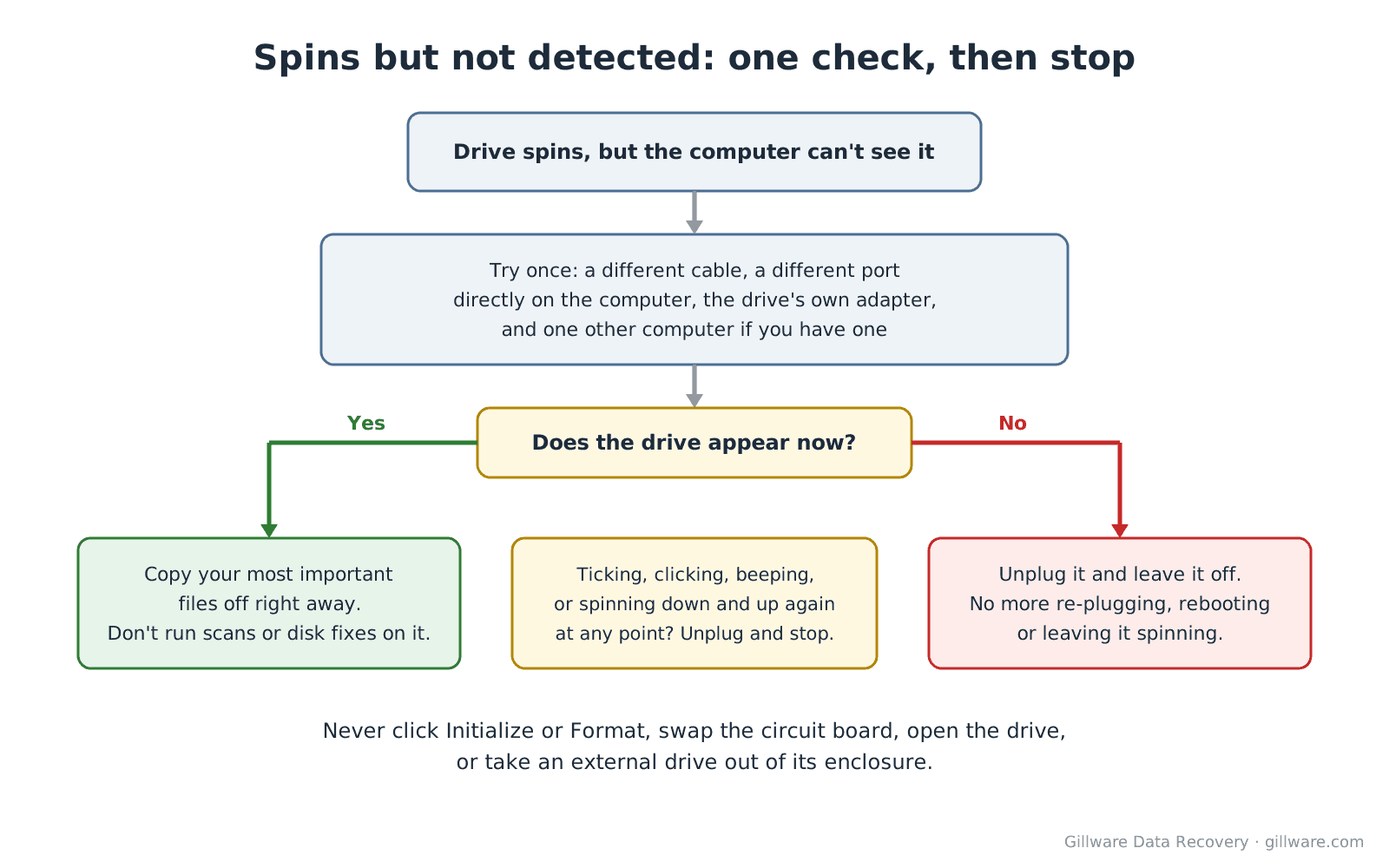
If none of that changes anything, or if at any point you hear ticking, clicking, beeping, or the drive spinning down and starting over, unplug it and stop. The drive has told you what you need to know.
What not to do
Most permanent damage to a spinning-but-not-detected drive happens after people first notice the problem, during attempts to bring it back.
- Don’t keep re-plugging it or rebooting to make it show up. Each attempt runs the drive through its whole startup again. If the heads are weak, that’s exactly the work that wears them out, and a head that fails completely can damage the platter surface it flies over.
- Don’t leave it spinning for hours hoping the computer eventually notices it, or loop through BIOS re-detection over and over. A drive that can’t finish starting up is usually retrying the same read the whole time.
- Don’t click Initialize or Format if the drive appears with the wrong size or as unknown. Initializing writes a new disk layout over the old one, and that can make recovery harder.
- Don’t swap the circuit board with one from an identical-looking drive. Modern drives keep information unique to each individual drive on the board, so a straight swap usually doesn’t work and can make things worse.
- Don’t open the drive or put it in the freezer. Dust settles on the platters the moment the case is opened outside a cleanroom, and condensation from the freezer can do real harm. We explain why in the hard drive freezer myth.
- Don’t count on recovery software. Data recovery software exists, and it can help with deleted files on a healthy drive. It can’t work on a drive the computer can’t see, and on a drive that is struggling to read, long scans put the weak parts under the most strain.
Still not detected after one cable, port and computer check? Send it in for a free evaluation.
Spinning but not detected vs. stopped working entirely
If your drive makes no sound at all, hums without spinning, or clicks loudly from the moment it gets power, it’s in a different state from the one described here. Our guide to a hard drive that stopped working walks through each of those behaviors and what it usually means. If the drive is detected but freezes your computer whenever you try to open it, see hard drive freezing your computer.
How a lab recovers data from a drive that spins but isn’t detected
When a drive like this arrives, our engineers first work out which link in the chain is broken, without running it through repeated startups that could make things worse. What happens next depends on what they find.
- Enclosure and bridge failures are handled with the original enclosure board where the drive uses hardware encryption, so the data can still be decrypted.
- Firmware problems are worked on through the drive’s reserved service area with specialized equipment, so the drive can report ready and be read.
- Electronics failures are handled at the board level, keeping the information that is unique to that drive.
- Weak or failed heads are replaced in our cleanroom with a compatible head assembly from a matching donor drive.
Once the drive can be read, engineers make a complete copy of it (an image) using hardware that controls how hard the drive is pushed, reading the healthy areas first and returning to difficult ones carefully. Your files are recovered from that image, not from the original drive, and returned on an encrypted drive. For an overview of the service, see our hard drive data recovery page; for external drives specifically, see external hard drive data recovery.
Every case is quoted after a free evaluation, so you know the cost before any recovery work begins. If you’d like to understand what goes into that quote, see how much hard drive data recovery costs. Gillware has been recovering data for more than two decades, from every major brand and type of drive.
Frequently asked questions
My hard drive spins but isn’t detected. Is my data gone?
Usually not. Spinning shows that power reaches the drive and the motor works. The failure is typically in the heads, the firmware, the interface electronics or an external drive’s enclosure, and the data on the platters is usually still there. What happens next matters most, so stop powering the drive on after one cable and port check.
Why does my external hard drive spin but not show up?
The most common causes are a failed USB bridge board or connector in the enclosure, firmware that won’t load, and weak read heads. A different cable and port rules out the simplest problems. Beyond that, don’t take the drive out of its case: many external drives encrypt data in the enclosure, so the bare drive can’t be read on its own.
The drive spins up, ticks, then spins down and starts again. What does that mean?
That cycle usually means the drive is trying to read its firmware from the platters and failing, most often because a read head is weak or damaged. Each cycle puts more wear on the heads. Unplug the drive and leave it unplugged.
My drive shows up in the BIOS with the wrong name or 0 GB. Can I fix it?
A wrong model name or a capacity of 0 GB usually means the drive is only half-starting, often because of firmware corruption or heads that can’t read everything they need. It isn’t something to fix with software or by initializing the disk. Unplug it and have it evaluated.
Will recovery software find a drive that isn’t detected?
No. Software can only work with a drive the computer can see. If the drive isn’t detected, the problem is in the drive’s hardware, firmware or enclosure, and the fix happens in a lab.
Drive spinning but not detected? Let’s get your files back.
Our highly experienced engineers strive for the highest success rates in the industry. Send us the device and we’ll diagnose it for free.
- More than 20 years recovering data from failed drives
- Trusted by 1,500+ IT professionals nationwide
- Whatever failed, we’ve seen it hundreds of times
- Pay only if we meet your recovery goals
