
External Hard Drive Not Mounting on Mac: What Finder, Disk Utility and the Drive Are Telling You

You plug in an external hard drive and nothing happens. There’s no icon on the desktop and nothing in the Finder sidebar, or a message says the disk could not be mounted. On a Mac, “not mounting” can mean anything from a loose cable to a drive that’s failing, and the steps that fix the first case can make the second much worse. This guide explains what your Mac is actually telling you, the three states a non-mounting drive can be in, and how to tell when to stop.
External drive won’t mount on your Mac?
If it clicks, keeps disappearing or macOS offers to initialize it, stop troubleshooting. We’ll evaluate the drive for free and tell you what’s recoverable.
What “mounting” means on a Mac
When you connect a drive, macOS does two separate things. First it has to detect the device: the USB or Thunderbolt connection comes up, the enclosure’s bridge board answers, and the Mac learns there’s a disk on the other end. Then it has to mount the volume: read the partition map, recognize the file system (APFS, Mac OS Extended, exFAT and so on), check that it’s consistent, and attach it so it appears in Finder.
A drive that “won’t mount” has failed at one of those steps. Which step it is tells you most of what you need to know. If the Mac can’t detect the drive, the problem is the connection, the enclosure or the drive itself. If it detects the drive but can’t mount it, the problem is usually the file system, and sometimes a drive that’s having trouble reading its own data.
The three states, and which one means stop
Open Disk Utility (Applications > Utilities), then choose View > Show All Devices. That setting matters: by default Disk Utility shows only volumes, so a drive with an unreadable volume can look as if it isn’t there. With all devices shown, you’ll see the physical disk and any volumes on it.
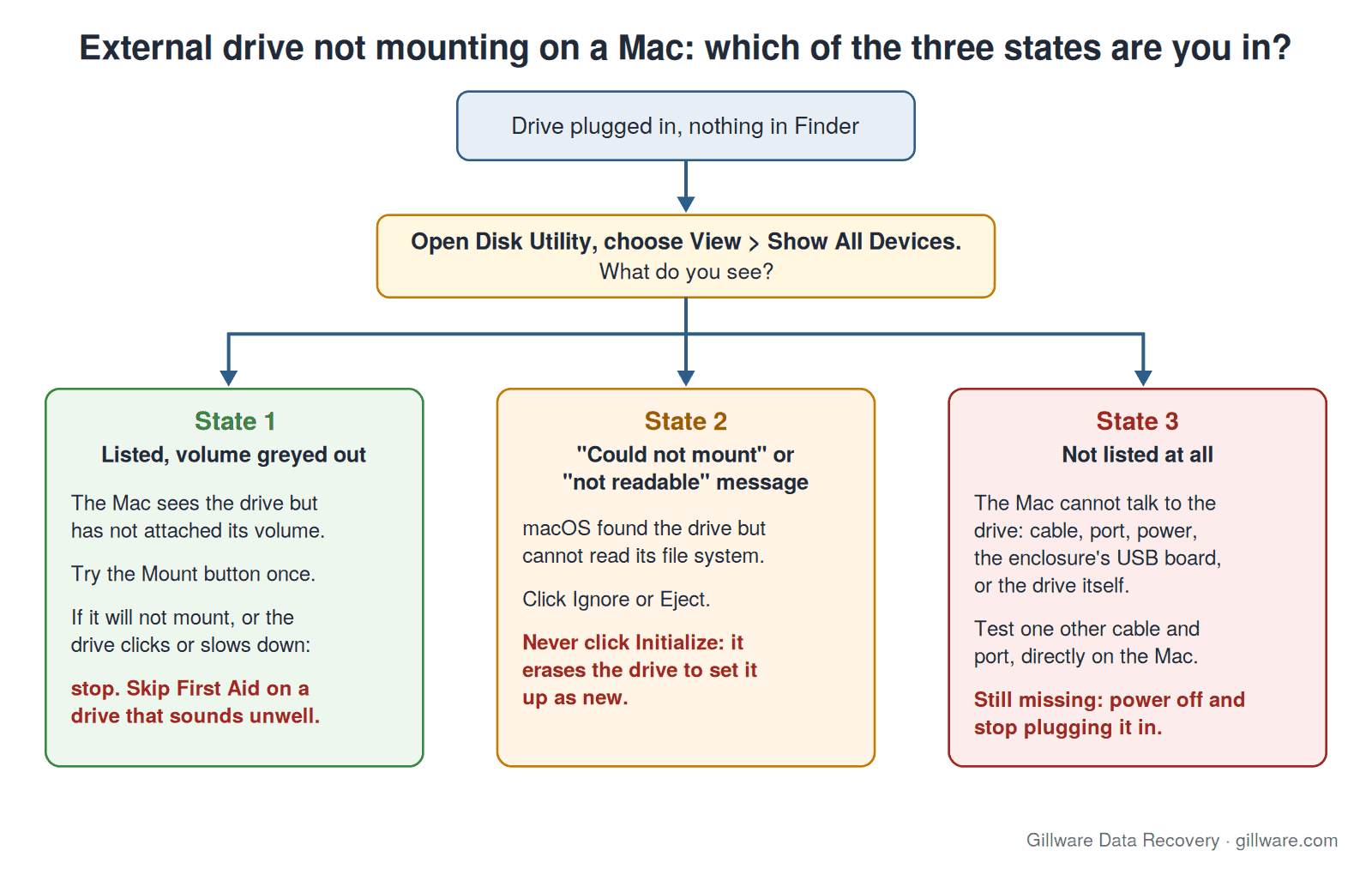
State 1: the drive is listed, but its volume is greyed out
The Mac detects the disk and can see that a volume exists, but it hasn’t attached it. Select the greyed-out volume and click Mount once. If it mounts, copy your important files off before doing anything else.
If it doesn’t mount, notice how the drive behaves. A volume that stays greyed out on a quiet, normally behaving drive often has a file-system problem, frequently after the drive was unplugged without being ejected or lost power mid-write. But if the drive is clicking, ticking, slowing the Mac down, or Disk Utility hangs while it tries, the drive is struggling to read its own data. That’s a hardware problem showing up as a mount failure. Stop there.
State 2: “could not mount” or “the disk you inserted was not readable”
Here macOS found the drive but couldn’t make sense of what’s on it. You may see a dialog offering Initialize, Ignore or Eject, or a “could not mount” message with a com.apple.DiskManagement.disenter error code. (One of those codes has its own explainer: what Mac error -119930876 means.)
Click Ignore or Eject. Never click Initialize on a drive that holds data you want. Initialize opens Disk Utility so you can erase and reformat the disk as new. It doesn’t fix anything, and a new file system written over the old one makes recovery harder.
This state has a few common causes: a damaged file system or partition map, a format the Mac can read only partly or not at all, an encrypted volume waiting for its password, or physical read errors in the areas where the file system keeps its own records. The first three can be harmless. The last one isn’t, and from the outside the error message looks the same.
State 3: the drive isn’t listed at all, even with all devices shown
The Mac can’t talk to the drive. That narrows the cause to the cable, the port, power, the enclosure’s USB bridge board, or the drive inside. Try one other cable and one other port, plugged directly into the Mac with no hub or adapter chain. A desktop drive also needs its own power adapter connected and switched on.
If it still doesn’t appear, power it off and stop plugging it in. Repeated reconnecting won’t wake a drive with a failed circuit board or damaged read heads, and each attempt can add damage. This is the Mac version of a hard drive that isn’t showing up, and the hardware causes are the same.
Signs the problem is the drive itself
Whatever state you’re in, these signs mean the drive is the problem, not macOS:
- Sounds. Clicking, ticking, beeping, grinding or buzzing. Our guide to a clicking hard drive explains what those sounds usually mean.
- Spin-up, spin-down cycles. The drive starts, stops, and starts again, over and over.
- Freezing. Finder, Disk Utility or the whole Mac stalls while the drive is connected, then recovers when you unplug it.
- Appearing and disappearing. The drive shows up for a moment, then drops off.
- A history. It was dropped, knocked off a desk while running, got wet, or was on during a power surge.
- Extreme slowness. It mounts, but opening a folder takes minutes.
With any of these, the safest move is to power the drive off. A drive with weak or damaged heads loses ground every hour it spends retrying reads, and the data is safest when the drive isn’t running.
Drive still won’t mount after one cable and port test? Send it in for a free evaluation before anything writes to it.
Why First Aid isn’t a harmless check
Almost every guide to this problem says to run First Aid in Disk Utility. On a healthy drive with a minor file-system error, that’s reasonable. It’s worth knowing what First Aid actually does before you click it, though.
First Aid checks the file system’s structures and, when it finds problems, rewrites them. That means it writes to the disk. On a drive with read errors it also reads the whole file-system structure, which works a weak drive hard. If the problem is physical, First Aid can fail partway through, leave the structures in a worse state, or simply keep a dying drive busy until it stops responding.
A sensible rule: run First Aid only on a drive that’s quiet and behaving normally, and only once. If it reports that it couldn’t fix the disk, don’t run it again, and don’t follow it with other disk tools or recovery programs. Each pass writes to, or wears on, the same drive that holds your files.
File system and format problems
Some mount failures have nothing to do with damage. They come from the format the drive uses:
- APFS. The default for current Macs. APFS volumes live inside a container, and a damaged container can make every volume in it disappear at once. Encrypted APFS volumes appear locked until you enter the password. Our APFS data recovery page covers containers, snapshots and encryption in more depth.
- Mac OS Extended (HFS+). The older Mac format, still common on Time Machine drives and older external disks. It’s generally readable by current macOS.
- exFAT. Common on drives shared between Macs and PCs. If an exFAT drive was unplugged without being ejected, macOS may check it before mounting. On a large drive that check can take a long time, so the drive seems to “not mount” when it’s actually busy. If the drive is quiet and healthy, waiting a few minutes is fine. If it’s making noise, that check is working a failing drive hard.
- NTFS. The Windows format. macOS can read NTFS volumes but can’t write to them without extra drivers, so a Windows drive may mount read-only. That’s normal, not a fault.
- Encryption. A FileVault-encrypted or password-protected volume won’t open without its password or recovery key. If you’ve lost that key, no lab can unlock the data, and we say so plainly. With the key, we can recover encrypted drives that have failed physically.
The enclosure and the USB connection
An external hard drive is two things in one case: a bare drive and a small bridge board that translates between the drive and USB or Thunderbolt. Either part can fail. A failed bridge board looks exactly like a failed drive, because the Mac can’t see past it.
Some portable and desktop drives encrypt data at the bridge board, so the files can only be read through that original board. Taking the drive out of its case and connecting it another way won’t show your files. It can also disturb the evidence an engineer uses to recover them. If the drive matters, leave it in its case. Our page on external hard drive data recovery explains how enclosures and bridge boards affect a recovery.
Cheap cables, long adapter chains and unpowered hubs are also common culprits, which is why “a different cable, directly into the Mac” is the one test worth doing.
Safe checks before you do anything else
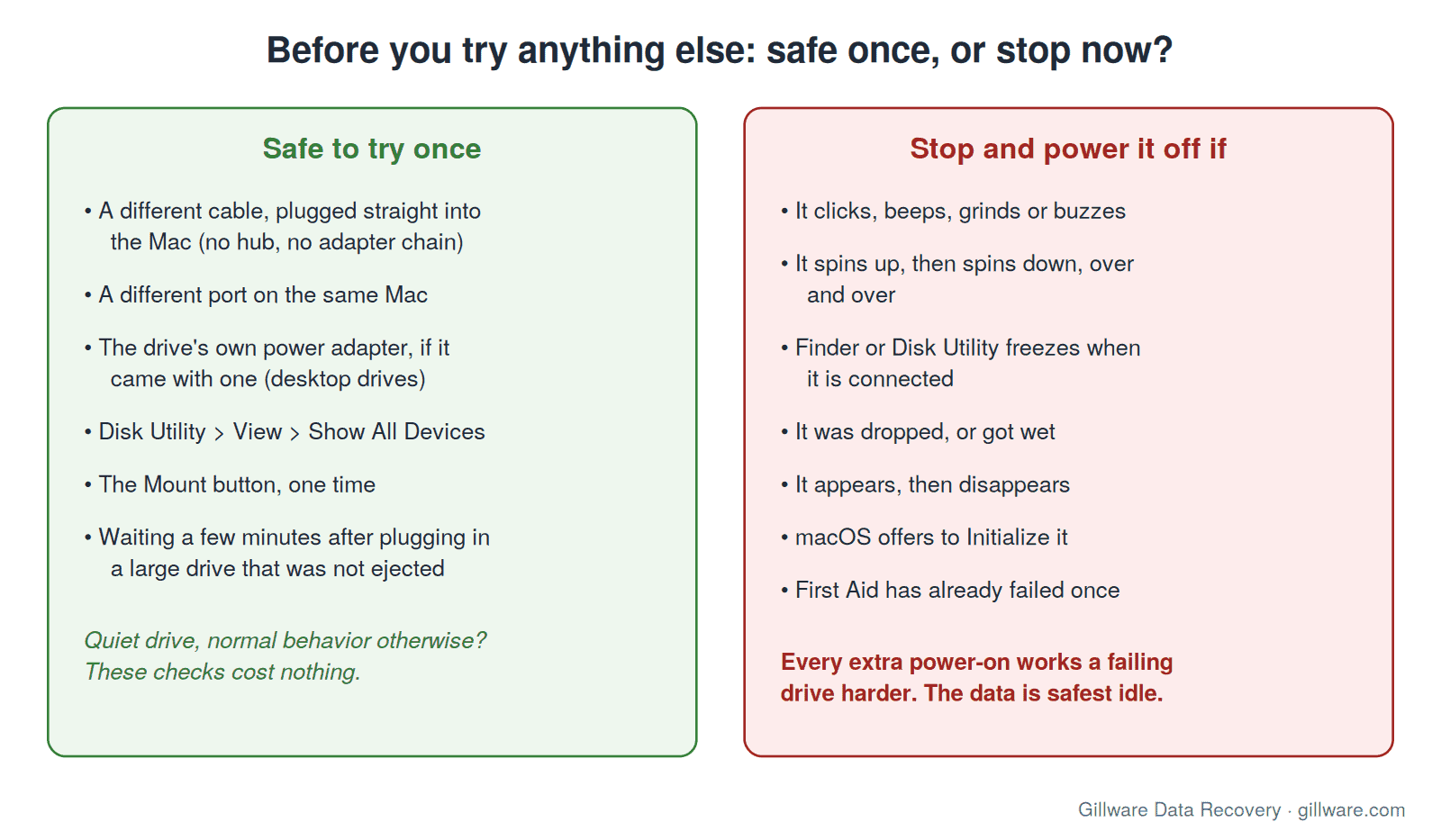
- Try a different cable, plugged straight into the Mac. No hub, dock or adapter chain.
- Try a different port on the same Mac.
- Connect the drive’s own power adapter if it came with one, and make sure it’s switched on.
- Open Disk Utility and choose View > Show All Devices to see which of the three states you’re in.
- Click Mount once if the volume is listed but greyed out.
- Give a large drive a few minutes if it was unplugged without ejecting and is otherwise quiet.
If the drive mounts, copy your most important files to another disk right away. A drive that failed to mount once often does it again.
What not to do
- Don’t click Initialize or erase and reformat the drive to “get it working”.
- Don’t run First Aid repeatedly, or at all on a drive that’s making noise.
- Don’t run recovery software on a drive that’s failing physically. Recovery programs exist and can help with a healthy drive that was accidentally erased. They can’t fix a mechanical fault, and they make a weak drive read for hours. If you do use one, never save recovered files back to the same drive.
- Don’t open the drive’s case or remove the drive from its enclosure if the data matters.
- Don’t freeze, tap or shake the drive. Those tricks don’t fix modern drives and can scratch the platters.
- Don’t keep plugging it in to “see if it works today”.
When to send it to a lab
Send the drive in if it shows any of the hardware signs above, if it’s in State 3 after one cable and port test, if First Aid has failed, or if the files are important enough that you don’t want to risk an experiment. The same applies to a Mac’s internal storage. Our Mac data recovery and MacBook data recovery pages cover internal and soldered drives.
In our lab, engineers start by working out what failed: the bridge board, the drive’s electronics, the read heads, the platters, or the file system. Physical problems are handled in our ISO 5 (Class 100) cleanroom. We then make a complete image of the drive with equipment that handles unstable and damaged media, and the recovery is done from that copy, not the original. APFS containers, HFS+ volumes and exFAT drives are rebuilt from the image, so your original drive is read as little as possible.
Gillware has been recovering data for more than two decades. Every case is quoted after a free evaluation, so you know the cost before any recovery work begins. If you’d like an idea of what affects the quote, see how hard drive recovery is priced.
Frequently asked questions
Why does my external hard drive show up in Disk Utility but not in Finder?
Because the Mac detected the disk but didn’t mount its volume. The volume usually appears greyed out. Try Mount once. If it won’t mount, or the drive is noisy or slow, stop and have it evaluated rather than running more disk tools.
Will First Aid erase my data?
First Aid doesn’t erase files, but it does write changes to the file system. On a healthy drive that’s usually fine. On a physically failing drive, the extra reading and writing can make things worse. Run it once at most, and only on a drive that’s quiet and behaving normally.
What happens if I click Initialize?
Initialize leads you to erase the disk and set it up as new. A new, empty file system is written over the old one. Some data may still be recoverable afterward, but it’s harder, so choose Ignore or Eject instead.
My drive works on a Windows PC but won’t mount on my Mac. Is it damaged?
Not necessarily. A Windows-formatted (NTFS) drive mounts read-only on a Mac, and some Windows-only formats or encryption won’t open at all. If the drive works normally on the PC, copy your files off there first.
Can you recover data from an external drive my Mac can’t see at all?
Often, yes. A drive that doesn’t appear even in Disk Utility usually has a failed bridge board, failed electronics or failed read heads, and the data on the platters is typically still there. Recovery works best when the drive hasn’t been run repeatedly after it started failing.
Mac still won’t mount the drive? Let’s get your files back.
Our highly experienced engineers strive for the highest success rates in the industry. Send us the device and we’ll diagnose it for free.
- More than 20 years recovering data from failed drives
- Trusted by 1,500+ IT professionals nationwide
- Whatever failed, we’ve seen it hundreds of times
- Pay only if we meet your recovery goals
