
Hard Drive Stopped Working: Why a Drive Dies Without Warning and What to Do Next

A hard drive that worked yesterday and does nothing today is one of the most common ways people lose files. There’s usually no warning: the drive was fine, then it wasn’t. The good news is that a drive that has stopped working almost never means the data is gone. The files are still written on the platters. What failed is usually one part of the machinery that reads them. This guide explains what your drive is doing when you power it, what that behavior tells you about the part that failed, the few checks that are safe to try, and when to stop.
Hard drive just stopped working?
If it’s silent, clicking or hanging, stop powering it on. Our engineers will diagnose it for free and tell you what’s recoverable.
Why a hard drive can die with no warning
A hard drive is a precise mechanical device. Inside the sealed case, one or more platters spin thousands of times a minute while read/write heads float a few nanometers above the surface on a cushion of air. A circuit board on the outside supplies power, runs the motor and talks to your computer. The drive’s own firmware, part of which is stored on the platters themselves, has to load before the drive can tell the computer anything at all.
That chain has several single points of failure. A power spike can take out a component on the circuit board in an instant. A read head can wear out or be damaged by a small knock and stop reading. The motor’s bearing can seize. Firmware can become corrupted. None of these needs to announce itself first. Some drives do give warning signs (slowdowns, read errors, new noises, which we cover in our guide to the signs a hard drive is failing), but many simply work one day and stop the next.
The important point is that in almost all of these failures the magnetic data on the platters is untouched. Recovery means getting around the part that failed without damaging what’s left. That is also why what you do in the next hour matters more than anything else.
What your drive does when you power it, and what that means
Before you try anything, connect the drive once and pay attention for about thirty seconds. Put your ear close to it. Feel whether it vibrates. Watch any activity light. Then unplug it. What you noticed falls into one of four patterns.
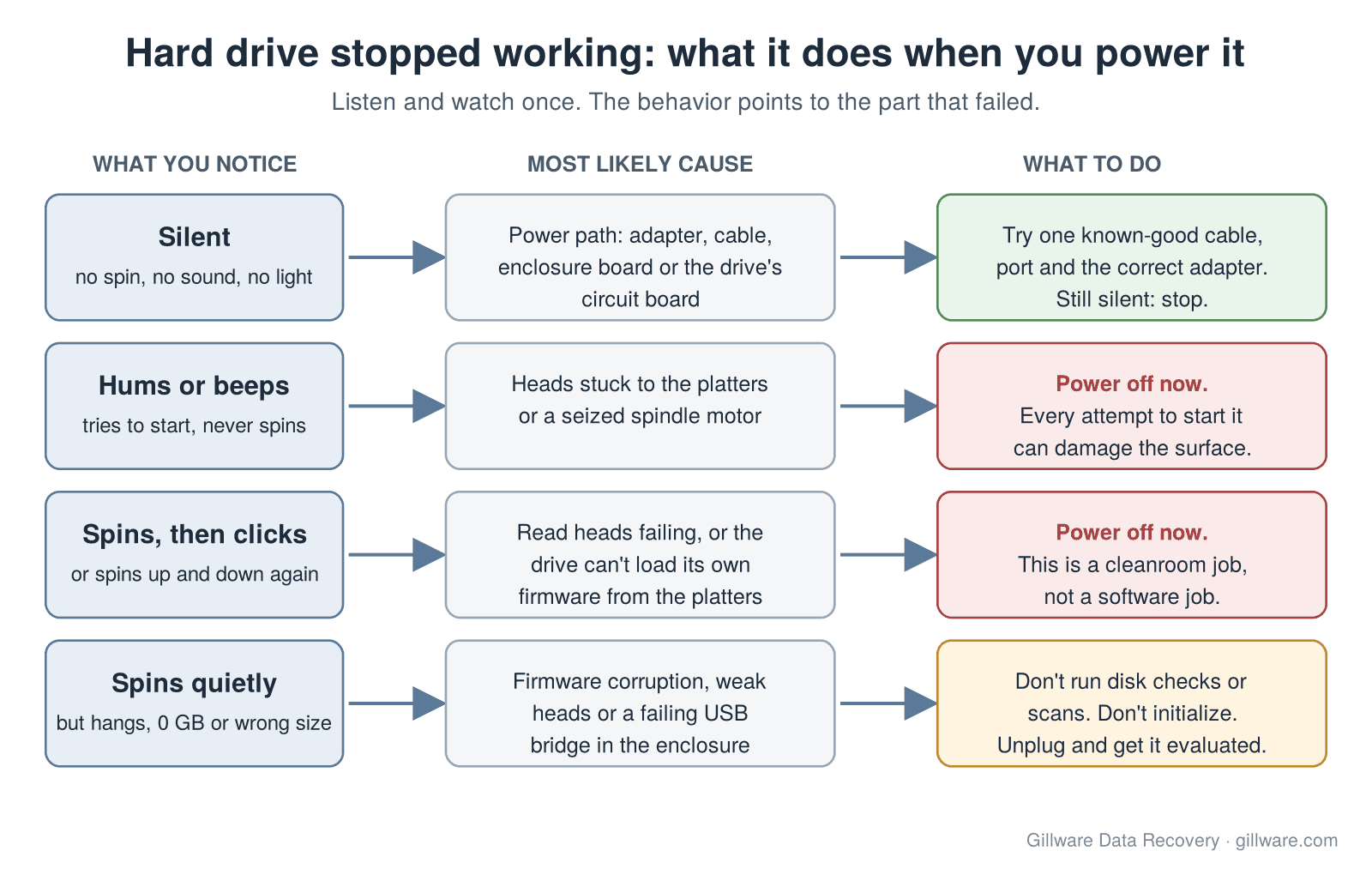
1. Completely silent: no spin, no sound, no light
If nothing happens at all, power isn’t reaching the drive or the drive’s electronics can’t use it. On an external drive, the cause is often outside the disk itself: a failed power adapter, a damaged cable or USB port, or a failed bridge board in the enclosure (the small board that converts the drive’s connection to USB). Inside the drive, a common cause is a damaged component on the circuit board, often after a power surge, a lightning storm or the wrong power adapter. Our page on hard drives that stop working after a power outage covers that situation in detail.
A silent drive is the one case where a simple check can help, because the fault may be a cable or adapter. If a known-good cable, a different port and the correct adapter change nothing, the problem is in the drive and it’s time to stop.
2. Hums, buzzes or beeps but never spins up
A faint hum or a repeating beep with no spin-up usually means the motor is trying to turn and can’t. Two causes are typical. The read heads may be stuck to the platter surface instead of resting in their parking position, which pins the platters in place. Or the spindle motor’s bearing may have seized (our page on why a hard drive stops spinning goes deeper into both). Small portable drives are especially prone to stuck heads after a bump or a drop. See our page on beeping hard drives for more on the sound itself.
Every attempt to start a drive in this state strains the motor and drags the heads against the surface. Unplug it and leave it unplugged.
3. Spins up, then clicks or spins up and down repeatedly
If the platters spin but you then hear a rhythmic click, a tick-tick-tick, or the drive spins down and starts over, the drive can’t read what it needs from the platters. The usual cause is a failed or failing read head. Sometimes the heads are fine but the drive can’t load the part of its firmware that lives on the platters. Either way, this is the classic sign of a drive that needs a cleanroom, not software. Our guide to a clicking hard drive explains the sound in more detail, and grinding or scraping sounds are covered in hard drive grinding noise.
A clicking drive is the one most damaged by repeated attempts. A damaged head can scratch the surface it’s flying over, and scratched areas can’t be read by anyone.
4. Spins normally but hangs, shows 0 GB or the wrong size
Some drives spin quietly and are even detected, but then nothing works. The computer freezes when the drive is connected, the drive shows a capacity of 0 GB or a strange size, or it appears in disk management tools without a usable volume. This pattern points to firmware corruption, heads that are weak but not dead, or, on an external drive, a failing USB bridge. If the drive spins but your computer doesn’t see it at all, that’s a closely related symptom with its own set of causes, covered in hard drive not showing up. A drive that shows up in Disk Management but not in File Explorer is a different situation again, explained in drive shows in Disk Management but not File Explorer.
The temptation here is to run a disk check or a scan because the drive seems almost alive. On a drive that’s hanging because it’s struggling to read, a full scan makes it read every sector, over and over, which is the hardest work you can give a weak drive.
The checks that are safe to try
These steps don’t put the data at risk. Do each one once, not in a loop.
- Try a different cable and a different USB port, ideally one directly on the computer rather than a hub or the front of a desktop case.
- Use the drive’s own power adapter. Desktop external drives need their adapter plugged in. Don’t substitute an adapter from another device: a wrong voltage or polarity can burn out the drive’s circuit board.
- Try a second computer if you have one handy. If the drive works there, copy your files off right away.
- Look once in Disk Management (Windows) or Disk Utility (Mac) to see whether the drive is listed. Just look; don’t click Initialize, Format, First Aid or anything that offers to fix the disk.
If none of those changes anything, or if at any point the drive clicks, buzzes, beeps or makes a sound it didn’t make before, unplug it and stop.
What not to do
A lot of permanent data loss happens after a drive stops working, not at the moment it stops. These are the common ways that happens.
- Don’t keep power cycling it. Plugging it in “one more time” on a different computer, with a different cable, after a restart, is how a recoverable drive becomes a damaged one.
- Don’t put it in the freezer. The freezer trick is a myth from much older drives, and condensation inside the drive can make things far worse. We explain why in the hard drive freezer myth.
- Don’t tap, shake or drop it to “unstick” it. If the heads are stuck, force can tear them off and leave debris on the platters.
- Don’t open it. Outside a cleanroom, dust settles on the platters, and a single particle is large compared to the gap the heads fly in.
- Don’t swap the circuit board with one from an identical-looking drive. Modern drives store information unique to that individual drive on the board, so a straight swap usually doesn’t work and can make things worse.
- Don’t run recovery software for hours on a drive that is clicking, hanging or making noise. Software can help when files were deleted from a healthy drive. It can’t help when the drive itself is failing, and long scans wear out weak heads.
- Don’t take an external drive out of its case if it’s a model with built-in hardware encryption. On many external drives the enclosure’s board encrypts the data, so the bare drive can’t be read on its own. Leave it as it is.
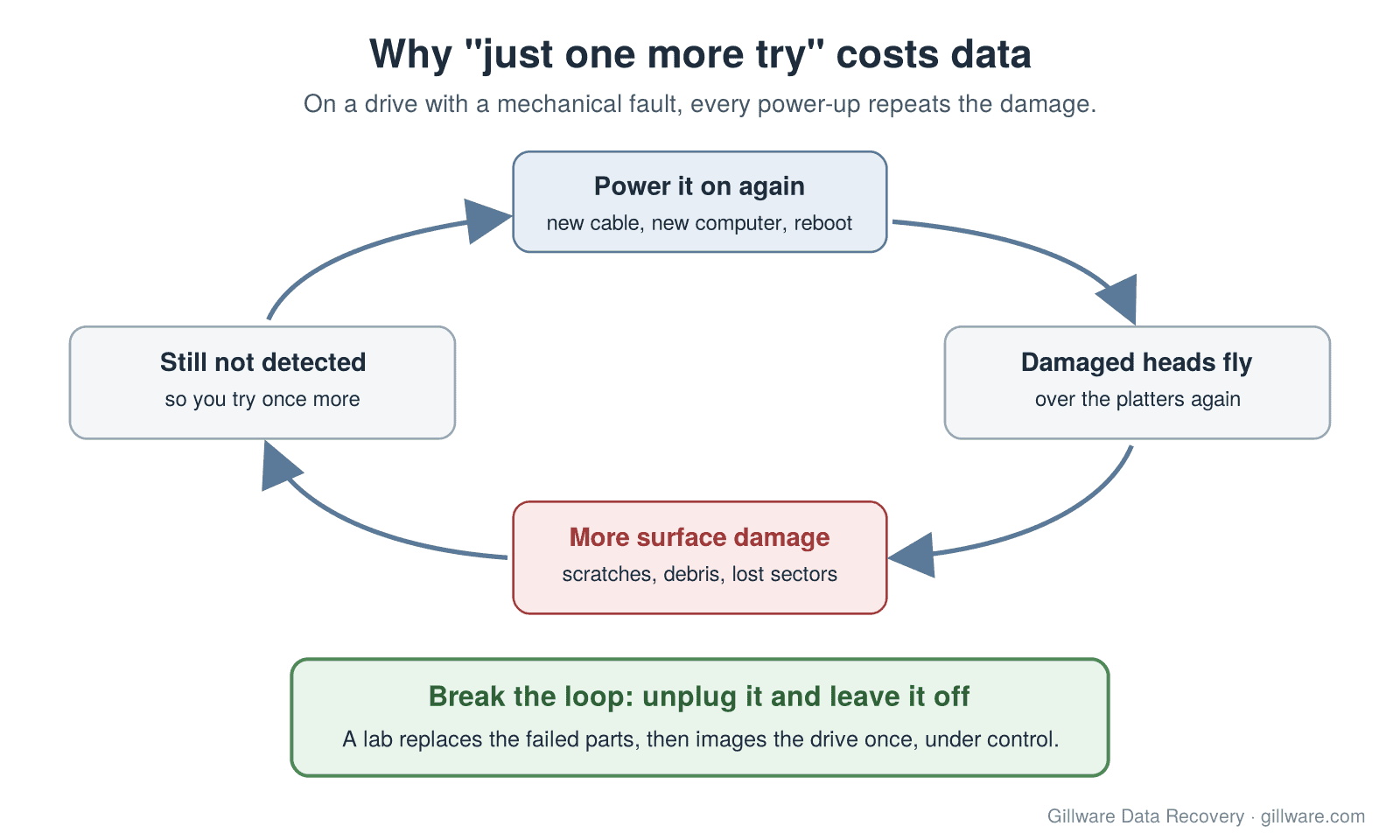
External drives that stopped working
External drives fail in two places: the enclosure and the drive inside it. The enclosure’s power adapter, USB connector and bridge board can all fail on their own, and that’s the best case, because the disk inside may be fine. But external drives are also carried around, knocked off desks and unplugged while running, so physical damage to the drive itself is common. If your external drive was dropped, see dropped hard drive recovery. For an overview of how external drives are built and recovered, see external hard drive data recovery.
If your drive is a solid-state drive rather than a spinning hard drive, the causes are different. SSDs have no moving parts, and they usually fail at the firmware or controller level. Our SSD data recovery page covers what applies to them.
Drive still dead after a cable and port check? Send it in for a free evaluation.
How a lab recovers data from a drive that stopped working
When a drive arrives, our engineers start by finding out which part failed, without powering the drive in a way that could make it worse. What happens next depends on that diagnosis.
- Electronics failures are handled at the board level, keeping the drive-specific information that has to stay with that drive.
- Head failures and stuck heads are handled in an ISO 5 (Class 100) cleanroom, where engineers replace the failed head assembly with a compatible part from a matching donor drive.
- Seized motors may require moving the platters to a working chassis, which also happens in the cleanroom.
- Firmware problems are worked on through the drive’s service area with specialized equipment, so the drive can be read again.
Once the drive can be read, engineers make a complete copy (an image) of it with hardware that controls how hard the drive is pushed, reading the healthy areas first and coming back to difficult ones carefully. Your files are recovered from that image, not from the original drive. Recovered data is returned on an encrypted drive. Our page on hard drive failure recovery covers the service in more detail, and our guide to recovering data from a dead hard drive walks through the process step by step.
Every case is quoted after a free evaluation, so you know the cost before any recovery work begins. If you want to understand what goes into that quote, see how much hard drive data recovery costs. Gillware has been recovering data for more than two decades, and our engineers work on every major brand and type of drive. See our hard drive data recovery page for the full range.
Frequently asked questions
My hard drive stopped working overnight. Is my data gone?
Usually not. When a drive stops working suddenly, one component has typically failed (the circuit board, the read heads, the motor or the firmware) while the data on the platters is still there. Whether it can be recovered depends mostly on what happens next, so stop powering the drive on.
Why did my hard drive stop working with no warning?
Many failures are sudden by nature. A power spike can damage the circuit board instantly, a read head can fail without any earlier symptoms, and firmware can become corrupted during an ordinary shutdown. Drives that fail gradually do give warnings, but many don’t.
My external hard drive stopped working but the light comes on. What does that mean?
The light shows that the enclosure is getting power, not that the drive inside is healthy. Listen to the drive: if it’s silent, clicking or beeping, the problem is likely inside the drive. If it spins quietly but isn’t detected, the enclosure’s USB bridge or the drive’s firmware may be at fault. Try one other cable and port, then stop.
Can I fix a dead hard drive myself?
If the cause turns out to be a cable, a port or an external drive’s power adapter, yes. Beyond that, the fixes involve the drive’s electronics, a cleanroom or firmware tools, and a home attempt is the most common way a recoverable drive becomes unrecoverable. Swapping circuit boards and opening the drive both carry a high risk of permanent loss.
Will a dead hard drive come back to life if I leave it alone?
No. A failed component doesn’t heal. Leaving the drive unplugged doesn’t fix it, but it does stop further damage, which is the best thing you can do for your data until it’s evaluated.
Drive stopped working? Let’s get your files back.
Our highly experienced engineers strive for the highest success rates in the industry. Send us the device and we’ll diagnose it for free.
- More than 20 years recovering data from failed drives
- Trusted by 1,500+ IT professionals nationwide
- Whatever failed, we’ve seen it hundreds of times
- Pay only if we meet your recovery goals
