
Hard Drive Grinding or Making Noise: What Each Sound Means and Whether the Data Is Still Recoverable

Hard drive grinding, buzzing or beeping?
Power it off now. Every spin-up of a noisy drive can scrape away more data. We’ll evaluate your drive for free.
A hard drive that has started grinding, scraping, buzzing, or whirring is not “just getting old.” Those sounds come from specific mechanical events inside a sealed enclosure that was engineered to be nearly silent, and each one points to a different kind of failure. This page walks through the sounds people describe most often, what each one usually means mechanically, which ones are emergencies, and what to do in the next few minutes. The most important sentence comes first: if a drive that used to be quiet is now making a new noise, power it down and leave it off. Almost every sound on this page gets worse with every additional spin-up.
Why a Hard Drive Makes Noise at All
A spinning hard drive has exactly two moving systems. A spindle motor turns a stack of polished platters at 5,400 to 7,200 revolutions per minute, and an actuator arm swings a set of read/write heads across the platter surfaces. In a healthy drive the heads never touch the platters; they fly on a cushion of air a few nanometers thick, thinner than a fingerprint. A healthy drive produces a soft, even hum from the motor and a faint, irregular tick as the actuator seeks. That is all you should ever hear.
Every other sound is a sign that something is touching something it should not, or that a motor is struggling. Because the heads and platters are separated by so little, the difference between “working” and “scraping the data off the surface” is a very small one. That is why the sound matters and why it is worth identifying before you do anything else.
Grinding or Scraping: The Sound to Treat as an Emergency
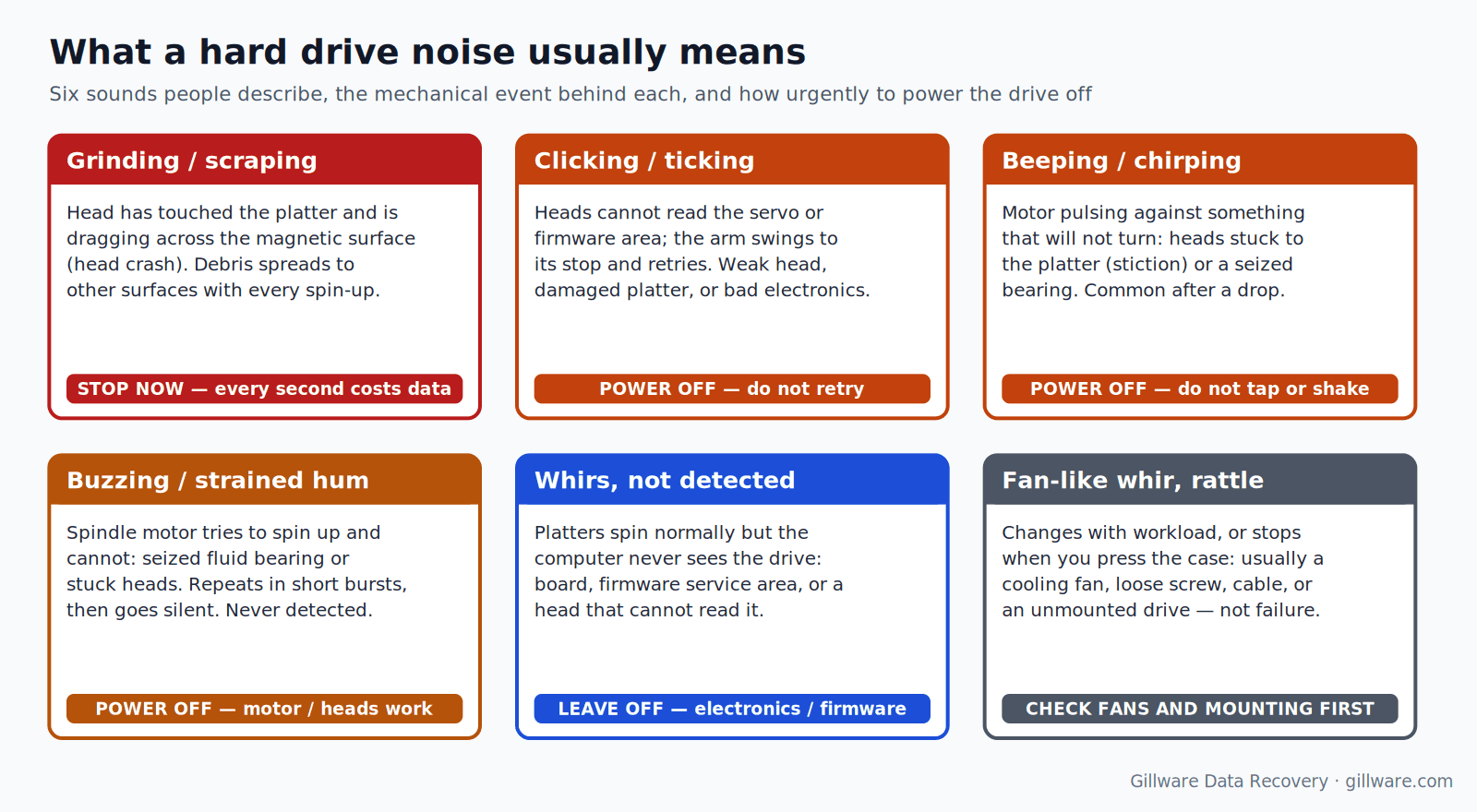
A continuous grinding, scraping, or rasping sound while the drive spins is the one we most want you to stop immediately. In the large majority of cases it means a read/write head has made contact with a platter — a head crash — and is now dragging across the magnetic coating as the platter turns beneath it. The sound is the head slider and the platter surface abrading each other at thousands of revolutions per minute.
Platters hold your data in a magnetic layer that is far thinner than the glass or aluminum beneath it. A head riding on that layer scrapes it off and throws the debris around the inside of the drive, where it lands on the other platter surfaces and under the other heads. A drive that grinds for ten seconds has usually lost a thin ring of data; a drive that was left grinding through a few reboots and a long “let it try” session has often lost whole regions, and no lab can recover magnetic material that is no longer on the platter. Our engineers see the difference under a microscope every week: the drive that was powered off at the first grind has a light scoring mark and recoverable platters; the drive that was retried has deep concentric gouges and a cloud of debris. The first is scratched-platter recovery work. The second may be beyond anyone’s help.
Grinding often starts after a physical event: a drop, a bump to a running laptop, a move, or a power loss while the drive was writing. If your drive was dropped, our dropped hard drive page explains what happens inside during the fall. But it can also start with no warning on a drive that has simply worn out; an older head that has lost its flying height will eventually touch down on its own.
Buzzing, Humming Loudly, or Whirring Without Being Detected
A loud buzz or a strained hum, often in short repeating bursts, usually means the spindle motor is trying to start and cannot bring the platters up to speed. Two things cause this. The first is a seized motor bearing — the fluid-dynamic bearing has worn or dried, and the motor does not have the torque to break it free. The second is stiction: the heads have landed on the platter surface instead of their parking ramp, and the microscopically smooth surfaces have stuck together, holding the platter in place. In both cases the drive will typically buzz for a second or two, pause, buzz again a few times, and then go silent. The computer never sees the drive because it never finished spinning up.
A drive that whirs normally, sounds as though it is running, but is not detected by the computer is a different situation. The motor is fine; the problem is in the electronics or the firmware, or in the heads’ ability to read the service data the drive needs before it can report itself to the computer. This is a quieter failure and usually a more recoverable one, provided nobody has been swapping circuit boards or running software against it. Our hard drive motor failure page goes deeper into the seized-motor case specifically.
Beeping
Hard drives have no speaker, so a “beep” from a drive is actually the spindle motor being driven against something that will not turn. Most often that something is the heads stuck to the platter after a drop or a hard shutdown, though a seized bearing produces the same note. It is common on small external and portable drives that were bumped while running. The motor pulses, the platter does not move, and the pulses are audible as a beep or chirp. Leave it off: forcing the motor to pulse against stuck heads is how a stuck-heads case turns into a scratched-platter case. We cover this sound on its own beeping hard drive page.
Clicking, Ticking, or Knocking
A rhythmic click — a few clicks, a pause, then the same again — is the actuator arm swinging to its stop because the heads cannot read the servo tracks or the firmware area on the platter. It is the most recognizable hard drive sound and has its own page: Hard Drive Clicking Noise: What the Sound Means and What to Do Next. The short version is the same as for grinding: a clicking drive is a drive whose heads are failing or whose platters are damaged, and every power-on is another chance for a weak head to touch down.
Sounds That Are Usually Not the Drive
Not every noise from the computer is the hard drive. A few are worth ruling out before you assume the worst, because the fixes are very different.
- A steady whir that changes with workload is almost always a cooling fan, not a drive. Fans speed up when the processor is busy; drives do not.
- A rattle or vibration that stops when you press on the case is usually a loose screw, a cable touching a fan, or a drive that is not firmly mounted. A drive that is mounted loosely can vibrate audibly without being damaged — but it should be mounted properly, because sustained vibration shortens a drive’s life.
- A high-pitched electrical whine from a desktop is more often a power supply or a graphics card’s coils than a drive.
- Solid-state drives make no sound at all. If your system has only an SSD and you hear mechanical noise, it is a fan, a loose part, or an external drive you have forgotten about.
If you have an external drive, unplug it and listen again. If the noise moves with the external drive, the drive is the source. If the laptop or desktop itself is making the noise and it stops when the machine is idle, it is probably a fan.
A noisy drive needs a cleanroom, not another restart. Send it in for a free evaluation.
What Not to Do
The same handful of well-meant actions turn recoverable drives into unrecoverable ones. We see them in the case notes every week.
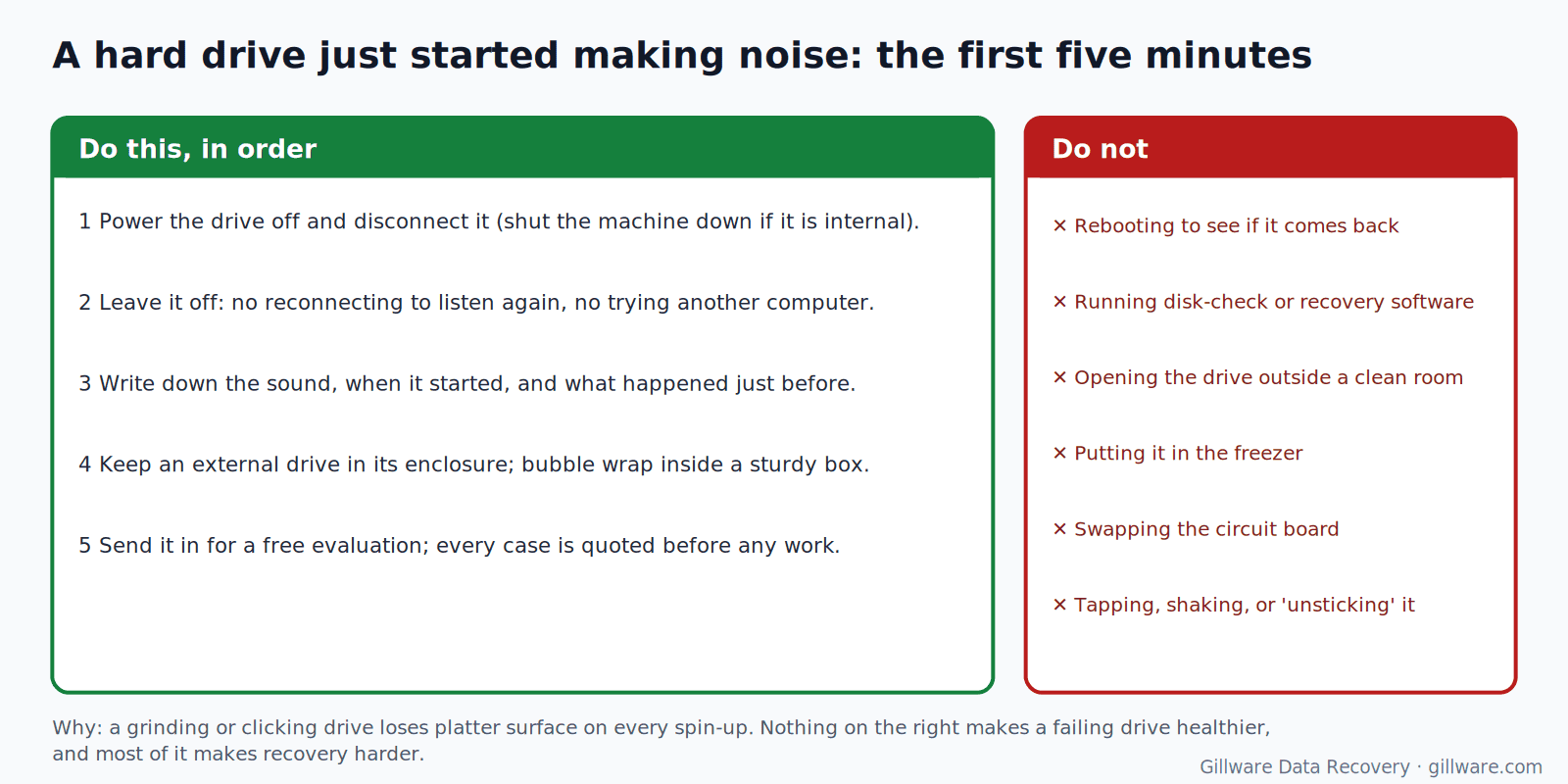
- Do not keep rebooting to “see if it comes back.” Each spin-up of a grinding drive scrapes more platter. Each spin-up of a clicking drive risks a touchdown. A drive that is going to come back comes back on the first try.
- Do not run disk-checking or recovery software on a drive that is making noise. Software works the drive hard, reading every sector and retrying every error. On a mechanically failing drive, that is the worst possible workload.
- Do not open the drive. The inside of a hard drive is assembled in a clean environment for a reason: a single dust particle is larger than the gap between a head and a platter.
- Do not put it in the freezer. The freezer trick is a decades-old myth that introduces condensation onto the platters. We wrote up why the freezer does not work if you want the details.
- Do not swap the circuit board. Modern drives store drive-specific calibration data on the board; a donor board without that data will not make the drive work and can make the recovery harder.
- Do not tap, shake, or “unstick” the drive. If the heads are stuck to the platter, a jolt is as likely to tear them as free them.
What a Professional Evaluation Involves
When a noisy drive arrives in our lab, the first thing an engineer does is not power it on. The drive is inspected, its label and board are checked against our parts inventory, and only then is it spun up briefly under controlled conditions while an engineer listens for exactly the sounds described above. That short listen tells us which of the failure paths the drive is on.
Grinding, scraping, or clicking means the drive is opened in a clean room and the heads and platters are examined under magnification. The question is whether the platters are intact enough to read. If they are, the failed head stack is replaced with a matched donor set and the drive is imaged — read sector by sector onto a healthy drive by hardware that controls which heads read, how many retries are allowed, and in what order, so good data is secured before fragile regions are attempted. If the platters are scored, the imaging strategy is built around the damaged zones.
Buzzing or beeping means the engineer frees the heads from the platter surface in the clean room, or moves the platters to a donor chassis with a working motor if the bearing has seized. On multi-platter drives the platters must keep their exact alignment to one another through that move, which is one of the reasons it is not a job for a kitchen table.
Whirring but not detected starts on the electronics bench: the board, the firmware service area, and the heads’ ability to read it are tested in turn, without the drive doing any more work than necessary.
In every case the original drive is imaged and then set aside; the file system is rebuilt from the image, and the original is never written to. Every case is quoted after a free evaluation, so you know the cost before any recovery work begins.
Gillware has been recovering data from noisy, failed, and physically damaged hard drives for more than two decades, across every major manufacturer, in internal, external, and laptop form. Our hard drive data recovery hub explains the full process.
What to Do Right Now
- Power the drive off and disconnect it. If it is inside a laptop or desktop, shut the machine down rather than letting it keep trying.
- Do not reconnect it to listen again, try another cable, or test it in another computer.
- Write down what the sound was like, when it started, and what happened just before (a drop, a power cut, nothing at all). Our engineers use that.
- If it is an external drive, leave it in its enclosure. Wrap the drive in bubble wrap inside a sturdy box and send it in for a free evaluation.
Noisy hard drive? Let’s get your files back.
Our highly experienced engineers strive for the highest success rates in the industry. Send us the device and we’ll diagnose it for free.
- More than 20 years recovering data from failed drives
- Trusted by 1,500+ IT professionals nationwide
- Whatever failed, we’ve seen it hundreds of times
- Pay only if we meet your recovery goals
