
MacBook Won’t Turn On: How to Get Your Data Back When the Mac Is Dead

You press the power button and nothing happens. No chime, no Apple logo, no keyboard light, nothing on the screen. If the MacBook holds photos, client files or years of work that aren’t backed up, the computer itself is now the least of your worries. The question is whether the data is still there and how to get it out. On a modern MacBook the answer depends on something most owners never think about: the storage is part of the logic board, and it’s encrypted to that board. This guide explains what that means, what you can safely check, and what to avoid so a dead MacBook doesn’t turn into lost data.
MacBook dead and your files are inside?
If it shows no sign of life after a charger check, stop there. We’ll evaluate the MacBook for free and tell you what’s recoverable.
“Won’t turn on” and “won’t boot” are different problems
Before anything else, work out which situation you’re in, because the risks are different.
- Won’t turn on: no sound, no light, no fan, no picture, and nothing changes when you connect the charger. The Mac shows no sign of life at all. This usually points to the power path or the logic board.
- Turns on but the screen stays black: you hear a sound, see the keyboard backlight or the Caps Lock light respond, or feel the fans, but the display stays dark. The Mac may be running fine behind a failed display or backlight. Our page on a MacBook Pro black screen with no indicator lights covers one common version of this.
- Turns on but won’t start up: you get the Apple logo and a progress bar that never finishes, a flashing folder with a question mark, a circle with a line through it, or a grey screen. Here the hardware is at least partly alive. The usual causes are damaged storage, a damaged file system or a failed macOS update.
This guide is mostly about the first case: a MacBook that is completely dead. Much of it also applies to the other two, because in every case the files sit on the same storage, and the same mistakes put them at risk.
Where your data actually lives on a MacBook
For most of the MacBook’s history, the storage was a separate part. Older MacBooks and MacBook Pros used an ordinary 2.5-inch hard drive or SSD, and the 2012 to 2015 models used a removable Apple “blade” SSD. When one of those Macs died, the drive could come out, and the data could be read on other equipment. The computer and the data were two different problems.
That changed from roughly 2016 on. Most MacBooks since then have their flash storage chips soldered directly to the logic board. There is no drive to pull. And every MacBook with Apple’s T2 security chip (the Intel models from 2018 to 2020) or with Apple silicon (M1 and later) goes a step further: the storage is always encrypted, with a key that lives inside the T2 chip or the M-series processor itself. That happens whether or not you ever turned on FileVault.
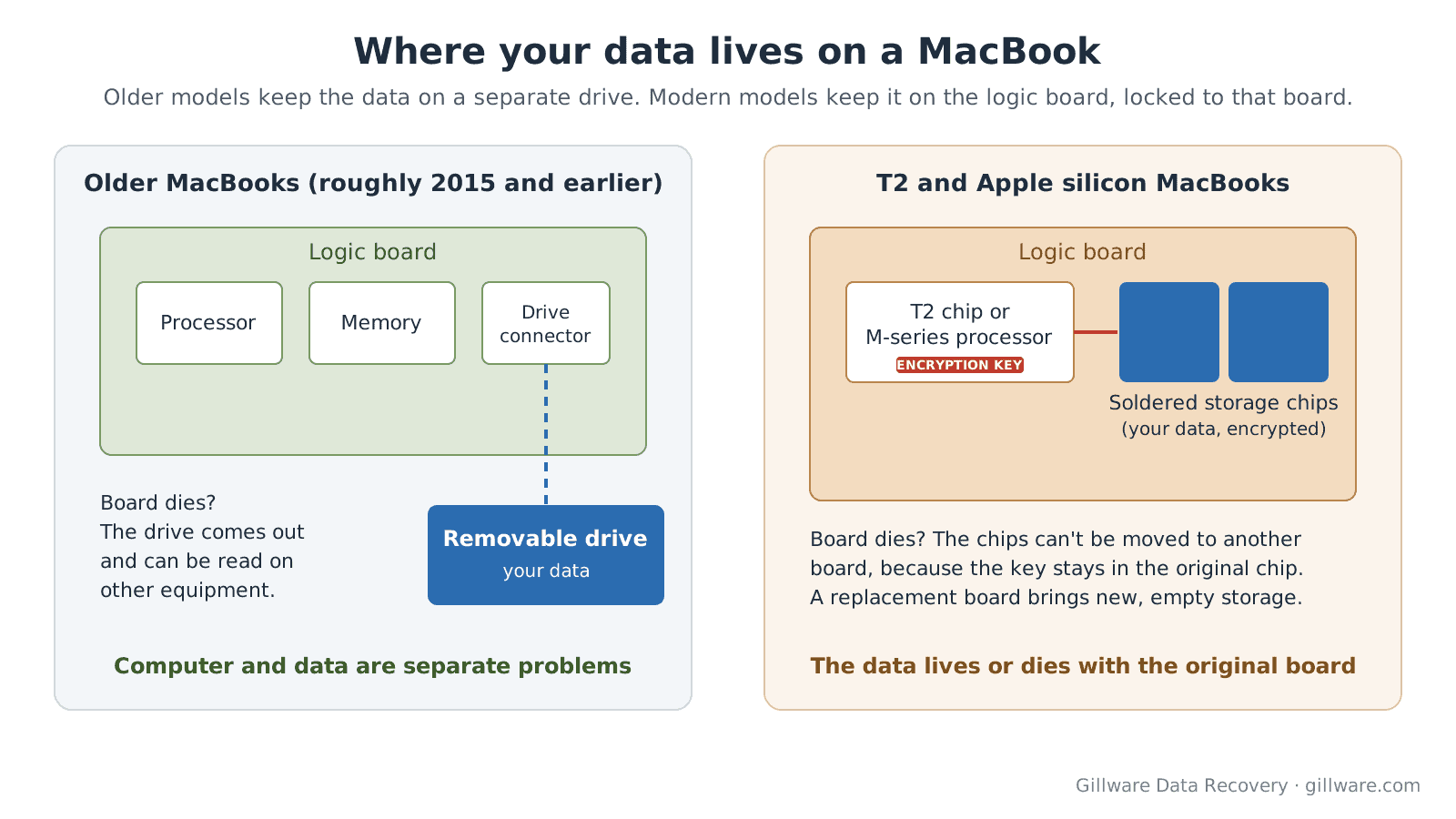
The practical result: on a modern MacBook, the data lives or dies with the logic board. The storage chips can’t simply be moved to another board and read, because the key that unlocks them stays behind in the original chip. To get the files back, that original board has to be brought back to a working state, at least long enough to read the storage.
What usually stops a MacBook from turning on
A MacBook that shows no sign of life almost always has a fault somewhere on the logic board or in the power path to it. The most common causes:
- Liquid. Coffee, water or a soda spill that reached the board, sometimes days or weeks before the Mac finally stopped. Corrosion keeps working after the liquid dries. If this is what happened, read our MacBook water damage guide right away.
- A failed power component. A shorted capacitor, a failed power-management chip or a damaged charging circuit can keep the whole board from starting. The storage chips themselves are often unharmed.
- Charging port and charger faults. A damaged USB-C or MagSafe port, cable or adapter. These are the one category you can rule out yourself.
- Drops and pressure. A fall or a heavy bag can crack solder joints or damage parts on a densely packed board.
- Power surges through the charger during a storm or an electrical fault.
- A deeply drained or failing battery, which can stop some models from starting even with the charger connected.
Most of these are faults in the circuits around the storage, not in the storage itself. That is the good news. It’s also why the choices you make in the next few days matter so much.
What you can safely check first
A few checks carry no risk to your data. Do them once, in this order:
- Rule out the charger. Use a different Apple charger and cable that you know works, plugged into a different wall outlet, not a power strip or hub. Leave it connected for at least 15 to 30 minutes before you try the power button. A fully drained battery can take a while to accept enough charge to start.
- Look for signs of life. In a dim room, check whether the keyboard backlight, the Caps Lock light or the screen glows at all when you press the power button. Listen for fans or a startup sound.
- Try an external display if you have one and the right adapter. If a picture appears there, the Mac is running and the problem is the built-in screen. Your data is likely fine; copy what you need to an external drive right away.
If none of that brings it to life, stop. A completely dead MacBook won’t start because of anything else you can do from the keyboard, and a board with a short or liquid damage can get worse each time power is pushed through it.
One more thing worth checking before you pay anyone: whether the files you need are already somewhere else. If iCloud Drive’s Desktop & Documents syncing was turned on, or if you used Time Machine, sign in to iCloud.com from another device or look at your backup drive first. If your Time Machine drive also has problems, our guide to an external drive that won’t mount on a Mac explains what to do next.
Before anyone replaces the logic board or erases the Mac, talk to us. The evaluation is free.
Why a “logic board replacement” can cost you your data
This is the single most important point in this guide. When a MacBook with soldered storage won’t turn on, the standard answer from a service desk is to replace the logic board. That gets you a working computer. It does not get you your files back.
Because the storage is part of the board, a new board comes with its own new, empty storage. Your data stays on the old board, encrypted with a key that only the old board’s chip holds. Once the old board is exchanged, recycled or scrapped, the data goes with it, and no lab can get it back from the new one.
So if your files matter, make the decision in the right order:
- Recover the data first, then decide about the computer. Tell anyone who looks at the Mac that the data matters more than the machine.
- Don’t authorize a board exchange until you have your files or have decided you can live without them.
- If a board has already been replaced, ask right away whether the original board still exists and whether you can have it back. Recovery is only possible from the original.
The same goes for erasing. If anyone suggests a “restore” of the Mac’s firmware from another Mac, know that a restore erases the internal storage. The Mac comes back to life and your files are gone.
FileVault, passwords and recovery keys
On a T2 or Apple silicon MacBook, getting the board running is only half the job. The data also has to be unlocked once the storage can be read, and that is normally done with your Mac login password. If FileVault was turned on, the password or the FileVault recovery key is essential: without one of them, no one can undo the encryption, including Apple and including us.
Before you send the Mac anywhere, gather:
- the login password for each user account whose files you need
- the FileVault recovery key, if you wrote it down or saved it
- the Apple ID linked to the Mac, in case the recovery key was stored with your iCloud account
Our pages on APFS data recovery and recovering data from encrypted drives explain how encrypted Mac volumes are handled once the storage can be read.
Older MacBooks with a removable drive
If your MacBook is older, roughly 2015 or earlier for most models, the storage is probably a separate drive. That is the easier case. The drive can be taken out and read on dedicated equipment, and the condition of the rest of the computer doesn’t matter.
The temptation is to pull the drive yourself and plug it into an adapter. If the drive is healthy, that can work. But if the MacBook died because the drive failed, or if you hear clicking or the drive isn’t recognized in the adapter, stop. A failing hard drive loses ground every time it’s powered on, and an Apple blade SSD needs a specific adapter that is easy to get wrong. Our laptop data recovery page covers removable laptop drives in more detail.
What not to do
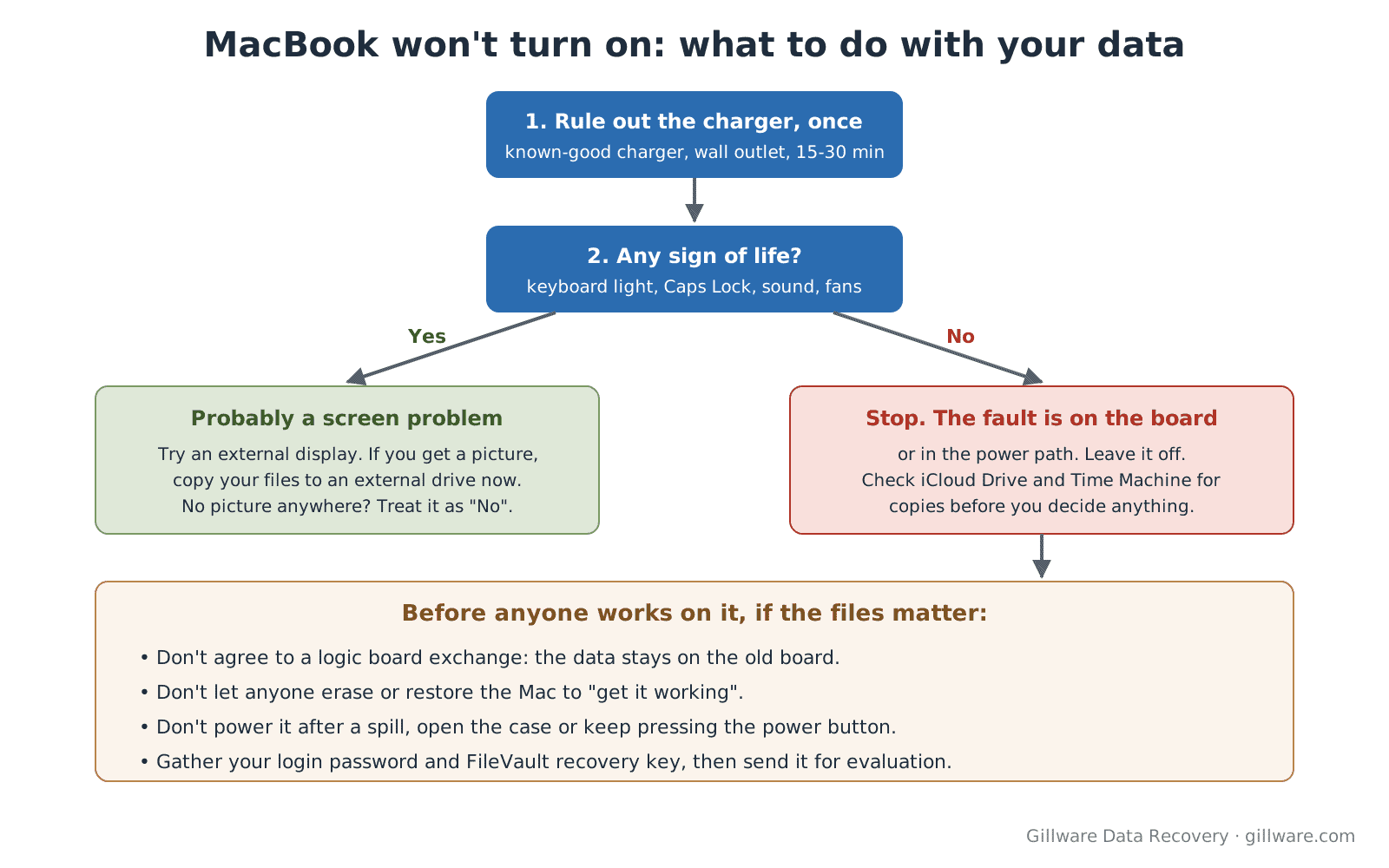
- Don’t keep pressing the power button or leave it on the charger for days hoping it starts. A shorted board can heat up and damage more parts.
- Don’t power it on after a spill. Leave it off and open, and get it looked at.
- Don’t authorize a logic board replacement or a trade-in before the data is safe.
- Don’t let anyone erase or restore the Mac to “get it working” if the files aren’t backed up.
- Don’t open the case or try to remove soldered parts. Heat and static near the storage chips can destroy data that is still intact.
- Don’t lose the password. Write down your login password and recovery key while you still remember where they are.
How Gillware recovers data from a MacBook that won’t turn on
Our engineers start by finding out exactly what stopped the board: a shorted component, liquid corrosion, a failed power circuit, or something else. On MacBooks with soldered, encrypted storage, the work is board-level microsoldering. Engineers trace the fault, replace the failed components on the original board, clean corrosion from liquid-damaged boards, and bring the board up far enough to read the storage. Once the storage can be read and unlocked with your password, the data is copied off and checked, and the board is never asked to do more than it has to.
On older MacBooks with a removable drive, we work on the drive directly. Physical hard drive work is done in our ISO 5 (Class 100) cleanroom, and every drive is imaged first so the recovery is done from the copy, not the original. Our SSD data recovery page explains how flash storage is handled when the drive itself has failed.
We’ll also be straight with you about the limits. If the T2 chip or the M-series processor itself is destroyed, the encryption key goes with it, and the data can’t be recovered by anyone. We tell you that plainly at evaluation rather than after weeks of waiting.
Gillware has been recovering data for more than two decades. Since 2004, we’ve recovered data from more than 100,000 storage devices. Every case is quoted after a free evaluation, so you know the cost before any recovery work begins. For more on Mac recovery in general, see our Mac data recovery services and MacBook data recovery pages.
Frequently asked questions
Can data be recovered from a MacBook that won’t turn on at all?
Often, yes. Most dead MacBooks have a fault in the power circuits or elsewhere on the logic board, while the storage chips are intact. On modern MacBooks, recovery means getting the original board working again long enough to read the storage, so the original board has to be kept.
Can’t you just take the SSD out and read it?
On older MacBooks, yes. On most MacBooks from about 2016 on, the storage is soldered to the logic board, and on T2 and Apple silicon models it’s encrypted with a key held in the board’s own chip. Moving the chips to another board doesn’t work, because the key stays behind.
Will Apple recover my data if they replace the logic board?
A board replacement is meant to fix the computer, not to save the data. The new board comes with new, empty storage. If your files aren’t backed up, recover them before agreeing to any board exchange.
Do you need my password?
For T2 and Apple silicon MacBooks, yes, please have it ready. Your login password, or the FileVault recovery key, is what normally unlocks the data once the storage can be read. If FileVault was on, the data can’t be unlocked without one of them.
My MacBook got wet and now it’s dead. What should I do?
Leave it off and don’t charge it. Every attempt to power it pushes current through a wet or corroded board. Send it in as soon as you can, because corrosion keeps spreading after the liquid dries.
Does it matter if it’s a MacBook Air or a MacBook Pro?
Not much. What matters is the age of the machine: whether the storage is a removable drive or soldered to the board, and whether the Mac has a T2 chip or Apple silicon. Tell us the model and year when you contact us, and we’ll explain what applies to yours.
MacBook still won’t turn on? Let’s get your files back.
Our highly experienced engineers strive for the highest success rates in the industry. Send us the device and we’ll diagnose it for free.
- More than 20 years recovering data from failed drives
- Trusted by 1,500+ IT professionals nationwide
- Whatever failed, we’ve seen it hundreds of times
- Pay only if we meet your recovery goals
