
Hard Drive Freezing Your Computer or Hanging Mid-Copy: Why a Drive Stalls and What to Do Before It Stops

Your computer was fine until you plugged in the drive, or opened one particular folder, and then everything stopped. File Explorer or Finder shows a spinning cursor, the progress bar of a copy sits at the same percentage for minutes, Disk Management never finishes loading, and sometimes the whole machine locks until you pull the cable. When a hard drive freezes your computer like this, it is almost never the computer that is broken. It is the drive, struggling to read part of its own surface, and the way you respond in the next few minutes decides how much of your data is still there when someone tries to get it back.
Hard drive freezing your computer?
Stop copying and power the drive off. A drive that hangs is usually re-reading damaged areas, and every retry costs data. We’ll evaluate it for free.
This page explains why a failing drive stalls the whole system, how to tell a drive problem from a cable, enclosure or computer problem, why “just copying the important folder first” so often makes things worse, and what to do instead. The short version: if the files on the drive matter and you do not have another copy, stop using it now.
Why a Failing Hard Drive Freezes the Whole Computer
When your computer needs something from a drive, it asks for a specific block of data and waits. A healthy drive answers in a few milliseconds. A drive with weak or damaged areas on its platters, or with read/write heads that are starting to fail, cannot always read that block on the first pass. Instead of giving up, the drive’s firmware goes into its own error-recovery routine: it re-reads the same spot over and over, nudges the head position slightly, adjusts its signal processing, and tries again. On most desktop and external drives that routine can run for many seconds on a single unreadable sector before the drive reports an error.
Meanwhile, the program that asked for the data is stuck waiting. File Explorer and Finder read thumbnails, file sizes and folder contents as soon as you open a window, so one bad region can lock the window. If the operating system itself is waiting on that drive, menus, other windows and even the mouse can stall. When the drive finally answers, with data or an error, the computer moves on to the next request, and if that one is also in a damaged area, the cycle repeats. To you, it looks like the computer keeps freezing. Inside the drive, it is a retry storm.
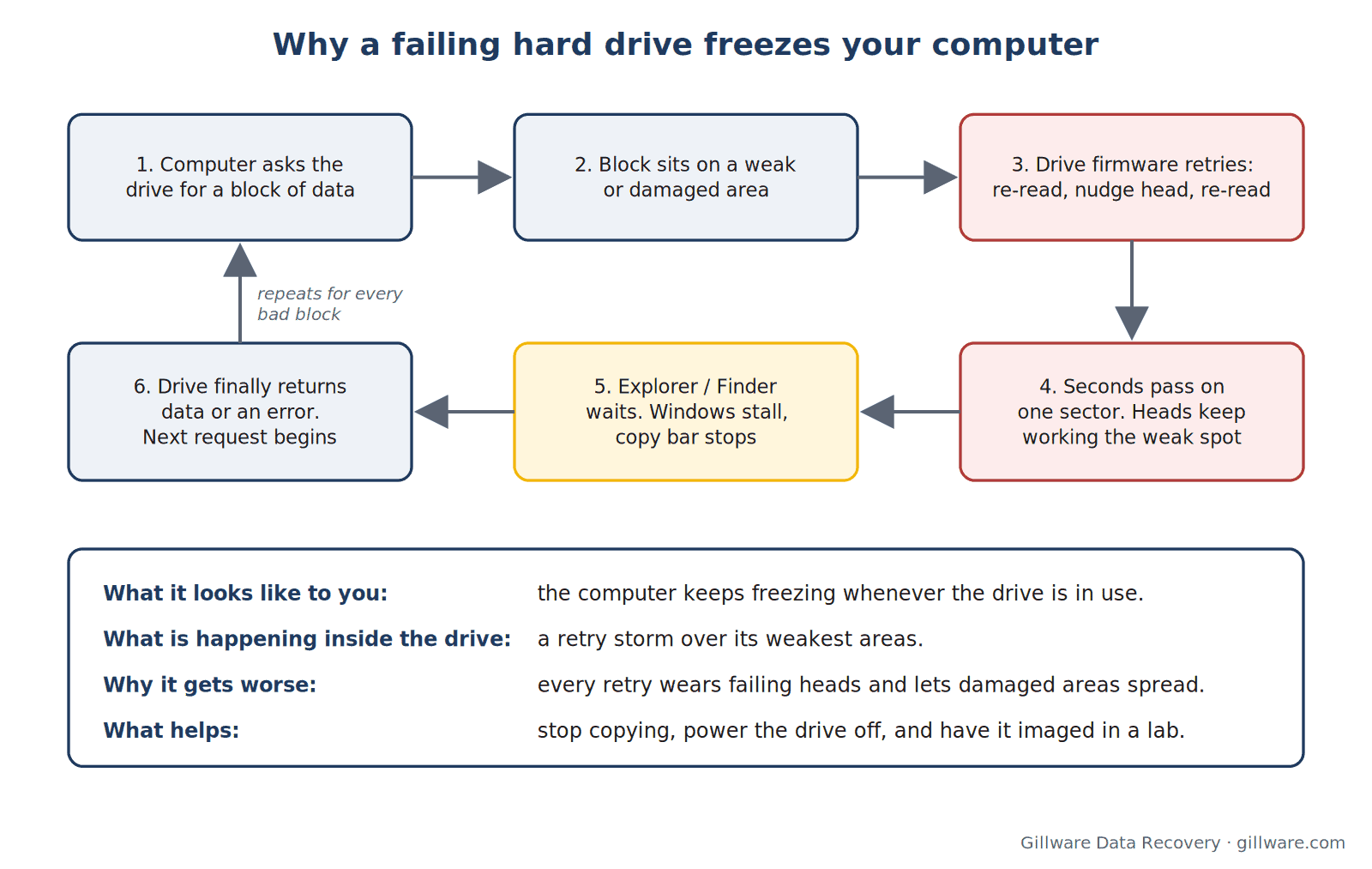
This is also why the freezing usually gets worse over time. Every retry puts the heads to work over the weakest part of the drive. Heads that are beginning to degrade wear faster, weak areas spread, and a drive that froze for a few seconds last week can freeze for minutes today and stop being detected at all next week.
Signs the Freezing Is Coming From the Drive
A few patterns point strongly at the drive rather than at Windows, macOS or the rest of the computer:
- The computer is normal until the drive is connected or accessed. Unplug the drive and everything is fast again.
- The hang happens in the same place every time: the same folder, the same file, the same percentage of a copy.
- Disk Management or Disk Utility takes minutes to open, or shows the drive but cannot read its size or file system. Our guide to a drive that shows in Disk Management but not in File Explorer covers that state in detail.
- Copy speeds collapse from normal to a few kilobytes per second, then jump back, then collapse again.
- The drive makes new sounds during the freeze: repeated clicking, a tick followed by a spin-down, or grinding. Those point to the heads, not the surface, and they are covered on our hard drive clicking and grinding noise pages.
- Windows logs disk errors. In Event Viewer, under Windows Logs and System, entries from the source “disk” such as Event ID 7 (“has a bad block”) or Event ID 153 (an I/O operation that “was retried”) are the operating system recording exactly the retry behavior described above.
- SMART data shows pending or reallocated sectors. If you have already looked at the drive’s SMART report, rising values for Reallocated Sectors, Current Pending Sectors or Offline Uncorrectable mean the drive itself knows parts of its surface are failing. See our page on recovering data from a drive with bad sectors.
You do not need to check all of these. One or two, together with a freeze that follows the drive, is enough to treat it as a failing drive.
When It Might Not Be the Drive
Not every stall is a dying drive. A few other causes produce similar symptoms, and they matter because some of them are harmless:
- A failing cable, port or USB enclosure. External drives sit behind a small bridge board that translates USB to the drive’s own interface. A failing bridge, a worn cable or an underpowered port can cause dropouts that look like freezes. A climbing UDMA CRC Error Count in SMART is a classic sign of a connection problem rather than a surface problem.
- Long writes to a high-capacity drive. Some drives use shingled magnetic recording, which can slow dramatically during long, sustained writes as the drive reorganizes data internally. A stall that only happens while copying a large amount to a drive that otherwise reads normally can be this.
- A drive that is nearly full, or a computer whose own system drive is failing. If the computer freezes with the external drive unplugged, look at the computer first.
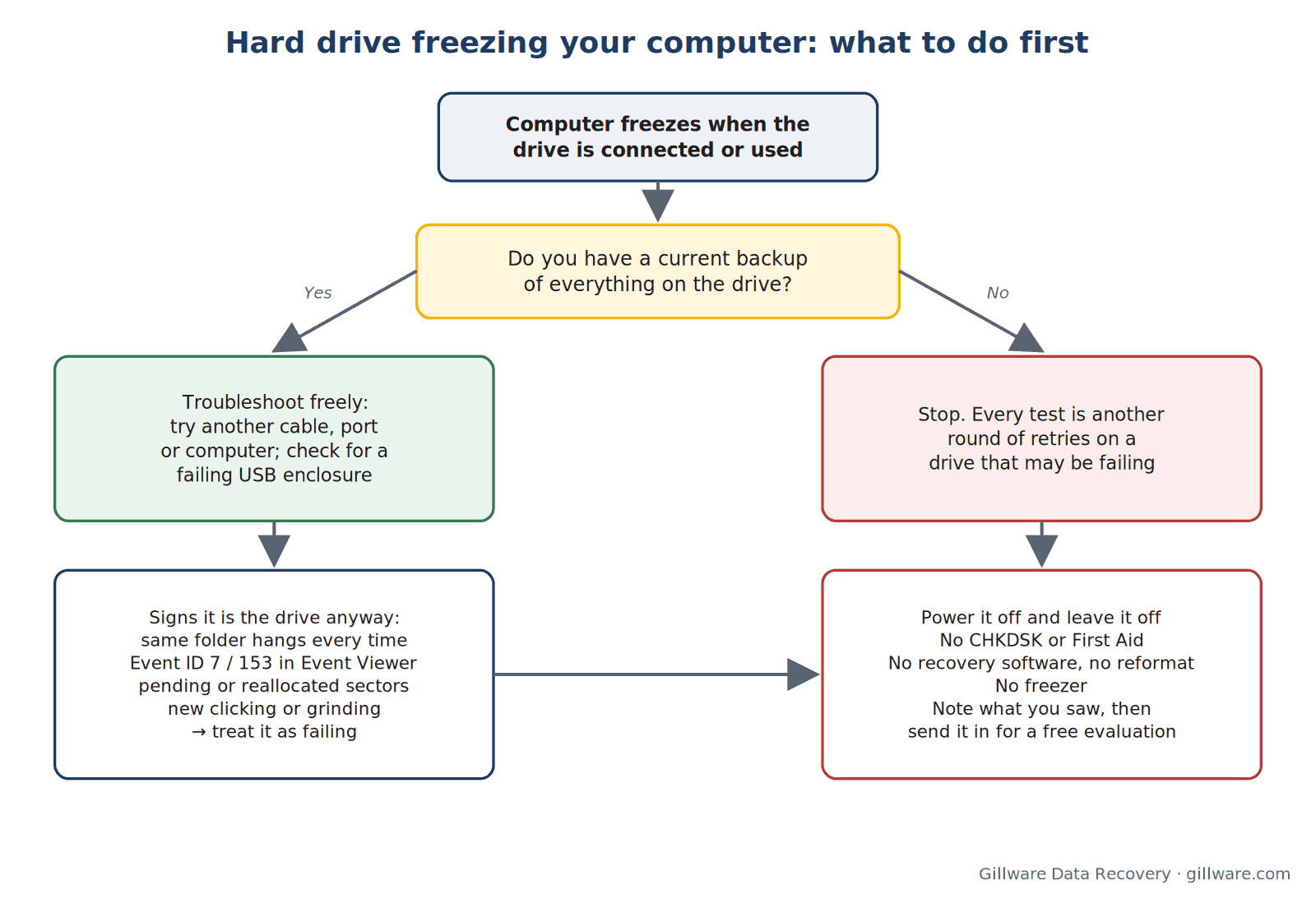
Here is the honest rule of thumb: if you have a current backup of everything on the drive, troubleshoot freely, try another cable, try another computer. If you do not, every test you run is also another round of retries on a drive that may be failing, so make that choice deliberately.
Why “Just Copy the Important Folder” Makes It Worse
The most natural reaction to a freezing drive is to grab the most important files while it still works. It is also the reaction most likely to cost you data. Three things happen during that copy:
- The drive spends its remaining life on retries. Each unreadable spot can trigger a long retry routine, and a single folder can sit on hundreds of them. The heads are working hardest exactly where the surface is weakest.
- File-by-file copying jumps all over the platters. Files and the file-system records that describe them are scattered, so the heads seek back and forth across good and bad areas instead of reading the drive in order.
- The operating system writes to the drive while you read it. Opening folders updates access times and indexes, and a computer that hangs may be shut off mid-write, which can damage the very folder you were trying to save.
Built-in disk-checking tools make it worse in a different way. CHKDSK on Windows and First Aid in Disk Utility on a Mac are designed to fix a file system on healthy hardware. On a drive with failing sectors they read everything, write corrections, and can discard file records they cannot read. Do not run them on a drive whose files you need. Recovery software has the same problem: it cannot help a drive that is physically failing, and it works the drive hard while it tries.
A data recovery lab takes the opposite approach. We stabilize the drive first, replacing failing heads in an ISO 5 (Class 100) cleanroom if needed, then copy the entire drive sector by sector onto healthy media with hardware imagers that control how hard each area is retried. Easy areas are read first and difficult areas later, and the drive is never asked to do more work than it can survive. Every file is recovered from that copy, not from your original drive.
If your drive keeps freezing and the files matter, stop copying now. We’ll evaluate it for free.
What to Do Right Now
- Stop any copy in progress and close windows that are open on the drive.
- Eject it if the computer will let you, then power it off. If the computer has locked completely, it is better to disconnect the drive than to let it keep retrying.
- If it is the drive inside your computer, shut the computer down and leave it off. Do not let it keep rebooting into a system that hangs. Laptops have their own considerations, covered on our laptop data recovery page.
- Do not run CHKDSK, First Aid, defragmenters or recovery software on it, and do not reformat it if the computer offers to.
- Do not put it in the freezer. The name of the symptom is a coincidence; chilling a drive does not help and condensation can destroy it. Our article on the hard drive freezer myth explains why.
- Write down what you saw: when the freezing started, which folders triggered it, any sounds, and anything that happened before (a drop, a power outage, nothing at all). Our engineers use that.
- Send it in for a free evaluation. If it is an external drive, leave it in its enclosure.
Is the Data Still Recoverable?
Usually, yes. A drive that freezes is a drive that is still reading most of the time, which means the platters are spinning and the heads are working. That is a far better starting point than a drive that has stopped being detected altogether. The data that is most at risk is in the damaged areas, and those areas grow with use. Drives that are powered off at the first sign of trouble are the ones with the most to recover.
Our engineers see freezing drives of every kind: internal desktop drives, laptop drives and external hard drives alike. Some models have their own patterns; our page on Seagate drives that are detected but slow describes one. If the drive has gone further and stopped appearing at all, see hard drive not showing up.
How Gillware Recovers a Drive That Freezes
Every case starts with a free evaluation. An engineer tests the drive’s electronics, heads and firmware, determines why it is struggling to read, and confirms what can be recovered before any recovery work is done. If the heads are failing, they are replaced in the cleanroom with matched donor parts. The drive is then imaged with tools that manage retries and work around damaged areas, and your files are rebuilt from that image and checked before they ship back to you on an encrypted drive.
Gillware has been recovering data for more than two decades, and more than 1,500 IT professionals nationwide refer their clients to our lab in Madison, Wisconsin. Every case is quoted after a free evaluation, so you know the cost before any recovery work begins. Our hard drive data recovery page explains the full process.
Hard Drive Freezing FAQ
Why does my computer freeze when I plug in my external hard drive?
As soon as the drive connects, the operating system reads its partition table and file system, and File Explorer or Finder starts reading folder contents. If any of those reads land on a damaged area, the drive goes into long internal retries and the computer waits for it. A computer that is only slow while that drive is connected is almost always waiting on the drive.
Can a freezing hard drive fix itself?
No. A drive can remap a weak sector after it finally reads it, which can make one spot faster for a while, but the underlying wear does not reverse. Freezing that stops for a few days and then returns is typical of a drive that is still declining.
Should I keep trying to copy my files while the drive still works?
Only if you already have a backup and are willing to lose what is left. If the files matter and you have no other copy, stop. Each attempt works the drive hardest exactly where it is weakest.
Is it safe to run CHKDSK or Disk Utility First Aid?
Not on a drive whose data you need. Both tools write to the drive and can remove file records they cannot read. They are for file-system problems on healthy hardware, not for physically failing drives.
What if the drive freezes and also makes clicking noises?
Treat it as urgent and power it off. Clicking during a freeze usually means the heads are failing, and continued use can damage the platter surface, which turns a routine recovery into a much harder one.
Hard drive freezing up? Let’s get your files back.
Our highly experienced engineers strive for the highest success rates in the industry. Send us the device and we’ll diagnose it for free.
- More than 20 years recovering data from failed drives
- Trusted by 1,500+ IT professionals nationwide
- Whatever failed, we’ve seen it hundreds of times
- Pay only if we meet your recovery goals
