
VMware Data Recovery: ESXi Hosts, VMFS Datastores and Corrupted VMDKs
When an ESXi host stops booting, a datastore disappears from the vSphere Client, or a virtual machine refuses to power on because its virtual disk is corrupt, every server that ran on that storage goes down at once. Gillware’s VMware data recovery service is for the point where VMware’s own tools, your backups and a support case have not brought the data back. Our engineers recover the physical drives, the RAID volume or LUN, the VMFS datastore and the virtual disks inside it, from the bottom of the stack up, until your virtual machines or the files inside them are readable again.
VMware datastore or VMs gone?
Stop before anyone formats, resignatures or rebuilds anything. Talk with one of our enterprise storage engineers first; the consultation is free.
This page is written for IT managers, system administrators and MSPs running VMware ESXi and vSphere, from a single host with local disks to clustered hosts on a SAN. If you already know which piece failed, our pages on VMDK recovery, corrupted VMDK files, ESXi data recovery and the purple screen of death go deeper on each one.
A note on the name: “VMware Data Recovery” was also the name of a backup appliance VMware shipped with older versions of vSphere and later retired. This page is about our recovery service for failed VMware environments, not that product.
Why VMware data loss is a storage problem first
A virtual machine looks like a server, but on disk it is a small set of files: a descriptor, one or more large virtual disk files, snapshot delta files, and configuration and log files. Those files live in a VMFS datastore. The datastore lives on a partition, the partition lives on a LUN or a RAID volume, and the volume is spread across physical drives in the host or in a storage array.
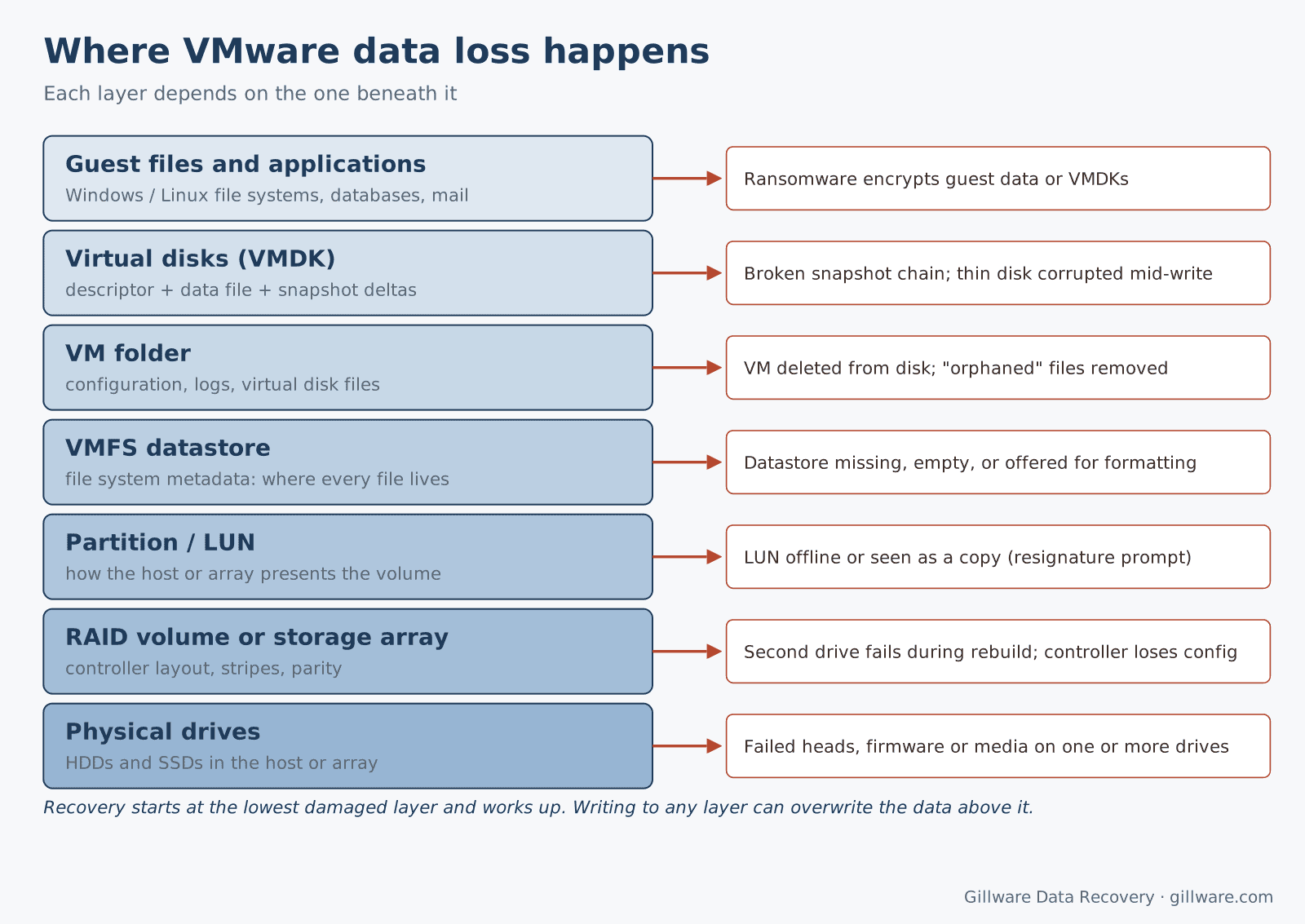
Every layer depends on the one beneath it. A failed drive in the array can damage a stretch of the volume that happens to hold VMFS metadata. A controller that drops offline mid-write can leave the datastore inconsistent. A snapshot problem can leave a virtual disk pointing at the wrong parent. That is why the fix for VMware data loss is rarely a single tool run against a single file. Recovery has to start at the lowest layer that is damaged and work upward, and anything written to the storage on the way can overwrite the data you need.
The VMware failures we recover from
The ESXi host will not boot, or shows a purple screen
A host that fails at boot or stops on a purple diagnostic screen often has a boot-media, hardware or driver problem, and the virtual machines on a separate datastore may be untouched. The risk comes from the fix. Reinstalling ESXi onto the wrong disk can overwrite a local datastore, and repeatedly restarting a host whose storage controller or drives are failing can make the damage worse. If the host keeps crashing, power it off and find out which layer is failing before reinstalling anything. Our PSOD recovery page covers that case in more detail.
The datastore is missing or shows as empty
After a SAN outage, a controller replacement, a firmware update or a change in how a LUN is presented, ESXi can stop mounting a datastore it used for years. Sometimes it treats the volume as a copy and asks whether to keep the signature or assign a new one. Sometimes the disk shows up as available space in the New Datastore wizard. Formatting through that wizard writes a new, empty file system over the old one, and resignaturing under pressure writes to a volume whose cause of failure is still unknown. Neither should be done until someone has confirmed what happened to the storage.
VMFS metadata or the partition table is damaged
The datastore mounts but folders are missing, virtual machines show as inaccessible, or files report impossible sizes. This usually means the file system’s own records of where each file lives are damaged, often by a storage-layer fault underneath. The virtual disk data is frequently still on the volume; what is broken is the map to it. We rebuild that map from the raw volume rather than trusting what the damaged metadata reports.
Snapshot chains are broken
A running virtual machine with a snapshot writes every change to a delta file, and long-lived snapshots can build chains of several deltas. When a consolidation fails, the datastore runs out of space, or someone deletes “leftover” delta files to free space, the virtual machine either won’t power on or comes back with data from weeks earlier. The newest data lives in those deltas. Keep every file in the VM folder exactly as it is, including files that look orphaned.
Thin-provisioned virtual disks are corrupted
Thin provisioning lets a datastore promise more space than it has. When the datastore fills up, virtual machines on thin disks can freeze mid-write, and the clean-up that follows (deleting files, moving disks, inflating or shrinking them) often happens while the data is at its most fragile. A thin disk that was mid-write when space ran out can come back with a damaged guest file system, a truncated disk, or a descriptor that no longer matches its data.
The RAID or SAN underneath failed
Most VMware environments sit on a RAID array or a shared storage array. A second drive failing during a rebuild, a controller losing its configuration, a LUN going offline on an iSCSI target, or a firmware fault on a NetApp or HPE 3PAR system takes every virtual machine on that storage with it. We have documented this kind of case before, including a VMFS recovery after a RAID 5 failure and an ESXi host on a failed RAID 5.
Ransomware reached the hypervisor
Attacks increasingly go after ESXi hosts directly, encrypting the virtual disk files of every virtual machine on a host at once, often along with the backup server. Very large virtual disk files are not always fully encrypted, and what survives depends on how the attack ran and what happened to the storage afterwards. Our ransomware data recovery page explains what a lab can and cannot do and how we work alongside incident response firms. We do not do incident response, negotiation or decryption ourselves.
Licensing changes and migrations are a risk factor too
Since Broadcom’s acquisition of VMware closed in late 2023, licensing changes have pushed many organizations into rushed renewals, host consolidations and migrations to other hypervisors such as Hyper-V or Proxmox. Migrations are when data gets lost: virtual disks converted to another format and the originals deleted before the copies were checked, old hosts wiped and redeployed while a VM still lived only on their local disks, storage arrays retired while a datastore was still in use, and hosts kept running past their support window without firmware updates. If your environment is mid-migration, tell us which copies exist and where. A partly migrated estate often has more recoverable copies than it seems.
Datastore missing or VMs inaccessible? Talk to an enterprise storage engineer before anything is reformatted or rebuilt.
The first hour: what to do and what not to do
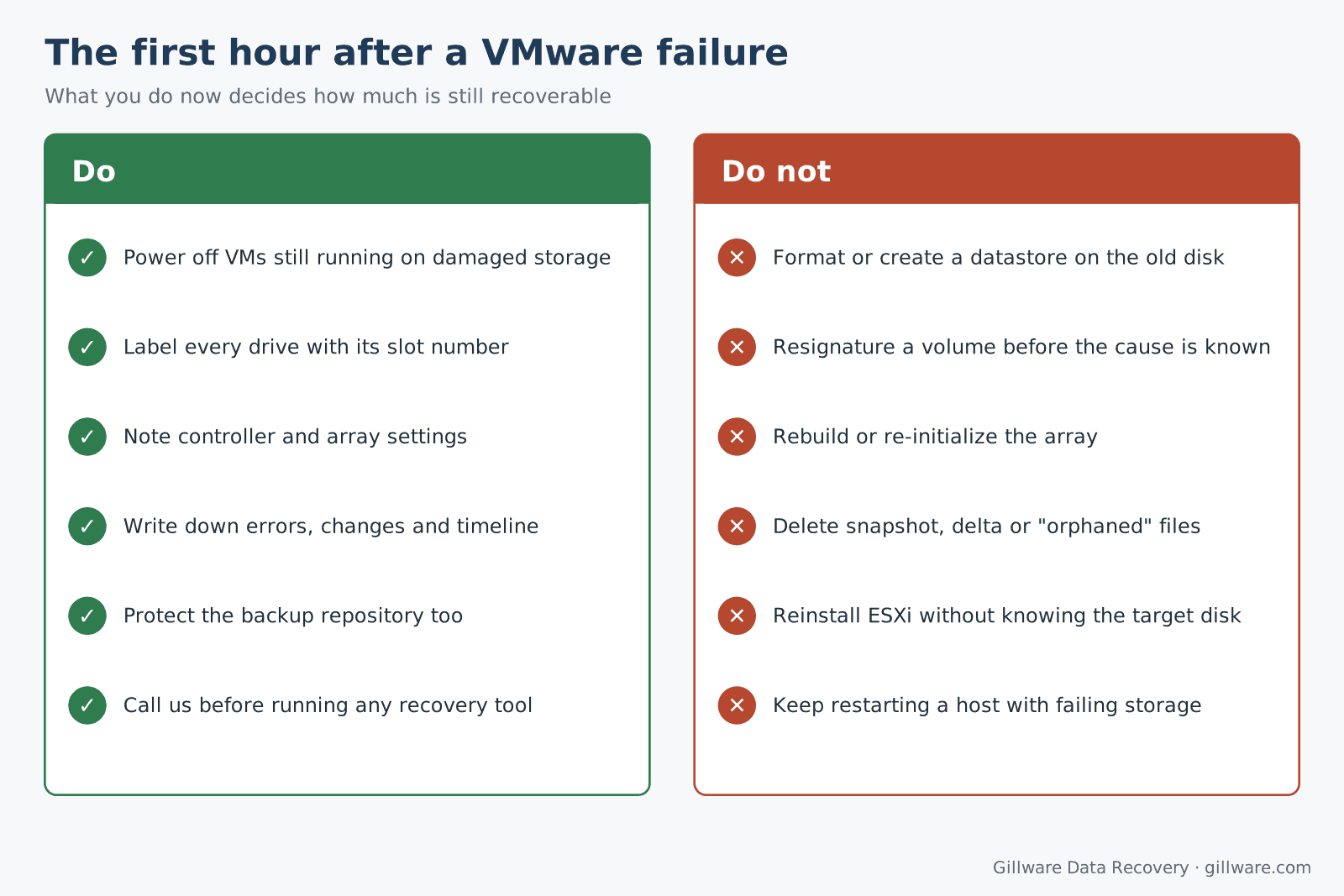
What you do in the first hour decides how much of the data is still recoverable. These steps protect it:
- Stop writing to the affected storage. Power off virtual machines that are still running on a damaged datastore, and don’t move, copy or create files on it.
- Do not format, create or resignature a datastore on a disk or LUN that used to hold your data, even if ESXi offers to.
- Do not rebuild or re-initialize the array. If drives dropped out, leave them out, label each drive with its slot, and note the controller and array settings.
- Do not delete snapshot, delta or “orphaned” files to free space or to get a VM to power on.
- Do not reinstall ESXi until you know which disk it is being installed to.
- Write down what happened and when: the last change, firmware updates, error messages, which hosts and VMs are affected, and which backups exist.
- Preserve the backups too. If the backup repository is damaged or encrypted, stop jobs that could overwrite it.
- Call us before trying recovery tools on the original storage. Anything that writes to it can overwrite what we would recover.
How we recover VMware environments
Every VMware case starts with a technical consultation with one of our enterprise storage engineers, who works out with you which layer failed, what to send and which virtual machines matter most. Then we work from the bottom of the stack up:
- Stabilize and image every drive. Failing drives are recovered in our ISO 5 (Class 100) cleanroom where needed, and every drive is imaged so all further work happens on copies, never the originals.
- Rebuild the RAID volume or LUN from the images, working out drive order, stripe size, parity and any controller-specific layout without relying on the failed controller.
- Rebuild the VMFS datastore, locating the volume’s metadata and reconstructing the directory structure, including deleted or orphaned virtual machine folders where the data still exists.
- Reconstruct the virtual disks, matching descriptors to their data files and rebuilding snapshot chains in the right order so the newest data is kept.
- Verify the guest file systems inside each virtual disk (Windows, Linux and the applications on them, such as databases and mail servers) and check the files you care about most.
- Deliver the recovered virtual machines as virtual disks you can register again, or the files from inside them, on encrypted media or by the method agreed during the consultation.
Gillware has recovered data from more than 100,000 storage devices in more than two decades of work, and more than 1,500 IT professionals refer their clients to us. The same engineers handle virtual machine recovery on other hypervisors, servers and Linux systems, and emergency data recovery when a business is down. Every case starts with a free consultation, and you approve all recovery fees in writing before any recovery work begins. Our RAID and server recovery cost page explains what shapes the cost of an enterprise case.
What to send us
For most VMware cases we need the drives, not the whole server: every drive from the array, labeled with its slot, plus anything you know about the controller and array settings. For SAN and multi-host environments, and for vSAN clusters that spread virtual machine data across several hosts, we’ll go through exactly what to send during the consultation. If you have a backup server or repository that was damaged in the same incident, mention it; it may hold the newest good copy.
VMware Data Recovery FAQ
Can you recover a virtual machine that was deleted from disk?
Often, yes. Deleting a VM from disk removes its files from the datastore’s records, but the data usually stays on the volume until it is overwritten. Stop creating or growing virtual machines on that datastore and call us; the sooner the storage is left alone, the more is recoverable.
ESXi wants to format our disk to create a new datastore. Is the data gone?
No, not yet. That prompt usually means ESXi can’t read the existing datastore, not that the data has been erased. Formatting it would write a new file system over the old one. Cancel, don’t try again, and let us look at the volume first.
Should we resignature the datastore to get it to mount?
Not until the cause is known. Resignaturing writes to the volume and changes how ESXi identifies it. If the datastore went missing because of a storage fault, writing to it first can make recovery harder. Find out what changed in the storage layer before you choose an option.
The VM came back with old data after a snapshot problem. Can the newest data be recovered?
Usually. The newest changes live in the snapshot delta files. If those files still exist, even if the virtual machine no longer references them, we can rebuild the chain in the right order. Don’t delete or consolidate anything else in the VM folder.
Do you need our whole SAN or server?
Usually just the drives, labeled with their slots. For larger arrays, multi-shelf systems and clustered storage, we’ll agree the details before anything ships so nothing is missed.
Can you return the virtual machines, or only the files inside them?
Either. Where the virtual disks can be reconstructed whole, we return them so you can register the VMs again. Where they can’t, we return the files and folders from inside each guest, organized by virtual machine.
VMware datastore down? Let’s get your virtual machines back.
Our highly experienced engineers strive for the highest success rates in the industry. Talk with one of our enterprise storage engineers before anything else is done to the system.
- Free technical consultation with one of our enterprise storage engineers
- A written recovery agreement before work begins
- No billing surprises: you approve all recovery fees in advance
- Emergency service for business-critical downtime