
Dell Error Code 0141: What It Means and How To Fix It

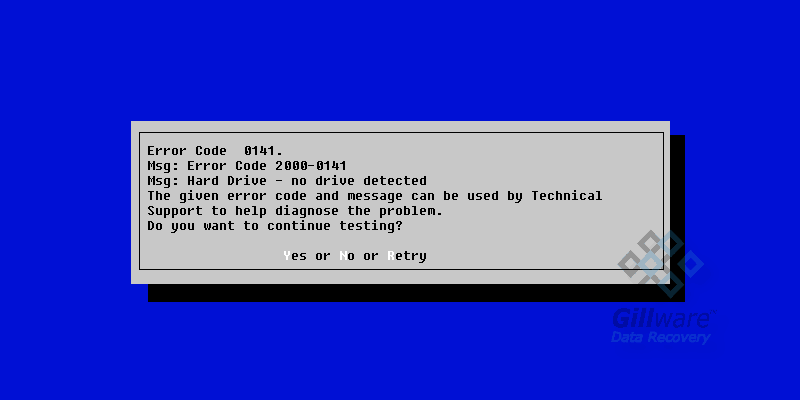
If you have a Dell PC that is currently displaying an Error 2000-0141 message when you try to boot it up, you’re probably very frustrated right now. However, while a Dell error code 0141 message can be a sign of a severe issue with your PC’s hard disk drive, that’s not all it can mean. There could actually be an easy fix for your Dell PC. Read on to find out more about this error, how you can diagnose it, and what options are available to you to repair your PC.
Dell error 2000-0141 on your screen?
Cables and CMOS resets are worth a look, but if the drive is gone, stop powering it on. Our engineers will diagnose it for free.
The Dell error code 0141, also known as error code 2000-0141, is an error you might see on your Dell PC. Dell PCs use their own firmware, which includes custom error codes such as Error Code 0141 and Error Code 0142, so you won’t encounter this particular error code on any other brand of PC. Error code 0141 means that your PC can no longer detect your hard drive. No hard drive means no operating system and no data. No operating system means you can’t use your computer.
Surely if your hard drive can’t be found, that means you have to buy a new hard drive (or, if your Dell PC is still under warranty, have them replace it) and accept that any files you had on your PC (documents, photos, music, videos, etc.) that weren’t backed up are gone forever, right?
Not quite. A 0141 error can mean that your PC’s hard disk drive no longer works. But there are other causes for this error that you may actually be able to fix on your own.
Want to learn more about data recovery pricing?

There are a few potential causes of a Dell Error Code 0141 message:
If the files on this drive matter and it is clicking, beeping, or still not detected after the cable check, stop powering it on and talk to us before trying anything else.
Loose SATA/IDE cable
The cable that connects your hard disk drive to your PC’s power supply unit and motherboard might have come loose. Make sure your computer is powered down, open it up, and poke around to make sure the connection on all ends (power supply, motherboard, and hard disk drive) are secure, and then restart your PC to see what happens.
Damaged SATA/IDE cable
The cable connecting your hard disk drive to your PC might no longer work. Fortunately, your PC’s CD/DVD drive is connected to your computer using the same kind of connection as your hard drive. Make sure your computer is powered down, open it up, and swap the two cables, then restart your PC to see what happens.
Corrupt BIOS
The settings in your BIOS handle how all of the hardware in your PC talks to each other. Sometimes these settings can become corrupt and cause an error code 0141 to appear. With your computer powered down, find and remove the CMOS battery for several seconds before putting it back in. This will clear the CMOS memory and reset the BIOS to its default functions.
Hard disk failure
The direst possibility is that your hard drive has broken.
You can diagnose your hard drive by running a DST (disk self-test), which assesses the health of the drive. To run a disk self-test on your Dell PC, do this:
- On a Dell desktop PC, press Ctrl + Alt + D on the BIOS splash screen (the first thing you see when your computer turns on).
- On a Dell laptop, press the Power button and the Fn key simultaneously.
Hard disk drives have a limited lifespan that typically ranges between five and ten years, but can be much shorter. Your hard drive may have had a minor defect that shortened its lifespan by a few years. You may have left your PC running 24/7 for weeks, putting more strain on the hard disk than normal. Maybe a power surge fried the hard drive’s PCB. Maybe your hard drive wasn’t securely fastened and vibrated itself to death.
Whatever the reason, the only way you can deal with hard disk drive failure on your own is by replacing the drive and reinstalling a fresh Windows operating system. You could just buy a new hard drive yourself. Or if your computer is under warranty, you could have Dell send you a free replacement.
But wait just a moment before you throw out your old hard drive or send it back to Dell and ask yourself just one question.
Are all of my important files backed up?
It’s easy to forget to back up data that’s important to you. Documents, family photos and videos, and creative projects can be lost in the blink of an eye when your PC’s hard drive stops working if you haven’t backed them up recently… or haven’t backed them up at all.
This leaves you with a dilemma. How do you get that data back?
How to fix a Dell error code 0141:
Firmly connect the SATA cable
Use a different cable to connect the hard drive to your PC
Reset the CMOS battery
Replace your hard drive
Send it to Gillware’s data recovery lab
f your PC’s hard disk drive won’t boot, and especially if you notice it making strange noises such as regular clicking or beeping, the only way to safely salvage any important files from it is to send it to Gillware’s professional data recovery lab.
Sending your PC’s hard drive to a data recovery lab sounds daunting. So does the prospect of all the valuable files on your PC going up in smoke. That’s why Gillware has made it a top priority to make hard drive data recovery as easy and painless of a process as possible for more than two decades.
- You can ship your PC’s hard drive to our data recovery lab for free (feel free to call our friendly advisors if you need help removing the hard drive from your PC)
- Our engineers perform a free evaluation in our ISO-5 Class 100 cleanroom lab and you approve the price before any recovery work begins
- You tell us what data is important to you and you only pay if we meet your recovery goals
- There are no upfront costs
- Gillware respects warranties from all hard drive manufacturers and is a recommended data recovery partner for Dell
Not sure whether it is the cable or the drive? Our engineers will tell you for free.
To learn more about Gillware’s capabilities, read our case study below about a customer of ours whose Dell PC gave them a 2000-0141 error and needed our help:
Error Code 2000-0141 Data Recovery Case Study
Hard Drive Recovery Case Study: Dell Error Code 0141
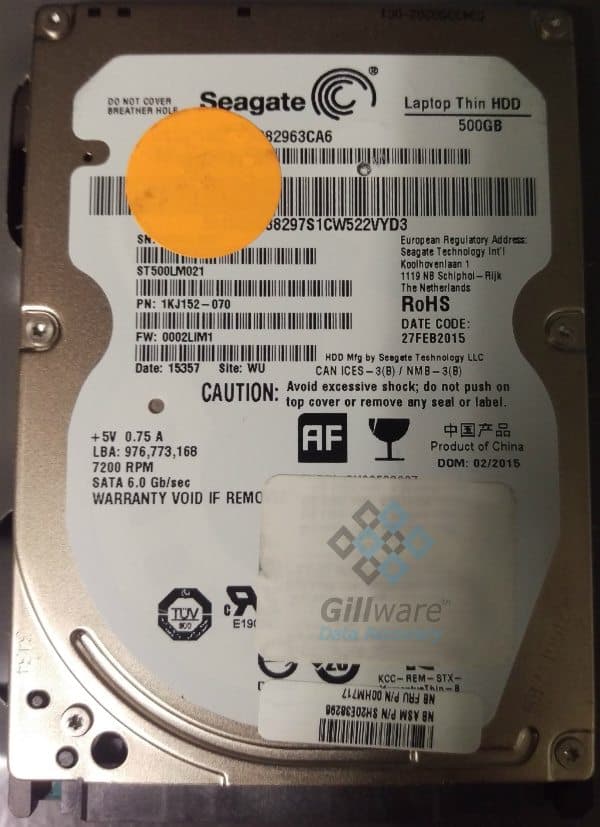
Drive Model: Seagate Laptop Thin HDD ST500LM021
Drive Capacity: 500 GB
Operating System: Windows
Situation: Hard drive inside Dell Inspiron laptop showed error code 0141, hard drive would not mount; data inaccessible
Type of Data Recovered: Quickbooks files and other user documents
The client in this hard drive recovery case study had been using a Dell Inspiron laptop to help them run their small business. One day, upon booting up their computer, they encountered a boot error. Running Dell’s ePSA diagnostic tool, they saw the Dell error code 2000-0141. This error code told them that the computer could not detect the presence of a hard drive. Of course, the hard drive was still there—it wasn’t like somebody had opened his machine and plucked it out—but something was wrong with the drive.
The client removed the drive and hooked it up to another computer. But they could not mount the drive to gain access to its data. They brought the failed Seagate hard drive to Gillware to retrieve their critical Quickbooks files and other business documents.
An evaluation of the failed drive in our hard drive recovery cleanroom showed that the drive’s read/write heads had failed. The read/write heads, as their name implies, allows the user to read from and write to the hard drive’s data storage platters. When they fail, the drive becomes inaccessible. Failed read/write heads can also damage the drive’s platters. If this damage occurs in just the right (or wrong) places, some important data can become irretrievable. To salvage the client’s data, our data recovery experts had to replace its heads.
Overcoming Seagate Firmware Corruption
However, there was more to this case than failed heads. As a result of this hard drive’s read/write heads failure, the drive had suffered firmware corruption. Hard drive firmware is the most important bit of data on any hard drive. Whenever you power on a hard drive, the first thing the read/write heads search for is the firmware zone. Until the drive successfully reads the firmware, it cannot read any of the rest of the data on the drive.
The firmware is the “operating system” of the hard drive. Your computer’s operating system allows it to properly use your computer’s hardware to run the programs you’ve installed. And likewise, your hard drive’s firmware allows it to properly use the drive’s hardware to access the data you’ve put on it. Among other things, hard drive firmware monitors your hard drive’s performance and keeps track of its defects to make sure your drive continues to run smoothly. Like a computer O/S, if the hard drive firmware encounters a severe enough problem, it can crash and become corrupted. But while it’s not too difficult to repair or reinstall a corrupted operating system, repairing hard drive firmware is much tougher.
Hard drive firmware is one of those things the user just isn’t meant to know (or care much) about. It works in the background, flying under the user’s radar. Hard drive manufacturers don’t want people meddling with their drives’ firmware. Accessing the hard drive firmware is impossible outside of the manufacturer’s factory floor or without special tools.
Hard drive firmware is designed to be very robust since it cannot be so easily accessed and fixed if something goes wrong. But the firmware can become corrupted—especially when the same read/write heads that read and write data to the firmware zone are failing!
Hard Drive Recovery Results
After our engineers had replaced the drive’s mangled read/write heads, our experts could access and work on the failed Seagate hard drive’s firmware. To access hard drive firmware, our engineers must use special tools to connect to the hard drive and “trick” it into behaving as if it is on the factory floor and ready to be programmed. From here, a highly skilled data recovery expert with a keen eye for figuring out how hard drive firmware works must carefully examine the firmware to find and correct the corrupted areas. Until the firmware is back in working order, nobody can read any more of the data on the platters.
After correcting the corrupted firmware and regaining access to the drive, our engineers successfully salvaged the vast majority of the client’s critical data. Due to some damage on the platters, our engineers couldn’t fully recover all of the client’s data. However, a spot test of their critical files showed that we had completely recovered all of their most important files, with no corruption affecting the recovered files.
Dell error 0141 and files you need? Let’s get them back.
Our highly experienced engineers strive for the highest success rates in the industry. Send us the device and we’ll diagnose it for free.
- More than 20 years recovering data from failed drives
- Trusted by 1,500+ IT professionals nationwide
- Whatever failed, we’ve seen it hundreds of times
- Pay only if we meet your recovery goals
