
iPhone Stuck on the Apple Logo, in a Boot Loop or Kernel Panic: Save Your Data Before You Restore

The iPhone turns on, shows the white Apple logo, and goes no further. Or it gets to the logo, goes black, and starts again, over and over. Or it reaches the lock screen and restarts every few minutes on its own. If the photos, messages and notes on it aren’t backed up, how you handle the next hour matters more than anything else. The fix people reach for first, a restore, is the one step that can erase the phone for good. This guide explains what a stuck or looping iPhone usually means, why its data is tied to that particular phone, and what to do (and avoid) so you can still get your data back.
iPhone stuck on the Apple logo?
If the data isn’t backed up, stop before you restore or reset it. Our phone engineers will evaluate the iPhone for free and tell you what’s recoverable.
Three versions of the same problem
People describe this in different ways, but these are usually the same kind of failure seen at different stages:
- Stuck on the Apple logo: the logo appears and stays there. Sometimes a progress bar under it stops partway and never moves again.
- Boot loop: the logo appears, the screen goes black, and the logo comes back, again and again. The phone never reaches the lock screen.
- Kernel panic restarts: the phone does start, maybe even lets you unlock it, then suddenly restarts, often every few minutes. A kernel panic is the operating system stopping itself because something it depends on has failed. iOS records each one in a panic log, which is why you may see the term “panic-full” in forums.
A fourth message belongs in the same family: “Attempting Data Recovery” on a black screen after an update. It means the phone is trying to finish an update that went wrong. Sometimes it succeeds. If it doesn’t, the phone usually ends up stuck on the logo or asking to be connected to a computer.
All of these share one important feature. The processor is running, and the phone is trying to start. That’s better news than a phone that shows nothing at all, and it means the storage is often still answering. The goal now is to keep it that way.
The one thing not to do: press Restore
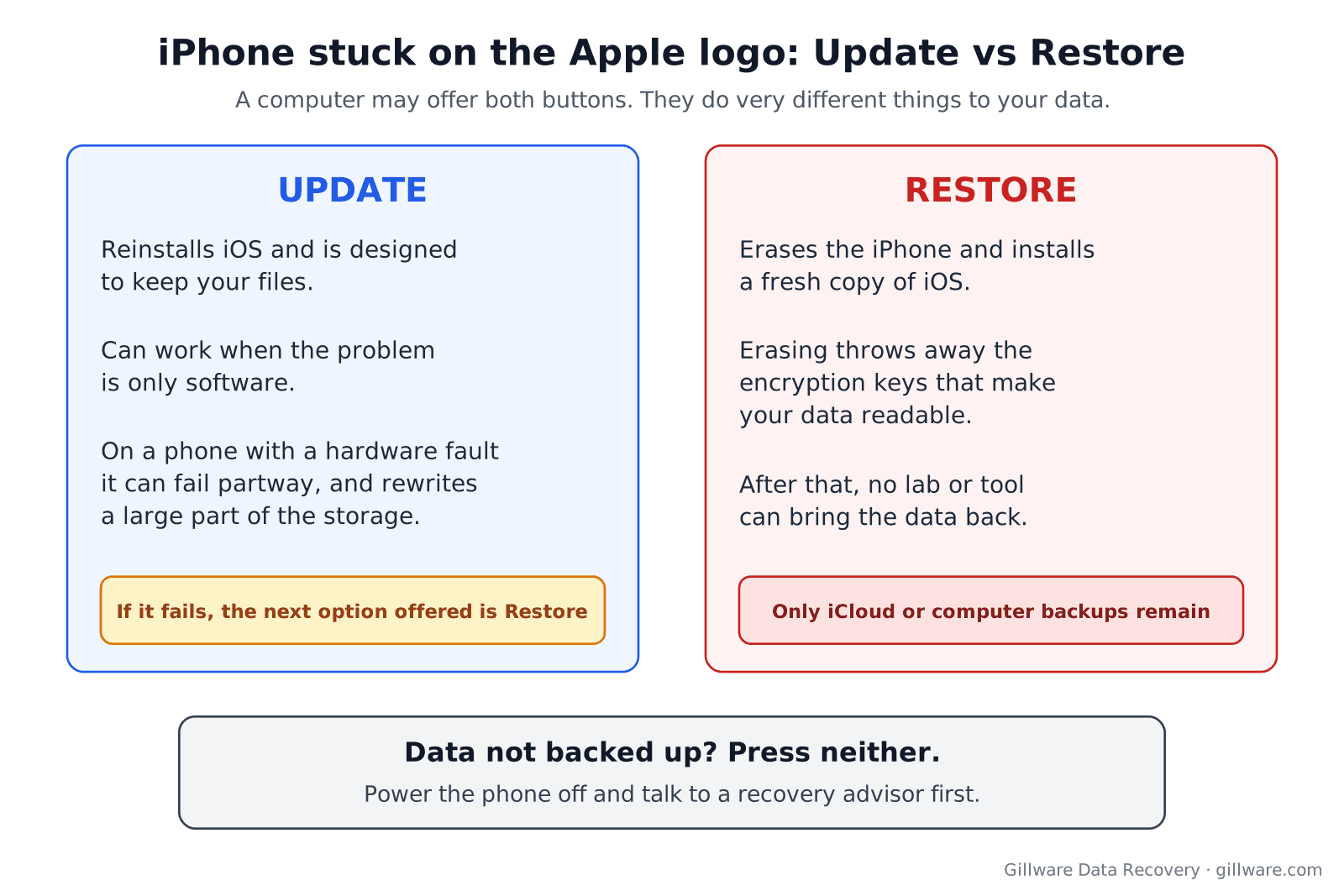
When an iPhone won’t start, a computer will often offer two buttons: Update and Restore. They sound like two versions of the same fix. They are not.
Restore erases the iPhone. It wipes the phone and installs a fresh copy of iOS, as if it came out of the box. Modern iPhones encrypt everything stored on them, and erasing the phone throws away the keys that make the data readable. Once that happens, no lab, software or technician can bring the data back. The only copies left are whatever was already in iCloud or in a backup on a computer.
Update tries to keep your data. It reinstalls iOS without erasing your files, and on a phone with a simple software problem, it can work. On a phone with a hardware fault, though, it can fail partway. When it does, the next thing you’re offered is Restore. An update also rewrites a large part of the storage, which is hard on a memory chip that’s already failing.
So the rule is simple. If the data on the phone isn’t backed up and matters to you, don’t press Restore, and think twice before letting an update run on a phone that is already misbehaving. Power the phone off and get advice first.
Why an iPhone gets stuck at the Apple logo
The logo is shown while the phone checks its hardware and loads iOS from storage. A phone that stops or loops there has hit a problem during that process. The usual causes fall into four groups:
- A software problem after an update. An update that was interrupted, ran out of battery, or started when the storage was nearly full can leave iOS unable to finish starting. This is the case most likely to clear up on its own or with an update, and the least likely to involve physical damage.
- A failing storage chip. iPhone storage is a flash memory chip soldered to the logic board. As it wears or develops faults, reads during startup can fail, and the phone gives up and tries again. These phones sometimes get a little further each time, then a little less. Every full restart or rewrite works the chip harder.
- A power problem. Starting an iPhone draws more current than keeping it running. A worn battery, or a fault in the circuits that manage power, can make the phone shut off at the logo and try again, which looks exactly like a software loop.
- Damage to the board or its parts. A drop, a bent frame, liquid, or a failed connector can break a circuit the phone checks at startup. Restarts that happen every few minutes, often reported as kernel panics, are frequently caused by a part the phone expects to find suddenly going missing.
From the outside, you usually can’t tell these apart. That’s why the safest first move is the same in every case: stop retrying, keep the phone off, and let someone check the hardware before anything writes to the storage again.
Your data is locked to this iPhone’s board
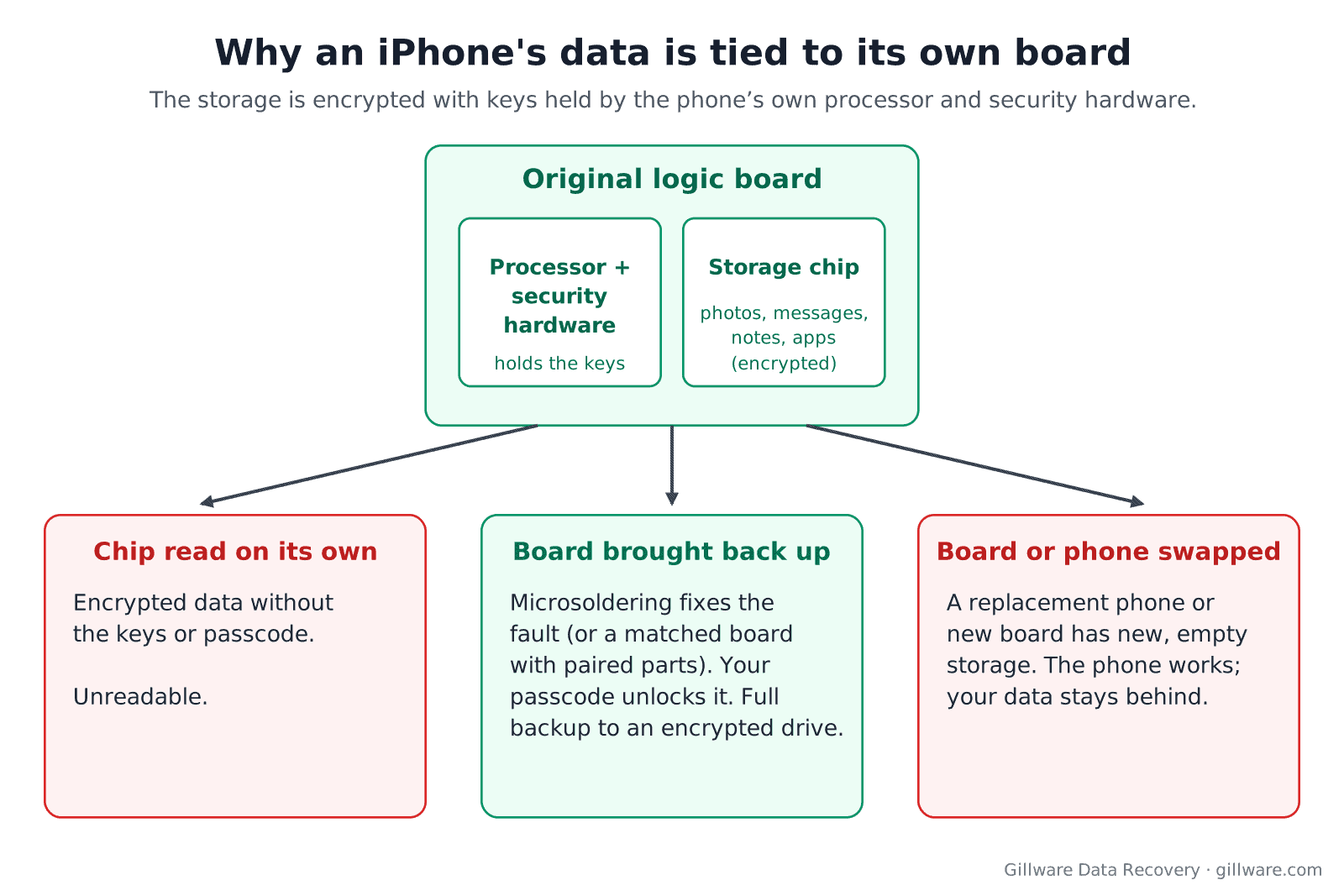
This is the part most people never hear until it’s too late. An iPhone isn’t a small computer with a removable drive. Its storage chip is soldered to the logic board, and everything on it is encrypted with keys that belong to that phone’s own processor and security hardware. The data and the board belong together.
That has two consequences for you.
First, the storage can’t simply be pulled and read on other equipment. Read on its own, the chip holds encrypted data that is useless without the phone’s own hardware and your passcode. Recovering an iPhone means getting that board, or a carefully matched replacement board fitted with the parts the phone pairs with its storage, to start far enough to unlock the data.
Second, swapping the phone or its board for a working one fixes the phone and loses the data. A replacement phone or a new logic board comes with its own new, empty storage. If someone offers a replacement or a board exchange and your data isn’t backed up, recover the data first.
Before anyone restores, resets or replaces the iPhone, talk to us. The evaluation is free.
What to do right now
- Stop the restart cycle. If the phone keeps looping, let the battery run down or power it off when you can, and leave it off. Every loop is another full startup on hardware that may be failing.
- Don’t restore, reset or erase it. Not from a computer, not from the phone, not from Find My. Erasing is the one step that can’t be undone.
- If it got wet or hot, don’t charge it. Charging pushes current through a board that may be shorted or corroding. Rice doesn’t help either; corrosion keeps working inside the phone.
- Don’t keep guessing the passcode. If the phone does reach the lock screen between restarts, enter the passcode once, carefully. Too many wrong attempts can lock the phone further, and on some phones they erase it.
- Write down the passcode. We’ll need it to unlock the data once the phone starts. Without it, the data stays encrypted.
- Check for a backup from another device. Sign in to iCloud on a computer or another phone and see what’s already there: an iCloud backup, iCloud Photos, Messages in iCloud, notes and contacts. Our iCloud photo recovery guide explains where photos might still be. If everything you need is there, you may not need a lab at all.
- If something important is missing, call before anyone works on it. A short call with a recovery advisor will tell you whether your iPhone is a recovery case. Have the model and what happened handy.
What not to let anyone do to the phone
Well-meaning help causes a lot of lost data. Before you hand the phone to anyone, a store, a phone shop or a tech-savvy friend, be clear about what you want: your data first, the working phone second. In particular, don’t agree to:
- “Trying a restore to see if it fixes it.” It might fix the phone. It will also erase it.
- A replacement phone or a logic board exchange before the data is out. The new hardware comes with new, empty storage.
- Repeated attempts to “flash” or reinstall iOS. Each attempt writes to the storage, and the last one usually ends with a restore.
- Opening the phone and swapping parts at random. iPhone parts are paired to each other, and the wrong change can make the phone refuse to start for good.
If the data is backed up, none of this matters and you can fix the phone any way you like. If it isn’t, the order matters.
When the data can’t be recovered
We’d rather tell you this here than after you’ve shipped a phone:
- The phone was erased or restored. Erasing an iPhone discards its encryption keys. The data is gone, and anyone who promises otherwise is wrong. Look in iCloud and on any computer the phone was backed up to.
- The passcode is unknown. We don’t bypass passcodes or break Apple’s encryption. We need the passcode to unlock the data once the phone starts.
- The processor or its security hardware is destroyed. The keys live there. If that part is beyond saving, the data goes with it. We’ll tell you plainly at evaluation if that’s the case.
Recovering deleted photos or messages from a phone that still works is a different question with a different answer; our page on deleted text messages and contacts explains why.
How we recover a looping or stuck iPhone
Getting data off an iPhone that won’t start is board-level, chip-level engineering, not a software job. Our phone engineers work under microscopes with microsoldering tools, and the work depends on what failed:
- Finding the fault. We measure the board’s power circuits and trace the part or connection that stops the phone from starting: a failed power component, a shorted part, a broken connector, or corrosion from liquid.
- Bringing the original board back up. We replace or bypass the failed parts on your own board and start it under controlled power, so a short can’t damage the storage chip. The aim isn’t a phone you can keep using. It’s a phone that starts long enough to be unlocked and backed up.
- Moving the storage when the board can’t be saved. If the original board is too damaged, the storage chip and the small set of parts the phone pairs with it go onto a matching board. Done correctly, that board starts with your data and your passcode unlocks it.
- Taking a full backup. Once the phone starts and unlocks, we make a complete backup: photos, videos, messages, notes, contacts and app data. We return it to you on an encrypted drive.
Many phone recovery cases are financially risk free. The best way to estimate recovery costs and if there’s any potential parts fees is to speak with a recovery advisor and have your model phone and symptoms handy. Every case is quoted after a free evaluation, so you know the cost before any recovery work begins, and you only pay if we meet your recovery goals. Our page on phone data recovery cost explains how a quote comes together.
Gillware has been recovering data for more than two decades, and since 2004 we’ve recovered data from more than 100,000 storage devices. For the full picture on dead, drowned and locked iPhones, see our iPhone data recovery page and our phone data recovery services. If it’s a Mac that won’t start rather than a phone, our guide to a MacBook that won’t turn on covers the same board-and-encryption problem on laptops.
Frequently asked questions
Can I get my data off an iPhone stuck on the Apple logo without losing it?
Often, yes, as long as the phone hasn’t been restored or erased and you know the passcode. The phone has to start far enough to unlock, so recovery means getting its own hardware working again, not reading the storage on its own.
Will an update erase my iPhone?
An update is designed to keep your data, and a restore is designed to erase it. The risk with an update on a failing phone is that it stops partway, and the only option left is a restore. If the data matters and isn’t backed up, get advice before letting either one run.
My iPhone restarts every few minutes. Is that the same problem?
It’s closely related. Repeated restarts, usually logged as kernel panics, often point to hardware: a failing part, a damaged connector, or storage errors. Back up right away if the phone stays on long enough. If it doesn’t, power it off and talk to us.
Can you take the storage chip out and read it?
Not on its own. Everything on the chip is encrypted with keys held by the phone’s own processor and security hardware. The chip has to be read through that hardware, or through a matched board fitted with the parts the phone pairs with its storage.
Do you need my passcode?
Yes. The passcode is what unlocks the data once the phone starts. Write it down and include it with your case. Without it, the data stays encrypted.
Apple offered me a replacement phone. Will my data move to it?
Only if it’s in iCloud or a computer backup. A replacement phone, or a new logic board, starts with empty storage. If your data isn’t backed up, recover it from the original phone before you hand that phone over.
iPhone still stuck on the Apple logo? Let’s get your data back.
Our highly experienced engineers strive for the highest success rates in the industry. Send us the device and we’ll diagnose it for free.
- More than 20 years recovering data from failed drives
- Trusted by 1,500+ IT professionals nationwide
- Whatever failed, we’ve seen it hundreds of times
- Pay only if we meet your recovery goals
