
A VMware host comes back from a SAN outage and the datastore is simply not listed. A controller is replaced and ESXi offers to format a disk that should hold a dozen virtual machines. Someone chooses “Delete from Disk” on the wrong VM, or a snapshot chain breaks and a critical server will not power on. In each case the virtual machine data is usually still on the storage, at least for now. What happens in the next hour decides whether it stays there. This page explains how VMFS stores your virtual machines, what each of these failures actually means, what not to do, and how our engineers recover VMs when vSphere cannot.
Datastore missing or VM deleted?
Stop writes to that storage and don’t create, format or resignature anything yet. Talk with one of our enterprise storage engineers first; the consultation is free.
This page is about the VMFS layer: the datastore and the virtual machine files inside it. For VMware recovery in general, including failed hosts and the hardware underneath, start with our VMware data recovery page. If the datastore is fine but a single virtual disk will not open, our page on corrupted VMDK files goes deeper on that problem.
How VMFS stores a virtual machine
VMFS is VMware’s clustered filesystem. It sits on block storage, which can be a local disk, a RAID volume on a server controller, or a LUN presented over iSCSI or Fibre Channel from a SAN. Several ESXi hosts can share one VMFS datastore at the same time, which is why VMFS keeps its own on-disk locks, heartbeats and metadata alongside your data. To recover a VM, an engineer has to work through each of these layers in order:
- The physical storage. The drives themselves, and the RAID controller or storage array that combines them into a volume or LUN.
- The partition. ESXi places each VMFS volume inside a partition on that volume or LUN. If the partition table is damaged or overwritten, ESXi no longer sees a datastore there, even though the VMFS structures behind it may be intact.
- The VMFS volume. The datastore’s metadata: the volume header and signature, the resource maps that track which blocks are in use, and the file descriptors and pointer blocks that record where each file’s data lives.
- The VM folder. Each virtual machine is a folder of files: the configuration (.vmx), a small descriptor file and a large -flat.vmdk data file for each virtual disk, delta files for any snapshots, plus logs and other small files.
- The guest filesystem. Inside each virtual disk is an ordinary NTFS, ext4, XFS or other filesystem holding the files, databases and mailboxes you actually need.
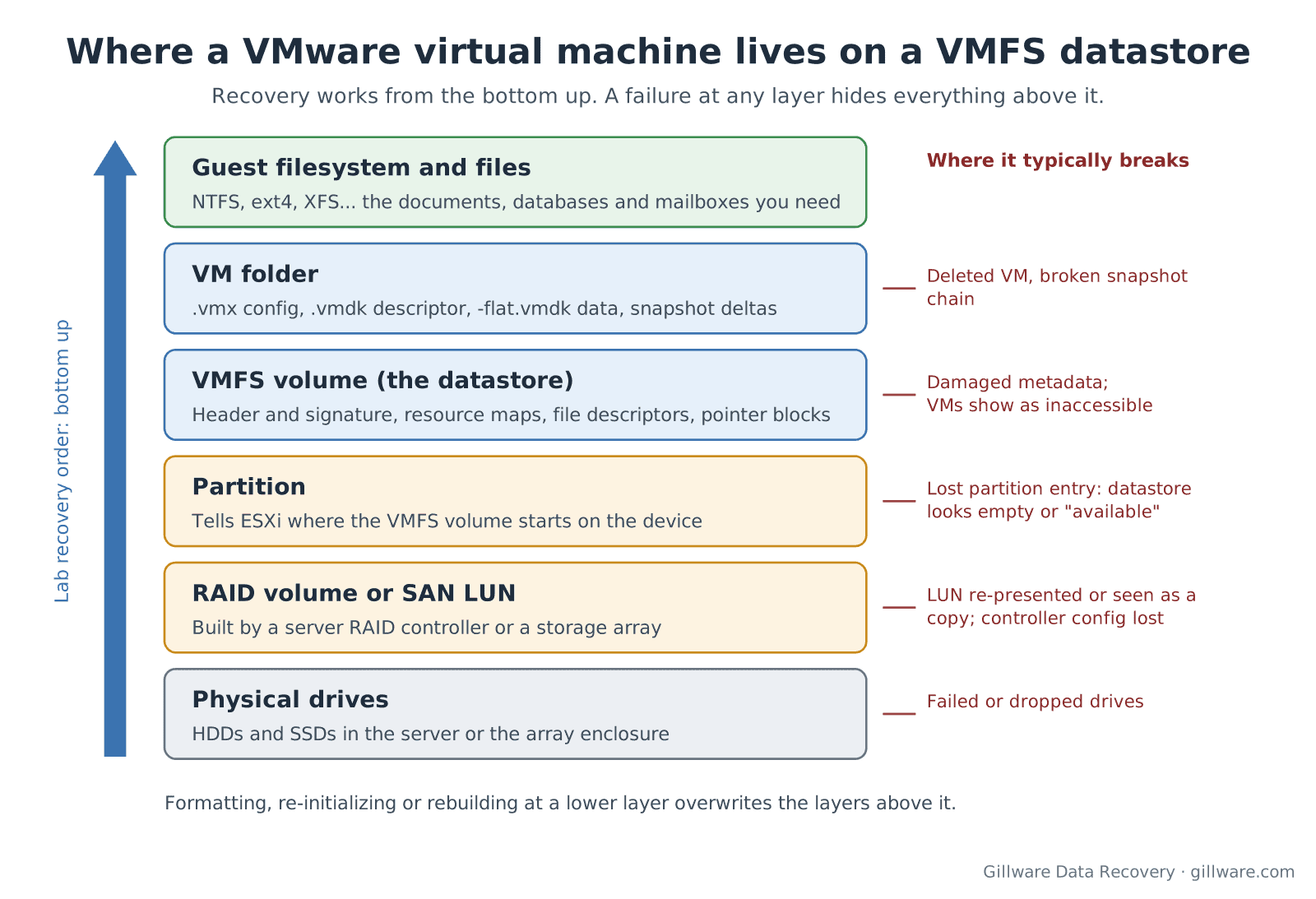
Two things follow from this. First, a failure at a lower layer hides everything above it. A missing partition entry makes a perfectly good datastore look empty, and a failed RAID volume makes every datastore on it disappear at once. Second, the “fix” offered at one layer often destroys the layers above it. Formatting a disk to create a new datastore, rebuilding an array with the wrong settings, or re-initializing a LUN all write over exactly the structures needed to get the VMs back.
The failures behind most VMFS recovery cases
A virtual machine or virtual disk was deleted
In vSphere, “Remove from Inventory” only unregisters a VM and leaves its files on the datastore. “Delete from Disk” removes the folder and its files from VMFS. When a file is deleted, VMFS marks its blocks as free and clears or reuses the metadata that pointed to them, but the data blocks themselves usually remain on disk until new writes land on them. That is why a deleted VM can often be recovered, and why every new VM, snapshot, log file or storage migration onto that datastore reduces what is left. Thin-provisioned storage adds one more variable: when space reclamation is enabled and the underlying array or SSDs honor it, freed blocks can be released and discarded by the storage itself. Time matters more on those systems.
The datastore is missing after a SAN, controller or firmware event
This is the most common call we get about VMFS. After a SAN controller failover, a firmware update, a replaced RAID controller, a re-presented LUN or a host reinstall, the datastore no longer mounts. Sometimes ESXi treats the volume as a snapshot or copy because the LUN now looks different from the one the datastore was created on. Sometimes the device is visible but shows as empty, or appears as available space in the New Datastore wizard. In that situation the wizard is offering to create a new datastore on top of your existing one. Formatting writes a new partition table and new VMFS metadata over the start of the volume.
ESXi also offers options for a volume it thinks is a copy, including mounting it with a new signature. Resignaturing writes to the volume and changes how the datastore and its VMs are identified, which can be the right move in a normal storage migration and the wrong one when nobody yet knows why the datastore disappeared. If the cause is a controller or array fault, writing anything to the volume risks making a recoverable problem permanent. Find out what changed first.
VMFS metadata or the partition table is damaged
Power loss during heavy writes, a failing drive returning bad data, a RAID volume assembled from drives in the wrong order, or an accidental write to the start of a LUN can all damage the partition table, the VMFS header, or the metadata areas that map files to blocks. The symptoms range from a datastore that will not mount, to VMs that show as inaccessible, to virtual disks that open but contain garbage. Because VMFS keeps several related structures, the missing or damaged pieces can often be reconstructed from what survives, working from an image rather than the original volume.
A snapshot chain is broken
A VMware snapshot freezes the base virtual disk and sends new writes to a delta file. Each delta depends on its parent, so a chain of snapshots is only as good as its weakest link. Chains break when a delta file is deleted to free space, when consolidation fails partway through, when a datastore fills up while snapshots are growing, or when files are copied or restored without the rest of the chain. The VM may refuse to power on, or power on with old data. The newest data lives in the deltas, so deleting “leftover” snapshot files is the step that loses it. Snapshots are also not a backup; they live on the same datastore and fail with it.
The storage underneath failed
Many VMFS cases are really hardware cases. Two drives drop out of a RAID 5 set, a RAID controller loses its configuration, a SAN controller pair fails, or a storage array deletes or corrupts a LUN. Our VMFS RAID-5 failure case study is a good example: the datastore’s problems began in the array, not in VMFS. Hosts may also crash with a purple diagnostic screen when storage misbehaves; our PSOD data recovery page covers that symptom. Ransomware that reaches the ESXi host is its own category; see our ransomware data recovery page.
Datastore gone or a VM deleted? A free consultation with an enterprise storage engineer comes before anything else.
The first hour: what to do and what not to do
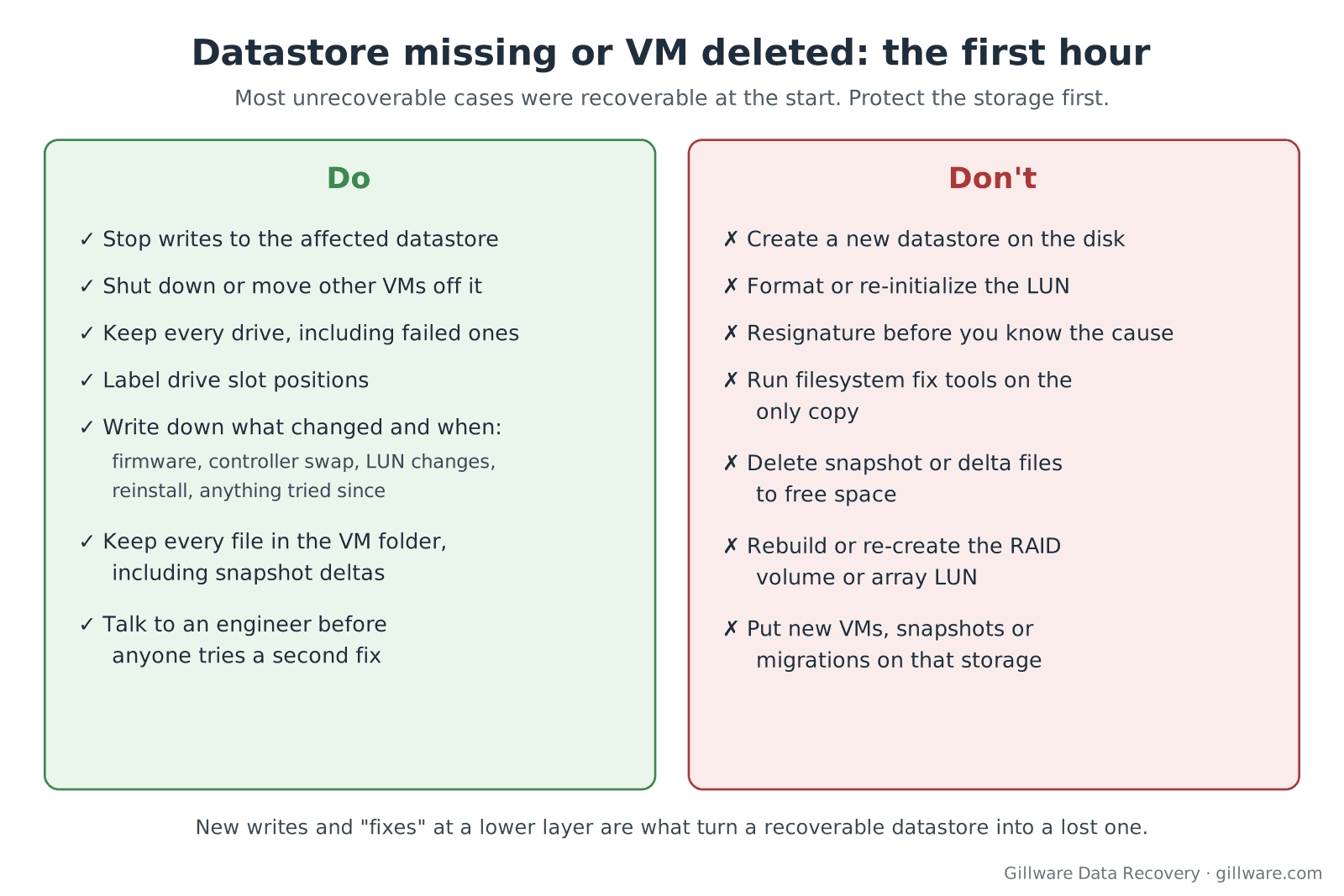
Most unrecoverable VMFS cases were recoverable when they started. The damage was done afterwards, by well-meant attempts to get the host running again. If the VMs on that datastore matter:
- Stop writes to the affected storage. Don’t create new VMs, snapshots or files on it, and don’t migrate other VMs onto it. If other VMs are still running on the same datastore or LUN, decide quickly whether they can be shut down or moved off.
- Don’t create a new datastore on a disk that should already hold one. If the New Datastore wizard shows your disk as available, close the wizard.
- Don’t format, re-initialize or resignature the LUN until you know why the datastore disappeared.
- Don’t run filesystem check or fix tools against the only copy. Tools that rewrite VMFS or guest filesystem metadata can make the damage permanent.
- Don’t delete snapshot or delta files to free space or “clean up” a broken chain.
- Don’t rebuild, re-create or re-initialize the RAID volume or array LUN. If drives have failed, keep every one of them, including the failed ones, and label their slot positions.
- Write down what happened and when: firmware updates, controller swaps, LUN changes, reinstalls, the last time the datastore was seen, and anything anyone has tried since.
- Call before anyone tries a second fix. One wrong step is usually survivable; three in a row often is not.
If the outage is stopping the business, our emergency data recovery service puts the case at the front of the line.
How we recover VMFS datastores and deleted virtual machines
We work from the bottom of the stack up, and always on copies:
- Image the storage. Every drive is imaged in our lab, including failed drives, which may need work in our cleanroom first. For SAN cases we work from the array’s drives or from images of the LUNs. Nothing is written to your originals.
- Rebuild the volume. We reconstruct the RAID volume or LUN virtually from the images, working out stripe size, drive order and parity, including on arrays where drives dropped out at different times. Our RAID data recovery page explains this step.
- Rebuild the datastore. Our engineers locate the VMFS volume, reconstruct damaged partition and metadata structures, and map every file the datastore still knows about.
- Find deleted and orphaned VM files. For deleted VMs and virtual disks, we look for the remains of their metadata and for the data itself, matching large flat virtual disk extents by the guest partitions and filesystems inside them.
- Rebuild snapshot chains. We put base disks and deltas back in the right order so that the newest state of each virtual disk can be read.
- Verify and deliver. We open the guest filesystems, check the files, databases and mailboxes you named as priorities, and return the data as working virtual disks or as files, whichever gets you running sooner.
Our engineers have been recovering data from servers, arrays and virtual machines for more than two decades, and since 2004 Gillware has recovered data from more than 100,000 storage devices. We work regularly alongside in-house IT teams, MSPs, incident response firms and cyber-insurance adjusters; our role is recovering the data, not incident response. Every case starts with a free consultation, and you approve all recovery fees in writing before any recovery work begins. For how server and enterprise cases are scoped, see what RAID and server recovery costs.
Related pages: VMDK recovery, virtual machine data recovery, Proxmox VE data recovery, server data recovery, NetApp data recovery, HPE 3PAR data recovery and HP server data recovery.
VMFS Datastore Recovery FAQ
Can you recover a VM that was deleted with “Delete from Disk”?
Often, yes, if the datastore has not been heavily written to since. The data blocks usually stay on disk after the delete; what changes is the metadata that pointed to them. Stop using that datastore and contact us before anything new is created on it.
ESXi shows our disk as empty and offers to create a new datastore. Is the data gone?
Usually not. This typically means ESXi cannot read the partition or the VMFS header, not that the data has been erased. Close the wizard. Creating a new datastore there is the step that overwrites the existing one.
Should we resignature the volume to get the datastore back?
Not until you know why it disappeared. Resignaturing writes to the volume. If the cause is a controller, array or metadata fault, talk with an engineer before writing anything.
The VM will not power on after a snapshot problem. Can the newest data be recovered?
In many cases. The newest changes live in the snapshot delta files, so keep every file in the VM folder, including ones that look like leftovers, and don’t attempt to consolidate again.
The datastore was on a SAN. Do you need the whole array?
We need the drives that held the LUN, or the whole enclosure if that is easier for you, plus whatever you know about how the array was configured. We’ll go through exactly what to send during the consultation.
Can you return the virtual machines, or only the files inside them?
Either. Where the virtual disks can be rebuilt completely, we can return them as VMDKs ready to attach to a VM. Where only parts survive, we recover the files, databases and mailboxes inside them.
VMFS datastore gone? Let’s get your VMs back.
Our highly experienced engineers strive for the highest success rates in the industry. Talk with one of our enterprise storage engineers before anything else is done to the system.
- Free technical consultation with one of our enterprise storage engineers
- A written recovery agreement before work begins
- No billing surprises: you approve all recovery fees in advance
- Emergency service for business-critical downtime