
Windows Error Messages Explained
When Windows storage fails, the error message is the diagnosis’s first clue. “Boot device not found” means the firmware can’t see a drive at all — a very different problem from “BOOTMGR is corrupt,” where the drive is visible but its boot files aren’t readable, which is different again from a RAW-filesystem prompt on a drive that boots Windows fine. Vendors add their own layer: a Lenovo error 1962, a Dell 2000-0142, an HP 3F0 each encode specific diagnostic meanings.
This page is the routing map. Find the error you’re seeing, and it links to our dedicated page on what that error means, what’s happening at the hardware or filesystem layer, and what to do — and avoid doing — when the data on the machine matters. Two rules apply across every error below. First: if the data matters, stop. Repeated boot attempts spin failing hardware; automatic repairs write to volumes you may want preserved. Second: the error tells you where to look, not how bad it is. Some of the scariest-sounding errors are trivial, and some bland ones announce dying hardware.
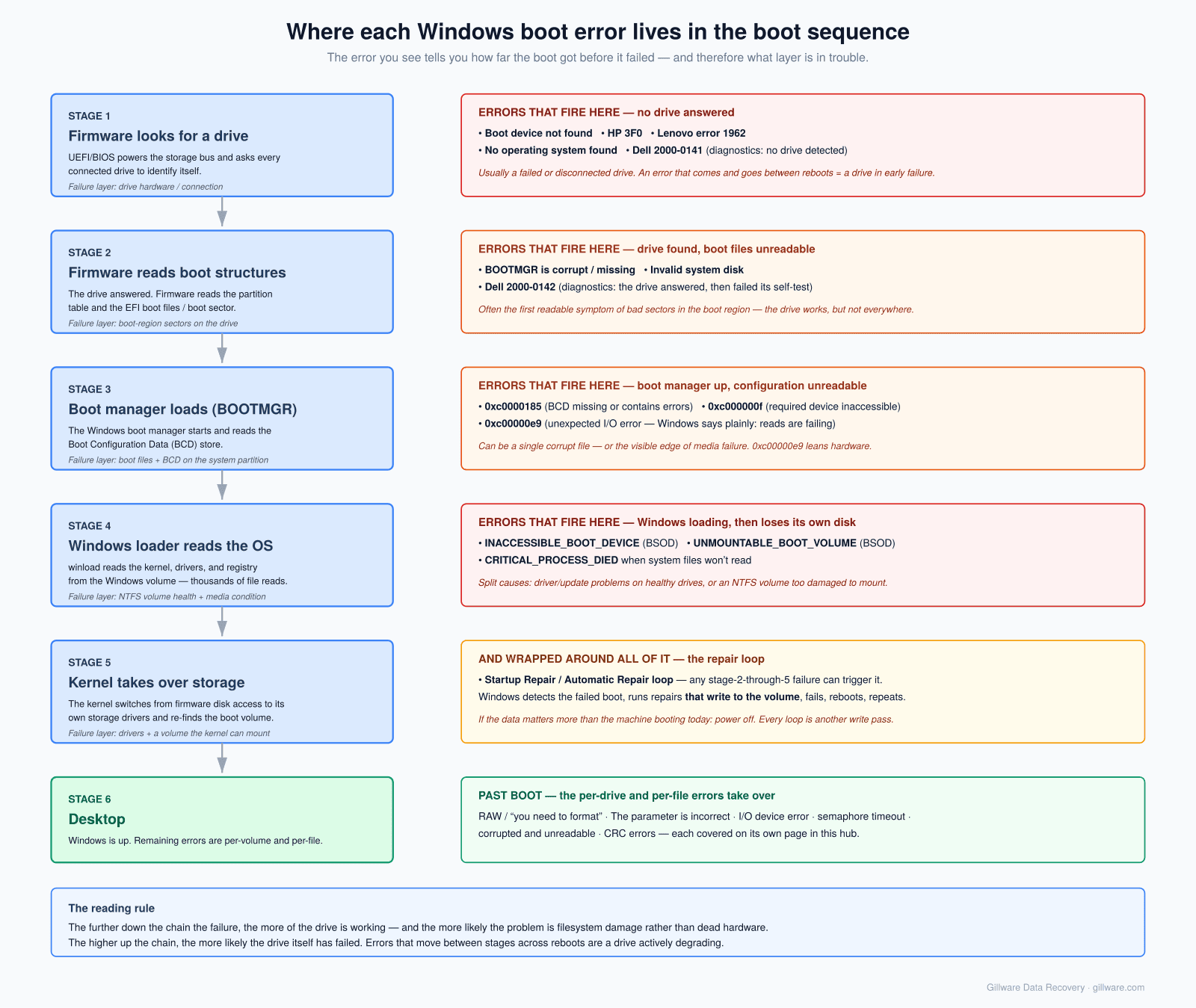
The machine won’t boot: firmware can’t find a drive
Errors in this family mean the BIOS/UEFI looked for a bootable drive and found nothing. That’s either a dead or disconnected drive (most common), a drive that’s alive but failing its identification handshake, or — least common — a healthy drive whose boot structures are gone.
- Boot device not found — the generic form, common on HP machines as “Boot Device Not Found — Hard Disk (3F0).” The drive has usually failed or dropped off the bus entirely.
- Hard disk error 3F0 — HP’s specific code for the same condition, with its own diagnostic path.
- Error 1962: No operating system found — Lenovo’s version, seen across ThinkCentre desktops and IdeaPad/ThinkPad laptops. Sometimes an intermittent drive that appears after a warm reboot — a classic sign of a drive in the early stages of failure.
- No operating system found — the vendor-neutral message, same triage.
The machine won’t boot: drive found, Windows can’t start
Here the firmware sees a drive, but something between the boot sector and the Windows kernel is unreadable — failing sectors under the boot files, filesystem corruption on the system volume, or a partially-dead drive that reads too slowly to boot.
- BOOTMGR is corrupt / BOOTMGR image is corrupt — the boot manager itself fails to load; frequently the first readable symptom of media degradation in the boot region.
- Error 0xc0000185 — “the boot configuration data for your PC is missing or contains errors.” BCD damage; can be trivial (one corrupt file) or the tip of broader corruption.
- Error 0xc00000e9 — “an unexpected I/O error has occurred.” Windows is telling you plainly the drive isn’t reading reliably. Treat as a hardware symptom.
- Error 0xc000000f — boot selection failed because a required device is inaccessible; sibling of the above two, same caution.
- INACCESSIBLE_BOOT_DEVICE — the blue-screen stop code: Windows started loading and lost its own system drive mid-flight. Driver and update issues cause some; failing storage causes the rest.
- Stuck in Startup Repair / Automatic Repair loop — Windows tries to repair itself, fails, reboots, repeats. Every loop iteration is another repair pass writing to a volume that may be better left alone. If the data matters, break the loop by powering off.
OEM diagnostic codes
Vendor pre-boot diagnostics produce their own codes, and they’re worth taking seriously — they come from the drive’s own self-test reporting.
- Dell hard drive error codes — the overview of Dell’s ePSA/SupportAssist codes and what each says about the drive.
- Dell error 2000-0141 — “no drive detected”: the diagnostic can’t see the drive at all.
- Dell error 2000-0142 — “drive self test failed”: the drive is visible and admitting it’s failing. Unit 3F0 above covers HP’s equivalent family.
The drive doesn’t show up
Windows boots fine, but a data drive — internal, external, or USB stick — is missing from Explorer, shows without a size, or appears in Disk Management as unknown, not initialized, or unallocated.
- Hard drive not showing up — the full triage: Explorer vs. Disk Management vs. BIOS visibility, and what each level of invisibility means. Includes why you should never accept the “initialize disk” prompt on a drive that has data on it.
- External hard drive not showing up — the external-enclosure variant, where the USB bridge adds its own failure modes to the drive’s.
- USB device not recognized — the malfunction pop-up on flash drives and external disks; covers the descriptor-failure cases that mean controller trouble.
- WD easystore / WD external not recognized — brand-specific version with WD’s hardware-encryption wrinkle: data on many WD externals is encrypted by the bridge board, so “just shuck it” advice fails.
The drive shows up but won’t open
The volume is visible but Windows can’t read its filesystem — the classic territory of NTFS metadata damage, covered in depth on our NTFS recovery page.
- RAW partition / “you need to format the disk” — Windows can’t parse the filesystem and offers to format. Don’t. The data is typically intact behind damaged metadata.
- Error 0x800701E3: “the request failed due to a fatal device hardware error” — the drive is returning hardware-level failures on read. One of the clearest “stop and image” signals Windows produces.
- I/O device error — “the request could not be performed because of an I/O device error”: reads are failing at the device level; common on flash media and failing externals.
- The parameter is incorrect (0x80070057) — a vague message with a broad cause set, from cable problems to serious NTFS metadata damage. Our page walks the triage in order.
- Corrupt user profile / “the user profile service failed the sign-in” — Windows boots but a profile won’t load; sometimes registry-only, sometimes the first sign of corruption spreading through the system volume.
Errors during file operations
The volume mounts, but specific files or folders fail — localized filesystem damage, media degradation under specific files, or a drive beginning to fail unevenly.
- “The semaphore timeout period has expired” (0x80070079) — large file copies to external or network storage stall and die. Sometimes settings; frequently a drive stalling on deep error recovery — and the difference matters urgently. Our page covers the triage.
- “The file or directory is corrupted and unreadable” (0x80070570) — a specific directory index or file record fails its consistency checks. Localized NTFS damage; covered on the NTFS page, with a dedicated page coming.
- Data error (cyclic redundancy check) — reads are failing checksum at the hardware level; a media-degradation signature. Dedicated page coming.
If you don’t see your error — or you see several
Storage failures rarely produce exactly one message. A failing drive might throw an I/O error today, a RAW prompt tomorrow, and stop appearing at all by the weekend — the errors are snapshots of a progression. If your situation spans several of the categories above, treat it as the most serious one: a hardware-symptom drive with filesystem errors is a hardware case first.
And if you’re seeing an error not listed here, the free consultation covers it — describe the exact message and the sequence of events, and we’ll tell you what it means and whether it’s a lab case, a software case, or a false alarm.
Staring at One of These Errors Right Now?
Free initial consultation. Tell us the exact error and what led up to it — we’ll tell you what it means, what’s at risk, and what recovery looks like if the data matters.
Or call us: 877-624-7206