
Synology Storage Pool Crashed or Volume Crashed: What It Means and What to Do First

A Synology storage pool crashed or volume crashed warning means DSM can no longer put your data back together. The drives may be fine, a drive may have dropped out, or the file system on top may be damaged. Which one it is decides what is safe to do next. This guide explains what each Synology status means, why the Repair button is often grayed out, which common fixes make a crashed pool permanent, and how a lab recovers the data when it gets that far.
Synology storage pool crashed or degraded?
Don’t force a repair or swap more drives until you know what failed. Book a free consultation with one of our enterprise recovery experts.
Synology Storage Pool Crashed? Do This First:
- If the files on the NAS matter, copy off anything you can still open, then shut the NAS down from DSM and leave it off.
- Don’t click Repair, and don’t resync or rebuild the pool.
- Don’t create a new pool, initialize the drives or reinstall DSM.
- Don’t swap, add or pull drives, and don’t move them to another NAS.
- Label each drive with its bay number.
- Call us at 877-624-7206 before anything else is done.
What Does “Storage Pool Crashed” Mean on a Synology NAS?
A Synology volume is not one thing. It is a stack of standard Linux layers, and each layer depends on the one below it. Every drive is split into partitions: a small copy of DSM itself, swap, and a large data partition. The data partitions from all drives are combined into a software RAID array (Synology Hybrid RAID, or SHR, is built on the same Linux RAID). The storage pool joins one or more of those arrays, and the volume and its Btrfs or ext4 file system sit on top.
Storage pool crashed means the RAID layer can no longer assemble. More drives have dropped out than your RAID level can tolerate. A single-disk pool, Basic, JBOD or RAID 0 crashes when one drive drops. SHR-1, RAID 1 and RAID 5 survive one missing drive. SHR-2 and RAID 6 survive two. RAID 10 survives one drive from each mirrored pair.
Volume crashed usually means the opposite: the array assembled, but the file system on top is damaged, often after a power loss, a failed cache drive or a drive that returned bad data. Synology itself lists drive problems and file system errors as the two main causes of a crashed volume.
A drive that has been dropped from the pool has not necessarily failed. DSM drops a drive that stops answering for too long, and a drive that times out during heavy activity, a loose connection or a power glitch can all look the same from the outside. That is why the drives can show as healthy while the pool shows as crashed.
Crashed, Degraded or System Partition Failed: What Each Synology Status Means
| Status in Storage Manager | What it means | Is Repair offered? | Safest next step |
|---|---|---|---|
| Degraded | One drive (two on SHR-2 or RAID 6) failed or dropped. The pool still works with no spare redundancy. | Yes | Back up the important files first, then replace only the failed drive. |
| Storage pool crashed | Too many drives dropped for the RAID level. The array will not assemble. | No | Shut down, label the bays, get professional help. |
| Volume crashed | The array may be intact, but the file system will not mount, or mounts read-only. | No | If it mounts read-only, copy data off now. Don’t run file system repairs. |
| System partition failed | DSM’s own copy on one or more drives is out of sync. Your data partition is separate. | Yes (for the system partition) | Check every drive’s health first. If any drive shows warnings, treat it as a failing drive. |
| Drive status: Crashed / Failing | DSM stopped trusting one specific drive. | Depends on pool state | Don’t reinsert or reuse that drive until you know why it dropped. |
Why is the Repair option grayed out?
Repair only exists for a degraded pool. It rebuilds the missing drive’s data from the drives that are left, so it needs enough working drives to do the math. Once a pool has crashed there is nothing left for Repair to rebuild from, so DSM removes the option. Forum workarounds that force the array back together bypass that safety check, and on the original drives they can make the loss permanent.
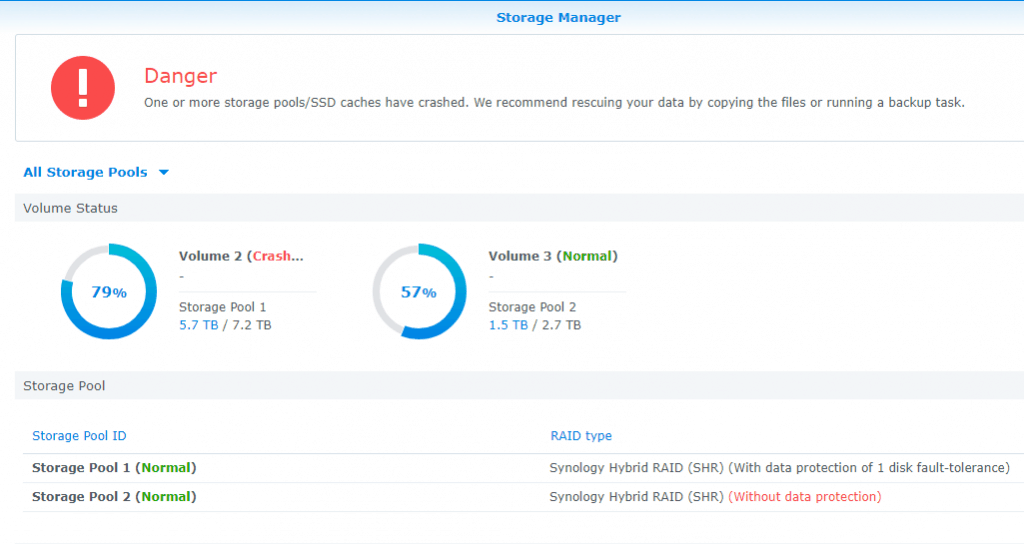
Synology volume crashed but every drive says healthy
This is one of the most common versions of the problem, and the most tempting to fix with a click. Typical causes:
- A drive was dropped, not dead. It stopped responding during a busy moment, DSM marked it out of date, and once it falls behind the others the array will not take it back on its own.
- Shingled (SMR) drives in a NAS. Some drives pause for long stretches during heavy writes such as a rebuild. DSM can read the pause as a failure and drop a drive that is physically fine.
- Power loss or an unclean shutdown. The array is intact, but the file system was mid-write and its newest records don’t line up.
- A failed SSD cache. On models with an M.2 or SSD read-write cache, recent writes may exist only on the cache. If the cache drive fails, the volume underneath can crash even though every hard drive is healthy.
In each case the data is usually still on the drives. What destroys it is a forced resync, a file system repair or a fresh pool written over the top. The safe order is the same every time: copy off what you can still read, power down, and image every drive before anyone tries to reassemble anything.
What Not to Do After a Synology Pool Crashes
Most unrecoverable Synology cases we see were recoverable when the pool first crashed. The damage came from the next few steps. Every item below writes to the drives that hold your data:
- Forcing a resync or rebuild. A rebuild reads every surviving drive end to end and writes the result back. If another drive is marginal, the rebuild can stop halfway, and the parts it already rewrote are gone.
- Forcing the array back together from the command line. Commands that force the RAID to assemble rewrite the record of which drive is current. If the wrong drive wins, the newest data is overwritten by older data.
- Running a file system repair. On Btrfs, older consistent copies of the file system’s records usually survive a crash. A repair writes new records in place and can erase the very copies a recovery depends on.
- Moving the drives to a new DiskStation and choosing Migrate, Repair or Reinstall. This only works if the old unit simply died. If the pool itself is damaged, the new unit rewrites the system partition and may offer a fresh install that wipes the data partitions.
- Connecting the drives to a Windows PC. Windows can’t read a Synology volume, and it may offer to initialize the drives. That erases the layout that ties the array together.
- Running recovery software on the original drives. Even read-only scans put hours of heavy reads on drives that may already be failing. If you try anything yourself, work from copies of every drive, never the originals.
- Swapping drives in and out to “see what happens.” Each insertion can change which drive DSM treats as current, and bay order matters to the rebuild.
Synology Storage Pool Degraded: How to Handle It Safely
A degraded pool is a warning, not a disaster, and it is the last point where you can fix things with Synology’s own tools. Handle it in this order:
- Back up first. Copy the files you can’t lose to another device before you touch the pool. A rebuild is the hardest work the remaining drives will ever do.
- Check every other drive. In Storage Manager, look at each drive’s health and SMART status, not just the one DSM flagged.
- Replace only the failed drive with a compatible drive of the same or larger size, then run Repair once.
- Stop if anything else goes wrong. If a second drive shows warnings, the rebuild stalls or errors, or the pool status changes to crashed, power down and call us. Don’t try a second rebuild.
Waiting makes a degraded pool riskier, not safer: the remaining drives carry the full load with no margin. But rushing a rebuild without a backup is how a one-drive problem becomes a crashed pool. We have seen that exact sequence many times in our lab.
How We Recover a Crashed Synology Storage Pool
Because a Synology volume is built from standard Linux layers, a crashed pool can usually be rebuilt outside the NAS without writing a single byte to your drives. Our process:
- Free consultation and evaluation. We record the model, DSM version, RAID or SHR type, file system, what happened and what has been tried, and confirm which layer failed.
- Drive-by-drive diagnosis. Each drive is tested on its own. Drives with physical faults, such as failed heads or a firmware problem, are repaired just enough to be read, on the clean benches in our lab.
- A complete copy of every drive. We image each drive in full, including the ones DSM marked as failed, and work only from the copies from then on.
- Virtual reassembly. From the copies we work out drive order and which drive holds the newest data, then rebuild the SHR or RAID array and the storage pool read-only.
- File system recovery. We extract your files from the Btrfs or ext4 volume, including older consistent versions of a damaged Btrfs file system, plus iSCSI LUNs and snapshots. Encrypted shared folders and volumes also need the encryption key or recovery key.
- Verification and secure return. We check the recovered files against your priority list, and the data comes back on an encrypted drive.
Send every drive from the NAS, labeled by bay, even the ones DSM says failed. A drive that dropped out early often still holds data the others don’t. Every case starts with a free consultation, and you approve all recovery fees in writing before any recovery work begins. If the NAS runs your business, see our emergency data recovery service, and for other brands see our NAS data recovery services.
Crashed pool on a Synology NAS? Start with a free consultation with one of our enterprise recovery experts.
Synology Status Lights: What Each One Means
Light behavior varies a little by model, so check the hardware guide for yours. On most DiskStation and RackStation units, including the DS3612xs and the DX1215 expansion unit:
Status light orange and blinking
A volume or storage pool is degraded or crashed. Open Storage Manager to see which. If it says degraded, follow the degraded steps above, backup first. If it says crashed, shut down and don’t try to rebuild.
Drive status light orange
DSM can’t read from or write to that drive. It may be failing, or it may be a loose connection or a one-time timeout. Don’t pull and reinsert it to test; check its health in Storage Manager and back up while the pool is still readable.
Alert light orange and blinking, or status light red and blinking
Usually a fan or temperature problem. The NAS will shut itself down if it overheats, so fix the cooling before it causes an unclean shutdown. Synology handles fan replacement and sells spare parts.
Status light off, but the unit has power
DSM sees no volume. If the drives are still installed, the volume may have crashed. Check each drive’s light and Storage Manager before doing anything else.
Power light blinking blue and DSM never loads
The unit is not finishing startup. That points to the NAS hardware, a failing drive holding up the boot, or a DSM problem, not necessarily the pool. The pool is often intact behind a dead unit. See what to do when your NAS won’t boot and our Synology DS214+ flashing blue light case.
Synology Storage Pool Crashed: Frequently Asked Questions
Can a crashed Synology storage pool be recovered?
Often, yes, as long as nothing has been written over it. A crash means the pool can’t assemble inside the NAS, not that the data is gone. The biggest factors are whether the drives are physically healthy and what was done after the crash.
Will rebooting the NAS fix a crashed pool?
Sometimes a pool comes back after a reboot because a dropped drive answers again. If that happens, copy your important data off immediately; the cause hasn’t gone away. Repeated reboots of a pool with a failing drive put more wear on the drive each time.
Should I move my drives to a new Synology?
Only if the old unit died and the pool was healthy before it did. If the pool itself crashed, a new unit’s Migrate or Reinstall prompts can overwrite the information needed to rebuild it.
Is SHR harder to recover than RAID 5?
No. SHR is built from standard Linux RAID and volume management. Pools made from drives of different sizes are split into several arrays that are joined together, so every one of them has to be rebuilt for the volume to come back. That is one more reason to send every drive.
Can you recover an encrypted Synology volume or shared folder?
We can rebuild the pool underneath, but the data stays encrypted without the key. Keep your encryption key file or recovery key, and tell us about encryption during your consultation.
RELATED ARTICLES:
- Synology Data Recovery Services
- NAS Data Recovery Services
- Synology RS3412xs with Deleted LUNs
- Synology DS214+ with Flashing Blue Power Light
- Btrfs Data Recovery
- Your NAS Won’t Boot: Reading the Lights and Error Messages
Synology NAS crashed? Let’s get your data back.
Our highly experienced engineers strive for the highest success rates in the industry. Talk with one of our enterprise storage engineers before anything else is done to the system.
- Free technical consultation with one of our enterprise storage engineers
- A written recovery agreement before work begins
- No billing surprises: you approve all recovery fees in advance
- Emergency service for business-critical downtime
