
How to Recover Deleted Files on Linux and Ubuntu
You ran rm on the wrong directory, emptied the Trash a little too fast, or watched a cleanup script take out something it shouldn’t have. Now you want to know whether you can recover deleted files on Linux, and how much time you have. The honest answer: often yes, sometimes no, and the outcome depends far more on what happens to the disk in the next hour than on which tool you reach for.
Deleted the wrong files on Linux?
Stop writing to that disk. If the files matter, our engineers will evaluate the drive for free and tell you what’s still recoverable.
This guide covers where a “deleted” file may still be sitting intact, what rm actually does to ext4, Btrfs and XFS on disk, why SSDs change the odds, and the mistakes that turn a recoverable situation into a permanent one. It applies to Ubuntu (including the new 26.04 LTS and 26.10 releases), Fedora, Debian, Mint, RHEL and their relatives. The filesystem matters much more than the distro. For servers, arrays and storage appliances, our Linux data recovery hub goes deeper.
Does Linux have a recycle bin? Check these places first
Not at the system level. Linux has no recycle bin built into the kernel or the filesystem. What most people think of as the Linux recycle bin is the desktop Trash, a convention that GNOME Files, KDE Dolphin and other file managers follow. It only catches files you delete from the file manager with the Delete key or “Move to Trash.” Anything removed with rm in a terminal, by a script, by root, by a cron job or over SSH skips it entirely. So does Shift+Delete in most file managers.
Before you assume the worst, check the places a deleted file can still be sitting untouched:
- The Trash in your home folder. Files deleted from the desktop land in
~/.local/share/Trash/files, with a record of where each one came from in~/.local/share/Trash/info. Restoring from the file manager’s Trash view puts the file back where it was. - The Trash on an external drive. Files deleted from a USB drive or second disk usually go to a hidden
.Trash-1000folder at the top of that drive (the number is your user ID), not to your home folder. If you’ve since plugged that drive into a Windows PC or a Mac, the folder is probably still there, just hidden. - A program that still has the file open. Deleting a file removes its name, but Linux doesn’t release the data until every program holding it open lets go. More on that below.
- Snapshots and backups that already existed. If Btrfs, ZFS or LVM snapshots or a backup job were already running on the system, the file may be sitting in an earlier snapshot. Check what was already in place; don’t install and configure something new on the affected disk now.
- Synced copies. Folders synced to a cloud service, a NAS or another machine may still hold a copy or a version history.
Recovering a deleted file that’s still open
This one is worth knowing on servers. If you deleted a log, a database file or a video that a running process still has open, the data is fully intact for as long as that process keeps it open. You can list deleted-but-open files with ls -l /proc/*/fd 2>/dev/null | grep '(deleted)'. Each match shows a process ID and a file descriptor number, and copying /proc/PID/fd/NUMBER to a different disk gives you the file’s contents back. Don’t restart that service or reboot first. The moment the program closes the file, the kernel frees it.
What rm actually does to a deleted file on ext4, Btrfs and XFS
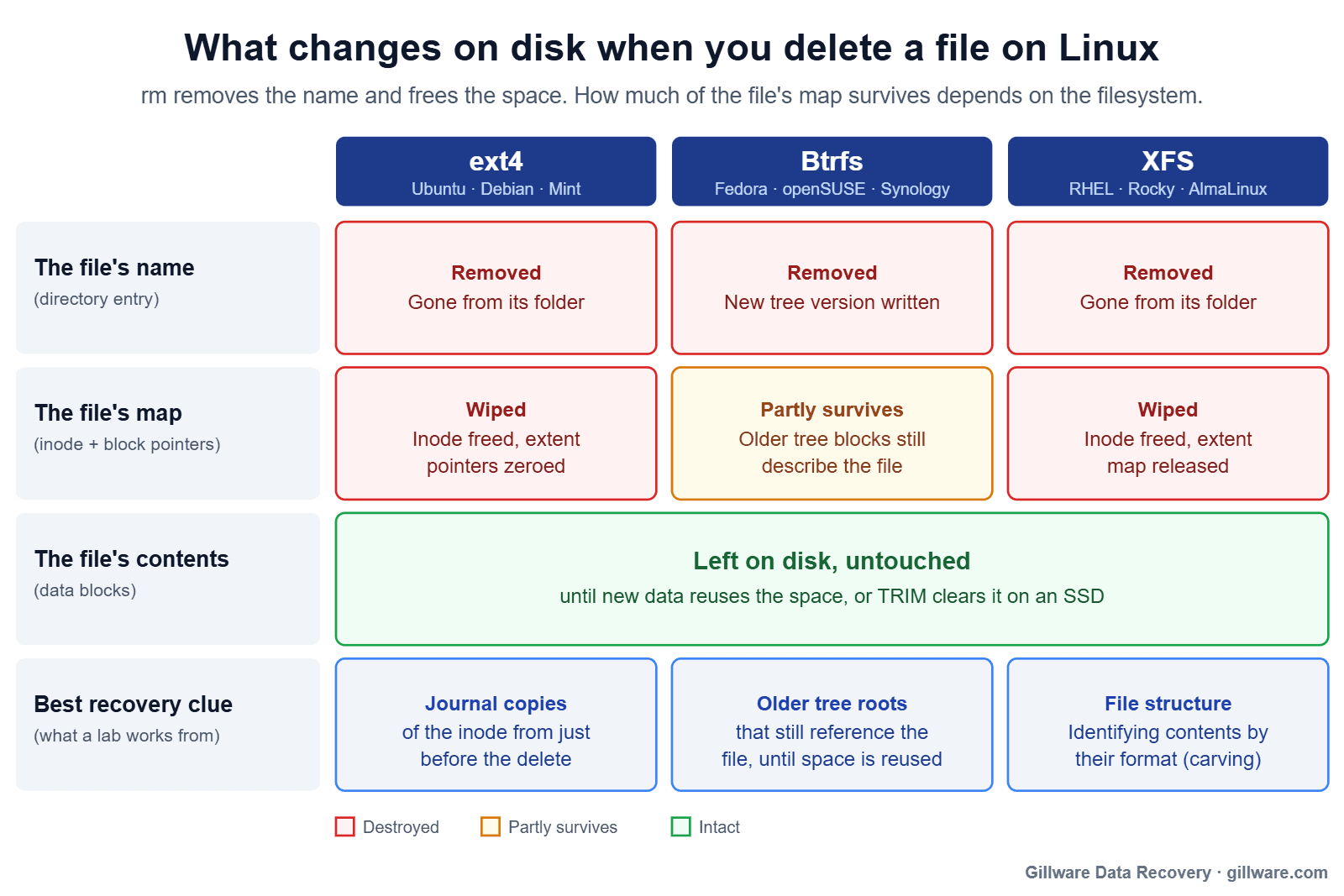
rm doesn’t erase anything. It asks the kernel to unlink a name: to remove one directory entry that points to an inode, the small record that describes a file. When an inode’s last name is gone and no program has it open, the filesystem marks the inode and its data blocks as free. The contents of those blocks stay exactly as they were. What changes is the map that says which blocks belonged to the file, and how much of that map survives depends on the filesystem.
ext4 (Ubuntu, Debian and Linux Mint)
ext4 is the default on Ubuntu, Debian and Mint installs, and it’s the least forgiving of the three for after-the-fact undelete. When an ext4 file is deleted, the filesystem zeroes the extent tree inside the inode, the set of pointers that said where the file’s data lived. The data blocks stay put until something reuses them, but the directions to them are gone. The ext4 journal sometimes still holds an older copy of that inode from just before the delete, which is why a recovery started minutes after a mistake on a quiet system goes much better than one started days later on a busy one. Our ext4 data recovery guide covers the on-disk details.
Btrfs (Fedora, openSUSE and many Synology NAS units)
Btrfs is copy-on-write: it never overwrites its metadata in place. Deleting a file writes new versions of the affected trees and points the filesystem at them. The older tree blocks, which still describe the deleted file, aren’t erased. They’re simply no longer current, and they survive until Btrfs reuses that space. That gives a lab more to work with than ext4 does, especially soon after the delete. Fedora Workstation, openSUSE and many Synology volumes run Btrfs; see Btrfs data recovery.
XFS (RHEL, Rocky Linux and AlmaLinux)
XFS, the default on Red Hat Enterprise Linux and its rebuilds, frees the inode and releases the file’s extent map when a file is deleted. Its metadata log only holds recent transactions, and it cycles quickly on a busy server. Recovering deleted XFS files often comes down to rebuilding what’s left of the metadata and recognizing file contents directly in the raw data. More in our XFS data recovery guide. ZFS pools behave differently again, and snapshots change everything there; see ZFS data recovery.
Why SSDs change the odds: TRIM
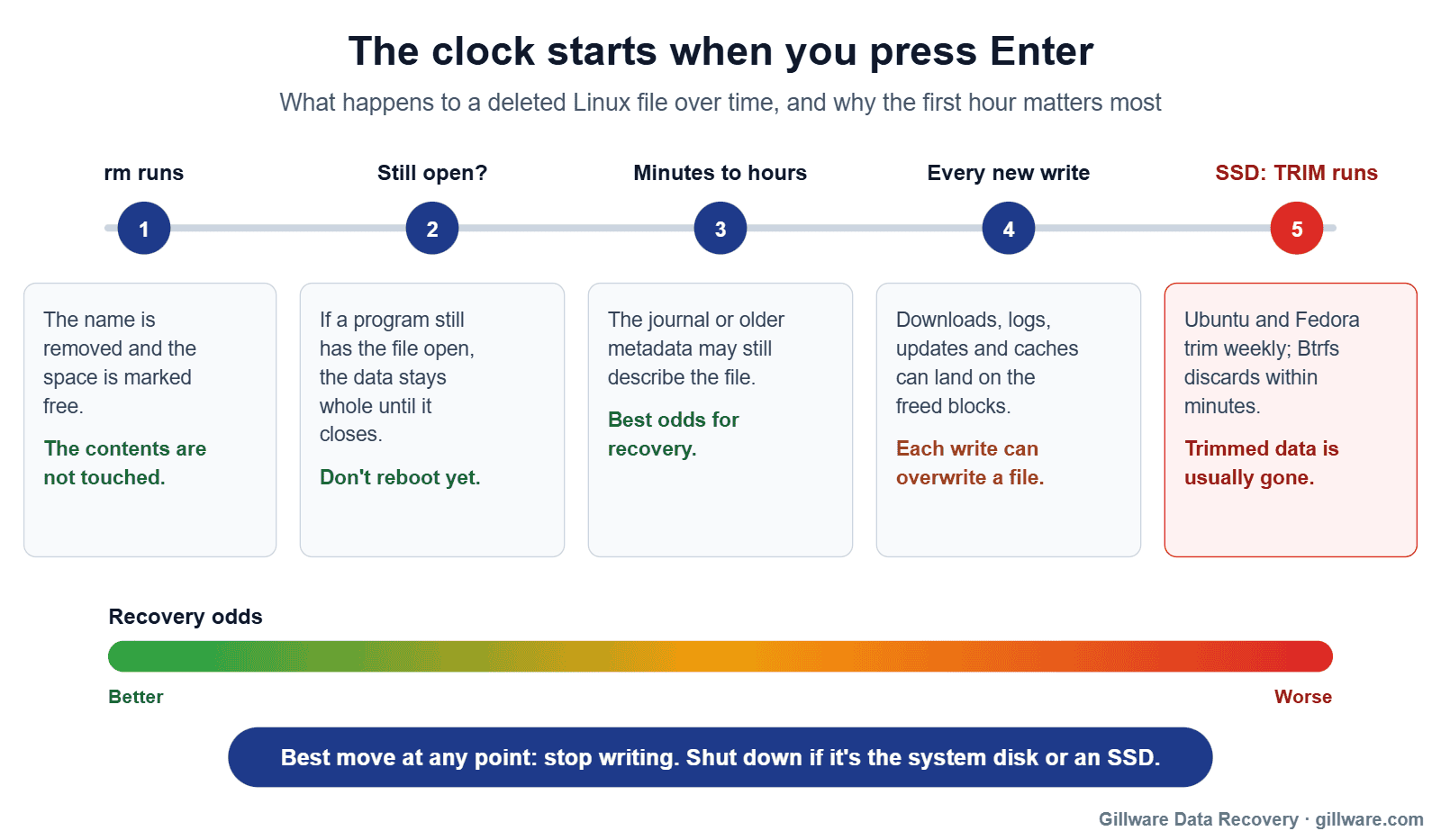
On a hard drive, freed blocks sit unchanged until new data happens to land on them. On an SSD, the operating system tells the drive which blocks are no longer in use, a command called TRIM, and the drive’s controller is free to erase them in the background. Once that happens, the deleted data is generally gone for good, no matter who attempts the recovery.
Most current Linux desktops trim by default. Ubuntu and Fedora both enable a weekly fstrim timer that trims every mounted SSD filesystem. Btrfs goes further: since Linux 6.2 it discards freed space on its own on SSDs that support it, so trimming can happen minutes after a delete rather than at the next weekly run.
The practical takeaway: if the deleted files were on an SSD or NVMe drive, shut the machine down rather than leaving it running while you read about options. A powered-off drive can’t trim. Our SSD data recovery page explains what’s still possible on flash storage.
Mistakes that make deleted files unrecoverable
Most of the deleted-file cases nobody can rescue weren’t lost to the delete itself. They were lost in the hour after it. Avoid these:
- Carrying on with the same filesystem. Every download, browser cache write, log entry, package update and thumbnail can land on blocks your files used to occupy. On a system disk that happens constantly in the background. Unmount the affected volume, or shut down if it’s the disk the system runs from.
- Installing anything onto the affected disk. Downloading and installing software writes exactly where you don’t want writes, and on a system disk that’s usually where your home folder lives too.
- Saving recovered files to the same disk. Anything you copy out has to go to a different physical drive.
- Running a repair command on the volume.
fsckand similar tools exist to make a filesystem consistent, not to preserve deleted data. They can clear orphaned inodes and reclaim space that still holds your files. - Reinstalling the operating system. “Erase disk and install” or reformatting the partition writes fresh metadata across the volume. If an upgrade went wrong, your files are usually still sitting there, and a reinstall is the one move that turns that into a recovery case.
- Leaving an SSD powered on. See TRIM above.
- Restoring a backup over the top before you know the backup is complete. If it isn’t, the originals are gone.
Files gone from an SSD, a server or a NAS? Talk to us before running anything else on it.
Ubuntu 26.04 and 26.10: does the new rm change anything?
If you’re on Ubuntu 26.10, the rm you just ran isn’t the one Linux users have typed for decades. Since Ubuntu 25.10, Canonical has been replacing the GNU core utilities with uutils, a reimplementation written in Rust. Ubuntu 26.04 LTS kept cp, mv and rm on their GNU versions, and 26.10, released in October 2026, finished the switch.
For recovery purposes, nothing changes. Both versions ask the kernel to unlink a file the same way, and what happens on disk is decided by the filesystem, not by the command. The same goes for the newer kernels these releases ship. Your odds still come down to ext4, Btrfs or XFS, the type of drive, and what’s been written since.
Upgrades are a more common cause of panic than rm. A release upgrade from 26.04 to 26.10, or an LTS jump from 24.04, can leave a machine that won’t boot or drops into emergency mode. In most of those cases the files in your home folder haven’t been touched. The problem is a package, a driver, the bootloader or a mount entry. That’s a system repair problem, not a data loss problem, until someone reinstalls over the top. If the machine holds files you can’t replace and you’re not sure what went wrong, that’s the moment to stop and have it looked at.
When to stop and call a data recovery lab
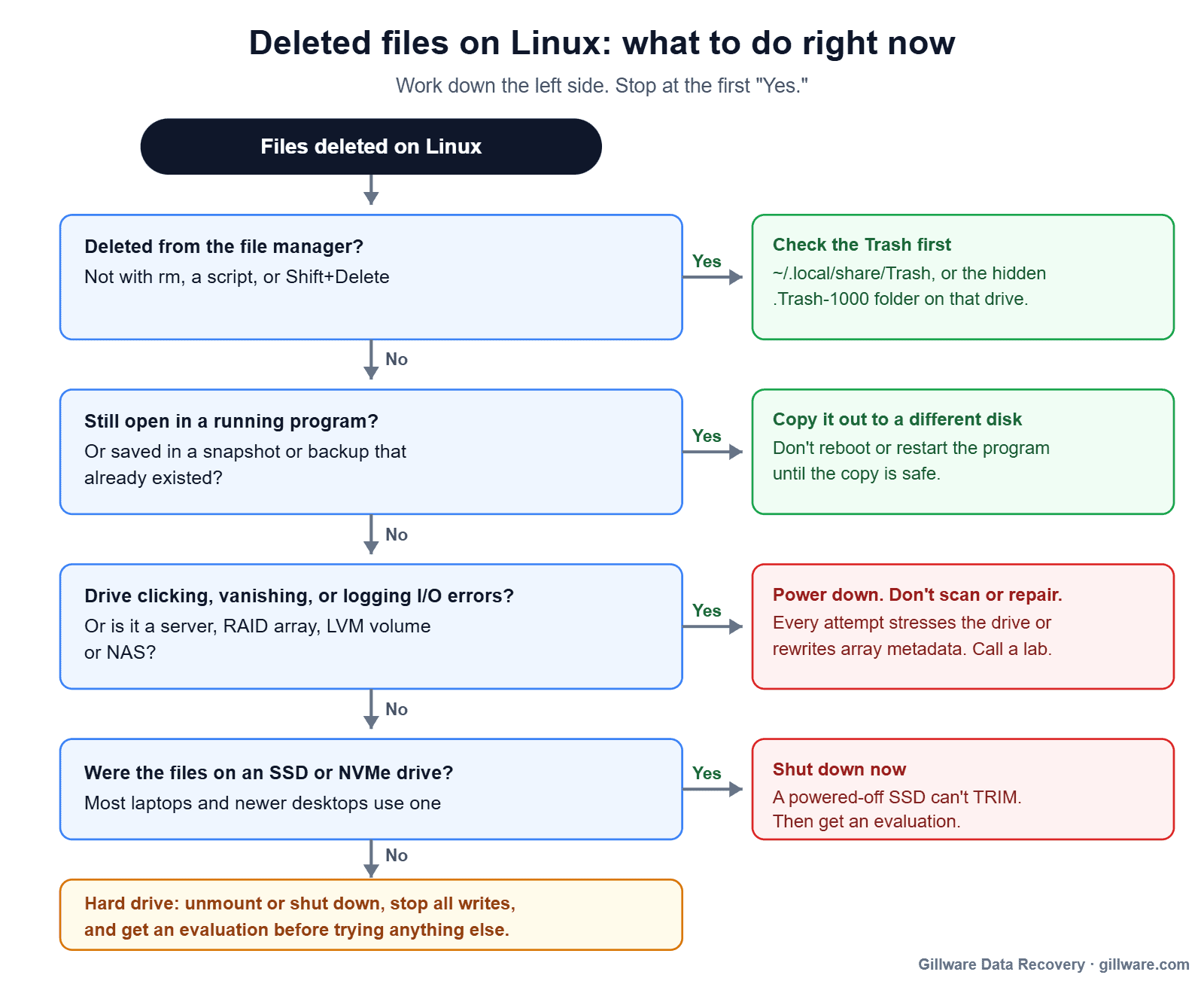
Some deleted-file situations are fine to sort out yourself: a file sitting in the Trash, a snapshot that was already there, a process still holding the file open. Past that point, every attempt on the original disk is a gamble with the only copy. Stop and get professional help if:
- The drive is clicking, grinding, disappearing from the system, or logging I/O errors in
dmesg. That’s a hardware problem on top of a deletion, and a failing drive should be powered down, not scanned. See hard drive data recovery. - The files were on an SSD or NVMe drive and the system has been running since.
- The deleted data lived on a server, RAID array, LVM volume or NAS. Arrays have to be reassembled layer by layer before deleted files can even be located. See RAID data recovery and NAS data recovery.
- Someone has already run repair commands, reformatted or reinstalled.
- The files are business records, client data or anything you’d pay to get back.
Linux servers, RAID arrays and NAS units with four or more drives start with a free technical consultation with one of our enterprise storage engineers, before anything else is done to the system.
How a lab recovers deleted Linux files
Every case starts with a complete image of the drive, made through hardware that can’t write back to it. Nothing is done to the original. If the drive is failing, that means stabilizing it first, sometimes with work in our cleanroom, so it survives a full read.
From the image, our engineers work the filesystem the way it was built. On ext4, that means mining the journal for pre-delete copies of inodes and extent trees and rebuilding allocation from the metadata around them. On Btrfs, it means walking older tree roots that still reference the deleted files. On any filesystem, when the metadata is gone, files can still be identified directly from their content: a JPEG, a PDF, a SQLite database or a video file each has a recognizable internal structure.
That distinction matters for what you get back. Where the metadata survives, files come back with their original names and folder structure. Files identified only by their content usually come back with generic names, sorted by type, and large files that were badly fragmented may come back incomplete. After the evaluation we’ll tell you which situation you’re in and agree on recovery goals with you before any recovery work begins. Recovered data ships on an encrypted drive, with the password sent separately.
Recover deleted files on Linux: quick answers
Can I recover files deleted with rm -rf?
Often, if you stop writing to the disk right away. rm -rf removes names and frees space; the contents stay on disk until something overwrites them, or until TRIM clears them on an SSD. It doesn’t matter how many files the command took out. What matters is what’s been written since.
Does emptying the Trash make files unrecoverable?
No more than rm does. Emptying the Trash unlinks the files the same way, so the same rules apply.
How long do I have?
There’s no fixed window. On an idle hard drive, deleted data can survive for months. On a busy system disk, or an SSD that has trimmed the space, it can be gone within minutes to days. Treat the first hour as the one that counts.
Is it different on Ubuntu than on Fedora or Debian?
The distribution matters less than the filesystem underneath it. Ubuntu, Debian and Mint default to ext4, Fedora Workstation to Btrfs, and RHEL-family servers to XFS. If you’re not sure which one you have, df -T shows the filesystem type for each mounted volume.
Deleted files on Linux? Let’s see what’s still there.
Our highly experienced engineers strive for the highest success rates in the industry. Send us the device and we’ll diagnose it for free.
- More than 20 years recovering data from failed drives
- Trusted by 1,500+ IT professionals nationwide
- Whatever failed, we’ve seen it hundreds of times
- Pay only if we meet your recovery goals