
Western Digital Hard Drive Data Recovery Services
Western Digital drive stopped working?
Power it off and stop troubleshooting. Our engineers will diagnose your WD drive for free, and you only pay if we meet your recovery goals.
If you’re reading this, your Western Digital hard drive has probably stopped behaving the way it used to. Maybe it’s clicking. Maybe Windows or macOS no longer sees it. Maybe an external drive that worked yesterday spins up, hesitates, and powers itself back down. Whatever you’re seeing, you’ve landed in a stressful spot — and you’re looking for honest information about what’s happening and what to do next.
Gillware has been recovering data from Western Digital drives for more than two decades as part of our broader hard drive data recovery service. Western Digital makes a huge share of the consumer and prosumer drives in circulation — internal SATA drives, external My Passport and My Book units, WD Elements, the color-coded Black/Blue/Red/Purple/Gold lines, and the legacy Caviar generations still hanging on in older machines. All of them eventually fail. This page covers the failure patterns we see most often, what they usually mean, what to avoid doing, and how professional recovery works when the drive is past the point of safe DIY effort.
The Most Common Western Digital Failure Patterns We See
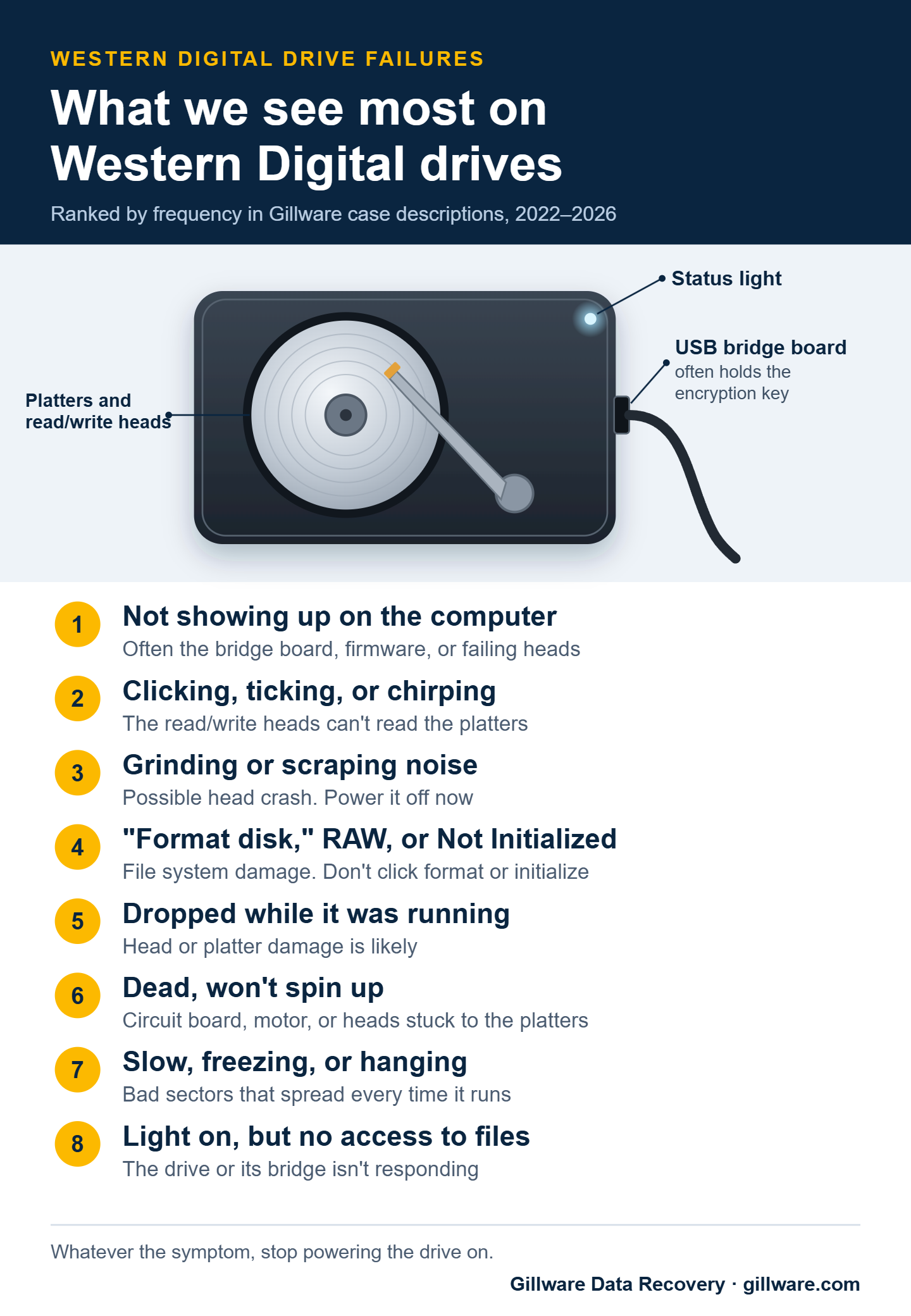
WD failures fall into a handful of recognizable patterns. If your drive matches one of these symptoms, the description below probably explains what’s happening — and what’s safe (or unsafe) to do about it.
Clicking, ticking, or “clip-clop” sounds
This is what online forums often call the “click of death.” The drive spins up, but instead of working normally, the read/write head arm bumps against an end-stop or the platter ramp — producing a rhythmic clicking sound, sometimes followed by a spin-down. It usually means the read/write heads are no longer flying correctly over the platters, either because a head has failed, the heads have crashed into the platters, or contamination is interfering with normal operation. Drives in this state should be powered off immediately. Every additional spin-up adds physical damage to the platter surface where the data lives.
Spin-up, hesitate, spin-down
Common on external WD drives — My Passport, My Book, Elements, and Easystore units especially. The drive starts to spin, makes one or two faint click or chuff sounds, and then the motor shuts down. This pattern often points to a head problem (the drive can’t successfully complete its self-test) or, less commonly, a stuck spindle or PCB issue. As with clicking failures, repeated power-on attempts make things worse.
Drive recognized but freezes, hangs, or transfers extremely slowly
You can see the drive in Disk Management or Disk Utility. Maybe you can even open some folders. But files take forever to copy, the system freezes when you try certain directories, and SMART tools start showing increasing Reallocated Sector Count or Current Pending Sector counts. This is bad-sector territory — the drive is degrading and the read heads are spending more and more time retrying failing reads. It is recoverable, but the window is closing. Each additional read attempt risks accelerating failure.
“You need to format the disk” or RAW partition messages
Windows shows the drive but reports the filesystem as RAW. The operating system asks you to initialize or format the drive. This usually means the file system structures (NTFS metadata, partition table, or boot sectors) are damaged — sometimes from a bad sector landing in a critical spot, sometimes from an interrupted write, sometimes from a USB cable disconnected mid-operation. Do not click format. The underlying data is almost always still on the platters; it’s just that the map to find it is corrupted.
Drive not detected at all
BIOS doesn’t see the drive. Disk Management shows nothing. No spin-up sound when power is applied. This points to either a PCB (circuit board) failure, a motor failure, or a head stack failure severe enough that the drive can’t complete its initial self-test. PCB issues are sometimes the simpler half of the diagnostic picture, but modern WD drives store adaptive parameters in firmware on both the PCB and the platter system — meaning a straight board swap from a “matching” donor drive almost never works and often causes additional damage.
Light is on and it spins, but it doesn’t show up
This is the most common Western Digital complaint we hear, especially on My Passport, My Book, and Elements drives. The status light comes on, you can feel or hear the drive spinning, but nothing appears in File Explorer or Finder. Sometimes Windows Disk Management lists the drive as “Unknown” and “Not Initialized,” or shows it with the wrong capacity. The light only means the enclosure is getting power. The usual causes are a failing USB bridge board, a firmware problem, or read/write heads that can no longer read the drive’s own service data. Online forums often suggest initializing the disk or running command-line disk tools to “fix” it. Don’t. Initializing writes a new partition table over the old one, and those tools can overwrite the structures that point to your files. For more on this symptom, see our guide to a WD external drive that isn’t being recognized.
Broken USB port on a portable drive
Portable drives get pulled out at an angle, stepped on, and knocked off desks with the cable still attached. On many newer My Passport models, the USB connector is soldered directly to the drive’s own circuit board, so there’s no separate bridge board you could simply replace. A port that’s bent or torn off needs board-level repair, and because that board holds calibration data unique to the drive, it has to be handled with care to get the data back.
Dropped external drive
WD’s portable line (My Passport, Elements, Easystore portables) is in millions of laptop bags and backpacks. Drops happen — onto desks, hardwood floors, concrete. A 2.5-inch external drive that gets dropped while spinning has likely suffered a head-to-platter contact event. The drive may still spin and may even appear to mount briefly, but each spin-up after a head crash redistributes platter debris and risks scoring the data tracks. The right move after a drop is to stop using the drive entirely.
External drive recognized as a different drive than what’s inside
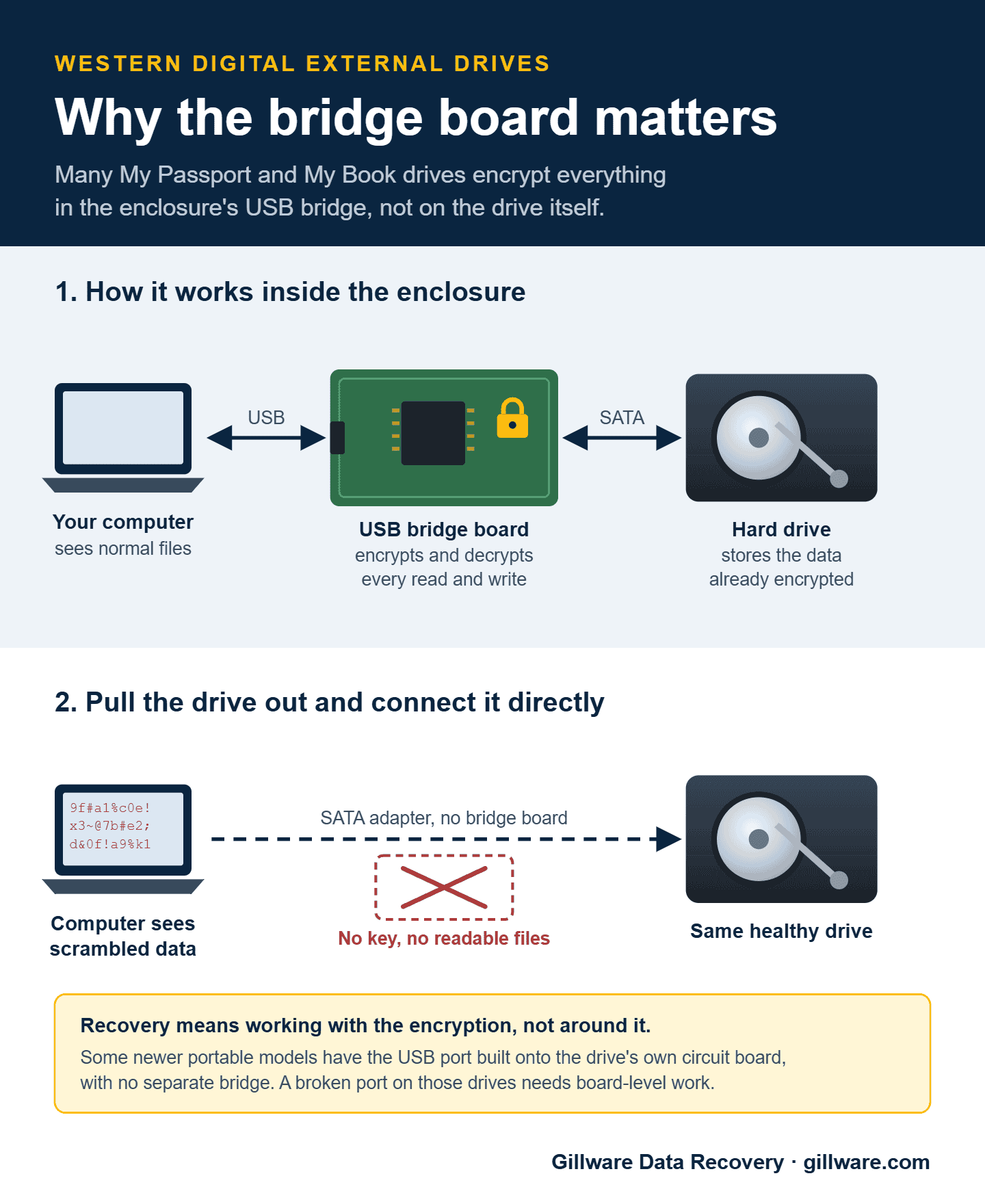
This one matters specifically for WD’s external drives. Many WD My Passport and My Book drives have a USB-to-SATA bridge board built into the enclosure that performs hardware encryption on everything written to the drive. (Encryption varies by model on WD Elements and Easystore drives.) Pulling the bare drive out of the enclosure and connecting it via SATA to another computer will not reveal the data — what you’ll see is encrypted ciphertext. The encryption key lives on the bridge board, not on the drive. If the bridge board fails, the drive itself can be perfectly healthy and you still can’t read the data without specialized recovery work that handles the encryption layer correctly.
What These Symptoms Usually Mean
Drive failures generally fall into three buckets, and the right recovery approach is very different for each.
Mechanical failure covers head crashes, head stack failures, motor failures, and platter damage. These are the failures behind most clicking sounds, spin-up-spin-down behavior, and drives that go completely silent. Mechanical recovery requires a cleanroom environment because the drive has to be opened to swap or repair the head stack. Particles smaller than a human hair will damage a platter that’s spinning at 5,400 or 7,200 RPM.
Electronic failure covers PCB damage from power surges, controller chip failures, and TVS diode burns. These can look like a completely dead drive — no spin, no sound. PCB-level recovery is sometimes simpler than mechanical, but modern WD drives have firmware adaptive data tied to specific physical hardware, so the work isn’t as straightforward as buying an identical board on eBay.
Logical and firmware failure covers bad sectors, corrupted file system structures, firmware bugs that cause the drive to hang or report incorrect parameters, and the encrypted-bridge scenarios common to external WD enclosures. The drive may be physically healthy but inaccessible until the firmware or file system issue is corrected — and that often requires reading raw data using specialized hardware that bypasses the normal operating-system path.
What Not to Do
A few actions are responsible for a disproportionate share of “this case got harder” scenarios in our lab:
Don’t keep powering it on. If the drive is clicking, hesitating, or refusing to mount, every additional power cycle is an opportunity for the failure to get worse. Heads can score platters. Bad sectors can spread. Motors that are struggling can seize.
Don’t run “repair” or “data recovery” software on a drive that is mechanically failing. Software-based tools hammer the drive with read requests — exactly the opposite of what a struggling drive needs. They can help with purely logical failures on otherwise-healthy drives, but if the drive is clicking, slowing down, or producing read errors, software adds stress without providing the right kind of help.
Don’t open the drive. Hard drives are sealed for a reason. The internal environment needs to be free of dust, fibers, oils from skin, and particulates that aren’t visible to the naked eye. Opening the drive outside a cleanroom contaminates the platters in seconds.
Don’t swap the PCB. Even from an apparently identical drive. Modern WD drives store calibration data on the PCB’s flash chip that is specific to that drive’s heads and platters. Mismatched calibration data can render an otherwise-recoverable drive unrecoverable.
Don’t click “Format” or “Initialize.” If the operating system is asking you to format or initialize a drive that previously contained data, the data is still there — but if you accept the prompt, the operating system will overwrite the structures that point to it.
Clicking, not showing up, or asking to format? Send the drive in for a free diagnosis.
How Gillware Recovers Western Digital Drives
Every Western Digital drive that comes into our lab gets the same starting point: a free evaluation. Our engineers diagnose what failed and what’s recoverable, then we write a short recovery agreement with you covering the data you need and a firm price if we meet those goals. You approve the price before any recovery work begins, and you only pay when we meet your recovery goals. We’ve worked that way since 2004.
The work itself depends on the failure mode. Mechanical failures get a cleanroom workup — diagnostic imaging of the heads, a donor head stack swap from our donor drive library if needed, and then a controlled imaging process that pulls data off the platters one sector at a time. Electronic failures get PCB-level work, often involving transplanting calibration data from the original board to a compatible donor. Logical and firmware failures get image-based recovery that bypasses the normal operating system path. Encrypted external WD enclosures get specialized handling that preserves the bridge-board encryption context so the data is decrypted correctly during recovery.
Throughout the process, you have a single point of contact who can explain what’s happening and what’s coming next. We don’t use scare tactics, we don’t quote moving prices, and we don’t surprise you with charges.
What Western Digital Recovery Costs
Every Western Digital case is quoted individually. The price reflects what failed, the time and parts the recovery takes, and how risky the work is: a drive with platter damage is quoted higher than a routine head swap. A quick call with a client advisor gives you a realistic idea up front, and you get a firm price after the in-lab evaluation. Emergency service is available when downtime is measured in hours instead of days.
Our data recovery cost overview explains how quotes are built.
Western Digital Product Families We Recover
Failure patterns and recovery considerations vary meaningfully across the Western Digital product line. Each WD product family has its own engineering quirks — encryption schemes, firmware architectures, helium-fill considerations, intellipark wear, SMR firmware — and the right recovery approach depends on what kind of drive you have. The dedicated pages below cover what’s distinctive about each line.
WD My Passport Data Recovery
The most common portable external drive we receive at the Gillware lab. My Passport units include hardware-based AES encryption built into the USB bridge chip, which means the bare drive cannot be read by simply pulling it out of the enclosure — the bridge holds the decryption key. Drops, bridge failures, and bridge encryption complications are the recovery considerations that matter most on this line. For a real example, see our case study on a My Passport with platter damage and SmartWare encryption.
WD My Book
The desktop counterpart to My Passport — a full 3.5-inch drive inside an AC-powered enclosure with the same bridge-level hardware encryption. The internal drive is often a WD Blue, WD Red, or helium-filled enterprise drive depending on capacity. Recovery is uniquely complicated by the fact that bridge replacement does not transfer the encryption key, so bridge failures require key recovery work, not just hardware swap.
WD Elements and WD Easystore
Western Digital’s value-line external storage, sold in both portable (2.5-inch USB-powered) and desktop (3.5-inch AC-powered) form factors. WD Easystore is the Best Buy exclusive variant, famous in storage enthusiast circles for “shucking” — buying the enclosure on sale and removing the high-grade WD drive inside. Encryption status varies by SKU, which affects the recovery path on each unit individually. If your Easystore or Elements drive isn’t being recognized, start with our WD Easystore not working guide.
WD Black
Western Digital’s performance internal drive line, common in gaming PCs and content-creation workstations. Black drives typically run at 7,200 RPM with larger cache buffers and dual-core controllers, and they carried a five-year warranty for most of the line’s history. The defining failure pattern is heat-related head wear from sustained high-IOPS workloads, with sudden failure under load more common than gradual degradation. WD’s older 10,000 RPM Raptor drives still come through the lab as well; see our WD Raptor recovery case study.
WD Blue
Western Digital’s mainstream internal drive — the highest-volume drive in the WD lineup and the most common WD drive we see at the lab. Blue drives ship in both 3.5-inch desktop and 2.5-inch laptop form factors across nearly every capacity tier. A specific generation of WD Blue capacities (notably 2TB–6TB EFAX/EZAZ family models from 2020 onward) ships with SMR firmware that introduces distinctive performance and recovery considerations.
WD Red
WD’s purpose-built NAS hard drive line, designed for 24/7 operation in multi-bay enclosures with NASware firmware including time-limited error recovery. WD Red drives almost always live in arrays — Synology, QNAP, ASUSTOR, and DIY enclosures — and the recovery work usually involves array-level reconstruction rather than just single-drive repair. The 2020 SMR controversy on certain Red EFAX capacities also affects rebuild behavior in ways worth flagging at intake.
WD Purple
Western Digital’s surveillance-optimized drives, used in DVR and NVR systems for security camera installations. WD Purple uses AllFrame firmware tuned for the 24/7 sequential-write workload of multi-stream camera recording. Head wear from continuous writing is the defining failure pattern, along with DVR firmware bricks where the drive itself is healthy but the recorder can no longer read its footage.
WD Gold
Western Digital’s enterprise nearline drive line, deployed in datacenter and server environments. Drives 8TB and above are helium-filled, with rotational vibration sensors and enterprise firmware for heavy 24/7 workloads. Helium leakage on aging drives is a distinctive failure mode for the line, and because Gold drives almost always live in arrays, recovery work usually involves multi-drive imaging and RAID reconstruction.
WD Caviar
Western Digital’s legacy mainstream drive line, shipping from the late 1980s through approximately 2012 before WD transitioned to the color-coded modern lineup. Every Caviar drive we see today is at least 13 years old, and many are 20+ years old. Recovery is dominated by age-related issues — lubricant migration, head wear, intellipark cycling on Caviar Green, capacitor aging, and donor parts scarcity — plus IDE/PATA interface complications on the older units.
Within the broader recovery picture, WD drives also appear regularly inside RAID arrays and NAS systems — when those fail, the recovery approach is different again, because the failure usually involves the array’s organizing layer, not just a single drive.
Western Digital Recovery FAQ
Does Western Digital offer data recovery?
Western Digital offers optional data recovery plans for some of its drives. They’re sold separately, and claims are handled by a partner lab. If you bought one of those plans, check its terms first. If you didn’t, or your drive isn’t covered, you can send it to any professional data recovery lab, including ours. We recover every kind of WD drive, internal and external.
Why does my WD drive light up but not show up on my computer?
The status light only tells you the enclosure is getting power. It doesn’t mean the drive is working. The usual causes are a failing USB bridge board, a firmware problem, or read/write heads that can’t read the drive’s own service data. Windows may list the drive as “Unknown” and “Not Initialized.” Don’t initialize or format it, and don’t let disk utilities try to repair it. Power it off and leave it off until it can be evaluated.
What does “You need to format the disk” mean on a WD drive?
It means Windows can’t read the file system structures that tell it where your files are. In most cases the files themselves are still on the platters. Clicking Format writes new, empty structures over the old ones and makes recovery much harder. If the drive is also clicking, running slowly, or disconnecting, the format prompt is a symptom of a hardware problem, so power it off rather than trying to repair it.
Western Digital drive failed? Let’s get your files back.
Our highly experienced engineers strive for the highest success rates in the industry. Send us the device and we’ll diagnose it for free.
- More than 20 years recovering data from failed drives
- Trusted by 1,500+ IT professionals nationwide
- Whatever failed, we’ve seen it hundreds of times
- Pay only if we meet your recovery goals