
WD My Passport Data Recovery
WD My Passport stopped working?
Unplug it and stop troubleshooting. Our engineers will diagnose your My Passport for free, and you only pay if we meet your recovery goals.
If your WD My Passport has stopped working — clicking when you plug it in, spinning up briefly then disconnecting, showing up but refusing to mount, or simply going invisible to your computer — you’re in a stressful spot looking for honest information. This page covers the specific failure patterns we see on My Passport drives, what they usually mean, what’s safe to do, and how professional recovery works on this particular product line.
The WD My Passport is the Western Digital drive we see most often at Gillware. People use them as photo storage, document backups, video project archives, work file repositories, and “just plug it in when I need it” home-office storage. They get carried in laptop bags, stored in desk drawers, dropped, used continuously, and used once a quarter. They eventually fail. The failure patterns are recognizable, but My Passport drives have one critical recovery consideration that doesn’t apply to most other drives, and getting it wrong can turn a routine case into an unrecoverable one. The My Passport Ultra and My Passport for Mac are built on the same platform, so everything here applies to them too. (The My Passport SSD is flash storage, not a hard drive; see our SSD data recovery page for that one.)
The USB-Bridge Encryption Consideration
This is the most important thing to know about WD My Passport recovery, so it comes first.
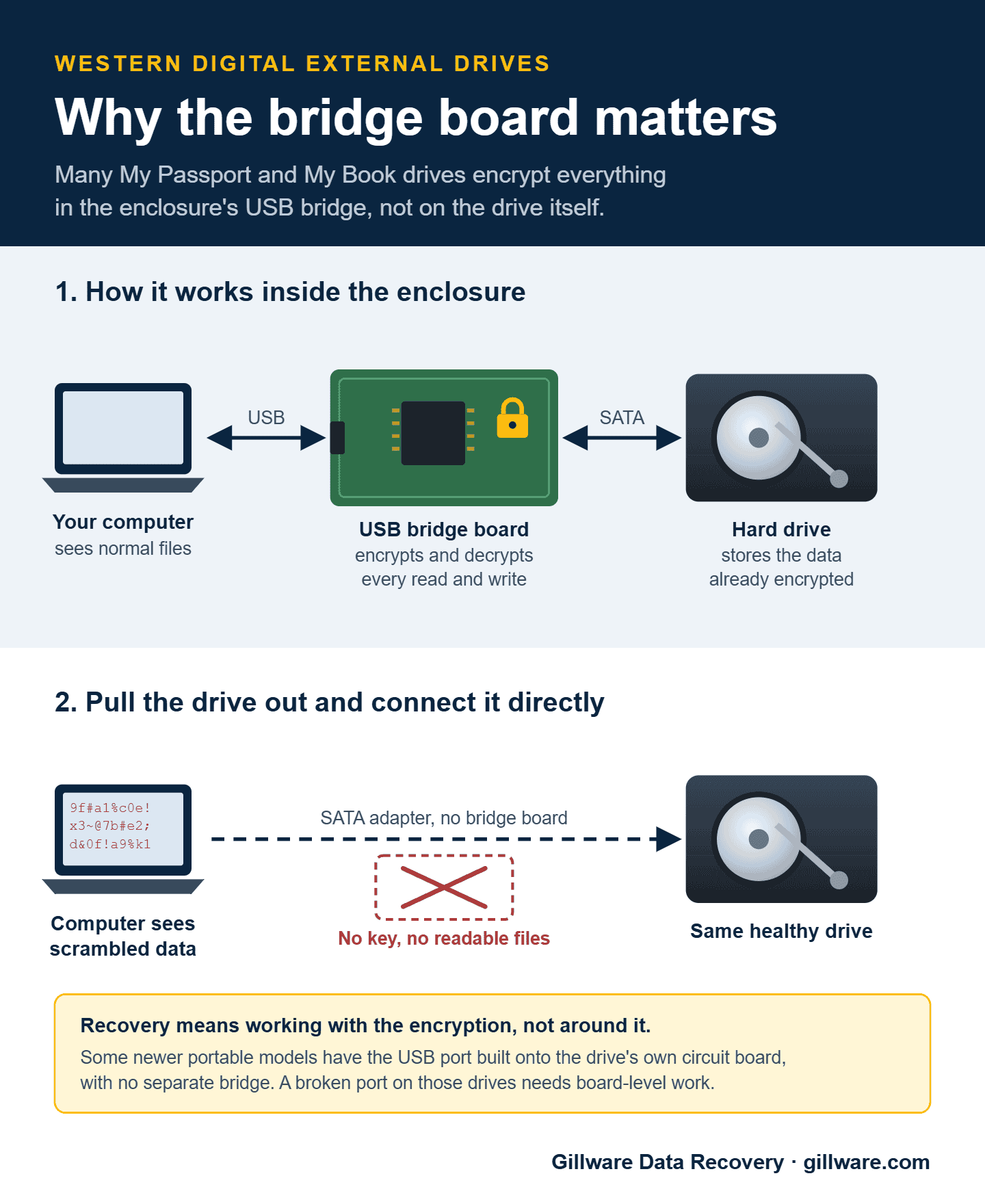
Most WD My Passport drives encrypt everything written to them, and the encryption is on by default, whether or not you ever set a password. On older models, a USB-to-SATA bridge board inside the enclosure does the encrypting. On many newer models there’s no separate bridge: the USB port and the encryption are built into the drive’s own circuit board.
What this means in practice: on bridge-board models, if you pull the bare 2.5-inch drive out of the enclosure and connect it directly to another computer, you won’t see your files. You’ll see scrambled data that looks like a corrupted, unformatted drive. If the bridge board has failed, which is a common failure, the drive itself can be perfectly healthy and you still can’t read the data without recovery work that handles the encryption correctly. On built-in-USB models there’s nothing to pull out, and a damaged port or board needs board-level work.
The practical implications:
- Don’t shuck the drive. Pulling the drive out of the enclosure to try to read it through a SATA port doesn’t work and can complicate later recovery.
- Don’t discard the bridge board. Even on a drive that’s clearly failed mechanically, the bridge board still holds information needed for the recovery process.
- If you’ve already removed the drive from the enclosure, keep the enclosure. The bridge board is essential.
The Most Common WD My Passport Failure Patterns We See
Beyond the bridge-encryption consideration, My Passport failures cluster around recognizable patterns.
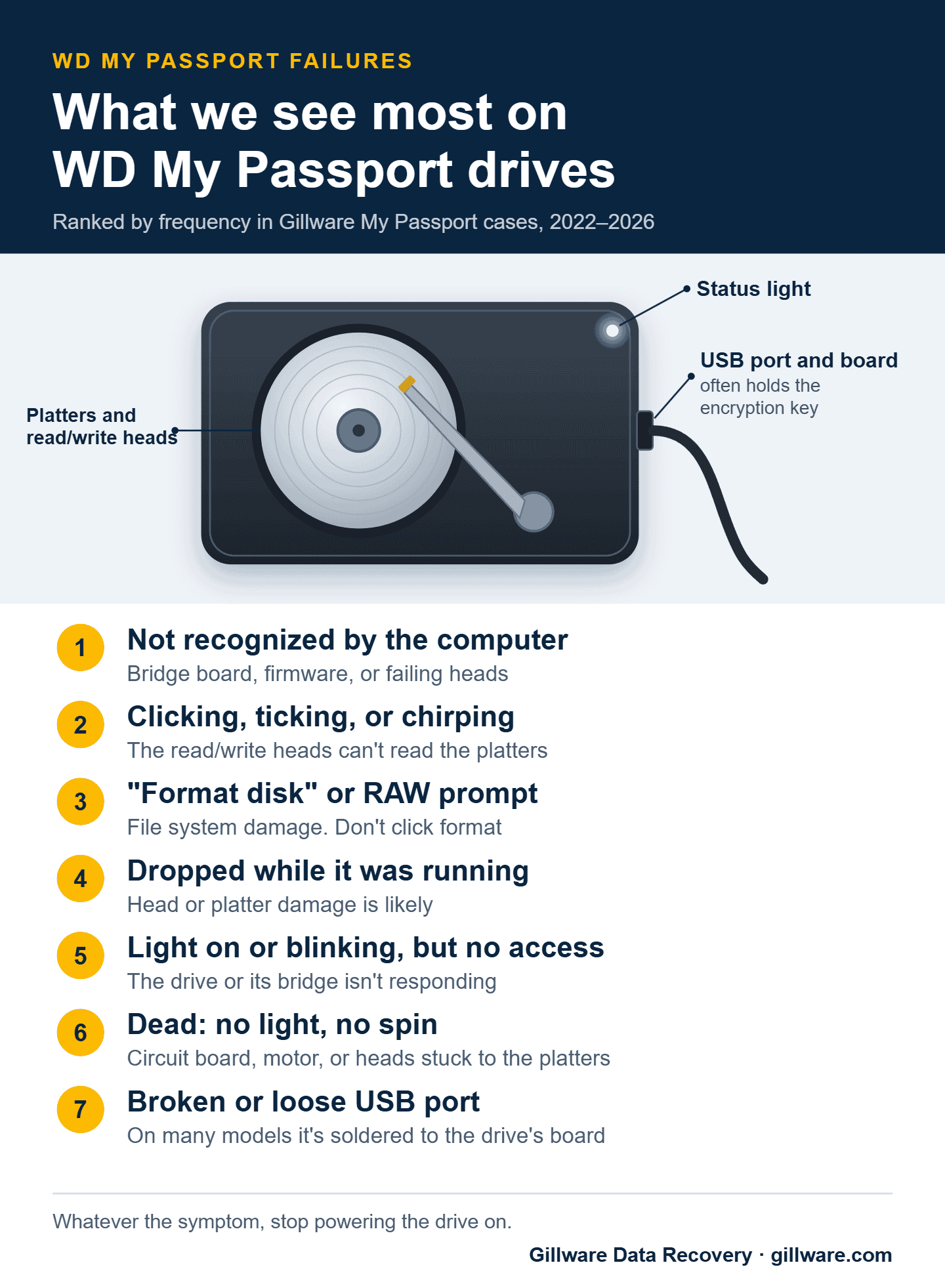
Clicking sounds when you plug it in
You plug the My Passport into a USB port, the drive starts to spin, and you hear a soft rhythmic clicking sound. The drive doesn’t mount, or mounts briefly and disappears. This is almost always a head-stack failure on the internal 2.5-inch drive — the heads have failed or are no longer reading servo data correctly. Powering off and leaving off is the most important step; each additional spin-up risks scoring the platter surface.
Spin-up, brief mount, then disconnect
The drive mounts and you can see it in Finder or File Explorer for a few seconds, then it disconnects. Reconnecting requires unplugging and replugging, and each attempt mounts for a shorter window before disconnecting again. This pattern usually points to a degrading head — the drive can still complete its self-test successfully, but actual read operations are failing repeatedly. Software-based copy tools applied to a drive in this state will accelerate the failure.
Drive enumerates over USB but never mounts
The system sees a USB device connected but never assigns it a drive letter or mounts a volume. Disk Management shows it as “not initialized” or doesn’t show it at all. This is often a translator or firmware-area issue on the internal drive, or a bridge-board issue that’s interrupting the normal mount sequence.
Light blinks or stays on, but the drive never mounts
The status light on a My Passport only tells you the drive is getting power. A light that blinks steadily, stays solid, or flickers while nothing appears on the computer usually means the drive or its USB board is powered but can’t complete its startup. Try one short, direct cable into a port on the computer itself, not a hub. If that doesn’t change anything, stop there rather than cycling through every port and cable you own. Our guide to a WD drive that isn’t showing up covers the safe checks in more detail.
Dropped while in use
My Passport drives live in laptop bags and on desks; drops are common. A drop while the drive is spinning is a head-to-platter contact event. The drive may still appear to work briefly after the drop, but each spin-up redistributes contamination across the platter surfaces. The right move after a drop is to power the drive off and have it evaluated before any further use.
“You need to format the disk” or RAW partition message
The drive shows up but Windows or macOS asks to format or initialize it. The drive worked yesterday. This usually means file system metadata has been damaged. The underlying data is almost always still encrypted on the platters; only the metadata that organizes it has been damaged. Do not format.
Drive not detected at all
The drive doesn’t show up over USB. No sound from inside. No power LED activity. This is often a bridge-board failure (the USB-to-SATA bridge has died, but the internal drive is healthy), a PCB failure on the internal drive, or a stuck motor. The right diagnostic determines which, and each has its own recovery path.
Not showing up on a Mac, or “This drive needs to be repaired”
macOS occasionally prompts to repair a My Passport drive, particularly on drives that have been moved between Mac and Windows systems or formatted with exFAT for cross-platform use. Letting macOS attempt the repair can write to damaged file system structures, making recovery harder. The safer path is to copy what’s accessible (if anything is) and then have the drive evaluated rather than running First Aid against a struggling drive.
What Not to Do
The My Passport’s encryption layer makes a few mistakes particularly costly:
Don’t shuck the drive and plug it into SATA. The encryption is on the bridge board. Shucking and connecting via SATA shows you encrypted ciphertext, not your files.
Don’t discard the enclosure or bridge board. The bridge board is part of the recovery context.
Don’t keep plugging and unplugging a struggling drive. Each connection attempt is an opportunity for the failure to get worse, particularly on mechanical issues.
Don’t run recovery software on a clicking or struggling drive. Software tools issue continuous read requests, which compounds the failure on a mechanically struggling drive.
Don’t accept the format prompt. The underlying data is still on the platters in encrypted form.
Forgot Your WD Security Password?
If you set a password on your My Passport with WD’s software, that password is what unlocks the drive’s encryption key, whether the drive is healthy or failed. If your drive has failed and you know the password, we can still recover your data. We’ll need the password to decrypt it, and your client advisor will ask for it by phone after the evaluation, so there’s no need to include it on the case form. If you’ve forgotten it or only partly remember it, tell your advisor what you do remember.
Clicking, blinking, or asking to format? Send your My Passport in for a free diagnosis.
How Gillware Recovers WD My Passport Drives
Every WD My Passport that arrives at our lab starts with a free evaluation. Our engineers diagnose what failed and what’s recoverable, then we write a short recovery agreement with you covering the data you need and a firm price if we meet those goals. You approve the price before any recovery work begins, and you only pay when we meet your recovery goals.
The work depends on what failed. Mechanical failures on the internal drive get a cleanroom workup with diagnostic head testing and donor head stack transplants from our My Passport donor library when needed. Bridge-board failures get bridge-level work that preserves the encryption context so recovered data is decrypted correctly. Firmware-area and translator failures get specialized hardware treatment. Throughout, the encryption layer is handled correctly — recovered data comes off the drive as decrypted user data, not as encrypted ciphertext.
You have a single point of contact throughout — someone who can explain what’s happening and what’s been recovered.
What My Passport Recovery Costs
Every My Passport case is quoted individually. The price reflects what failed, the time and parts the recovery takes, and how risky the work is: a drive with platter damage from a drop is quoted higher than a routine head swap. A quick call with a client advisor gives you a realistic idea up front, and you get a firm price after the in-lab evaluation. Our data recovery cost overview explains how quotes are built.
Related Recovery Information
For the broader Western Digital picture, see our Western Digital data recovery page. The same encryption considerations apply to the desktop WD My Book; on WD Elements and Easystore drives, encryption varies by model. For a real example, see our case study on a My Passport with platter damage and SmartWare encryption.
My Passport failed? Let’s get your files back.
Our highly experienced engineers strive for the highest success rates in the industry. Send us the device and we’ll diagnose it for free.
- More than 20 years recovering data from failed drives
- Trusted by 1,500+ IT professionals nationwide
- Whatever failed, we’ve seen it hundreds of times
- Pay only if we meet your recovery goals