
Poweredge Data Recovery
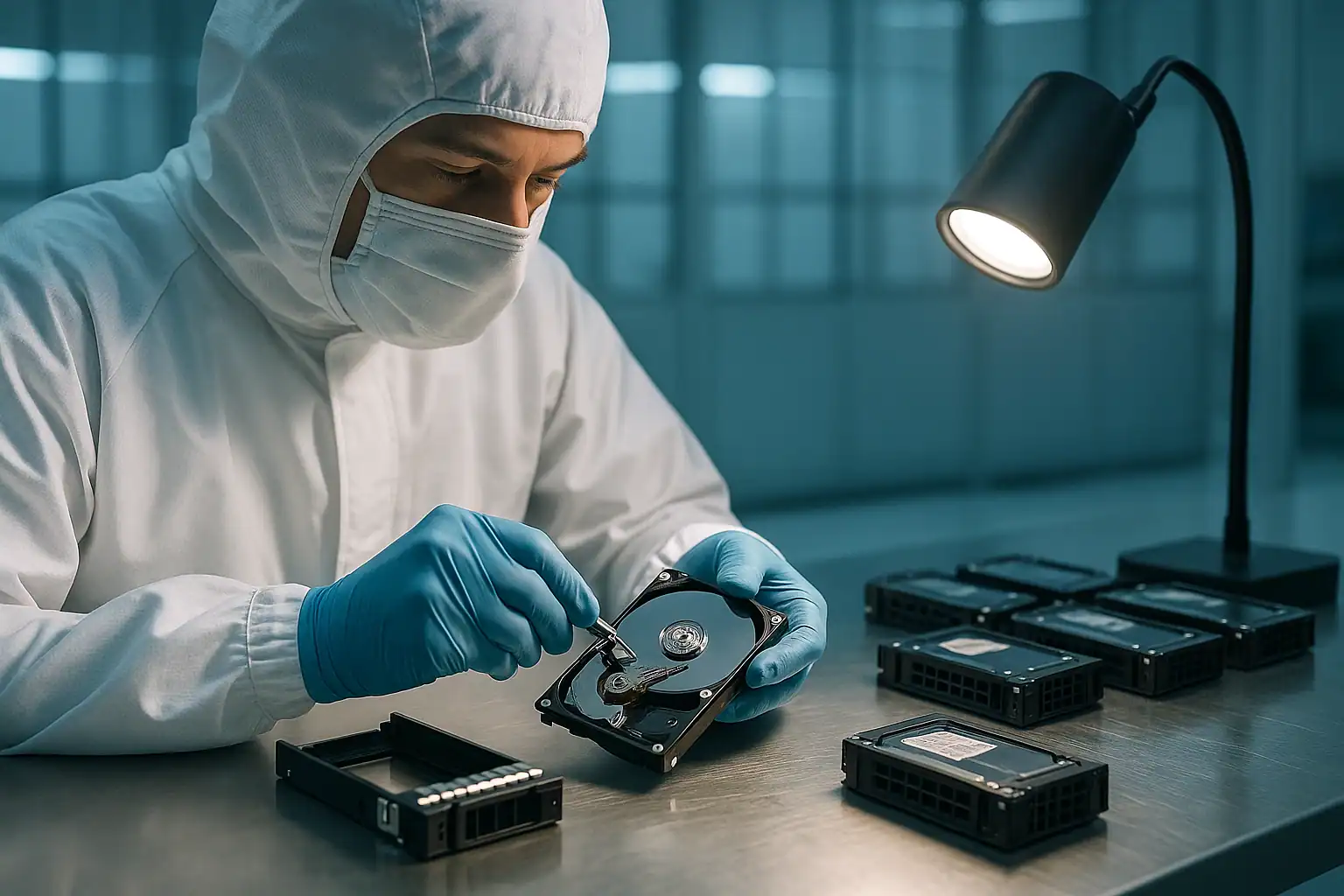
The Dell PowerEdge line is the workhorse of small and mid-sized business IT. From a single-CPU R230 in a closet to a 24-drive R740xd running a virtualization cluster, PowerEdge servers carry the weight of countless organizations that don’t have full-time IT staff and don’t have a Plan B if the server goes down.
When a PowerEdge fails, the recovery picture depends on what model you have, which PERC controller it shipped with, what generation iDRAC it runs, and what specifically went wrong. This page covers the PowerEdge family broadly: the recovery process, the most important failure conditions to recognize, and how to act when you see them. For model-specific failure patterns, we have dedicated pages for the most commonly failing PowerEdge models (linked below). PowerEdge recovery is part of our broader Dell server data recovery services, alongside EqualLogic, PowerVault, and Compellent platforms.
The Most Common PowerEdge Failure Scenarios We Recover
PowerEdge failures fall into recognizable patterns. The work we see most often falls into these categories.
Multiple drive failures in a RAID 5
The single most common PowerEdge recovery scenario. RAID 5 tolerates one drive failure — when a second fails before rebuild completes, or during a rebuild itself, the virtual disk goes offline. Older PowerEdges (R720, R730, R430, R630, T430, T630) running RAID 5 on 6-12 drives are the population at highest risk because their drives have been spinning for years and tend to start failing in clusters.
Foreign configuration after a motherboard or controller swap
When a PowerEdge motherboard fails, the system administrator often replaces it — and the new motherboard’s PERC sees the drives as a “foreign configuration.” Clicking the wrong option at that prompt destroys the array. Same scenario when migrating drives between systems. See our Dell foreign configuration recovery case study →
Failed rebuilds on degraded arrays
The PERC initiates a rebuild after a drive replacement, runs for hours, then fails. Or worse, “completes” but introduces punctures — permanent zeroed-out stripes — because surviving drives had unreadable sectors. The array is “optimal” again but with data lost in punctured regions.
Backplane and SAS signal failures
Aging PowerEdge backplanes (especially in heavy-use R730/R740 LFF chassis) can develop signal quality issues that cause drives to drop offline randomly. This often gets misdiagnosed as drive failure, leading to drive replacements that don’t fix the underlying issue and may make things worse.
Cascading thermal failures
PowerEdges deployed in suboptimal thermal environments — converted offices, server “rooms” that are really just closets, dust-loaded fans — can experience cascading drive failures during heat events. Multiple drives going predictive-fail simultaneously is the classic signature.
PERC battery degradation
PERC controller batteries have a finite lifespan. When they degrade, the controller falls back to Write-Through cache mode. Performance tanks. If a power event happens while the battery is degraded, data in the controller’s cache that wasn’t yet flushed to disk is lost — sometimes silently.
iDRAC and Lifecycle Controller issues
Less common as a direct cause of data loss, but iDRAC firmware issues can lock administrators out of the server’s management interface — making troubleshooting and recovery dramatically harder.
The Four Critical PowerEdge Error Conditions
If you’re troubleshooting a PowerEdge problem, four error conditions matter more than any others — because each one can either indicate immediate data loss risk or, if mishandled, cause it. These are the conditions that should make you stop and call before doing anything else.
1. Virtual Disk in “Degraded” State
What it means: One or more physical disks in the array have failed or become inaccessible. The array is still readable but operating without redundancy.
What to do: Don’t initiate a rebuild unless you are highly confident every other drive in the array is healthy. Run a SMART check on every surviving drive first. If any of them have predictive failure warnings or reallocated sector counts climbing, the rebuild is likely to fail. In that case, the safest path is forensic imaging of all drives before attempting any rebuild.
Why it matters: The window between “degraded” and “total failure” is often hours, not days. The actions taken during this window determine whether the recovery is routine or catastrophic.
2. Virtual Disk in “Failed” State
What it means: More drives have failed than the RAID level can tolerate. The array is offline.
What to do: Stop trying to bring the array back online with any standard tools. Don’t force drives online, don’t clear failed states, don’t initialize anything. Document what happened in what order and contact a recovery lab. The data is almost always still recoverable — it’s just no longer accessible through the controller.
Why it matters: Every attempt to “fix” a failed array via the PERC BIOS or OMSA risks overwriting metadata needed for recovery. The array has more recoverable structure than the controller is willing to show.
3. “Foreign Configuration Found”
What it means: The PERC has detected RAID metadata on drives that doesn’t match its current configuration. Common after motherboard replacement, controller replacement, power outage, or moving drives between systems.
What to do: Don’t choose “Clear Foreign Configuration” unless you are absolutely certain it’s safe to do so. Clearing destroys the array’s metadata permanently. Importing it usually works but can fail if the configuration is partially corrupted. When in doubt, leave the system at the prompt — it won’t damage anything by sitting there — and call us.
Why it matters: This is the single most destructive prompt in PowerEdge administration. One wrong click destroys hours, days, or years of data. Image the drives forensically before making any choice.
4. “Punctured” Stripe / “Rebuild with Errors”
What it means: During a rebuild, the PERC encountered unreadable sectors on surviving drives. To finish the rebuild and restore redundancy, the controller writes zeros to the affected stripes — permanently destroying the data in those stripes. This is documented Dell behavior on PERC controllers and is called a “puncture.”
What to do: If you see this state and you haven’t yet rebuilt, stop. The data in unreadable sectors may still be recoverable from the original physical disk using forensic imaging — but only before a rebuild zeros it out.
Why it matters: Punctures are silent. The array appears “optimal” again. Users don’t discover the lost data until they try to read it weeks or months later. By then, the original sectors are overwritten and recovery is much harder.
The Recovery Process for Failed PowerEdge Servers
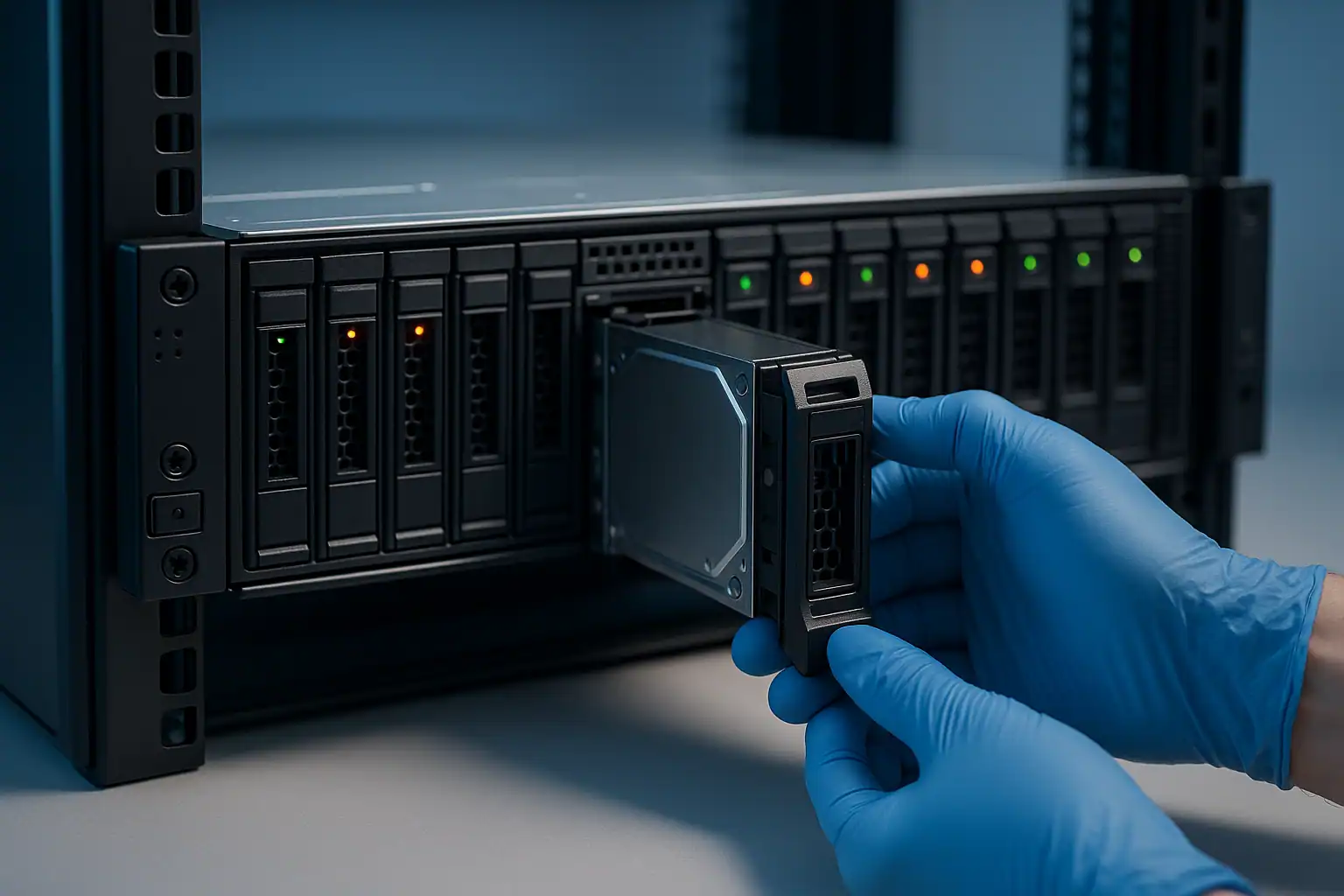
The Gillware PowerEdge recovery process follows the same fundamentals as our broader server work, with PowerEdge-specific tooling and expertise applied throughout.
It starts with a free consultation where we understand the specific scenario, the PowerEdge model and PERC controller, what failed, what’s been attempted, and how time-sensitive the situation is. From there, drives ship (or we coordinate on-site work where shipping isn’t feasible).
In our ISO 5 cleanroom, our engineers perform temporary hardware-level repairs on any drives that need them — particularly common with the enterprise SAS drives shipped in PowerEdge systems. Once stable, each drive is imaged forensically through a hardware write-blocker. The original drives are preserved untouched throughout the entire recovery.
From the drive images, our proprietary tool Hombre reconstructs the original RAID array even when the PERC metadata is incomplete, drives are partially unreadable, or the array configuration was never documented. Hombre runs the work of the PERC controller in software, with capabilities no commercial controller offers — particularly the ability to gracefully handle missing sectors, mismatched drives, and partially-corrupted parity.
Finally, Hombre parses the file system on the reconstructed volume directly (NTFS, ReFS, ext4, XFS, VMFS — whatever the volume contains) without trying to mount it. This builds a forensic database of every file the volume contained, from which individual files can be extracted even when the parent file system is unbootable.
The vast majority of PowerEdge cases that arrive at our lab come back with most or all of their original data intact, even when the array couldn’t have been brought back online through any in-house effort.
PowerEdge Models We Recover
The PowerEdge population in active failure today is dominated by 13th and 14th generation servers (2014-2019) — the small business systems now reaching age-related failure curves. For the most commonly failing models, we have dedicated recovery pages with model-specific error references and known failure patterns:
- Dell PowerEdge R730 Data Recovery — 13th-gen 2U rack workhorse, 8 LFF or 16 SFF, PERC H730/H730P
- Dell PowerEdge R730xd Data Recovery — Extended-drive variant, 12 LFF + 2 rear, popular for storage-heavy workloads
- Dell PowerEdge R740 Data Recovery — 14th-gen 2U rack, PERC H730P/H740P, iDRAC9
- Dell PowerEdge R740xd Data Recovery — Extended-drive variant, up to 24 SFF, common for virtualization clusters
- Dell PowerEdge T440 Data Recovery — 14th-gen tower, small business workhorse
- Dell PowerEdge T640 Data Recovery — 14th-gen tower, mid-market workhorse
Other PowerEdge models we handle
We also recover from PowerEdge models not yet covered by dedicated pages, including:
13th generation (2014-2016): R230, R330, R430, R530, R630, T130, T330, T430, T630
14th generation (2017-2019): R240, R340, R440, R540, R640, R840, R940, T140, T340
15th generation (2019-2021): R250, R350, R450, R550, R650, R750, R750xa, T150, T350, T550
16th generation (2021-2023): R260, R360, R660, R760, R960, T160, T360, T560
12th generation (2012-2014): R220, R320, R420, R520, R620, R720, R720xd, R820, T110, T320, T420, T620 — many still in production at small businesses
If your model isn’t listed, that doesn’t mean we can’t help — it just means we haven’t written a dedicated page yet. Contact us and our server team will walk through your specific situation.
What to Do Right Now If Your PowerEdge Is Failing
The first hour matters more than any other. The right actions are largely about not doing things:
Don’t accept any “foreign configuration” prompt without understanding what it does. One wrong click here can destroy the entire array irreversibly. When in doubt, leave the system at the prompt and call us.
Don’t initiate a rebuild on a degraded array unless every surviving drive is verified healthy. A rebuild can introduce punctures or fail catastrophically if surviving drives have any issues.
Don’t run chkdsk, fsck, or any other filesystem repair tool against an affected volume. These can permanently alter metadata.
If drives are clicking, beeping, or grinding, power off and leave them off. Mechanical drives get worse with every minute of runtime.
Don’t replace drives or change drive order without marking which drive came from which slot. The physical arrangement carries recovery-critical information.
Document everything. Server model, PERC controller (H310, H700, H710, H730, H730P, H740P, H840, etc.), iDRAC events, drive LED states, what was tried, by whom, in what order.
Frequently Asked Questions
What PERC controllers do you recover from?
All of them. PERC H310, H700, H710, H710P, H730, H730P, H740, H740P, H745, H755, H840, S100, S110, S130, S150, and the various Mini variants. The controller hardware doesn’t constrain us because we read drives directly and reconstruct in software using Hombre.
Can you recover data when iDRAC won’t even POST?
Yes. iDRAC and the storage subsystem are independent — a dead iDRAC doesn’t make the drives unreadable. We can usually still extract the drives and recover the array.
What if the PERC says “no Virtual Disks found” even though I know the array exists?
This is often a metadata-read issue on the controller, not actual loss of the array. We can typically reconstruct the array by reading the drives directly and reading the metadata Hombre finds, bypassing the controller’s view entirely.
What about PowerEdge servers that experienced a fire, water damage, or physical destruction?
Depends on severity. Drives with smoke or minor water exposure are often fully recoverable. Drives with extensive heat or water damage are case-by-case — the consultation will tell you what’s possible.
How do I get a service tag and configuration from a PowerEdge that won’t boot?
The service tag is on a pull-out tag on the front of the chassis (R-series rack servers) or on a sticker on the side panel (T-series towers). The original configuration as shipped from Dell can be looked up by service tag at Dell’s support site — useful information for the consultation, though we don’t strictly need it to recover.
Start Your Free PowerEdge Recovery Consultation
If your Dell PowerEdge is down, get a free consultation with our server team. We’ll walk through your specific model and failure scenario, tell you what’s possible, and give you a clear path forward.
Free consultation · Clear upfront pricing · ISO 5 cleanroom recovery
Or call 1-877-624-7206 to speak with our server team directly