
WD My Cloud and WD NAS Data Recovery
WD My Cloud or NAS stopped working?
Leave it powered off and don’t reset or rebuild it. We diagnose 1- and 2-bay units for free, and you only pay if we meet your recovery goals.
A lot of families and small offices bought a Western Digital network drive years ago, set it up once, and stopped thinking about it. A My Cloud on the shelf next to the router, a My Book Live holding every family photo since 2010, an EX2 or EX4 quietly serving the office’s shared folders. These units tend to keep running until the day they don’t, and by then the drives inside may be eight to fifteen years old.
This page covers WD’s network drives, from sealed single-drive units like the My Cloud, My Cloud Home and My Book Live to multi-bay units like the My Cloud Mirror and the EX, DL and PR series. It explains which unit you have, the failures we see, what’s safe to do, what to avoid, and how we recover the data when the unit, the app, or the array stops cooperating. Gillware has recovered data from WD network drives for as long as WD has made them, working from our ISO 5 Class 100 cleanroom in Madison, Wisconsin. If you have a different brand, start at our NAS data recovery page.
Which WD Network Drive Do You Have?
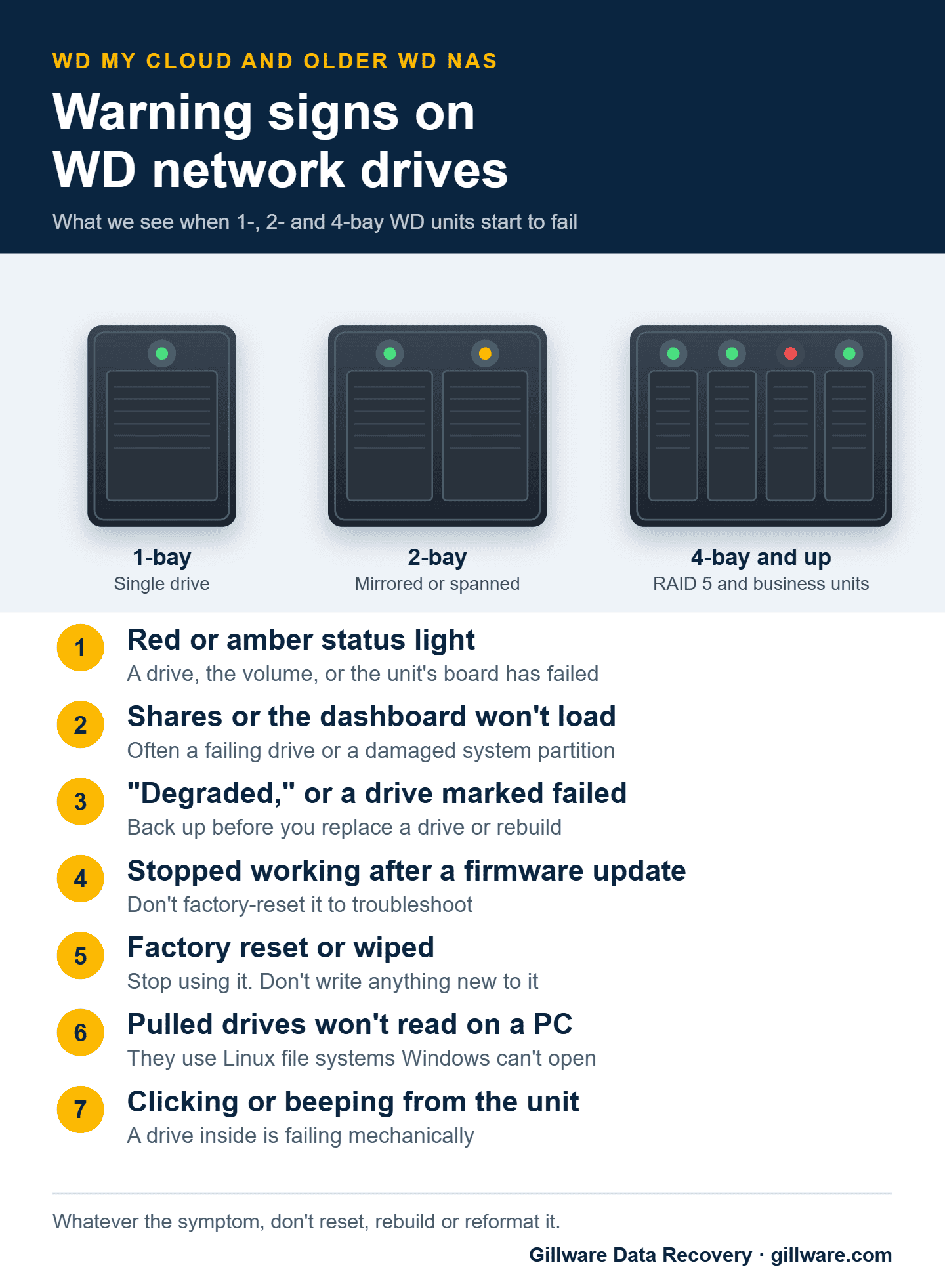
The number of drive bays matters more than the model name, because it tells you how your data is laid out across the drives.
- 1-bay units: My Cloud (single-bay), My Cloud Home, My Book Live, and My Book World Edition. One drive holds everything, sealed inside the case.
- 2-bay units: My Cloud Mirror, My Cloud EX2, EX2 Ultra and EX2100, My Cloud Home Duo, My Book Live Duo, My Book World Edition II, and the PR2100 and DL2100. Usually set up as a mirror (both drives hold the same data) or spanned into one large volume.
- 4-bay and larger units: My Cloud EX4 and EX4100, PR4100, DL4100, WD ShareSpace, and WD Sentinel. Usually RAID 5, with data and parity spread across every drive.
The generations matter too, because the recovery path differs across fifteen years of products:
My Book Live and My Book Live Duo. WD’s first personal cloud product: a sealed single-bay unit or a sealed two-bay Duo, running Linux with an ext4 data partition. WD stopped issuing security updates for the line years ago, which became consequential in 2021 (see below).
My Cloud, generation 1. The sealed single-bay successor to the My Book Live, a white vertical case about the height of a paperback, with model numbers starting WDBCTL. Gen 1 hardware runs My Cloud OS 3 and can’t run My Cloud OS 5, so these units have been on unsupported firmware since WD ended OS 3 support in 2022.
My Cloud, generation 2. Refreshed sealed single-bay hardware that supports My Cloud OS 5. Same recovery profile as Gen 1: one internal drive, ext4 data partition.
My Cloud Mirror (Gen 1 and Gen 2). The two-bay My Cloud, with model numbers starting WDBWVL. Mirrored by default, with drives behind a removable front panel rather than sealed inside.
My Cloud EX2, EX2 Ultra, EX2100, EX4 and EX4100. Two- and four-bay prosumer units with user-replaceable drives and RAID 0, 1, 5, 10, JBOD or spanning, built on mdadm, LVM and ext4.
My Cloud DL2100, DL4100, PR2100 and PR4100. WD’s small-business two- and four-bay units, on Intel hardware with the same general storage stack as the EX line.
My Cloud Home and My Cloud Home Duo. A separate product line despite the similar name, with model numbers starting WDBVXC (Home) and WDBMUT (Home Duo). The My Cloud Home doesn’t offer a normal network share; you reach your files only through WD’s app and cloud account. That design matters a lot when something goes wrong, as described below.
WD Sentinel. Older small-business storage servers that run Windows Storage Server rather than Linux, so the recovery path differs from the rest of the line.
Not sure which you have? The model number is on the bottom of the case or the original box. If it doesn’t match the patterns above, send us a photo when you open your case and we’ll identify it.
How WD Network Drives Store Your Data
On every Linux-based WD unit (everything except the Sentinel), each drive is split into a small system partition that holds WD’s firmware and a separate data partition that holds your files, using the ext4 file system, with mdadm RAID and sometimes LVM underneath on multi-bay units. That separation is what makes so many of these failures recoverable: a problem that wrecks the WD operating system usually leaves the data partition alone. We routinely recover data from units whose firmware is beyond saving.
On a My Cloud Mirror, the two drives form a standard RAID 1 pair, so either drive on its own normally holds a complete copy. The My Cloud Home is the exception to all of this: its drive still uses ext4, but the files are stored in an internal format organized around WD’s cloud service rather than ordinary folders, so there’s no share to mount and no folder tree to browse.
Common WD NAS Failures We See
Red or amber light, or a drive marked “failed”
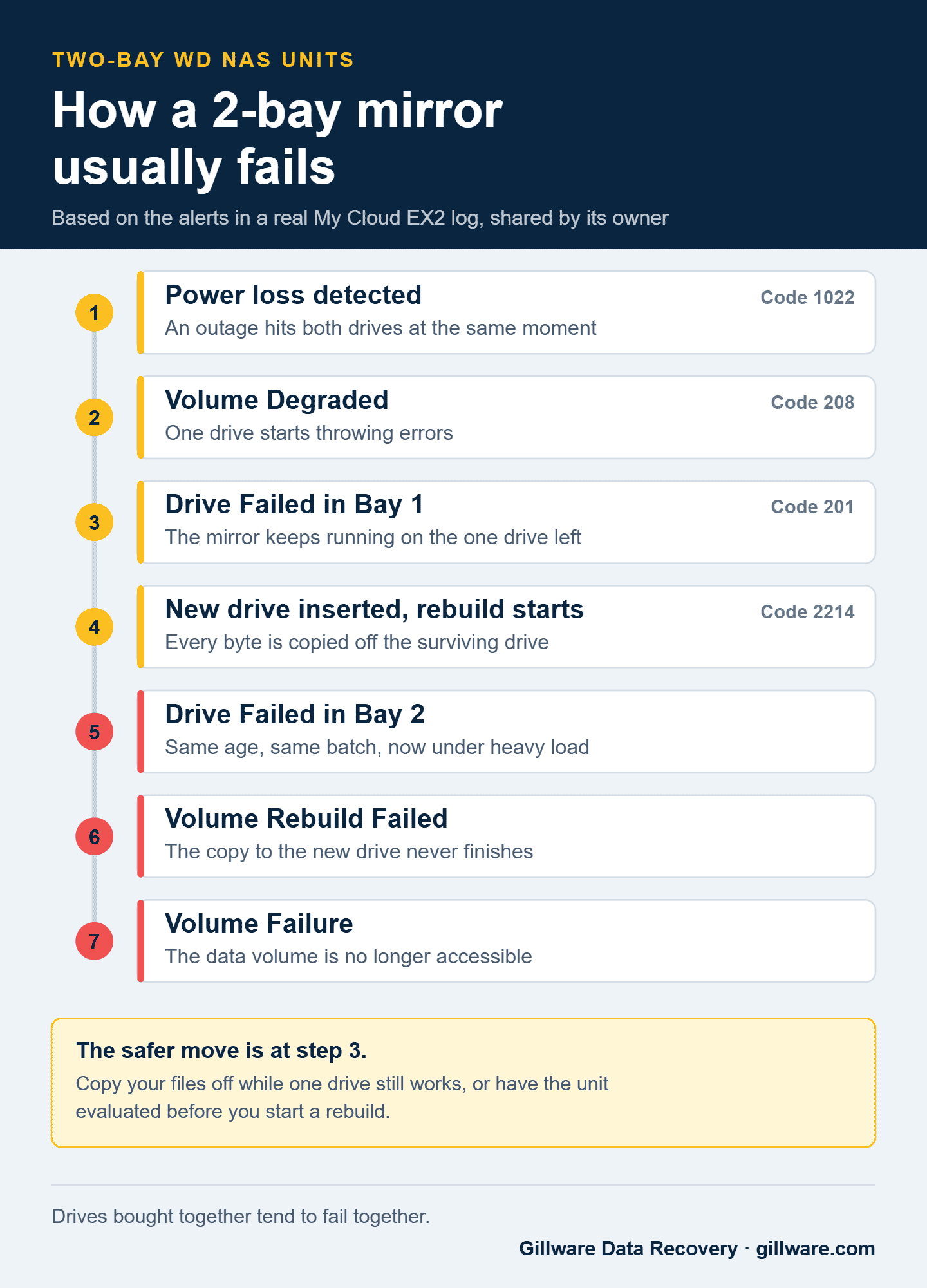
A red or amber status light usually means one drive has failed, the volume is degraded, or the unit itself has a problem. On a 2-bay mirror, the unit may keep working on the surviving drive, which feels reassuring but isn’t. The surviving drive usually came from the same factory, on the same date, as the one that just failed, and the two have lived identical lives: the same hours, the same heat, the same power surges and outages. A firmware or manufacturing defect on that production run tends to show up on both drives on a similar timeline. On top of that, a rebuild reads every sector of the surviving drive, often for hours or days, which is exactly the kind of load that finishes off a drive that’s already near the end. The stretch while you replace a drive and rebuild the mirror is when we most often see the second drive go. If the data isn’t backed up somewhere else, copy what you can first, or have the unit evaluated before you start a rebuild.
Solid amber light on a Gen 1 My Cloud
The classic Gen 1 failure: the unit starts up normally, then settles on solid amber instead of blue and drops off the network. The cause is usually damage to the system partition from an unclean shutdown, a power loss, or an interrupted update. The data partition is generally intact, and we read it directly from an image of the drive without needing the WD firmware at all.
Shares and the dashboard won’t load
WD network drives keep their operating system on the same drives as your data. When a drive starts failing or the system partition is damaged, the unit may power on but never finish starting up: no shares, no dashboard, no app access. Updating apps or reinstalling software on your computer won’t change that. Don’t try resets or restores to troubleshoot it. The problems a reset actually fixes are rare, and some of the reset options on these units erase the data volume.
The unit won’t power on at all
No lights, no fan, nothing. On sealed single-bay units like the My Cloud and My Book Live, the most common cause is a failed capacitor on the small power board inside the case. The drive inside is often perfectly healthy, but the case is glued or friction-fit and isn’t meant to be opened. We open it in our cleanroom, take the drive out, and image it on isolated hardware.
Stopped working after a firmware update
Firmware updates on older units occasionally fail partway, or expose a drive that was already struggling. The move from My Cloud OS 3 to OS 5 produced a wave of these: units stuck in update loops, units that never finished booting, and multi-bay units left in a state WD’s own recovery procedure doesn’t always fix. Firmware updates don’t touch the data partition, so the data is often intact. The worst next step is a factory reset; the safer one is to power it down and have it evaluated.
Data missing after a factory reset, including the 2021 My Book Live wipes
Whether it was a reset button held too long, a “restore” chosen to fix something unrelated, or something done to the unit remotely, a reset WD unit that now shows empty shares isn’t necessarily a lost cause. On most WD units, a factory reset rewrites the partition table and the firmware’s settings rather than erasing every sector of the data partition, so the files are often still on the drive. In June 2021, attackers used two vulnerabilities in the discontinued My Book Live line, CVE-2018-18472 and CVE-2021-35941, to remotely factory-reset large numbers of My Book Live and My Book Live Duo units, and owners found them empty. Those units are often recoverable for the same reason. What matters most is that nothing new gets written to the drive afterward: power it off, don’t set it back up, and don’t copy anything onto it.
Locked out of a My Cloud Home
Because the My Cloud Home only works through WD’s app and cloud account, you can lose access to perfectly healthy data: the app can’t reach the device, the account is locked or rejects your login, the device has been removed from the account, or the app no longer works on your phone or computer. The data is still on the drive. We take the drive out, image it, and read the data directly, without going through WD’s service at all.
You pulled the drives and your PC can’t read them
WD network drives use Linux file systems that Windows can’t read, and a My Cloud Home stores files in an internal format rather than ordinary folders. Connected to a Windows PC, a perfectly healthy NAS drive can look empty or unformatted, and Windows will offer to initialize or format it. Don’t. Accepting that prompt writes a new partition table over WD’s, which makes recovery more involved. Moving the drives into another brand of NAS has the same problem: the new unit won’t recognize WD’s layout and will offer to initialize them. If you’ve already pulled the drives, keep track of which bay each one came from, and if you accepted a prompt, tell us when you open your case. It’s still often recoverable.
Multi-bay array failure on EX, DL and PR units
On four-bay and larger units, the pattern we see most is a second drive failing in a degraded RAID 5 array days or weeks after the first, for the same reasons described above: the drives aged together. The array drops offline. We image every drive, including partial images of a second failed drive where its surface can be read, and rebuild the array from the images.
Clicking, beeping, a sudden drop, or a unit that’s very slow
Clicking or grinding from the case usually means a drive inside is failing mechanically, and a unit knocked off a shelf while running can have head damage that gets worse each time it spins up. A unit that has become painfully slow, with file copies taking hours and occasional read errors, is often working around bad sectors on an aging drive. We’ve seen units limp along like that for months and fail within days. Either way, shut it down.
What Your Dashboard Alerts Mean
WD’s dashboard and email alerts name the problem fairly precisely. These are the ones that matter most for your data:
- Volume Degraded (code 208): one drive in a mirror or RAID has problems, and the volume is running without its safety net. Copy off what matters before doing anything else.
- Drive Failed (code 201): the unit has dropped a drive. On a 1-bay unit, that’s your data. On a 2-bay mirror, the other drive is now the only copy.
- Power loss detected (code 1022): the unit lost power unexpectedly. It’s often harmless, but it’s a common first entry in logs that end badly, because the same outage hit every drive at once.
- Volume Rebuild Failed: the unit tried to rebuild onto a new drive and couldn’t finish, usually because the surviving drive is failing too. Don’t start the rebuild again.
- Volume Failure: the data volume isn’t accessible. Power the unit off and leave it off.
A red light on its own doesn’t always mean a drive problem. On the My Cloud EX2 and Mirror, WD lists several other reasons for a solid red front light, including network problems, a power loss reported by a UPS, and a volume that’s 95% full or more. Check the alerts in the dashboard before assuming the worst.
Red light, missing shares, or a failed drive? Get a free diagnosis on 1- and 2-bay units.
Why So Many of These Units Are Failing Now
The first reason is age. Most consumer NAS units shipped with drives installed, so a ten-year-old unit is usually running on ten-year-old drives, often from the same batch.
The second is the support timeline. Western Digital ended support for My Cloud OS 3 on April 15, 2022; units that couldn’t move to My Cloud OS 5 lost remote access and stopped receiving security fixes. WD has said My Cloud OS 5 will be supported at least until the end of 2026, and that if support isn’t extended, updates and cloud services will stop. The 2021 My Book Live attacks showed what can happen to unsupported units left on the internet.
None of this means your unit is about to fail. It does mean that if your family photos or your office files live only on an older WD network drive, now is a good time to:
- Copy anything important to a second drive or a cloud backup while the unit still works.
- Turn off remote access on any unit that no longer gets security updates, or keep it off the internet entirely.
- Never use a factory reset as a troubleshooting step.
Password-Protected and Encrypted Volumes
Some My Cloud models, including the EX and PR series, can encrypt their volumes. If yours was encrypted, the password is what unlocks it. We’ll need it to decrypt your recovered data, and your client advisor will ask for it by phone after the evaluation, so there’s no need to include it on the case form. If you’ve forgotten it or only partly remember it, tell your advisor what you do remember.
How Gillware Recovers WD NAS Units
We never run a failing WD unit during recovery. Sealed units (My Book Live, My Cloud and My Cloud Home) are opened in our cleanroom and the drive is taken out with anti-static precautions. On multi-bay units, the drives are removed and labeled by bay. Every drive is imaged on isolated, write-blocked hardware first, and drives with physical damage get head replacements, PCB swaps or firmware work with donor parts before imaging. From then on we work only from the images; your original drives stay on the shelf, untouched.
From those images, HOMBRE, the RAID and file system reconstruction software our engineers built and maintain in-house, reads WD’s partition layout, mdadm and LVM structures and ext4 file system directly. It doesn’t need working WD firmware or a working WD account. On single-bay units, that means reading the data partition straight from the image; on mirrors and RAID arrays, it means assembling the array virtually and recovering the file system from it; on My Cloud Home units, it means bypassing WD’s cloud service entirely. Your files come back on a new drive or by secure transfer, depending on the size and sensitivity of the data.
For 1- and 2-bay units, every case starts with a free evaluation. Our engineers diagnose what failed and what’s recoverable, then we write a short recovery agreement with you covering the data you need and a firm price if we meet those goals. You only pay when we meet your recovery goals. Four-bay and larger units start with a free consultation with one of our enterprise storage engineers.
Before You Ship It
- Power it off and unplug it from the wall and the network.
- Don’t open a sealed unit yourself. If you already have, that’s fine; just pack it carefully and let us know.
- Don’t initialize or format any of its drives on a PC, and tell us if you already accepted one of those prompts.
- Don’t run a factory reset, a rebuild or a firmware update to try to get it working again.
- On multi-bay units, label each drive with its bay number if you remove them.
- Note the model number from the bottom of the case.
- Send the whole unit if you can, or all of its drives, padded on every side. We don’t need the power adapter or network cable.
What WD NAS Recovery Costs
Every case is quoted individually. The price depends on how many drives are involved, what failed, and how much reconstruction the volume needs. A quick call with a client advisor gives you a realistic idea up front, and 1- and 2-bay units get a firm price after the in-lab evaluation. Our data recovery cost overview explains how quotes are built.
WD NAS Recovery FAQ
Is my WD My Cloud still supported?
It depends on the model and its firmware. Units that couldn’t move to My Cloud OS 5 lost support in 2022. Units on My Cloud OS 5 are covered at least through the end of 2026, according to Western Digital. Check your model on Western Digital’s support site.
My My Cloud has a red light. Is my data gone?
Usually not. A red light tells you something failed, not that your files are gone. The biggest risks come from what happens next, such as resetting the unit, rebuilding onto a new drive, or reformatting a drive in a PC, so power it off until it’s been evaluated.
Do you recover data from the My Cloud Home?
Yes. The My Cloud Home stores files differently from older My Cloud models, but we recover data from single-drive and Duo units alike, including units you can no longer reach through WD’s app.
Related Pages
Other NAS brands: Synology · QNAP · Buffalo · Drobo · LaCie · FreeNAS / TrueNAS. Western Digital drives: Western Digital data recovery · WD Red NAS drive recovery, the drive most often found inside these units. Return to the NAS data recovery hub.
WD network drive failed? Let’s get your files back.
Our highly experienced engineers strive for the highest success rates in the industry. Send us the device and we’ll diagnose it for free.
- More than 20 years recovering data from failed drives
- Trusted by 1,500+ IT professionals nationwide
- Whatever failed, we’ve seen it hundreds of times
- Pay only if we meet your recovery goals