
A 16TB, 20TB or 24TB hard drive holds more than many small businesses stored in total a decade ago. Drives this size are almost all sealed helium drives: more platters, more read heads and more firmware packed into the same 3.5-inch case as an ordinary desktop drive. When one fails, the data is usually still on the platters, but the way you handle the next few hours matters more than it does with a small drive. This page explains what is different about high-capacity drives, why they take longer and need closer donor matching to recover, what to do right now, and how our lab handles them.
Big helium drive failed?
Stop powering it on and don’t run scans. Our engineers will diagnose it for free and tell you what’s recoverable before any work begins.
What makes a 16TB to 24TB+ drive different
From the outside, a 20TB drive looks like any other 3.5-inch hard drive. Inside, several things have changed, and each of them affects recovery.
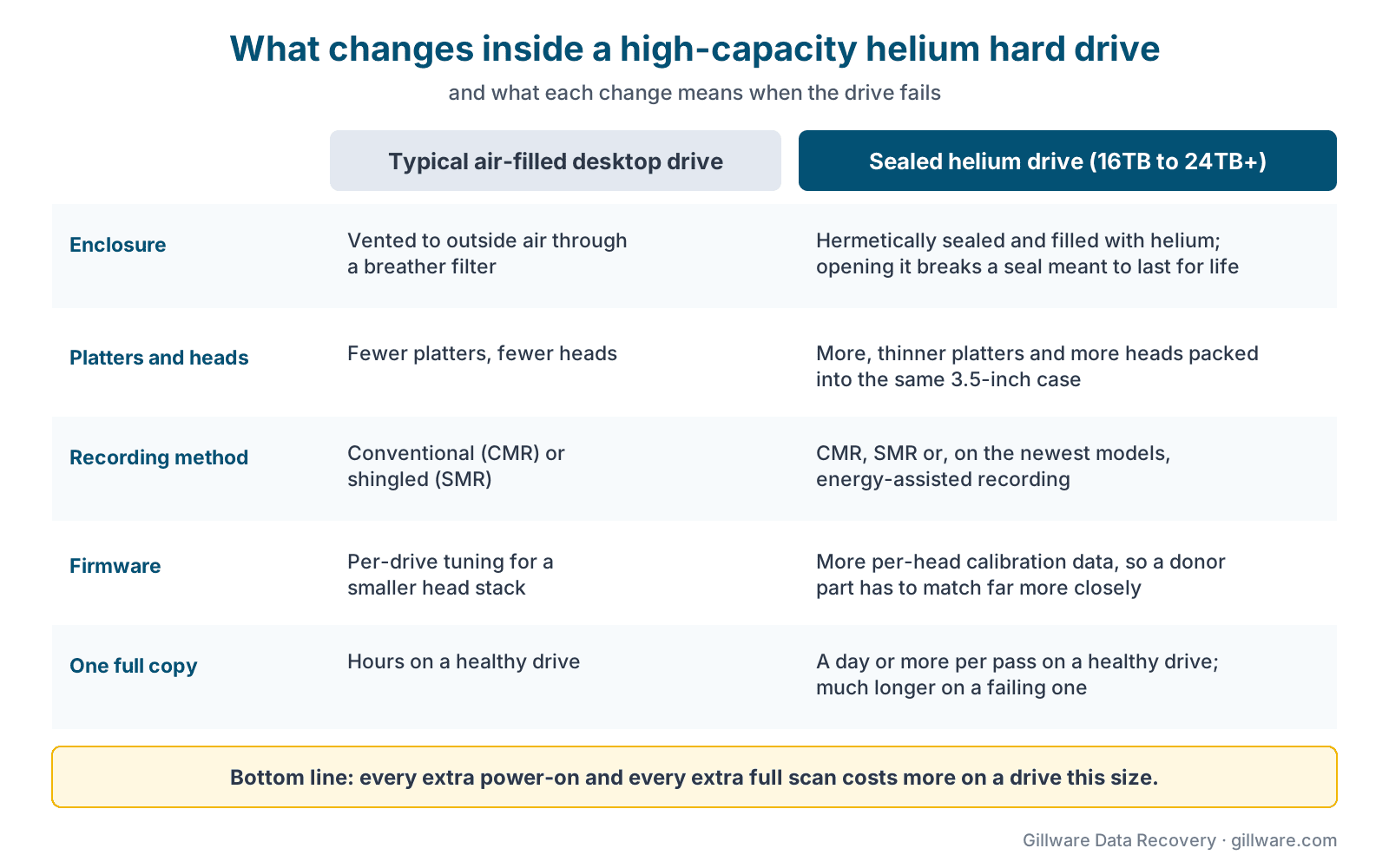
It’s sealed and filled with helium. An ordinary drive breathes outside air through a small filter. High-capacity drives are hermetically sealed and filled with helium, which is thinner than air. Thinner gas means less drag and less turbulence, so the manufacturer can fit more, thinner platters and run the heads more precisely. The seal is designed to last for the life of the drive. Opening one breaks that seal.
More platters and more heads. Packing more platters into the same case means more read/write heads on the same arm assembly. Every head is a separate point of failure, and every head has its own calibration data in the drive’s firmware.
Different recording methods. Most high-capacity drives use conventional magnetic recording (CMR). Some use shingled magnetic recording (SMR), which overlaps tracks like roof shingles to fit more data, and the newest generation uses energy-assisted recording. Our article on MAMR and ultra-high-capacity drives explains one of those approaches. Drive-managed SMR drives reorganize data in the background, which changes what a failure looks like and how the data has to be read back.
Far more data per drive. A single drive may hold an entire NAS share, a surveillance archive, a decade of family photos or a business’s only backup. That raises the stakes of every decision.
Why helium drives are harder to recover
None of this makes a high-capacity drive unrecoverable. It does make the work more exacting, for four reasons.
1. Head swaps need closer donor matches
When read heads fail (the usual cause of a clicking drive, covered in our guide to why a hard drive clicks), the lab replaces the head assembly with one from a compatible donor drive in a cleanroom. On a small drive the compatibility rules are fairly forgiving. On a high-capacity helium drive there are more heads, tighter tolerances and more per-head calibration data, so a donor has to match the original much more closely. Finding the right donor is part of the work, and it’s one reason these cases can take longer.
2. The seal is part of the design
A helium drive is built to run in helium for its whole life. Once a lab opens it for a head swap, the goal is to read the data off the drive as carefully and efficiently as possible, never to put the drive back into service. Opening one outside a cleanroom, or opening it twice, adds risk that a small air-filled drive never faced.
3. More firmware, more to go wrong
A drive’s firmware includes the tables that map where data really lives on the platters and the tuning for each head. High-capacity drives, and SMR drives in particular, keep large and constantly changing translation tables. If those tables are damaged, the drive can show up with the wrong capacity, as 0 bytes, or not at all, even though the platters and heads are fine. Fixing that is firmware work done with specialized lab equipment, not something a utility on a home computer can do.
4. Sheer size
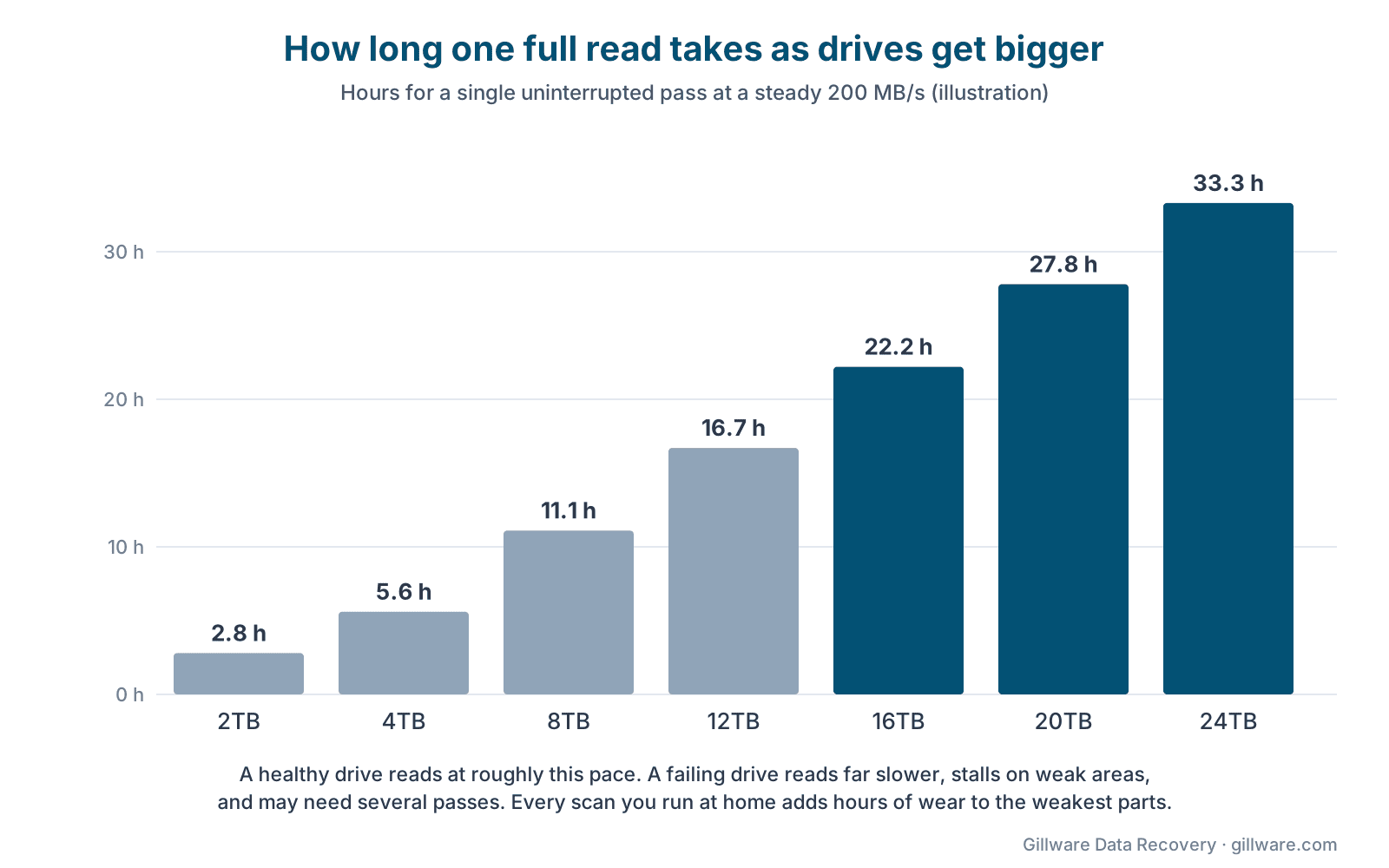
Reading 20TB takes time even when everything works. At a steady 200 MB/s, one uninterrupted pass over a 20TB drive takes more than a day. A failing drive reads far slower than that, stalls on weak areas and can need several passes. That is why the number of hours a failing high-capacity drive spends powered on matters so much.
Why repeated scans and power-ons hurt more on big drives
With a 1TB drive, a long scan with a recovery program might mean a few hours of extra wear. With a 20TB drive, the same scan can mean a day or two of the drive working at full effort, often on a head that is already failing. Each pass can turn a weak head into a dead one, and a dead head can scratch the platter it flies over. When that happens, a case that was a routine head swap becomes a far harder one.
The same logic applies to repeated power cycling (“let’s see if it comes back”), leaving the drive connected while you search for answers, and letting a NAS keep retrying it. Recovery software has its place for logical problems on healthy drives, but it can’t help a drive with failing heads, and running it on one works the drive hard and makes things worse.
Every hour a failing 20TB drive runs is wear on its weakest head. Talk to us before the next power-on.
Where high-capacity drives usually come from
Most of the 16TB to 24TB+ drives we see come from one of these places, and where yours came from changes what you should do next.
- A NAS. Two-, four- and eight-bay network storage units are the most common home for large drives. If the drive came out of a NAS, it is probably one member of an array, and the array matters as much as the drive. See our NAS data recovery page.
- A server or storage array. Enterprise drives such as Seagate Exos usually sit in servers and RAID arrays. Our RAID data recovery and server data recovery pages cover those systems.
- A large desktop external drive. Many high-capacity USB desktop drives contain a helium drive inside the enclosure. The enclosure’s USB board can fail on its own, which is a simpler problem, but don’t pry the case open: some enclosures encrypt the drive, and removing it can make the data harder to reach.
- A surveillance recorder or workstation. NVRs, media workstations and backup targets often use NAS-class drives such as Seagate IronWolf or their equivalents from other makers.
A single failed drive from an array is still an array case. If the drive came out of a NAS or RAID, the data on it is usually striped with the other members, so recovering one drive on its own often isn’t enough. Send or describe the whole set, label each drive with its bay number, and don’t let the NAS rebuild or resync. If it’s a NAS with four or more bays, a server or a business system, that work starts with a free consultation with one of our enterprise storage engineers, and you approve all recovery fees in writing before any recovery work begins.
Common symptoms and what they usually mean
- Clicking, ticking or a repeating knock: almost always failing heads. Power it off.
- Silent, or a hum with no spin-up: a power or circuit-board problem, stuck heads or a seized motor. Our page on drives that won’t spin explains the difference.
- Detected, but with the wrong capacity, as 0 bytes, or with a strange model name: often a firmware problem. The data area may be untouched.
- Detected, but extremely slow, freezing or timing out: often weak heads or degraded areas on the platters; on SMR drives, sometimes firmware stuck reorganizing data. A NAS may mark a drive like this as failed and drop it from the array.
- NAS says the volume or storage pool is degraded or crashed: stop there. Don’t rebuild, run the NAS’s volume fix tools, replace drives one by one or reinitialize until you know which drives hold good data.
Earlier warning signs, such as new noises, slowdowns and growing read errors, are covered in our guide to the signs a hard drive is failing.
What to do right now
- Power it down. If the drive is clicking, beeping, silent or extremely slow, shut it off and leave it off.
- Don’t run recovery software, CHKDSK or a full-disk scan. On a 20TB drive these can run for a day or more on a failing head.
- If it’s in a NAS, don’t let the NAS rebuild, resync or “fix” the volume, and don’t swap in a new drive and let it initialize. Shut the NAS down cleanly if you can.
- Label everything. Write the bay or slot number on each drive and note the NAS or server model and the RAID level if you know it.
- Don’t open the drive or the sealed case. A helium drive opened outside a cleanroom can lose data permanently.
- Don’t swap the circuit board. Modern boards carry drive-specific data, and a mismatched board can damage the drive’s firmware area.
- Write down what happened (noises, error messages, what you tried) and call us. A few minutes on the phone usually tells us what kind of case it is.
How we recover high-capacity drives
Every drive starts with a free evaluation by an engineer who works on these drives every day. We identify what failed, whether the heads, the firmware, the circuit board or the platters themselves, and whether the drive belongs to an array. If the heads have failed, we replace them in our ISO 5 (Class 100) cleanroom with parts from a closely matched donor. Firmware problems are handled with specialized equipment that can rebuild damaged tables and work around weak heads.
Then we image the drive: a careful, read-only copy, made with equipment that can skip weak heads and come back to difficult areas later, so the easy data is secured first and the drive isn’t worked harder than it has to be. We work from the copy, never the original. For array members, we image every drive and rebuild the array virtually from the copies. Recovered data is checked and returned on an encrypted drive with the original folder structure.
Since 2004, Gillware has recovered data from more than 100,000 storage devices, and our engineers have more than two decades of experience with every major drive brand and type. Our hard drive data recovery page covers the full range of what we do, and our Seagate data recovery page covers that maker’s drives in more detail.
Every case is quoted after a free evaluation, so you know the cost before any recovery work begins. To understand what goes into that quote, see how much hard drive data recovery costs.
Frequently asked questions
Can data be recovered from a failed helium hard drive?
Usually, yes. When a helium drive fails, it’s most often the heads, the firmware or the circuit board, and the data on the platters is still there. The work is more exacting than on a small air-filled drive, mainly because donor parts have to match closely and imaging takes longer, but it’s routine lab work for an experienced team.
Why does recovering a 20TB drive take longer than a small drive?
Partly because of size: at a steady 200 MB/s, one full pass over 20TB takes more than a day, and a failing drive reads far slower. Partly because of matching: finding a compatible donor for a high-capacity head stack can take time. We image carefully rather than quickly, because a rushed read on a weak head is how data gets lost.
Is it safe to open a helium drive to look inside?
No. A helium drive is sealed for life, and opening it outside a cleanroom exposes the platters to dust and breaks the seal. It’s one of the most common ways a recoverable drive becomes unrecoverable.
My NAS says one drive failed. Should I just replace it and rebuild?
If your data is fully backed up and the rest of the array is healthy, that’s what the rebuild is for. If you don’t have a backup, or a second drive is showing errors, stop. A rebuild reads every other drive end to end, which on 16TB+ drives can take a day or more, and a second failure during that time can take the whole volume down.
Does it matter whether my drive is CMR or SMR?
For the first steps, no: power it down either way. For the lab, it matters. Drive-managed SMR drives keep data in a constantly changing layout, so firmware damage on an SMR drive needs a different approach than on a CMR drive. Tell us the exact model number if you have it.
Can I send just the failed drive from my NAS?
Call us first. Often we need every drive in the array, labeled with its bay number, to rebuild the volume. A single-disk or two-disk mirror is different, and we’ll tell you exactly what to send.
High-capacity drive down? Let’s get your files back.
Our highly experienced engineers strive for the highest success rates in the industry. Send us the device and we’ll diagnose it for free.
- More than 20 years recovering data from failed drives
- Trusted by 1,500+ IT professionals nationwide
- Whatever failed, we’ve seen it hundreds of times
- Pay only if we meet your recovery goals