
Your NAS Won’t Boot: A Consumer’s Guide to Reading the Lights, Beeps, and Error Messages on Synology, QNAP, WD, Buffalo, Netgear, and Seagate Devices

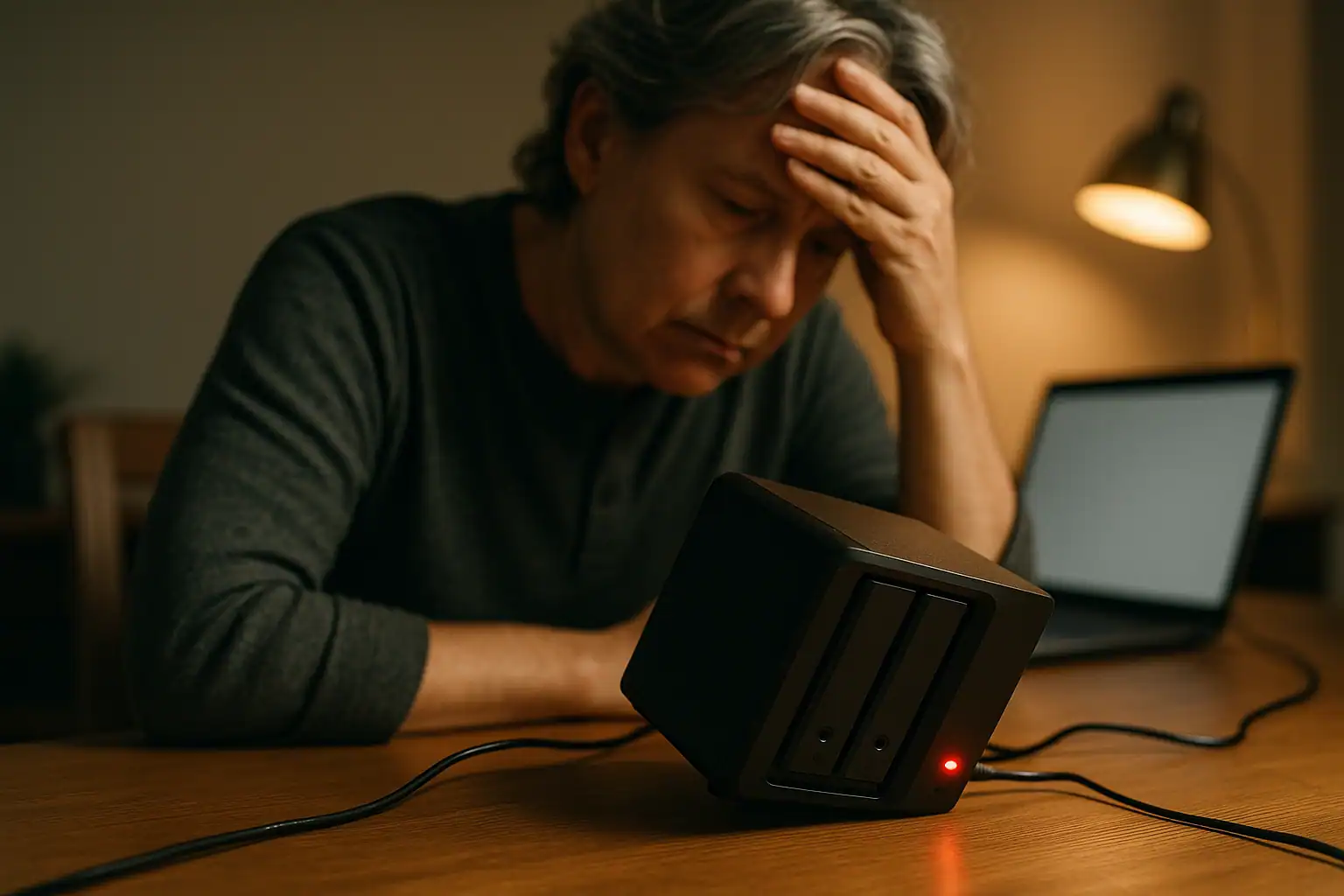
A home NAS is one of those devices you forget about until the day it stops working. One morning, the lights look wrong. The shared folder isn’t there on your computer. You can’t pull up the dashboard. Maybe there’s a beeping coming from across the room, or a red light where there used to be a green one. If you’re standing in front of a small consumer NAS — a Synology DiskStation, a QNAP, a WD My Cloud, a Buffalo LinkStation, a Netgear ReadyNAS, or a Seagate Personal Cloud — and it won’t boot up the way it used to, the device is almost always trying to tell you what’s wrong. The trick is knowing how to read the message.
This guide is for owners of small consumer NAS units — the ones with one to four drive bays that live in a closet or under a desk, not the rackmount units in a server room. We’ll walk through how to figure out whether the problem is the NAS box itself or one of the hard drives inside it, how to get to the diagnostic dashboard on each brand of NAS, what the different colors and blink patterns on the front LEDs typically mean, and which symptoms point specifically to a failing or failed hard drive. We’ll also be honest about the actions that can make things worse — because with a NAS that’s not booting properly, the wrong fix can permanently destroy the data the device was supposed to be protecting.
First question: is it the NAS, or is it a drive?
Before doing anything else, it helps to figure out which kind of failure you’re dealing with, because the two have very different consequences.
The NAS itself has failed. The motherboard, the power supply, the system memory, or the small flash chip that holds the operating system has died. In this case, the device may not power on at all, the lights may stay frozen in an abnormal state forever, the fans may not spin, or you may be unable to reach the dashboard from a web browser no matter what you try. Your data is most likely still intact on the hard drives — the drives didn’t fail, the box around them did. Recovery from this situation usually means pulling the drives, imaging them in a controlled environment, and reconstructing the RAID array offline.
One or more hard drives inside the NAS have failed. The NAS itself boots fine and may even let you reach its dashboard, but it can’t bring the storage volume online. You’ll see error messages about a degraded array, a failed drive, a volume that won’t mount, or bad sectors. Depending on how the NAS was configured (RAID 0, RAID 1, RAID 5, JBOD, single drive), this can range from a minor inconvenience to a full data loss situation.
A few signs the NAS box itself is the problem rather than a drive:
- The power LED is doing something stuck and abnormal — blinking forever, frozen on a startup color, or completely dark when plugged in
- You can’t reach the dashboard at any IP address or hostname, and the device doesn’t show up in the brand’s discovery tool
- The fan never spins up, or spins up and then stops
- There’s no network activity light on the Ethernet port
A few signs one or more drives are the problem:
- The NAS boots, you can reach the dashboard, and the dashboard tells you about a degraded or crashed volume
- A drive bay LED is solid red or off when it should be green
- The NAS beeps continuously after boot (most consumer NAS units beep when a drive failure is detected post-boot)
- The shares appear but are empty, or the device tells you the storage pool is offline
That distinction matters because a NAS chassis failure rarely puts your data at risk, while a drive failure inside an unprotected configuration (RAID 0, single drive, or RAID 1 where both drives have failed) often does.
How to reach your NAS dashboard when things aren’t working right
When a NAS won’t boot fully, the diagnostic page is the first place to look for clues. Even on a device that’s failing to mount its storage volume, the underlying operating system will usually still serve up a small administration page that can tell you what it sees. Each brand handles this a little differently.
Synology. Open a web browser and go to find.synology.com. The page scans your network and finds your DiskStation, then lets you open the DSM dashboard at its IP address. You can also type the IP directly: http://[your-NAS-IP]:5000. If you don’t know the IP, your home router’s connected-devices list will usually show “DiskStation” or “Synology” next to it.
QNAP. Install the free Qfinder Pro utility (Windows or Mac), launch it, and your QNAP will appear in the list with its IP address. Double-click it to open the QTS dashboard, or type http://[your-NAS-IP]:8080 in a browser. Your router’s device list will show “QNAP” or the model name.
WD My Cloud (single bay and EX2/EX4 series). Open a browser and type http://[your-device-name].local — by default the device name is something like “WDMyCloud” or “MyCloudEX2”. If that doesn’t work, find the IP address on your router’s device list and go to http://[IP-address] directly. Note that WD My Cloud Home is a different product line and is managed exclusively through the MyCloud.com web portal and mobile app — it doesn’t have a local dashboard the way the regular My Cloud does.
Buffalo LinkStation and TeraStation. Install Buffalo’s NAS Navigator2 utility. It will discover the NAS, show you any error codes the device is reporting in plain text (much easier than counting LED blinks), and let you open the web admin. You can also reach the admin by going to the device’s IP address directly in a browser.
Netgear ReadyNAS. Install RAIDar (older models) or use the ReadyCLOUD portal. RAIDar will discover the NAS on your local network and display any error messages — including the ones we’ll talk about below like “ERR Used Disks” and “Corrupt root.”
Seagate Personal Cloud / Seagate Central. Visit http://personalcloud.local (Personal Cloud) or use the Seagate Media app. The administration page is sometimes available even when the storage volume itself is offline.
If none of the above work and the NAS is sitting there with abnormal lights, that’s a strong sign the device’s own operating system can’t start — which usually means a hardware failure of the NAS chassis itself rather than the drives.
Synology: blinking blue lights, orange status lights, and the “Blue Light of Death”
A healthy Synology DiskStation has a solid blue power LED, a green status LED, and green drive activity LEDs.
Persistently blinking blue power light (sometimes called “BLOD” — Blue Light of Death). During a normal boot the blue power LED blinks briefly before going solid. If the blue light blinks continuously for more than five or ten minutes and never turns solid, the NAS is stuck early in its boot process and DSM never finishes loading. According to Synology’s own documentation, the most common causes are motherboard failure, an unstable power supply unit, failed RAM, or corruption of the small bootloader stored on the NAS itself. This is usually a chassis failure rather than a drive failure — the drives inside are typically fine. (For a deeper look at this specific issue, see our writeup on the Synology flashing blue power light.)
Solid or blinking orange status LED while DSM is otherwise running. This is DSM’s way of telling you it has a problem to report. The most common causes are a fan failure, system overheating, or a volume that has been marked “Degraded” or “Crashed” because of drive issues. Sign in to DSM and look at Storage Manager for details.
Beeping. A continuous beep on a Synology typically means an active alert — most often a failed fan, an overheating system, or a failed drive in the storage pool.
Storage Pool “Degraded” vs “Crashed.” In DSM’s Storage Manager, “Degraded” means one drive has failed in a redundant array (your data is still accessible, but redundancy is gone). “Crashed” means too many drives have failed and the volume is offline — you cannot read your files, and any further write operations risk making the situation worse. If you see “Crashed,” do not attempt to repair or rebuild the pool without imaging the drives first.
QNAP: what the system status LED really means
QNAP NAS units have a system status LED that shifts between green and red, with each pattern meaning something specific (this is well documented in QNAP’s own knowledge base for the TS-series consumer models):
- Solid green: System is running normally.
- Flashing green every 0.5 seconds: The NAS is booting up or shutting down. This is normal during startup.
- Alternating red and green: The NAS is doing something administrative — formatting drives, initializing storage, updating firmware, rebuilding a RAID array, or migrating between RAID levels. If you didn’t start any of those processes yourself, log into QTS through Qfinder Pro and check the System Logs.
- Flashing red every 0.5 seconds: The RAID array is in degraded mode. One drive in a RAID 1, RAID 5, or RAID 6 has failed. Your data is still accessible, but you have no redundancy left. Power down before doing anything else if the data matters — and absolutely do not let the NAS automatically rebuild onto a marginal drive.
- Solid red: A critical error has been detected post-boot. Possible causes include a failed hard drive, a full disk volume, a system fan failure, bad sectors detected on a drive, or a RAID 5/6 array in degraded read-only mode (which means two drives have failed and the system is preserving what’s left). If you see solid red, do not accept any QTS prompts to “initialize” or “recreate” the storage pool — those operations can destroy whatever data is still recoverable.
Individual drive bay LEDs work alongside the system LED: a solid red bay light points to a specific failed drive.
WD My Cloud: solid red, blinking red, and the encryption catch
Western Digital’s My Cloud line (single bay, EX2, EX4, and Mirror) uses a front LED that is normally solid blue.
- Solid red front LED: A critical alert is active. Common causes include overheating, a failed cooling fan, a network cable disconnected, a drive that’s degraded or failed, a storage volume that’s nearly full, or a UPS reporting a power loss.
- Blinking red front LED: A caution-level alert. Log into the dashboard, check the alerts panel, and clear them after addressing the underlying issue.
- Drive bay activity LEDs blink during access or rebuild and go solid blue once a rebuild is complete; a solid red bay LED while the system is otherwise healthy points to a specific failed drive.
One important catch on WD My Cloud units worth flagging: many My Cloud models use a small SATA-to-USB bridge chip on the enclosure’s circuit board to encrypt data as it’s written to the internal hard drive. If you pull the drive out and connect it directly to a regular computer expecting to read your files off it, the data will appear blank, scrambled, or unreadable — even though the drive itself is fine. This is a common reason people think their My Cloud data is gone when it isn’t. Recovery from a failed My Cloud usually requires either the original board or specialized tools that can decrypt the data without it.
Buffalo LinkStation and TeraStation: the E-code system
Buffalo NAS units use a clever (and somewhat infamous) system where errors are communicated as numbered E-codes through a blinking LED pattern on the front panel. The Info/Error LED blinks red, and the number of blinks tells you the error code — the tens digit is communicated as long blinks (one second on every 0.3 seconds), and the ones digit as short blinks (half a second on every 0.3 seconds). Or, much more usefully, you can install NAS Navigator2 and read the code in plain text rather than counting flashes.
A reference to the most common drive-related Buffalo data recovery error codes, based on Buffalo’s official documentation:
- E04: The firmware is corrupted. The NAS itself can’t boot DSM normally.
- E07: A hard drive was not found.
- E13: An error has occurred in the RAID array.
- E14: The RAID array can’t be mounted. Often a sign of a serious drive or array problem.
- E15: Bad sectors on a hard drive have reached a dangerous level. The drive indicated by the red bay LED needs to be replaced — and the data on it may already be partially compromised.
- E16: Unable to find a hard drive that should be present. The drive may be disconnected, or it may have failed completely (a failed controller board on the drive itself can cause this).
- E17 / E21: Internal controller error.
- E22: Mounting of a hard drive failed. Buffalo’s documentation suggests reformatting the drive, but on a NAS where the data matters, reformatting is the last thing you want to do — that’s a write operation that may overwrite data that’s still recoverable.
- E23: An error caused a drive to be removed from the RAID array. Replace the indicated drive.
- E30: The hard drive may be damaged.
Multiple E-codes in sequence, or an E15 / E22 / E23 / E30 on a non-redundant single-drive LinkStation, almost always means hard drive failure — and is one of the most common reasons consumers send Buffalo units in for professional NAS data recovery evaluation.
Netgear ReadyNAS: RAIDar messages that point to drive trouble
Netgear’s older ReadyNAS line (still very common in homes and small offices) uses RAIDar as its discovery and diagnostic tool. When a ReadyNAS won’t boot properly, the messages that most often signal a drive-level problem are:
- “ERR Used Disks”: The NAS detected partition data on the disks that it doesn’t recognize. On a previously working ReadyNAS, this can mean the system partitions stored across the drives have been damaged or that drive metadata is unreadable.
- “Corrupt root”: The system root partition is damaged. The drives may be in worse shape than they appear, or the OS layer that ReadyNAS stores across them has been corrupted.
- “Could not mount Root RAID”: The internal RAID that holds the OS itself can’t be assembled, often because one or more drives have failed in a way that affects the system partitions.
ReadyNAS also fires drive-failure alerts when a drive’s reallocated sector count or pending sector count crosses certain thresholds — meaningful early warning if you happen to be reading email alerts before something fails outright.
Seagate Personal Cloud and Seagate Central: a discontinued but common case
Seagate’s consumer NAS line (Personal Cloud, Seagate Central, BlackArmor) is largely discontinued, but a lot of these units are still in service. The most common failure modes consumers see:
- Solid red front LED on Personal Cloud / Seagate Central: A system error has been detected. Often a drive issue, but can also be a network or system fault.
- Device not visible on the network at all: Often a sign the internal flash that holds the operating system has failed, or that the drive itself has failed in a way that prevents boot.
- Dashboard accessible but files inaccessible: Drive-level corruption on what is essentially a single-drive system.
Because these units use proprietary firmware and Linux RAID configurations that vary by model, recovery typically requires removing the drive and analyzing it independently of the NAS chassis.
The most common pattern: one drive failed in a small RAID
Most consumer NAS users with two or more drives are running RAID 1 (mirroring) or, on four-bay units, RAID 5. In a RAID 1 or RAID 5 with one failed drive, the system keeps working but loses its redundancy — and this is the moment of greatest risk.
What goes wrong: many consumers, on seeing the warning, immediately buy a new drive, insert it, and let the NAS rebuild. The rebuild is a maximum-stress operation that reads every sector of every remaining drive simultaneously for hours. On a unit where one drive has already failed because of age or wear, the surviving drives are usually the same age and have been through the same workload. A second failure during rebuild — which is more common than people expect — turns a degraded array into a destroyed one.
If a rebuild is going to happen, the safer order of operations is: power down, image each remaining drive to a separate location first, and then rebuild. On a single-drive NAS, or on a JBOD configuration where there’s no redundancy at all, a single drive failure means immediate data loss — and the right response is to power off and assess, not retry.
What not to do when your NAS won’t boot
The fastest way to turn a recoverable situation into an unrecoverable one is to apply the wrong fix:
- Don’t keep rebooting the NAS repeatedly. Each cycle puts stress on marginal drives and on a power supply that may already be the underlying problem.
- Don’t accept “Initialize,” “Reformat,” or “Create New Volume” prompts on the dashboard. Those are write operations that overwrite the very metadata recovery depends on.
- Don’t rearrange the drive bay order. NAS RAID arrays usually track drive position; putting a drive in the wrong bay can break the array’s understanding of itself.
- Don’t run a RAID rebuild on suspect drives without imaging first. A rebuild is the most stressful workload your drives will ever see. Marginal drives often die during rebuild.
- Don’t move drives into a different NAS to “test them.” Some brands re-initialize drives on insertion. You can lose data this way without a single error message.
- Don’t run filesystem repair tools (fsck, btrfs-check, mdadm assemble) without a verified image first. These tools are write operations and can finish off what a hardware problem started.
- Don’t open the NAS drives themselves. The platters inside a hard drive are precision-engineered to nanometer tolerances. A single dust particle can destroy data permanently.
When professional recovery is the right call
If your NAS is showing a persistent abnormal LED pattern that doesn’t resolve after a clean power cycle, if the dashboard reports a “crashed” or “offline” volume, if you’re seeing multiple Buffalo E-codes or a ReadyNAS “Corrupt root” message, or if your unit simply won’t power on or respond on the network — and the data on it matters — the safest move is to stop and get the NAS evaluated rather than risk doing more damage. Professional NAS data recovery involves removing the drives from the chassis, imaging them in a controlled environment with hardware write-blockers, and reconstructing the RAID array offline using the drive images rather than the drives themselves. The original drives never get written to during recovery.
Frequently asked questions
My NAS shows a red light but I can still access my files. Do I need to do anything?
Yes. A red status LED almost always means the device has flagged a problem that’s likely to get worse if it isn’t addressed — most often a degraded RAID array, a drive with growing bad sectors, or a failed cooling fan. The fact that your files are still accessible right now is the best time to back them up off the NAS, before the warning becomes a failure.
Can I just pull the drives out and read them on a normal computer?
It depends on the brand and configuration. Synology and QNAP units running standard Linux mdadm RAID can sometimes be read on a Linux computer if you understand the array structure. WD My Cloud units often encrypt data on the enclosure’s bridge board, so the drives appear unreadable when removed. Buffalo and Netgear units use proprietary metadata that ordinary Linux tools may not understand. In general, pulling drives and connecting them directly is risky — read-only adapters and an understanding of the original array geometry are usually needed, and a mistake at this stage can make professional recovery harder.
Why does my NAS keep beeping?
Most consumer NAS units beep when a drive failure is detected after the system has booted up. Synology, QNAP, and Buffalo all use audible alarms for drive failure, fan failure, or high temperature events. The beep can usually be silenced from the dashboard, but the underlying problem doesn’t go away — find out what triggered it.
Is it safe to let my NAS auto-rebuild after I replace a failed drive?
Sometimes, but not always. On a mirrored two-drive NAS where the surviving drive is healthy, a rebuild is usually fine. On a four-drive RAID 5 where one drive has failed, the rebuild reads every sector of the three surviving drives — which are often the same age and have the same wear — for many hours. If the data is important and the drives are old, image each surviving drive to a separate location before letting the rebuild start.
My NAS won’t power on at all. Is my data gone?
Almost certainly not. A NAS that doesn’t power on usually has a failed power supply, motherboard, or internal flash chip — none of which damages the hard drives storing your data. The drives can be removed, imaged, and the RAID reconstructed in a recovery lab. The success rate on dead-NAS-chassis cases is generally good.
My WD My Cloud is dead. Can I just put the drive in a new enclosure?
Usually no. Many WD My Cloud models encrypt data via the original enclosure’s bridge board, so a drive in a new enclosure will appear blank or scrambled even if the data is fully intact. This is one of the most common WD My Cloud recovery scenarios, and one of the most frustrating for consumers trying DIY recovery.
How do I check my NAS drives for problems before they fail?
Most NAS dashboards have a built-in SMART monitoring panel. On Synology, it’s under Storage Manager > HDD/SSD. On QNAP, Storage & Snapshots > Disks. On WD My Cloud, the dashboard’s Storage section shows drive status. Look for any “Caution” or “Warning” status, and pay attention to the Reallocated Sectors Count, Pending Sectors, and Uncorrectable Sectors values. Any nonzero value in those fields is a sign the drive is wearing out.
The bottom line
A consumer NAS that won’t boot is rarely as catastrophic as it looks the moment you first see the wrong lights. The data is usually still on the drives, and the device is usually trying to tell you exactly what’s wrong — through LED patterns, dashboard messages, audible alarms, or some combination of all three. The biggest risk isn’t the failure itself; it’s the panic response that follows. Most permanent NAS data loss comes from rebuild attempts, reformat prompts accepted without thinking, and “try one more thing” reboots on equipment that should have been powered down hours earlier.
If your NAS is showing signs of trouble and the data on it matters, the safest sequence is: power it down, identify what the warning is telling you (using the brand-specific guidance above), and decide whether the problem is something you can safely act on or something better evaluated by a recovery specialist. Gillware offers a free, no-obligation evaluation — you only pay if we recover your data.
