
Video Production Data Recovery
It’s 2am the night before a delivery and your Premiere project file “appears to be damaged.” Every autosave in the folder throws the same error. You updated DaVinci Resolve on a Sunday night and by Monday morning the project database was gone — every grade from the last three weeks with it. A colorist finishes a client review, closes her laptop, and the Final Cut library on the external drive won’t open again. An assistant editor watches an Avid Nexis workspace drop offline in the middle of a conform. A DIT gets back to base after a long shoot day, plugs in a CFexpress card, and the operating system reports it as unformatted.
These are post-production emergencies, and they are what this page is about. Gillware handles the security-camera side of video recovery separately — DVRs, NVRs, dashcams, and surveillance-grade drives have their own hub in the video-recovery family. What you’re looking at here is the post side of the house: footage, project files, timelines, renders, and shared storage from paid productions, freelance edits, and facility workflows. Whether you’re a solo editor working from a home office, a post house managing a Fibre Channel SAN, or a DIT still on location with a card that won’t mount, the failure modes are different but the recovery lab is the same one.
Where post-production data actually lives — and where it fails
Post-production data isn’t stored in one place. It sits across three distinct zones, each with its own physics of failure, each requiring a different recovery approach. When someone describes a “lost project,” the first job is figuring out which zone the loss is actually in — because it’s often more than one at once. A card gets offloaded to a failing external. A project file sits on a NAS that just dropped a drive. An Avid bin references media on a shared workspace that stopped mounting.
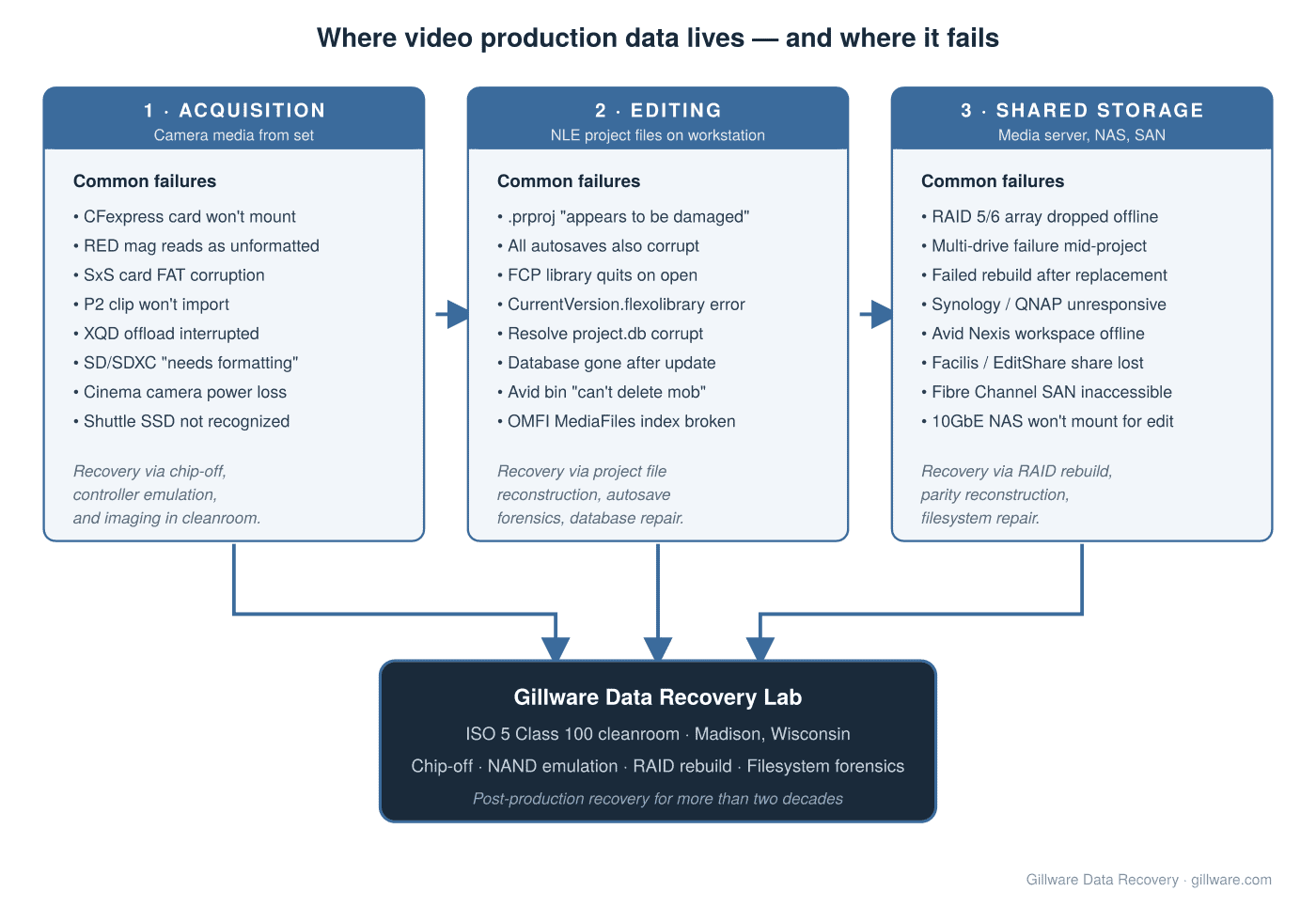
Each of the three zones has failure modes we see week in and week out. The lists on the diagram aren’t hypothetical — they’re pulled from the actual case work that comes into the lab. The sections below walk through each zone and route you to the specific spoke page for your NLE or storage situation.
Which NLE are you working in?
The behavior of a corrupt project file depends on which non-linear editor you use. The underlying file formats are radically different — some XML, some SQLite, some proprietary binary containers, some hierarchical bin structures. Recovery techniques are equally different. Below is a short guide by NLE, with a link to the deep-dive page for each.
Adobe Premiere Pro
The most common Premiere emergency is a .prproj file that opens with the message “the project appears to be damaged and cannot be opened” — often after a hard crash, a power loss during autosave, or a scratch-disk error that interrupted a save-in-progress. What makes it worse is that the Auto-Save folder is often no help: every autosave from the last hour throws the same error, because the corruption was written into the save stream before Premiere caught it. Beta builds and rapid version updates in the Creative Cloud lineup have added their own corruption patterns over the years. Recovery involves parsing the internal XML tree, reconstructing sequence references, and salvaging what the file’s own integrity checks reject. Full detail on this failure family lives on our Adobe Premiere Pro project recovery page.
Apple Final Cut Pro
Final Cut Pro libraries are macOS bundle packages containing a database plus event and project structures. When a library “quits unexpectedly” on open — or throws a “CurrentVersion.flexolibrary couldn’t be opened” error — the damage is usually inside that internal database. Complicating things, Final Cut writes automatic library backups, but if the source library was damaged before the backup ran, every backup in the folder can be corrupt too. Libraries stored on external drives face a second failure axis: the drive itself dying, and the library becoming inaccessible not because of software damage but because macOS can’t read the volume. See our Final Cut Pro library recovery page for the full walkthrough.
Blackmagic DaVinci Resolve
Resolve’s project database is where a huge amount of pain concentrates. The application supports two backends — a disk-based database (SQLite) and a PostgreSQL database on the network — and both fail in their own ways. The most reported pattern involves major version upgrades: an editor updates from one major Resolve release to the next, and on relaunch the entire project library is empty or won’t open. Another pattern is a corrupt project.db after a disk-full event, where Resolve was saving into 0 MB free space and wrote a broken record. Colorists lose weeks or months of grades this way. Recovery involves database repair, extraction of the internal timeline/clip data, and reconstruction of usable projects. Details on our DaVinci Resolve project and database recovery page.
Avid Media Composer
Avid failures live at the intersection of bin corruption and media-database indexing. A bin can lock with a .lck file that won’t clear, throwing “can’t delete MOB because it is still being referenced” during any attempt to clean up. The msmFMID.pmr and msmMMOB.mdb indexes that keep track of media files can rot, causing Avid to fail to find perfectly good MXF media on disk. Shared-project workflows on Avid Nexis or third-party storage add multi-user bin-locking failure modes that don’t exist on single-editor Premiere or Resolve. Broadcast and network TV workflows still rely heavily on Avid, so the case value on these is often high. Full recovery detail on our Avid Media Composer project and bin recovery page.
Shared storage in post environments
Post-production shared storage isn’t a typical IT stack. Facilities and larger freelance ops run a mix of dedicated media servers (Facilis TerraBlock, EditShare EFS, Avid Nexis), high-throughput NAS on 10GbE or 25GbE (Synology, QNAP, custom TrueNAS builds), and Fibre Channel SANs for the highest-bandwidth 4K, 6K, and 8K editorial workflows. When one of these arrays fails — a controller drops the array during a rebuild, a filesystem goes corrupt after a power event, two drives fail on a RAID 5 within the same weekend — the impact is measured in editor-days lost, not just gigabytes.
These recoveries are handled differently from single-drive work. Multi-drive arrays require imaging every member drive, running parity reconstruction against the imaged copies (never against the originals), and rebuilding the filesystem to extract usable media and projects. Our dedicated page on this failure family is our video editing RAID and shared storage recovery page. If your failure is a more general-purpose RAID situation not specific to editorial workflows, our broader RAID data recovery and NAS data recovery hubs may be a better starting point.
Camera media, cards, and offload drives
The front end of the pipeline is where a lot of production emergencies begin. A CFexpress card that won’t mount after a full shoot day. An SxS or P2 card that “needs formatting” after being pulled mid-write. An XQD offload that was interrupted at 62% and now shows an empty card. A RED mag that reads as unformatted on the workstation but was recording clean in the camera all day. A shuttle SSD that was fine on set and won’t spin up back at base.
Card-side recoveries live at the intersection of NAND-level flash recovery and video container reconstruction. For the majority of card failures we see on set — SD, SDXC, and CompactFlash — our specific pages on SD card data recovery and CompactFlash data recovery cover the failure patterns and what to expect. For high-end cinema formats — RED mags, SxS, P2, CFexpress Type B — start with our video recovery hub and the acquisition-media coverage there.
What not to do while you’re waiting to call us
- Don’t keep reopening a corrupt project file. Every failed open attempt can further scramble internal references, and some NLEs write session state on open even when the file fails to load — meaning each attempt makes the next recovery harder.
- Don’t let new autosaves overwrite the corrupted autosave folder. If Premiere or Resolve is still running, quit it. Copy the entire autosave folder to a separate location before doing anything else.
- Don’t reformat a card that “needs formatting.” The operating system’s message doesn’t mean the data is gone — it means the operating system can’t read the filesystem header. Reformatting overwrites exactly the metadata we need to recover the files.
- Don’t run Disk Utility First Aid, CHKDSK, or
fsckon a drive holding the only copy of a project. These tools are designed to repair the filesystem for continued use, not to preserve maximum recoverable data. They can — and do — turn a soft failure into a hard one. - Don’t attempt a RAID rebuild on top of a failing drive. The rebuild process reads every sector of every remaining drive; if a second drive is marginal, the rebuild will often finish it off. Image every drive first.
How we work with post-production customers
Gillware has been recovering media of every generation — film scans, DV tapes, DPX sequences, ProRes, R3D, camera RAW, edit projects, and finished masters — for more than two decades. Our lab in Madison, Wisconsin operates an ISO 5 (Class 100) cleanroom for drives that need physical intervention, alongside NAND-level flash rework benches, controller-emulation hardware, and RAID reconstruction workstations for multi-drive arrays.
Two engagement patterns cover almost all post-production work. Single-drive and single-card recoveries — one CFexpress, one project drive, one editor’s boot SSD — run on our risk-free evaluation model: no charge if we can’t recover your data. RAID, NAS, and shared-storage recoveries carry engineering charges that reflect the multi-drive imaging and reconstruction work required, quoted before we start so there are no surprises. Expedited service is available when a delivery deadline is on the calendar; the lab has handled overnight-airfreight cases where the difference between recovery and no recovery came down to which timezone the drive was in.
Working against a post-production deadline?
Get a free, no-obligation evaluation of your camera media, NLE project, or editing storage. Call us or open a case online — we’ll be back to you the same business day.