
HP builds more kinds of computers than almost any other manufacturer: budget Pavilion laptops with spinning 2.5-inch drives, thin Spectre and Envy machines with NVMe solid-state storage, EliteBook and ProBook fleets locked down with BitLocker, OMEN gaming desktops, Z-series workstations, and ProLiant servers running arrays behind a Smart Array controller. When one of them stops booting, the message on the screen is usually an HP-specific code, and the storage behind that code can be any of half a dozen different technologies. This page explains what those HP errors mean, what is inside each HP product line, what to do in the next ten minutes, and how a professional lab gets the data back.
Gillware has recovered data from HP laptops, desktops, workstations, and servers for more than two decades. The failure is almost never “the HP.” It is the drive inside it, and the drive is what we recover, using the same lab process described on our hard drive data recovery page.
If your HP will not boot right now: power it off and leave it off. Do not run a system reset, do not reinstall Windows, and do not keep re-running HP’s hardware diagnostics. Then call 877-624-7206 or submit a case online for a free evaluation.
HP error messages and what they actually mean
HP’s firmware and its built-in diagnostics are more talkative than most. That is useful, because the code on the screen tells you a lot about what has failed and how urgent the situation is.
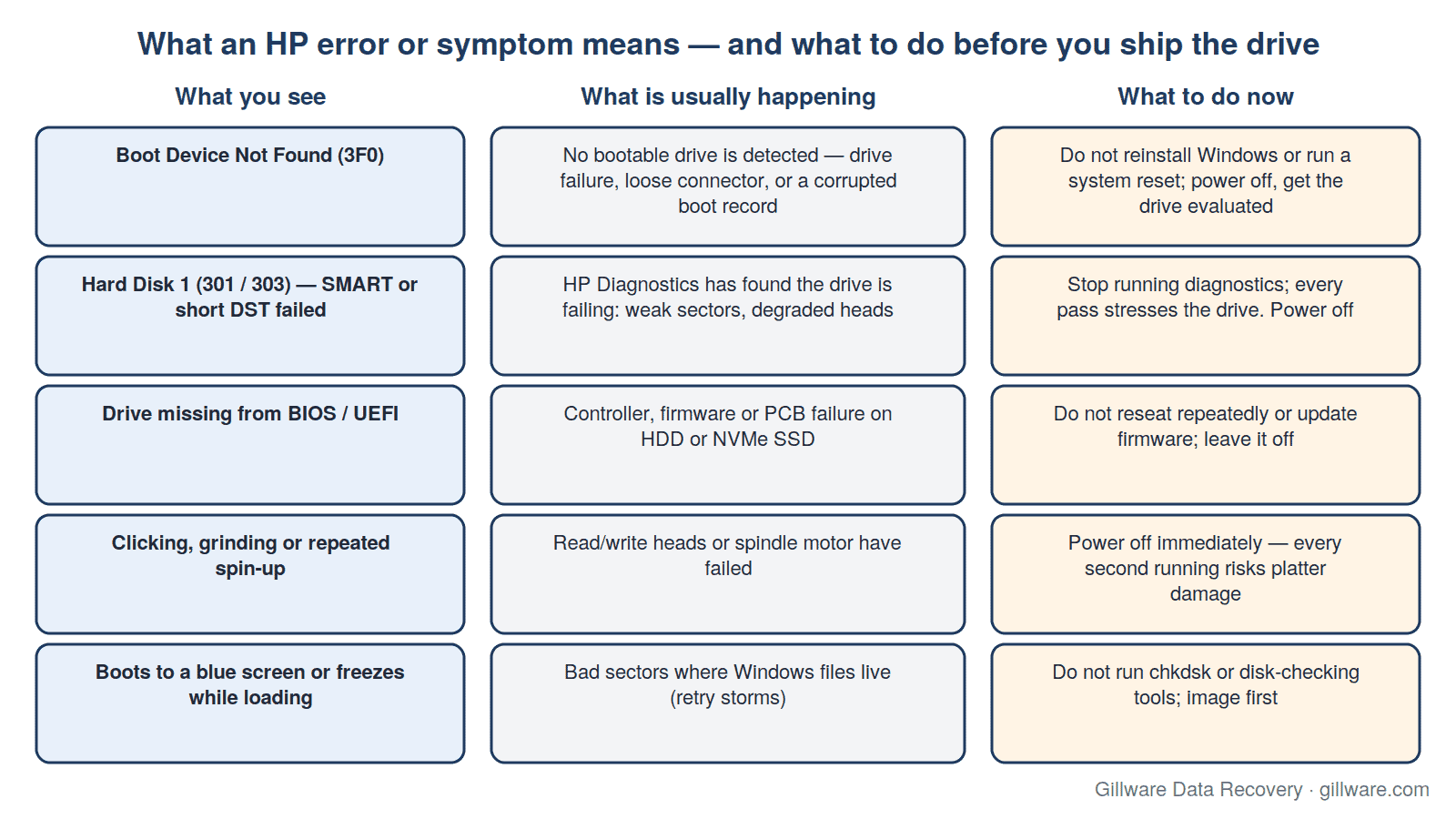
“Boot Device Not Found — Please install an operating system on your hard disk. Hard Disk (3F0)”
The most common HP message we see. The firmware looked for a bootable drive and found nothing it could use. Sometimes the cause is trivial: a SATA connector that worked loose after the laptop was dropped, or a boot record damaged by an interrupted update. Just as often the drive itself has failed: a spinning drive whose heads can no longer read the platters, or an NVMe SSD whose controller has locked up and no longer answers the system at all. The critical point is that the 3F0 screen offers you an F2 diagnostics run and, further along, a system recovery. Neither will bring back a failed drive, and a system recovery that reinstalls Windows will overwrite the very data you want. We cover this error in detail on our Hard Disk 3F0 error data recovery post.
“Hard Disk 1 (301)” / “Hard Disk 1 (303)” — SMART check or short DST failed
These come from HP’s UEFI hardware diagnostics. A 301 or 303 result means the drive’s own self-monitoring, or the short drive self-test, has reported that the drive is failing: reallocated and pending sectors are climbing, the heads are struggling, or the drive is taking too long to answer. The drive is usually still partly readable at this stage, which makes it a good recovery candidate, but every additional diagnostics pass or boot attempt forces the weak areas to be read again. Run the test once if you must; do not run it five times hoping for a different answer.
“Boot selection failed because a required device is inaccessible”
A Windows boot manager message rather than an HP one, but HP owners meet it constantly because HP’s recovery partition layout tends to produce it when the drive develops bad sectors in the system area. See our HP boot selection failed post for the specifics.
The drive is not listed in the BIOS at all
When the drive has vanished from the F10 setup screen, the electronics have failed: the controller on an SSD, or the printed circuit board or firmware on a spinning drive. Reseating the drive once is reasonable. Reseating it ten times, swapping cables, trying it in a USB enclosure, and attempting a firmware update is not; on a failing drive each attempt is another chance to make it worse. Our laptop hard drive not detected post explains what is happening inside the drive when this occurs.
Clicking, grinding, or a drive that spins up and stops
Only spinning drives make these sounds, and they mean the read/write heads or spindle motor have failed. Power the machine off immediately. A clicking hard drive is a cleanroom case, and the recovery odds drop with every minute the heads are allowed to keep striking the platters.
What storage is inside your HP?
The recovery method depends entirely on the storage technology, and HP uses all of them. The product line is a reliable first clue.
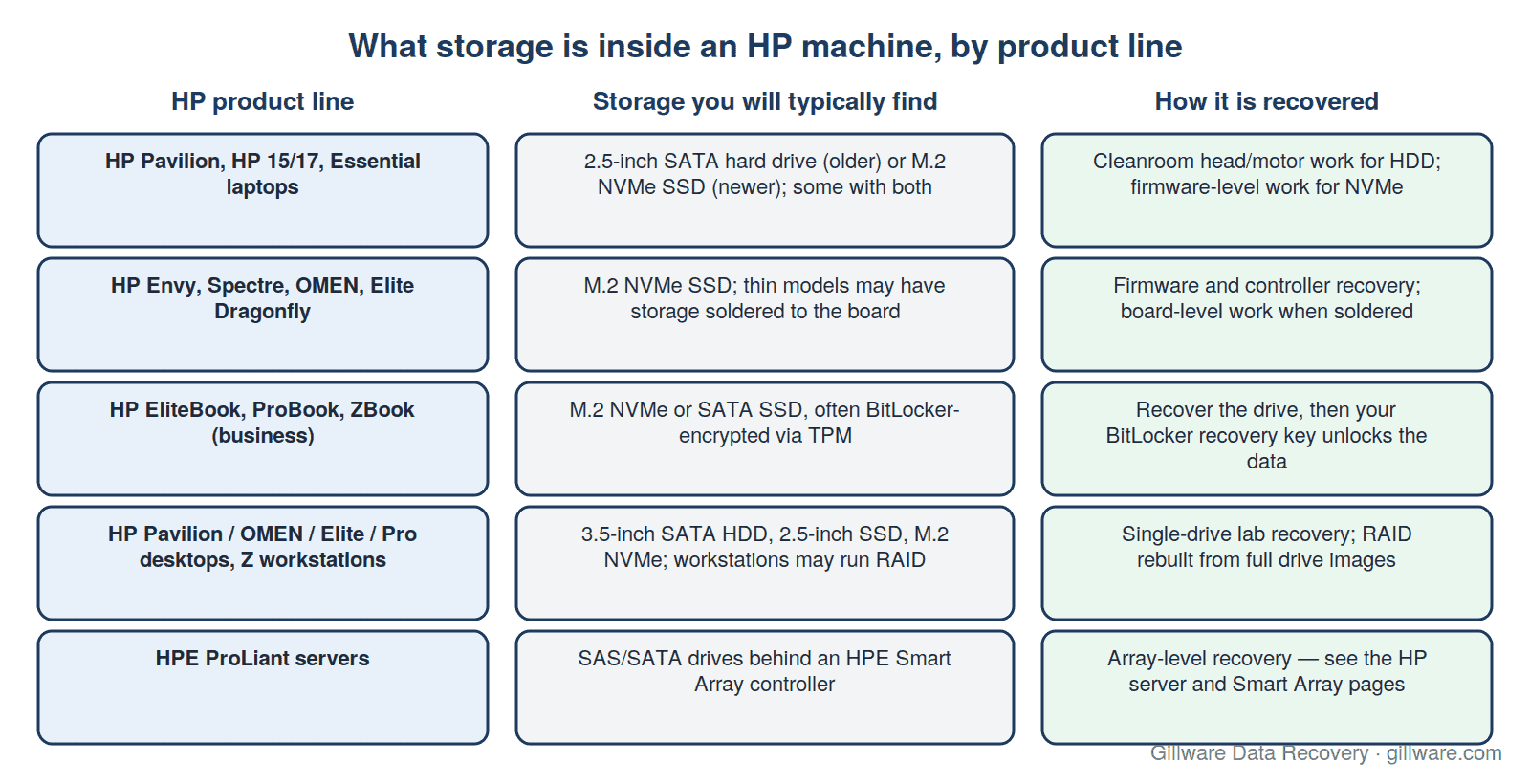
Pavilion, HP 15 and 17, and other consumer laptops
Older Pavilions carry a 2.5-inch SATA hard drive, frequently a 5,400 rpm two-platter unit that spends its life being carried around. These fail mechanically: heads, motor, and platter damage after a drop. Newer Pavilions ship with an M.2 NVMe SSD, sometimes alongside a spinning drive for bulk storage. If your Pavilion has both, the operating system is on the SSD and your documents may be on either. Our laptop data recovery page covers the four laptop storage types in depth.
Envy, Spectre, OMEN laptops, and Elite Dragonfly
Thin-and-light and performance HP laptops are almost exclusively M.2 NVMe. NVMe drives fail hard and fail quietly: the controller stops responding and the drive disappears from the BIOS with no warning sound. Some of the thinnest models solder the flash memory directly to the board, so there is no drive to remove; recovery becomes board-level work. Both cases are firmware-level recoveries, described on our SSD data recovery page.
EliteBook, ProBook, and ZBook
HP’s business machines add one complication that matters more than the hardware: BitLocker. Most corporate EliteBooks and ProBooks encrypt the drive with a key sealed in the TPM chip. That does not stop us from recovering the drive, but it does mean the recovered image is unreadable until it is unlocked with your BitLocker recovery key, which your IT department or your Microsoft or Azure AD account holds. Encryption itself is never the failure we are fixing; we recover the failed hardware, and your key unlocks the data. Locate the recovery key before you ship the machine. Our BitLocker data recovery post explains what to have ready.
HP desktops, All-in-Ones, and Z workstations
Pavilion, OMEN, EliteDesk and ProDesk towers usually carry a 3.5-inch SATA hard drive, a 2.5-inch SSD, an M.2 NVMe SSD, or a mix. All-in-One models pack laptop-style storage into the display housing. Z-series workstations frequently run two or more drives in RAID for speed, which means a failed array has to be rebuilt from complete images of every member before any file can be read. Single-drive desktop cases follow the same paths as laptops; RAID workstations are handled in our RAID lab.
HPE ProLiant servers
ProLiant servers are a different discipline. The drives sit behind an HPE Smart Array controller, and the failure states, controller messages, and destructive actions an administrator meets are covered on their own pages: HP server data recovery, HP ProLiant data recovery, and HPE Smart Array RAID controller data recovery. If your ProLiant has a degraded or failed array, stop there: do not initialize, do not force drives online, and do not let a rebuild start.
What to do in the next ten minutes
- Power it off. Hold the power button until the machine is fully off. A drive that is failing mechanically is being damaged every second it spins; a drive with bad sectors is being asked to re-read them at every boot.
- Do not run HP System Recovery, a Windows reset, or a reinstall. HP’s recovery environment is designed to restore the computer to a working state, not to preserve your files. A reset or reinstall writes over the areas of the drive where your data lives.
- Do not keep running diagnostics. One pass of HP’s hardware test is informative. Repeated passes are simply more stress on a drive that has already told you it is failing.
- Do not try recovery software on the drive itself. Software runs on the failing drive and forces it to work harder; on an SSD with a corrupted mapping table it can make the data permanently unreachable.
- Find your BitLocker recovery key if the machine is a business model or you signed in with a Microsoft account. It is stored in your Microsoft account online, in your organization’s Active Directory or Azure AD, or on a printout or USB drive you made when encryption was turned on.
- Write down the exact error code (3F0, 301, 303, or the message text) and the model number from the label on the bottom of the machine. Both help our engineers plan the evaluation.
Removing the drive: usually not necessary
You do not need to open the machine. Many HP laptops now require the entire bottom cover to come off, some Spectre and Envy models have the storage soldered in place, and All-in-Ones are difficult to open without damaging the display. Ship the whole computer if you are not comfortable removing the drive; our engineers remove it, recover the data, and return the computer and your data together. If you do remove the drive yourself, handle it by the edges, put it in an anti-static bag, and do not connect it to another computer to “see if it works.”
How Gillware recovers HP drives
Every HP case begins with a free evaluation. You send the drive or the whole machine, our engineers diagnose the failure, and you receive a firm quote before any billable work starts. Every case is quoted after a free evaluation, so you know the cost before any recovery work begins, and you pay only if we recover your data.
- Diagnosis. We identify the storage type and the failure mode: mechanical, electronic, firmware, or logical. HP’s error code is a starting point, not a conclusion; a 3F0 can be a loose connector or a dead controller, and the evaluation tells us which.
- Spinning drives. Mechanical failures go to our ISO 5 (Class 100) cleanroom, where engineers replace failed heads or motors with matched donor parts and then image the platters sector by sector with hardware that adapts to weak areas instead of pounding on them.
- SSDs and NVMe. Our engineers work at the firmware level to bring the controller back to a state where the NAND can be read, or read the NAND chips directly when the controller cannot be revived and the platform allows it.
- Soldered storage and board damage. Liquid spills and power events on thin HP laptops often damage the power path on the board rather than the flash itself. We work on the board to bring the storage back up long enough to image it.
- Encrypted drives. With a complete image in hand and your BitLocker recovery key, we unlock the image, rebuild the file system, and verify the files that matter most to you. Without the key, no lab can read the data, and we will tell you that plainly at evaluation.
- Delivery. Your data comes back on a new drive with a file listing you can review before approving the case, and the working copy we made is securely destroyed.
Frequently asked questions about HP data recovery
HP says “Boot Device Not Found.” Is my data gone?
Usually not. The message means the firmware cannot find a bootable drive; it says nothing about whether the data on that drive is intact. Many 3F0 cases are fully recoverable once the failed component is addressed in the lab. The data is only at risk if you follow the on-screen prompts into a system recovery or reinstall.
Can I use HP Recovery Manager or HP Cloud Recovery to get my files back?
No. Those tools rebuild the operating system on the drive so the computer works again. They do not recover personal files, and running them on a drive that still holds your data will overwrite it. Recover the data first; restore the operating system afterward on a new drive.
My EliteBook is BitLocker-encrypted. Can you still recover it?
Yes, provided you have the BitLocker recovery key. We recover the failed drive exactly as we would an unencrypted one and then unlock the image with your key. If the key is genuinely lost, the data cannot be read by anyone, and we will say so at the evaluation stage rather than take the case.
Should I send the whole laptop or just the drive?
Either is fine. If you are not confident removing the drive, or the model has soldered storage, send the whole machine. We remove the drive, recover the data, and return everything together.
My HP has both an SSD and a hard drive. Which one failed?
The evaluation will tell you. As a rule, a machine that will not boot has a problem with the drive holding Windows, usually the SSD, while the larger spinning drive holds documents and media. We check both and recover from whichever holds the data you need.
How long does an HP recovery take?
It depends on the failure. Logical and simple electronic cases move quickly; cleanroom cases and NVMe firmware work take longer because the drive has to be stabilized before it can be imaged. You will get a time estimate with your quote, and expedited service is available when the situation demands it.
Get your HP data back
Whether it is a Pavilion showing a 3F0 screen, a Spectre whose SSD has vanished from the BIOS, an EliteBook with a BitLocker prompt on a drive that will not read, or a ProLiant with a failed array, the first step is the same: stop powering it on and get it evaluated. The evaluation is free, the quote is firm before any work begins, and you only pay if we recover your data.
Call 877-624-7206 or submit a case online and we will send you shipping instructions for the drive or the whole machine.