
WD My Passport Data Recovery: Causes, Solutions, and What to Do First

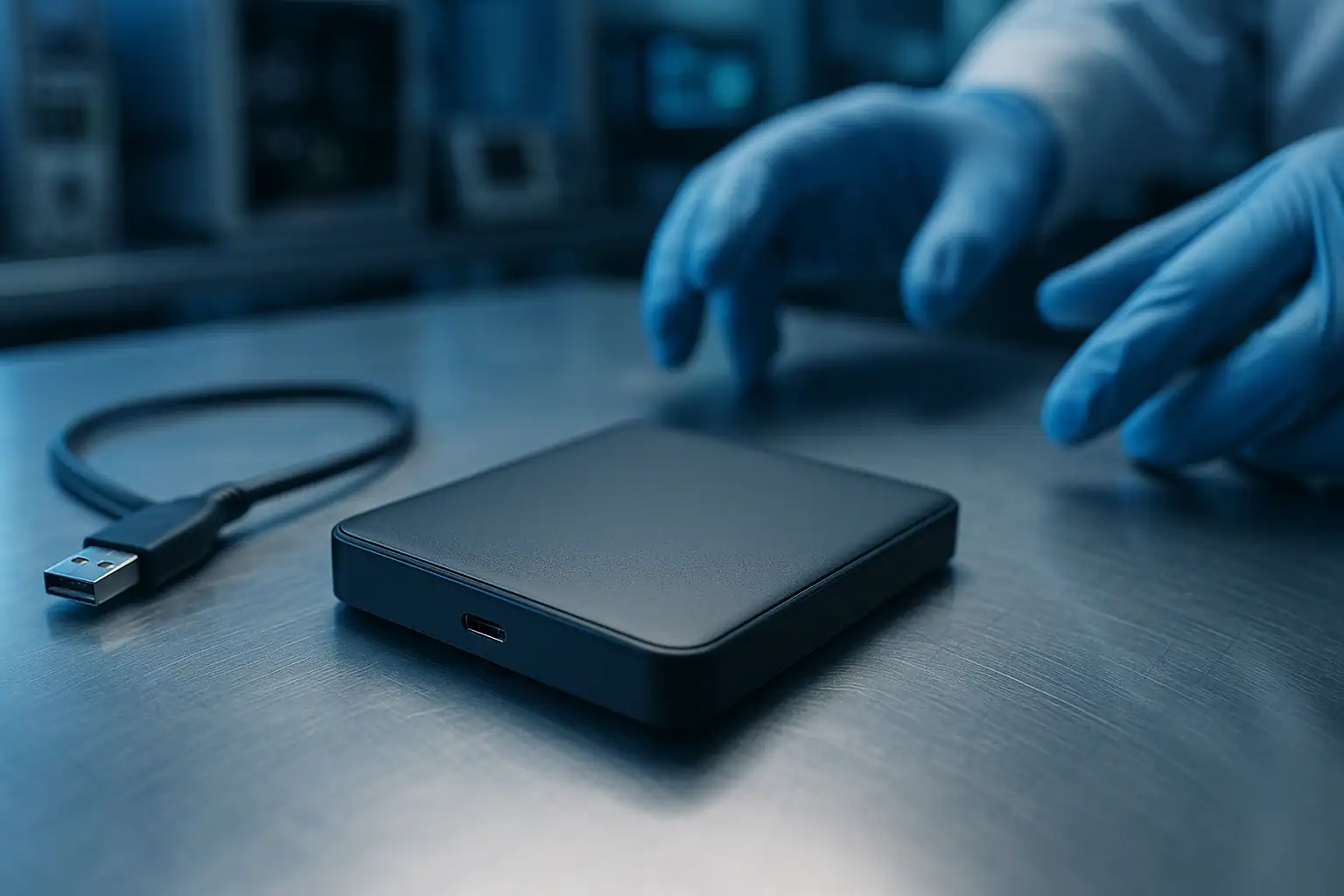
Western Digital’s My Passport is the best-selling portable external hard drive in the world. Millions of people use them as primary backups, photo libraries, project archives, and that-one-place-where-everything-important-lives. When a My Passport fails, the data on it is usually irreplaceable — and the failure modes are specific enough to the My Passport’s design that the right response isn’t quite the same as for other external drives.
This page walks through the failure scenarios we see most often in My Passport cases, what causes them, and what you should and shouldn’t do when your My Passport stops working.
Common WD My Passport Failure Scenarios
Not recognized / not showing up
You plug in the My Passport and nothing happens. The drive doesn’t appear in File Explorer (Windows) or Finder (Mac). The drive light may or may not come on. Disk Management may show the drive but with no volume, or may not show it at all.
Causes range from minor to serious:
- USB cable damage (very common — the micro-USB or USB-C cable that comes with My Passport drives is notably fragile)
- USB port issues on the computer (try a different port, ideally directly on the motherboard, not through a hub)
- Driver problems (rare but possible after Windows updates)
- File system corruption — drive is detected but the partition is unreadable
- Internal USB-to-SATA bridge failure (a hardware component inside the My Passport that translates between USB and the actual hard drive)
- Drive mechanism failure — the actual hard drive inside the enclosure has failed
Clicking, beeping, or grinding sounds
These noises indicate mechanical failure inside the drive. The most common is clicking, which usually means the read/write heads have failed — they’re attempting to read data but can’t, then resetting and trying again, producing the characteristic clicking sound.
This is the most serious failure type, and the action you take in the first few minutes matters enormously. Every additional power-on cycle on a clicking drive can cause more damage to the platters (the magnetic surfaces where your data is stored). The heads have failed and are skipping across the platter surface where they should be hovering nanometers above it.
If your My Passport is clicking, beeping, or grinding: power it off and leave it off.
Drive shows as RAW or “needs to be formatted”
Windows recognizes the drive but says the file system is RAW, or asks you to format it before you can use it. The data is still on the drive — the file system index that organizes it has been corrupted. Common causes: improper disconnection during writes, power events affecting the drive while connected, or early-stage drive failure manifesting as file system corruption.
See our broader RAW drive recovery guide for what to do (and not do) in this scenario.
Drive worked yesterday, now nothing
One of the most disorienting scenarios — the My Passport worked fine yesterday, and today it doesn’t. The drive may power on (light comes on, you can hear it spin up), but the computer doesn’t recognize it. Or it powers on briefly then shuts off. Or it doesn’t power on at all.
This pattern often indicates a USB-to-SATA bridge failure inside the drive. The internal hard drive may be perfectly healthy — but the bridge that translates between USB and SATA has died, making the drive inaccessible through normal means.
Dropped or physically damaged
The My Passport is portable, which means it gets dropped, knocked off desks, packed in luggage with poor padding, and otherwise exposed to physical shocks. After a drop, the drive may:
- Power on but not be recognized
- Make unusual sounds (clicking, scratching, scraping)
- Show up briefly then disappear
- Power on but not spin up at all
Even drops that didn’t seem severe can damage the internal mechanism. The heads can come loose from their parking ramp, the platters can shift slightly, or the spindle motor can be damaged. Don’t power on a dropped drive that shows any of these symptoms — pulling power and getting it to a recovery lab is far safer than trying again.
Access denied / can’t read files
The drive is recognized, the file system appears intact, but Windows or macOS reports “access denied” or fails to read specific files. This often indicates filesystem corruption that hasn’t yet progressed to full RAW state, but it’s heading there. Sometimes it indicates permission issues if the drive was used on a different computer or operating system.
Don’t run repair tools (chkdsk, Disk Utility First Aid) on a drive with critical data when access is starting to fail — the repair process can compound the damage.
WD security / encryption issues
The My Passport line includes built-in hardware encryption — when you set a password through the WD Security software, the drive encrypts everything at the hardware level. Forgetting the password makes the data inaccessible. Western Digital does not have a backdoor; we don’t have a backdoor; no legitimate recovery service can break the encryption.
If your My Passport had a WD Security password set and you’ve lost it, the data on the drive is not recoverable through any legitimate means.
What Makes the My Passport Specific
A few design choices in the My Passport line affect how failures present and how recovery works:
USB-to-SATA bridge integrated into the drive PCB. Most external drives have the USB-to-SATA bridge on a separate small board that’s easy to replace. On many My Passport models, this bridge is integrated directly onto the drive’s main PCB (printed circuit board). If the bridge fails, you can’t just swap a different USB adapter onto the bare drive — the entire interface is on the drive itself. Professional recovery has tooling for this, but DIY enclosure swaps don’t work the way they do for some other external drives.
Hardware encryption by default on some models. Newer My Passport models encrypt data automatically using a hardware key, even when the user hasn’t set a password. This means simply taking the drive out of the enclosure and connecting it directly to a different computer won’t work — the drive returns encrypted data that’s meaningless without the encryption key, which is stored in the enclosure. Recovery requires preserving the original PCB or extracting the encryption key.
Slim portable design with limited shock protection. The compact form factor that makes My Passport drives so popular also means they have less shock-absorbing material than larger desktop external drives. Drops that a desktop external would survive can be fatal to a My Passport.
Model variations matter. “My Passport” is a product line, not a single drive. The My Passport, My Passport Ultra, My Passport for Mac, My Passport Wireless, and My Passport SSD all have different internal architectures. Recovery approaches vary significantly between models — particularly between the spinning-disk My Passport models and the My Passport SSD line, which uses entirely different storage technology.
What to Do Right Now If Your My Passport Failed
The first hour matters more than any other. Most data loss happens not from the original failure but from what people do in response to it.
Stop using the drive immediately. Don’t keep plugging it in and unplugging it. Don’t try different USB ports repeatedly. Don’t run diagnostic utilities. Each power-on cycle on a damaged drive risks making things worse.
If you hear any unusual sounds — power it off and leave it off. Clicking, beeping, grinding, or unusual whirring noises all indicate mechanical problems. The drive needs to come to a cleanroom, not stay plugged into your computer.
Don’t run chkdsk, Disk Utility First Aid, or any repair tool. These tools can permanently alter file system structures that recovery depends on. They’re designed for healthy drives with minor logical issues — not failing drives with important data.
Don’t format the drive, even when Windows asks you to. If Windows pops up “You need to format the disk in drive X: before you can use it,” click Cancel. Formatting destroys file system data that’s still recoverable.
Don’t open the My Passport enclosure unless you know what you’re doing. Opening the drive exposes the platters to dust and static, both of which can cause additional damage. The internal drive isn’t designed to be removed from the enclosure by end users.
Don’t try multiple recovery software products in sequence. Each consumer recovery tool you run reads every sector of the drive, potentially for hours. On a failing drive, this can push partial failure into total failure. If you’re going to try recovery software, pick one reputable option and stop after one attempt if it doesn’t work.
Document the failure. What was happening when the drive failed? Was there a drop, a sudden disconnect, a power event? What sounds is the drive making? What does the computer show in Disk Management? This information speeds up diagnosis significantly.
How My Passport Recovery Works at a Professional Lab
When a failed My Passport arrives at our lab, the recovery process is designed to protect the data at every step:
1. Diagnosis without powering up the drive (when possible). For mechanical failures, our engineers determine the failure mode through physical inspection and controlled diagnostic procedures rather than just plugging the drive in and hoping.
2. Cleanroom work for mechanical or physical damage. Failed read/write heads, damaged platters, and electronic failures inside the drive require work in our ISO 5 cleanroom. For drives with mechanical failure, this often means temporarily replacing failed components (head transplants, PCB repairs) just long enough to image the drive — not to restore it to long-term function.
3. Handling the encryption properly. For My Passport models with hardware encryption, we preserve the original PCB and use it (or extract the encryption keys from it) during recovery. Simply connecting the bare drive to a different controller won’t work for encrypted models — recovery requires keeping the original interface in play.
4. Write-blocked forensic imaging. Once the drive is stable enough to read, we capture a bit-for-bit forensic image through a hardware write-blocker. The original drive is never written to. All subsequent recovery work happens against the image, so any attempt that doesn’t succeed can be rolled back without harming the data.
5. File system reconstruction with proprietary tooling. For RAW drives or drives with damaged file systems, our internal tool Hombre parses partial NTFS structures directly from the forensic image and extracts individual files even when the volume itself wouldn’t mount.
6. Recovered data delivered on new media. Your data comes back on a healthy drive — not the failed My Passport, which has demonstrated it can’t be trusted with critical data anymore.
Frequently Asked Questions
How much does WD My Passport recovery cost?
Every case starts with a free evaluation. Pricing depends on the failure mode: logical failures (file system corruption, accidental deletion) are typically less than mechanical failures (clicking, head damage), which are typically less than complex electronic failures requiring component-level work. We work on a no-recovery-no-fee basis for consumer cases — you only pay if we successfully recover your data.
My Passport just shows the light but doesn’t spin up. What does that mean?
Usually one of three things: PCB failure (the electronic board inside the drive has died), motor failure (the spindle that spins the platters has seized), or USB bridge failure (the interface chip has died). All three are recoverable, but each requires different work.
I dropped my My Passport and now it clicks. Can it be recovered?
Almost always yes, when handled correctly. Clicking after a drop typically means the heads were damaged or knocked out of position. Recovery in this case involves carefully replacing the head assembly in our cleanroom and imaging the drive before the heads can cause additional damage. The platters where your data lives are usually still readable.
The drive shows in Disk Management but is grayed out. Is that recoverable?
Yes — that pattern usually indicates the partition or file system is damaged but the drive itself is still readable. This is one of the more recoverable scenarios for My Passport drives.
Can I just put the My Passport’s internal drive in another enclosure?
For older My Passport models without hardware encryption, sometimes yes — though the USB-to-SATA bridge being integrated onto the main PCB makes this harder than for some other external drives. For newer models with hardware encryption, no — the encryption key is tied to the original enclosure, and a different enclosure will return encrypted gibberish even if the connection works.
My Passport SSD vs. spinning My Passport — same recovery process?
Different processes. The spinning My Passport models have failure modes related to the mechanical components (heads, motor, platters) that don’t exist on SSDs. The My Passport SSD has its own failure modes related to the NAND controller and chips. The forensic imaging discipline is the same; the underlying recovery work is quite different.
Why does my brand-new My Passport feel hot to the touch?
Some heat is normal during heavy I/O, but a My Passport that’s hot enough to be uncomfortable to hold may have a ventilation issue or a developing failure. If the drive starts performing oddly along with running hot, treat it as an early warning sign and back it up immediately to a different drive.
The Bottom Line
The My Passport is a great portable drive — until it isn’t. When one fails with important data on it, the response in the first hour determines whether the recovery is routine or difficult. The key principles: stop using a drive that’s failing, don’t run repair tools on data you can’t afford to lose, and get a professional opinion before the situation gets worse.
If your My Passport has failed and the data matters, we offer a free consultation to walk through your specific situation, identify the likely cause, and tell you honestly what’s possible.
Get a Free Recovery Evaluation
No upfront cost · You only pay if we recover your data
Or call 1-877-624-7206 to speak with a recovery specialist
