
Dahua DVR & NVR Data Recovery (Lorex & Amcrest)

Your Dahua recorder — or a Lorex or Amcrest unit, which are built on the same Dahua platform — is showing “No Disk,” an HDD error, or an “Unformatted” status, and the playback timeline that should hold weeks of footage is empty. Maybe it started right after a power dip. Maybe you pulled the drive, connected it to a PC, and Windows wants to initialize it. The fear is the same: is the footage gone? Usually it isn’t — the video is still physically on the drive. But a Dahua unit in an error state will prompt you to re-format the disk, plenty of online advice tells you to do exactly that, and Windows will offer to initialize it. Any of those erases footage that was perfectly recoverable. Here’s what’s really happening and how we get Dahua footage back.
This is a brand-specific companion to our general security DVR and CCTV footage recovery guide, focused on how Dahua systems — and the Lorex and Amcrest systems based on them — store video and fail.
Why a Dahua drive won’t read on a computer
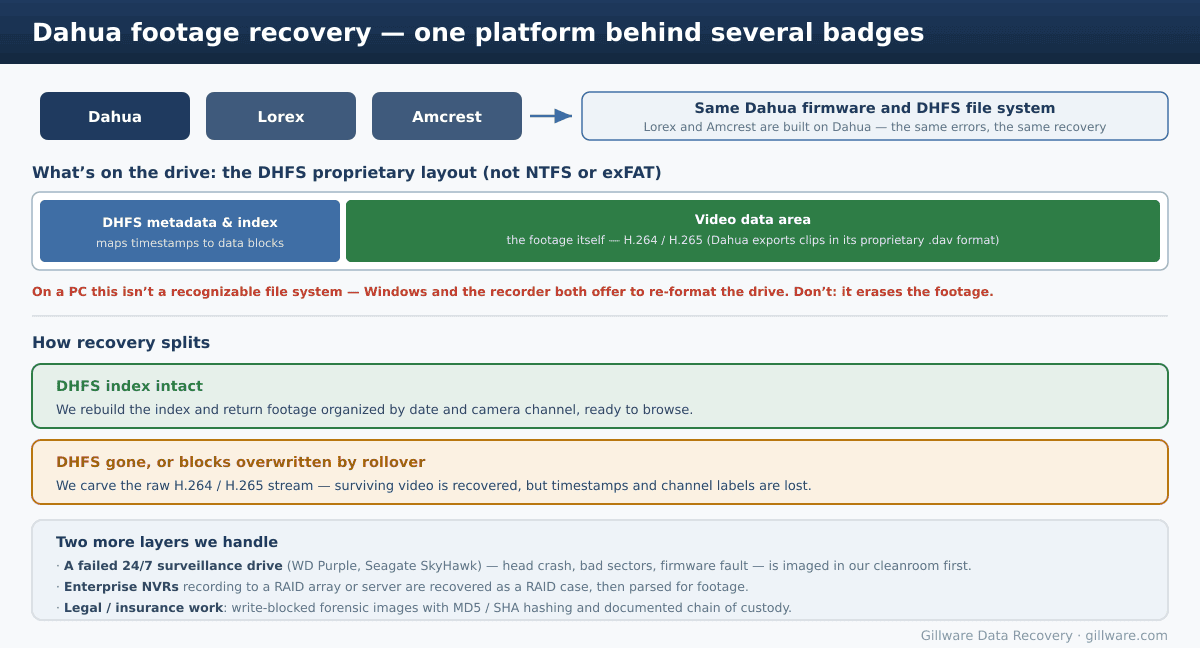
Dahua, the second-largest recorder manufacturer in the world, doesn’t store footage in a standard file system like NTFS or exFAT. It uses its own proprietary format, DHFS (the Dahua file system). DHFS keeps a metadata index that maps timestamps and camera channels to locations on the disk, and writes the footage itself as raw H.264 or H.265 video. When you export a clip from the recorder, it comes out in Dahua’s proprietary .dav format, which only plays in Dahua’s own player until it’s converted — a conversion we handle as part of recovery so you get standard, viewable files.
Because DHFS matches no file system a computer understands, connecting the drive to a Windows machine produces the same result every time: the disk shows up as unallocated or “not initialized,” and Windows offers to initialize it. The data is all there — your computer simply doesn’t speak the format.
This is also the most important reason Lorex and Amcrest belong on this page. Both are built on Dahua’s platform and firmware, so they use the same DHFS format, throw the same errors, and recover the same way. If you have a Lorex or Amcrest recorder, everything below applies to you — and for those specifically, see our dedicated Lorex and Amcrest recovery pages.
The Dahua errors we see most
Across the XVR line (Dahua’s HDCVI penta-brid DVRs — the XVR Lite, Pro, and Ultra series, including the XVR 4.0 and 5.0 generations) and the NVR Lite/Pro/Ultra families, plus the Lorex and Amcrest equivalents, the symptoms that bring a drive to us are consistent:
- “No Disk” / “HDD is not available for recording” / “Hard Drive is not detected.” Dahua units report “No Disk,” Lorex commonly shows “HDD is not available for recording,” and Amcrest displays “NO DISK” — all the same underlying condition.
- HDD status Error or Unformatted. In Storage / HDD Management the drive reads “Error” or “Unformatted” instead of “Normal,” and the unit stops recording.
- Empty timeline / no playback. Live view works and the cameras are online, but there’s nothing to play back because nothing is being written.
- Trouble right after a power dip. A brief outage or surge leaves the HDD corrupted or “disconnected,” and a reboot doesn’t clear it — one of the most common ways these drives arrive.
Here is the dangerous part, and the reason these cases so often turn from recoverable to lost: when the status is “Error” or “Unformatted,” the recorder’s own menu invites you to re-format the drive to clear the problem, much of the troubleshooting advice online says to format it or to run disk-repair tools on a PC, and Windows offers to initialize it the moment you connect it. Every one of those actions overwrites the structures — or the footage — we would otherwise use to recover your video.
What’s usually really wrong
A “No Disk” or HDD error on a Dahua, Lorex, or Amcrest unit almost always traces back to one of a few causes:
- A failing surveillance hard drive. These drives run 24/7 and wear out — head crashes, bad sectors, firmware corruption. Most units ship with a purpose-built surveillance drive; if yours is a WD Purple or a Seagate SkyHawk, those failure patterns and our process for them are covered on their own pages.
- Power dips and surges. An abrupt loss of power can corrupt DHFS even when the drive itself is healthy, leaving the “No Disk” or “disconnected” state described above. A loose or failing SATA or power connection inside the unit can mimic the same symptom.
- Accidental format or factory reset. Someone clears the error the way the menu suggests, or resets the unit, and the footage goes with it — recoverable if the drive is then set aside quickly.
- Loop overwrite (rollover). Dahua records in a loop and overwrites the oldest footage once the disk fills. Video from before that point is permanently gone; we explain that hard limit in the DVR recovery guide.
- Lockouts. If the unit is simply locked and no one has the password, that’s a separate problem — see recovering a lost DVR/CCTV password.
- Enterprise NVRs on shared storage. Larger Dahua deployments may record to a RAID array or NAS rather than a single internal disk; those are recovered as an array first, then parsed for footage.
How we recover Dahua footage
We image the drive sector by sector and work only from that copy, so nothing we do can reduce your chances. From the image we read the DHFS layout directly. If the index has survived, we rebuild it and return your footage organized by date and camera channel, exactly as you’d browse it on the recorder — converted out of Dahua’s .dav format into standard, playable files. If the index is gone, or the blocks you need have been partly overwritten by rollover, we carve the raw H.264/H.265 stream out of the data area — that recovers the surviving video, though the timestamp and channel associations are lost. When the drive is physically failed, the platters are rebuilt in our cleanroom before any of that begins, and for legal or insurance matters we provide write-blocked forensic images with MD5/SHA hashing and a documented chain of custody.
What to do right now
- Stop the recorder. If the footage you need is still within the retention window, every hour the unit keeps running risks overwriting it.
- Do not re-format or initialize the drive — not from the Dahua, Lorex, or Amcrest menu, not by running disk-repair tools on a PC, and not when Windows prompts you. This is the single most common way these cases are lost, and a lot of online advice gets it wrong.
- Don’t keep rebooting the unit after a power dip to try to clear the error. Repeated reboots can rewrite metadata and widen the gap in your timeline.
- Pull the drive, label it, and set it aside — or send the whole unit if it’s fire- or water-damaged — so it can be imaged and worked from a copy.
What it costs
Every case begins with a free phone consultation and a free evaluation. For a standard single-drive Dahua, Lorex, or Amcrest recovery our model is risk-free: no data, no charge. The honest exceptions are the rollover and overwritten-footage scenarios, and forensic or court-ordered work, which involve hands-on engineering time and sometimes amount to documenting why footage is gone — we evaluate those individually and give you a clear assessment and a quote before any work begins.
Dahua recovery is one part of our broader video recovery practice — the same lab and process handle cameras, external recorders, and every major surveillance brand, including Hikvision DVRs and NVRs.
“No Disk” on a Dahua, Lorex, or Amcrest? Don’t Re-Format It
Power the recorder down, set the drive aside, and talk to us. Free, confidential evaluation — the footage is usually still there.
Or call us: 877-624-7206
