
Drive Shows in Disk Management but Not File Explorer: What It Means and What to Do Next

You plugged in a drive, or restarted the computer, and it is gone from File Explorer. Then you opened Disk Management and there it is: the right size, the right model, sitting in the list like nothing is wrong. That combination is one of the most common things people search for after a drive scares them, and it is also one of the most misunderstood, because the same screen covers a drive that needs a two-second fix and a drive that is dying.
This article is about that specific situation: Windows detects the drive, but no volume with a drive letter appears. If the drive is not showing up anywhere at all, not in Disk Management, not in Device Manager, not in the BIOS, that is a different problem with a different set of causes; our guide to an external hard drive not showing up covers that path, and the broader hard drive not showing up page walks through the whole diagnostic tree. Here we stay on the case where the drive is visible and the question is what Disk Management is trying to tell you.
Why one Windows tool can see the drive and the other cannot
Storage is a stack, and each Windows tool looks at a different layer of it. Device Manager and the BIOS talk to the drive’s firmware and ask for its identity: model, serial, capacity. Disk Management goes one step further and reads the partition table at the start of the drive, then tries to read the file system inside each partition. File Explorer sits at the very top. It only shows volumes that have been mounted and given a letter. If anything below that layer is broken or unreadable, File Explorer has nothing to display, while Disk Management still lists the physical disk it can identify.
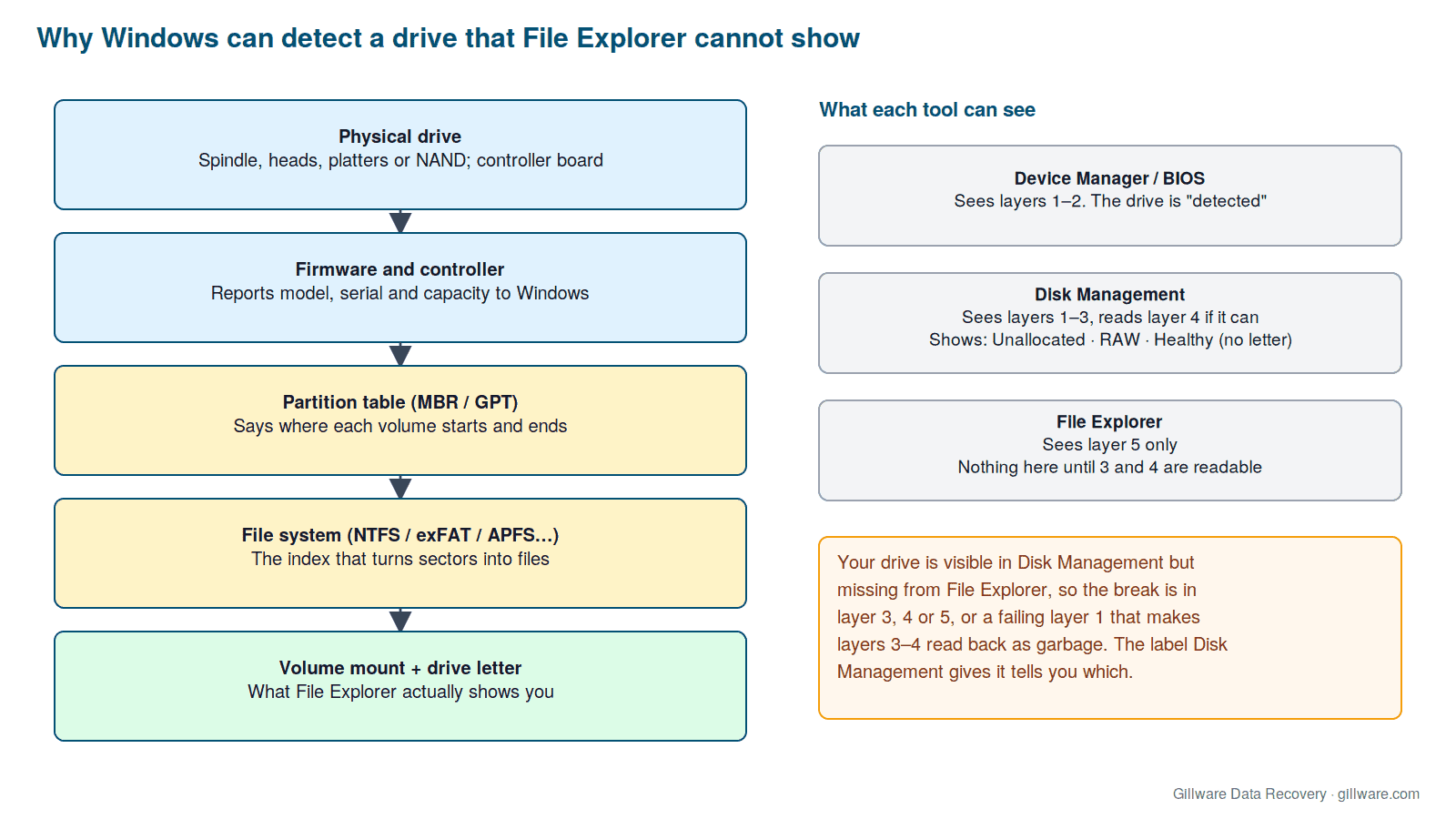
So the question is never “is the drive detected?” It obviously is. The question is which layer stopped working, and Disk Management answers that with the label it puts on the volume. Read the label before you click anything.
What each Disk Management label means
“Healthy” with no drive letter
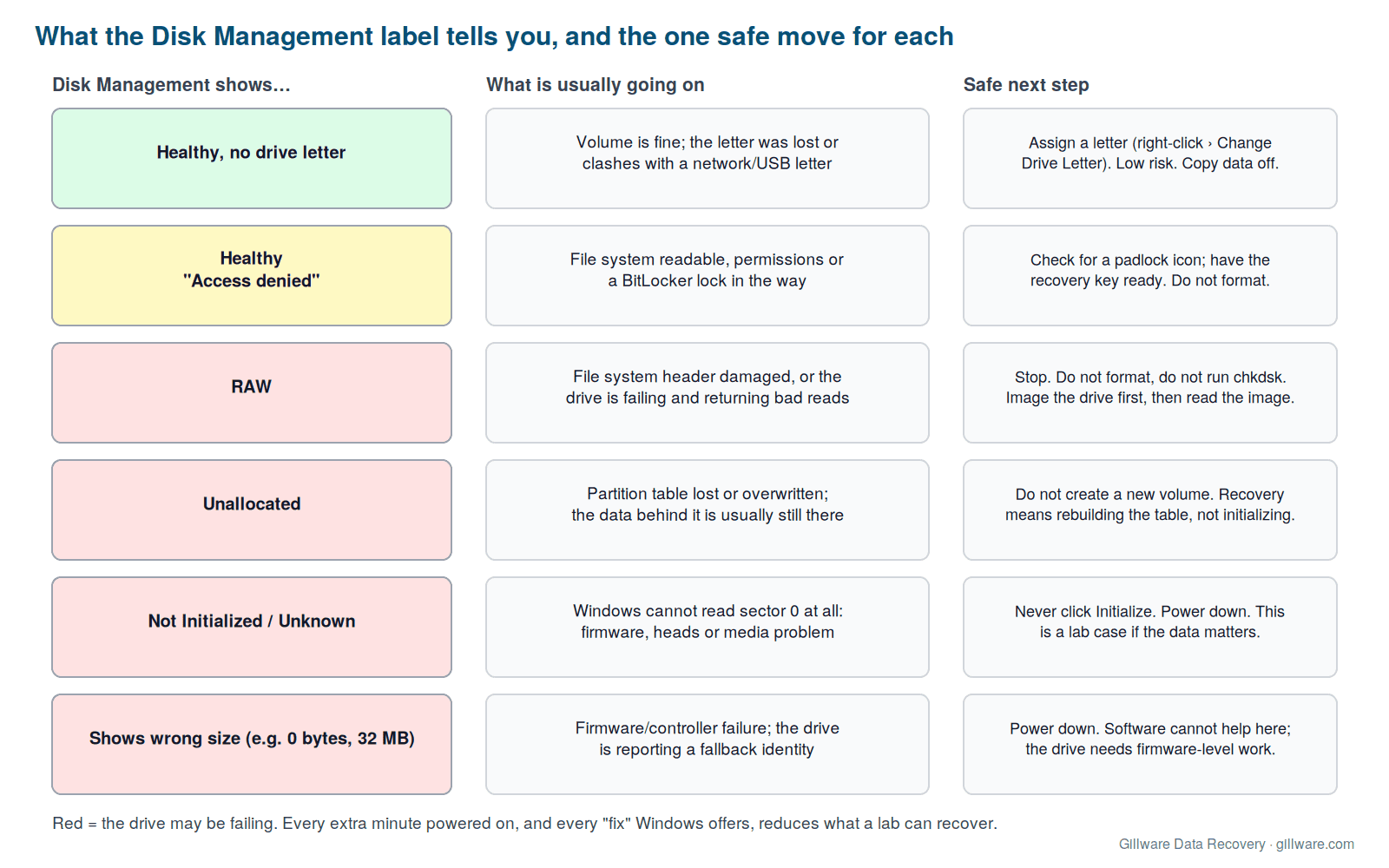
The partition and file system are intact; Windows simply did not assign a letter. It happens after a drive has been used in another machine, when a network share or a card reader already holds the letter the drive expects, or when a letter was removed manually. Right-click the volume, choose Change Drive Letter and Paths, add a letter, and the drive appears. This is the low-risk case, and it is the only one on this list where the fix is a Disk Management menu. Copy your data off afterwards anyway; a drive that lost its letter for no reason you can identify has earned a second look.
“Healthy” but the folder opens to an error
If a letter is assigned yet the volume opens to “Access is denied,” “The parameter is incorrect,” or a request for a BitLocker recovery key, the file system is readable and something in front of it is in the way. Permissions inherited from a different Windows install are common and fixable. A padlock icon means BitLocker: find the recovery key in the Microsoft account, Active Directory, or wherever it was printed before doing anything else. What you should not do is accept Windows’ offer to format so that you can “use the disk.”
RAW
RAW means Disk Management found a partition but could not recognise the file system inside it. Two very different things produce that result. The first is genuine corruption of the file system’s own structures, the boot sector or the master file table on an NTFS volume, which can follow an unsafe removal or a crash mid-write. The second is a drive that is physically failing and returning wrong or unreadable data when Windows tries to read those structures. From the outside they look identical. Our RAW drive recovery guide goes deeper on telling them apart; the short version is that a RAW drive should be imaged sector by sector before anyone tries to read or fix the file system, because the “fix” tools assume the drive underneath them is healthy.
Unallocated
Unallocated space means the partition table no longer describes a volume in that region. The data that was there is almost always still physically present; only the entry that says where it starts and ends is gone. Windows will helpfully offer to create a new simple volume. Do not. Creating a volume writes a new file system header over the beginning of the old one, and the more you write, the less of the original there is to reconstruct. A lost partition table is normally rebuilt by reading the drive and finding the old file system boundaries, and that work needs the space left exactly as it is.
“Not Initialized” or “Unknown”
This one deserves the strongest warning on the page. It means Windows could not read the very first sector of the drive at all. For a drive that has never been used, that is normal. For a drive that held your data yesterday, it means the drive is not reading its own media: a firmware problem, a failed head, or damaged platters or NAND. The Initialize Disk prompt that pops up is not a diagnostic; it is an instruction to write a brand-new, empty partition table to a drive that is already struggling to read. If the data matters, close the prompt and power the drive down.
The size is wrong
A 2 TB drive showing as 0 bytes, 32 MB, or some other odd figure has stopped reporting its real identity. Drives fall back to a minimal “safe mode” identity when their firmware cannot load its own modules from the platters or flash. Nothing at the Windows level will change that; the drive needs firmware-level work in a lab, and every power cycle is another chance for the situation to get worse.
The two questions that decide whether this is a software problem
Before doing anything with the drive, answer two questions honestly.
- Did anything happen to the drive? A drop, a power outage, a thunderstorm, a laptop that got wet, a USB cable yanked mid-copy. Any of these makes a physical or firmware cause far more likely than a simple logical one.
- Is the drive behaving normally otherwise? Listen to it. Clicking, buzzing, or repeated spin-up and spin-down cycles mean the heads or motor are in trouble, and the RAW or Unallocated label is a symptom, not the disease. Watch how Disk Management behaves too: if it hangs for a long time while loading, or the drive appears and disappears, the drive is timing out on reads. Windows is telling you the same thing your ears are.
If both answers are “nothing happened” and “it seems fine,” a logical cause is plausible and the low-risk steps above are reasonable. If either answer is worrying, treat the drive as failing until proven otherwise. That changes what you should do next.
What not to do when the drive might be failing
- Do not initialize, format, or create a new volume. Each of these writes over the structures a recovery depends on.
- Do not run chkdsk or any “scan and fix” prompt. On a healthy disk chkdsk fixes small inconsistencies. On a failing disk it rewrites file system structures based on reads that may be wrong, and a drive that was recoverable can come out the other side with its master file table overwritten. The NTFS data recovery page explains that failure mode in detail.
- Do not keep power-cycling it. Each spin-up on a drive with weak heads or contaminated platters does more damage; each firmware load attempt on a struggling SSD burns through whatever margin is left.
- Do not leave it plugged in “to see if it comes back.” Windows keeps polling a drive it can partially see. A drive that is failing is failing faster while it sits there being polled.
- Do not run recovery software against the live drive. Scanning a failing drive front to back is the most punishing workload you can give it. If a drive is going to be scanned, it should be a sector-by-sector image of the drive that gets scanned, never the original.
How a lab approaches a drive that is detected but not mounting
The order of operations in a data recovery lab is the reverse of what Windows encourages. First comes an evaluation of the hardware: does the drive spin up and stay up, do the heads read cleanly, is the firmware loading its modules, is the controller reporting the drive’s true identity. Then, and only then, comes a sector-by-sector image of the drive, made with hardware that can slow down, retry, and route around unreadable areas instead of freezing on them the way a Windows read does. The partition table and file system are then reconstructed from the image, not from the drive, so nothing that is done at that stage can make the original worse.
For a drive whose only problem really was a lost letter or a lost partition entry, that sequence is more than the situation needs, and we will say so at evaluation. For a RAW or Not Initialized drive that turned out to have a failing head, it is the difference between getting the files back and losing them. Gillware has worked cases that started exactly this way, “it shows in Disk Management but not in Explorer,” for more than two decades, and the drives that arrive before anyone has let Windows try to fix them are the ones with the most options left.
What to do right now
- Read the Disk Management label and match it to the section above.
- If it is Healthy with no letter, assign a letter and copy your data off.
- If it is RAW, Unallocated, Not Initialized, or the wrong size, and nothing happened to the drive and it sounds normal, you may have a logical problem; still, image first, then work on the image.
- If anything happened to the drive, or it clicks, hangs, or disappears and reappears, power it down and stop.
If you have reached the “power it down” step and the data matters, we can evaluate the drive at no charge and tell you which layer failed and what recovery involves. Call 877-624-7206 or submit a case online to get a free evaluation and a firm quote before any work begins.
