
The RAID 5 lost its second disk during rebuild and the ERP database won’t attach. The SAN’s controller failed overnight and the LUN that held the reporting database is showing zero bytes. Someone deleted the wrong iSCSI target in the storage panel and every VM disk on it went with it, including the SQL Server data drive. The mirror rebuild on a Storage Spaces pool completed with two columns short, and now SQL Server is throwing 823s every time a specific report runs. A production instance stopped mid-transaction when the drive holding the LDF ran out of space, and after the reboot the database is stuck in Recovery Pending. Or a well-intentioned engineer ran a third-party MDF repair tool overnight, and now the database mounts, but a chunk of the customer table is missing and there is no manifest of what got dropped.
None of these are software problems. They are hardware and storage problems that have taken a healthy SQL Server database and made it unreadable to the database engine underneath. That distinction matters because the search results for “SQL Server database recovery” are dominated by downloadable repair tools sold by companies whose entire business is convincing you that a $299 utility will fix a broken MDF file. Sometimes those tools work. Often they don’t. And when they don’t, they don’t just fail — they truncate rows, discard pages, drop tables, and rewrite the file into a form that mounts cleanly but is missing whatever the tool decided it couldn’t reconcile. If you’ve landed here after one of those tools ran against your only copy of the database, this page is written specifically for you.
Gillware is a data recovery laboratory. We recover SQL Server databases the way we recover any other file that has been damaged by a storage-layer failure: we image the underlying volume, reconstruct the array or LUN if it’s damaged, extract the MDF/NDF/LDF files intact, and parse them page by page against a rebuilt B-tree structure — without ever handing the file back to a repair tool that could throw more of it away. This page walks through what actually lives inside a SQL Server database file, how it fails when storage fails, and what recovery looks like when the built-in and third-party repair tools can’t help without cost.
Inside a SQL Server database file
The three files that hold a SQL Server database each play a specific role, and recovery of any of them requires an understanding of what’s inside.
The MDF file is the primary data file. Everything a database contains — user tables, system catalog tables, indexes, allocation maps, boot metadata — lives inside the MDF, organized as a flat sequence of 8-kilobyte pages. Pages are grouped into 64-kilobyte extents of eight contiguous pages each. Every page has a header carrying its page number, its object ID, its page type, and (when PAGE_VERIFY CHECKSUM is enabled) a computed checksum. Some pages hold user data; others hold the metadata that lets SQL Server find that data.
The NDF file, or one or more of them, is a secondary data file. NDFs are optional; they let a database span multiple physical files, typically to spread I/O across different disks or LUNs. From a recovery point of view, NDFs behave exactly like MDFs and are subject to all the same failure modes.
The LDF file is the transaction log. It is not a copy of the data. It is a sequential write-ahead log of every change made to the database, structured as a chain of virtual log files (VLFs) with monotonically increasing log sequence numbers (LSNs). The relationship between LDF and MDF is the same relationship you find in every serious database engine: writes hit the log first and only later flush to the data file. If the two are ever inconsistent, the log is the source of truth for what actually happened.
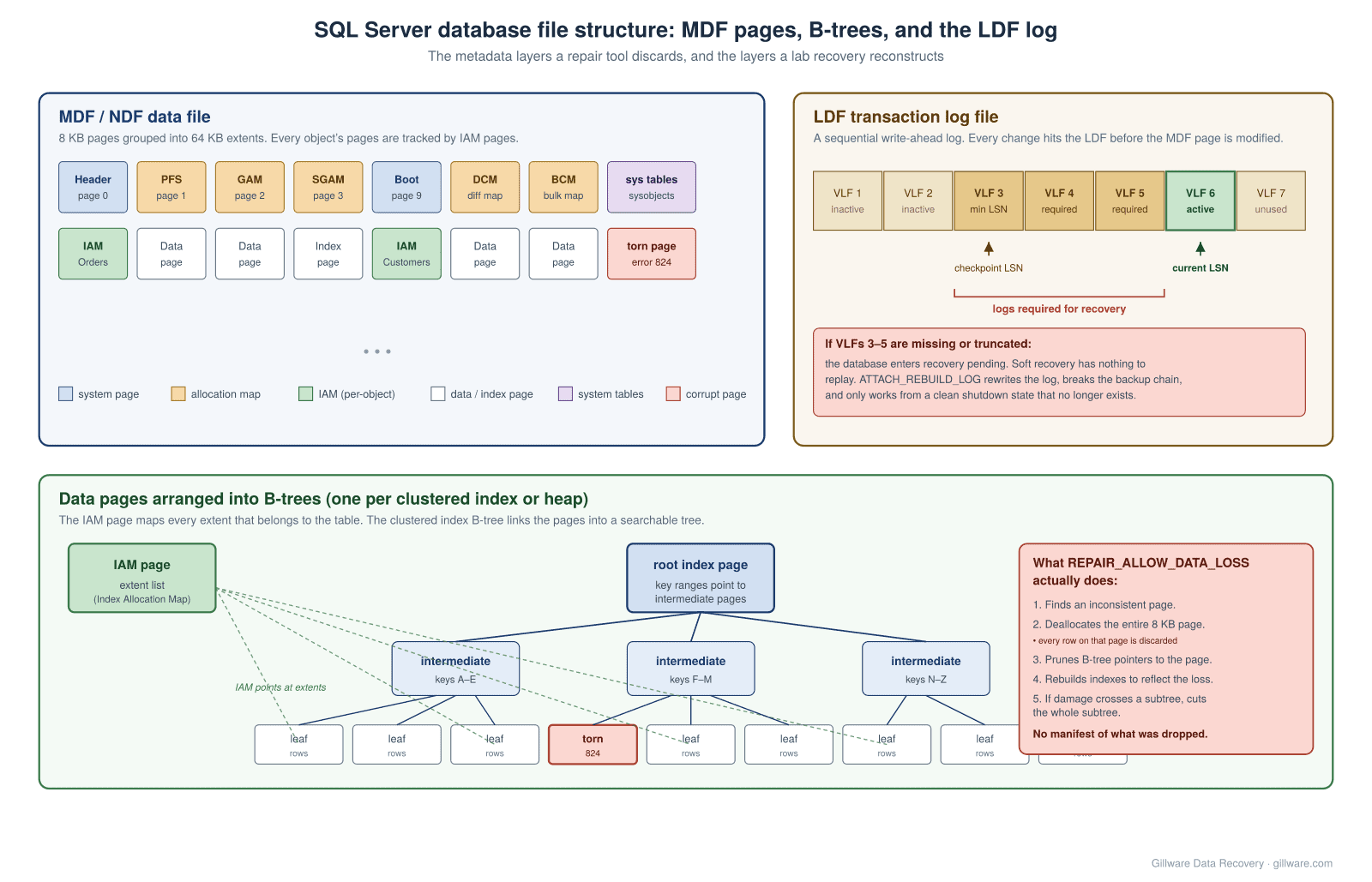
The metadata pages that make an MDF file navigable
A short list of the pages that matter most in a recovery. These are the structures whose damage produces the specific error codes that put a database in Recovery Pending or Suspect.
The file header at page 0 identifies the file and holds sanity information about the database. Corruption here produces error 5172 — the “SQL Server detected a logical consistency-based I/O error: The header for file…” message that appears in the error log when SQL Server refuses to attach the file at all.
The allocation maps — PFS (Page Free Space, page 1), GAM (Global Allocation Map, page 2), SGAM (Shared Global Allocation Map, page 3), plus DCM and BCM further in — are the bitmaps that tell SQL Server which extents and pages are allocated and to which object. When one of these gets damaged, the engine loses the ability to allocate new pages coherently, and any repair operation has to rebuild them from scratch by walking the entire file.
The boot page (page 9) holds high-level database configuration: recovery model, database ID, checkpoint LSN. Damage here is one of the fastest ways to render a database unattachable.
The system tables (sys.objects, sys.columns, sys.indexes, sys.allocation_units, and their internal counterparts) are ordinary tables stored as pages in the MDF, but they are the tables that describe every other table. Every schema, column, constraint, index, and foreign key in the database is defined by rows in these pages. Damage to the system tables produces the CHECKDB error “Loop in data chain detected” or “check statement terminated because of an irreparable error,” and these are the errors that even DBCC CHECKDB with REPAIR_ALLOW_DATA_LOSS will refuse to touch.
The IAM pages (Index Allocation Map, one or more per object) hold the extent list for each table or index. The IAM is what lets SQL Server enumerate every page that belongs to a given table. A table with a healthy B-tree but a damaged IAM behaves as if entire chunks of the table have vanished, because the engine has no way to find the pages that hold those rows — even though the pages themselves are still on disk, intact, in the MDF.
Finally the data and index pages themselves, arranged into B-trees. Each table with a clustered index is one B-tree; each non-clustered index is another. A B-tree has a root page pointing to intermediate pages pointing to leaf pages. For a clustered index the leaf pages are the data rows, ordered by the clustered key. For a heap (a table with no clustered index) the pages are unordered and located only through IAM. Every page-to-page pointer in this tree is a page number; break one of those pointers and the entire subtree below it becomes unreachable through the normal query path.
The LDF as write-ahead log
SQL Server never modifies a page in the MDF without first writing the change to the LDF. This is the guarantee that makes SQL Server crash-safe: any change that made it to disk in the log will be replayed on next startup, even if the corresponding MDF page was never flushed. The LDF is chopped up internally into VLFs of varying sizes, each holding a range of LSNs. On any startup, SQL Server reads the boot page to find the checkpoint LSN, then replays log records from that point forward until it reaches the tail of the log. Every log record replayed either commits or rolls back a transaction; when the process reaches the current LSN with a coherent state, the database transitions to Online.
The critical property of this design: the log files ahead of the checkpoint LSN are required for the database to reach a consistent state. Lose them, and there is no way to know what was in flight at the moment of failure, which means there is no safe way to attach the MDF as-is. This is the failure mode behind the “Recovery Pending” state that DBAs meet more often than any other.
The failure modes we actually see
Cases arrive at our lab in a small number of recognizable patterns. Almost all of them start with the storage layer, not with SQL Server.
The RAID array or Storage Spaces pool failed with the database on it
The most common by volume. The database and its LDF live on a RAID 5 or RAID 6 array; a member disk fails; the array degrades. Days or weeks later, a second disk fails during rebuild, and the array is unmountable. Or a Storage Spaces pool loses more columns than the parity layout tolerates. Or a RAID 10 loses both disks of a single mirror pair. When the volume comes back, either the MDF file is missing entirely, or it’s present but SQL Server logs 823 errors on read.
Recovery for these cases is a two-step problem — reconstruct the underlying volume first, then handle the SQL Server side. The array reconstruction is our RAID data recovery workflow; the SQL Server side picks up once we have a coherent MDF and LDF in hand.
An iSCSI LUN or SAN volume was deleted or lost
A LUN gets deleted from the storage array’s management UI — sometimes intentionally by an admin who didn’t realize what was on it, sometimes by a script, sometimes by a controller misconfiguration during a maintenance window. The LUN vanishes from the initiator, and every database whose files were on it goes with it. The physical block storage underneath the LUN is usually still intact; the deletion only removed the LUN’s metadata entry in the array’s allocation table.
Recovery here means imaging the physical drives out of the SAN or NAS, reconstructing the array as it existed before the deletion, locating the LUN’s block ranges by scanning for filesystem or database signatures, and extracting the MDF/NDF/LDF files from the recovered volume. Every write to the storage pool after the deletion reduces what we can recover, so the single most important thing to do in this scenario is to stop all I/O to the pool immediately and get the drives to us untouched.
A drive is failing under the database
The classic 823 case: SQL Server reports “Operating system error 23 (Data error (cyclic redundancy check))” or “I/O error (torn page) detected during read at offset 0x…” and points at a specific MDF or NDF file. Sometimes the errors are intermittent and only appear when specific queries hit the failing sectors. Sometimes 825 errors precede the failure — a read that succeeded only after a retry, which is the warning shot before a drive stops responding entirely.
These cases are urgent because every additional query against the database is another read against a failing drive, and every read is another opportunity for the drive to fail harder. The recovery starts with imaging the failing drive through a hardware imager built for it, and only then working on the SQL Server side.
The transaction log was manually truncated or deleted
A DBA under pressure to free disk space deletes the LDF file directly, or truncates it out from under a running database, or runs a rebuild that fails partway through. On the next startup, SQL Server finds a required range of log records missing and moves the database to Recovery Pending, where it will stay until either the log is restored or the database is forced back online through some path that discards the missing transactions.
This is the case where CREATE DATABASE… FOR ATTACH_REBUILD_LOG appears in every forum answer, and it’s worth being clear on what that command does: it discards the LDF entirely and writes a new 1 MB log, which only produces a consistent database if the shutdown was clean before the log went missing. If it wasn’t — and it almost never is in the cases that arrive at our lab — the result mounts but is missing whatever was in flight at the moment of failure. Rebuilding the log also breaks the log backup chain, which matters for the next restore.
Ransomware encrypted the database files
The MDF and LDF are on the host’s disk when a ransomware payload runs. The files are encrypted in place; SQL Server can no longer open them. Backups on the same host, or on any share the host can reach, may also be encrypted or deleted. This is the same pattern our ransomware data recovery page covers — the recovery approach is scanning the host’s free space for surviving fragments of the pre-encryption files, not attempting to decrypt.
Someone dropped a table, truncated a table, or deleted rows they shouldn’t have
An UPDATE without a WHERE clause. A TRUNCATE TABLE run against production instead of staging. A DROP TABLE that no one meant to commit. If the database has been under continuous write load since the incident, pages that held the deleted rows may already have been reused. If not, the data is often still recoverable from the transaction log or from allocated-but-freed pages. Time matters more than anything else — every subsequent write reduces what’s available.
Recovery Pending, Suspect, Emergency: what SQL Server is telling you
The database state that SSMS shows is the fastest way to narrow down where the failure is.
Recovery Pending means SQL Server tried to start recovery for the database and couldn’t begin — a required file is missing, a permission is wrong, a resource is inaccessible. The database itself is not necessarily damaged; the engine simply can’t reach it. The most common causes are a missing LDF, an inaccessible MDF, a filesystem permission problem, or the storage volume being offline entirely. Recovery Pending is not the same as corruption; recovery is often trivial once the missing resource is located.
Suspect means recovery started and failed. At least the primary filegroup is damaged in a way SQL Server can’t work through. Suspect is the state that most reliably indicates real corruption inside the MDF, and it’s the state where the difference between a lab recovery and a repair-tool run really matters.
Emergency is a state a DBA sets manually to force a database online for read-only inspection, usually as a prelude to running DBCC CHECKDB with REPAIR_ALLOW_DATA_LOSS. Emergency mode is not a repair; it’s a diagnostic state. If someone has set your database to Emergency and hasn’t run the repair yet, the database is exactly where we want it: readable enough to inspect, but not yet altered by a repair that could throw data away.
The DBCC CHECKDB REPAIR_ALLOW_DATA_LOSS problem
This section exists on this page for the same reason the NTFS page has a chkdsk section, the XFS page has an xfs_repair -L section, and the Exchange page has an eseutil /p section. Every mature filesystem and database has a repair tool that appears to fix broken structures by making them internally consistent, and every one of those tools does that by silently discarding whatever it cannot reconcile. The details differ. The pattern is identical.
DBCC CHECKDB with the REPAIR_ALLOW_DATA_LOSS option is Microsoft’s own hard-repair tool. Microsoft’s own documentation on the option opens with the phrase “This option might not always be the best option” and follows immediately with “the REPAIR_ALLOW_DATA_LOSS option can result in more data lost than if a user were to restore from the last known good backup.” Both sentences are true.
What REPAIR_ALLOW_DATA_LOSS actually does, mechanically: it walks the MDF looking for pages that fail their checksum, pages whose position in a B-tree does not match the parent’s pointer, pages that violate allocation-map consistency, and pages with header corruption. For each such page, it deallocates the entire 8-kilobyte page — not the corrupt row inside it, the entire page and every row on it. Because pages typically hold anywhere from a handful to a few hundred rows depending on the schema, a single corrupt sector on disk can cause the repair to discard hundreds of rows that were never themselves damaged.
Then it prunes the B-tree pointers that referenced the deallocated pages, and rebuilds the parent nodes to reflect the new structure. If damage crosses multiple pages in the same subtree, it may cut whole intermediate branches away, which discards every leaf page underneath them. It updates the allocation maps to reflect the losses. It updates the system tables to reflect the new state of indexes and objects.
What it does not do is produce a manifest of what it dropped. There is no “these rows were affected” report. There is no “this table lost 6% of its data” summary. Referential integrity constraints are not checked, because the repair operates below the constraint layer. The database that emerges from REPAIR_ALLOW_DATA_LOSS is internally consistent by every check DBCC knows how to run, and there is no way to tell from the resulting database what used to be there.
This is not a criticism of the tool; it’s a description of what the tool exists to do. REPAIR_ALLOW_DATA_LOSS is designed as a last-resort operation to force a database back into a mountable state when every other option has been exhausted. The problem is that most cases that reach our lab post-repair had at least one better option available — a backup, a shadow copy, an image of the pre-repair MDF, a rerun of soft recovery with the correct log files — and REPAIR_ALLOW_DATA_LOSS was reached for because it was the first Google result.
If REPAIR_ALLOW_DATA_LOSS is on your list of things to try, copy the entire MDF/NDF/LDF file set to a separate volume first, and run the repair against the copy. Preserve the originals unchanged. If the repair produces a mountable database and the data looks intact, great. If it doesn’t — and this is the scenario we handle every week — the originals are still available to us for forensic reconstruction of what the repair threw away.
Third-party repair tools: what they actually do to your database
The market for third-party SQL Server MDF/NDF repair software is crowded. Stellar Repair for MS SQL, SysTools SQL Recovery, Kernel for SQL Database Recovery, ApexSQL Recover, RecoveryFix for SQL, Cigati, DiskInternals, SysInfoTools, DataNumen — several dozen products, most sold at $200 to $500 for a single-license tier and often reaching four figures for enterprise or corporate use. On healthy databases with mild logical corruption, some of them work. On databases whose MDF has been damaged by an underlying storage failure, or on databases where the LDF is missing, most of them do one of two things: they produce a repaired MDF that is missing rows, tables, or entire schemas without saying which; or they fail outright with a scan error that’s indistinguishable from the errors SQL Server itself was producing.
The mechanics under the hood are variations on the same theme: the tool opens the MDF as a file (not through the SQL Server engine, which won’t attach it), walks the pages looking for recognizable header signatures, extracts what it can from each page, and either exports the results to a new MDF or emits them as SQL scripts. When it hits a page it cannot parse — a torn page, a page with a bad checksum, a page whose header is unreadable — it skips the page. When it hits a chain of pages where the pointers don’t reconcile, it may skip the whole chain. When it hits a system-table row that references an object it can’t find, it may drop the object entirely. None of this is announced to the user beyond a progress bar and a summary.
The specific failure modes we see, over and over, on post-repair databases that arrive at our lab:
- Truncated tables. A table that had two million rows before the repair has 1.6 million after. The 400,000 missing rows lived on pages the tool couldn’t parse.
- Dropped tables. A table whose system-catalog entries were on a damaged page has vanished entirely from sys.objects. The data pages that held the table’s rows may still be in the MDF, but with no catalog entry, the database engine has no way to find them.
- Missing indexes. Non-clustered indexes are rebuilt from the underlying clustered data if the clustered index is intact, so an index rebuild post-repair is straightforward. But if the repair dropped the clustered index because its root page was corrupt, everything the clustered index pointed at is orphaned.
- Silent data loss inside intact-looking tables. Every row of an intact table looks correct in isolation. The problem is that the repair silently dropped every fourth page in the table — and unless someone runs a count query and knows what the count should have been, the loss is invisible.
- Wrong data types. When a tool can read the data pages but can’t reconstruct the system catalog cleanly, it sometimes falls back to inferring types. Column that should have been DATETIME2 comes back as VARCHAR. Money columns come back as strings. Bit columns come back as integers.
The critical thing to know about this class of tool is that if you preserved the original MDF and LDF before running the repair, most of what the tool threw away is still recoverable at our lab. The original file is the evidence. We can parse it, walk the B-trees ourselves, reconstruct the system-catalog pages by hand, and extract the data that the third-party tool decided it couldn’t. If the tool overwrote the original in place — some of them do, some of them don’t — then we’re working with the post-repair file, and the parts the tool threw away are gone the same way REPAIR_ALLOW_DATA_LOSS would have thrown them away.
If you’re considering running one of these tools, the single most important thing to do first is copy the MDF, NDF, and LDF files to a separate volume and treat the originals as untouchable evidence. If the tool works, you’ve lost nothing. If it doesn’t, you’ve preserved the option of a real recovery.
What SQL Server recovery actually looks like at Gillware
When a case arrives here — whether it’s a set of physical drives from a failed RAID, a forensic image of a SAN LUN, an unmountable MDF file on a USB drive, or a post-repair MDF that’s missing data — the first step is always the same: image everything and work exclusively against the images. The original media is never modified.
From there the work proceeds through the layers from bottom to top.
If the underlying storage is damaged, that’s the first thing that gets reconstructed. RAID arrays are rebuilt from the imaged member drives using our internal tooling; Storage Spaces pools are reconstructed from the imaged column members; SAN LUNs are located within the imaged storage pool by scanning for filesystem or database signatures. Only when we have a coherent volume in hand do we start reading the SQL Server files.
Once we have the MDF/NDF/LDF set, our internal database parser operates on the files directly — not through SQL Server, which can’t open them, and not through a repair tool that would rewrite them. We parse the file header, locate the boot page, walk the allocation maps to build a picture of which pages belong to which object, and then walk the system-catalog pages to rebuild the schema. When a system-catalog page is damaged, we reconstruct the equivalent information by scanning the IAM pages and matching object IDs across the file. When an IAM page is damaged, we scan every data page in the file looking for pages whose object ID matches the missing table, and reconstruct the extent list from what we find.
Once the schema is coherent, we walk the B-tree for each table — root to intermediate to leaf — and extract the rows. When a page is damaged in a way that would cause the SQL Server engine to fail, we can often still extract the intact rows from the surviving portion of the page. When a B-tree pointer is broken, we can often reconstruct the missing branch from allocation-map data and page headers. When a whole extent has been lost to an unrecoverable underlying storage failure, we can identify exactly which rows are missing rather than silently dropping them.
The output typically takes one of three shapes: a rebuilt MDF that will attach cleanly to a fresh SQL Server instance; a set of bulk-insert scripts, one per table, that can be run against a clean database to reload the data; or CSV/JSON exports for cases where the customer prefers to reload through a different pipeline. Either way, we deliver a per-table manifest showing exactly which tables and rows were recovered and, where damage was unrecoverable, exactly which rows were lost.
This is the property that separates a lab recovery from a repair tool: we tell you what was recovered and what wasn’t. There is no silent truncation, no dropped table without a manifest, no reindexed database where the count came back wrong.
When to send a SQL Server case to us
The sooner the better. Cases in these categories are handled under our complex-case engagement terms:
- Any database in Recovery Pending or Suspect state where the underlying storage is degraded, has failed, or has been reconfigured. Do not run attach-and-rebuild-log commands against the only copy of the files.
- Any database whose MDF is throwing 823, 824, 825, or 5172 errors and where the underlying drive or array shows any sign of physical failure. Continuing to query the database is continuing to stress the failing hardware.
- Any database on a deleted iSCSI LUN, deleted SAN volume, or reformatted physical disk. Stop all writes to the storage pool immediately and get the drives to us before more of the underlying blocks are overwritten.
- Any database that has already had DBCC CHECKDB REPAIR_ALLOW_DATA_LOSS run against it and now mounts but is missing data. If the pre-repair file still exists, forensic reconstruction of what the repair threw away is possible. If it doesn’t, the loss is permanent.
- Any database that has already had a third-party repair tool run against it and now mounts but is missing tables, rows, or entire schemas. Same rule: if the original untouched MDF still exists, we can usually recover what the tool didn’t.
- Any database inside a virtual machine whose VHDX or VMDK container is itself damaged. That’s a container problem first and a SQL Server problem second — see our Hyper-V data recovery page for how these cases layer.
- Any database on a virtualized Windows Server where the host storage failed. Recovery of the SQL Server work follows the same pattern once the guest volume is coherent.
Every case begins with a no-cost evaluation. The drives, the server, or a forensic image come in; we scope the recovery; you get a firm quote in writing before any work is authorized. If we don’t recover data, there’s no charge for the attempt. Gillware has been recovering data from Windows Server database workloads for more than two decades, from the earliest SQL Server 7.0 and 2000 databases through today’s SQL Server 2022 and 2025 instances. The version numbers have moved. The pattern under the covers — pages, extents, allocation maps, B-trees, write-ahead logs, and repair tools that discard rather than reconcile — has stayed remarkably consistent, and the recovery work follows it accordingly.
The Windows Server context for this work sits inside our broader Windows data recovery pillar, and the same forensic-imaging discipline applies to our NTFS, ReFS, and Exchange Server recovery workflows. If your SQL Server case is one piece of a larger disaster involving multiple workloads on a shared storage array, we handle the whole picture.
SQL Server database in Suspect, Recovery Pending, or missing data after a repair?
Get a no-cost evaluation from Gillware’s engineers. Call 877-624-7206 or start a case online.
Start a SQL Server Recovery Case
No upfront cost · You only pay if we recover your data