
NTFS Data Recovery
The external drive that held eight years of family photos now shows in Explorer as “Local Disk (E:)” with no size, and double-clicking it produces “You need to format the disk in drive E: before you can use it.” Or Disk Management shows the partition as RAW where it used to say NTFS. Or the drive opens, but half the folders are empty and the other half throw “the file or directory is corrupted and unreadable.” Or chkdsk ran overnight — maybe you ran it, maybe Windows ran it on its own after an unclean shutdown — and this morning there’s a found.000 folder full of numbered file fragments where your directory structure used to be.
Every one of those symptoms is NTFS metadata damage, and understanding what NTFS actually keeps on disk — and what each kind of damage destroys — is the difference between a clean recovery and a compounded disaster. NTFS is the filesystem our lab has spent more time inside than any other: our internal tooling parses MFT records, INDX structures, and NTFS metadata natively, and has for the better part of two decades. This page is the deep-dive: how NTFS organizes data, what the common failure patterns actually damage, why chkdsk helps some volumes and destroys others, and how we approach reconstruction when the standard tools have made things worse.
A short tour of NTFS
NTFS has been the default Windows filesystem since Windows XP in 2001, and its on-disk format has been remarkably stable — a volume formatted twenty years ago parses with the same structures as one formatted yesterday. That stability is one reason NTFS recovery is a mature discipline with genuinely good outcomes when cases arrive in reasonable condition.
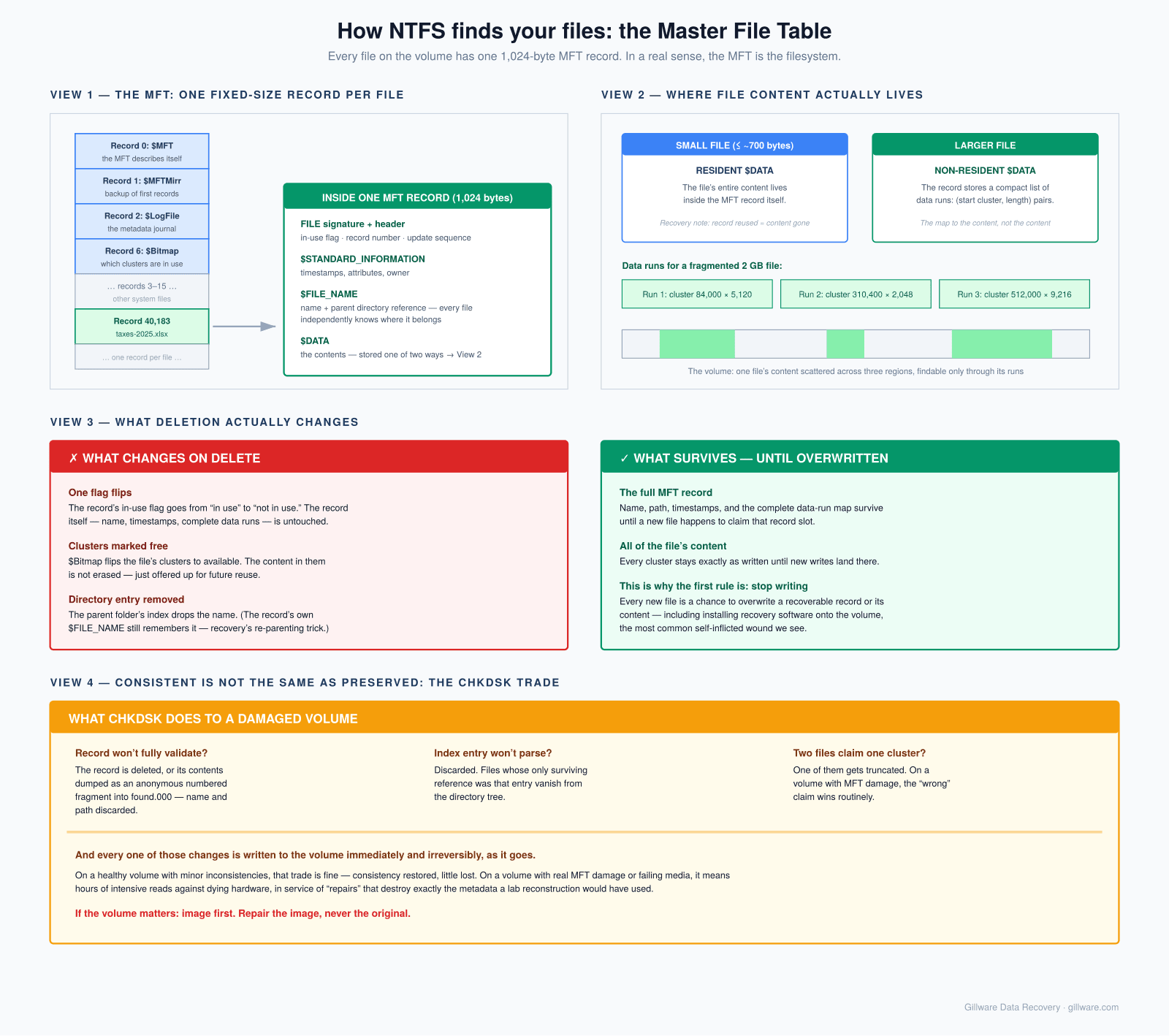
The architecture centers on one structure: the Master File Table. The MFT is a table of fixed-size records — 1,024 bytes each on almost every volume — where every file and directory on the volume has exactly one record. File record 0 describes the MFT itself; records 1 through 15 describe the other system files ($MFTMirr, $LogFile, $Volume, $Bitmap, $Boot, and so on); everything after that is user data. In a real sense, the MFT is the filesystem — everything else on the volume is either raw file content or secondary structures the MFT points at.
Each MFT record is a container of attributes, and two of them do most of the work:
- $FILE_NAME holds the file’s name, its parent directory reference, and a set of timestamps. This is how names and directory placement survive even when directory indexes are damaged — every file record independently knows its own name and where it belongs.
- $DATA holds the file’s contents — and how it holds them is the detail that matters most for recovery. Small files (roughly 700 bytes or less) are stored resident: the file’s actual content lives inside the MFT record itself. Larger files are non-resident: the record stores a compact list of data runs — pairs of (starting cluster, length) that describe exactly where on the volume the file’s content lives. A lightly fragmented 40 GB file might need only a handful of runs; a heavily fragmented one needs hundreds.
Directories are files too: their MFT records carry $INDEX_ROOT and $INDEX_ALLOCATION attributes containing B-tree indexes (INDX structures) of the files they contain. This redundancy — directories index their children, while every child independently records its own name and parent — is one of NTFS’s best recovery properties. Damaged directory indexes can be rebuilt by scanning file records; orphaned file records can be re-parented by reading their $FILE_NAME attributes.
Three more structures complete the recovery-relevant picture. $Bitmap tracks which clusters are allocated — one bit per cluster. $LogFile is NTFS’s journal: a record of metadata operations in progress, replayed after unclean shutdowns to bring metadata back to consistency. (It journals metadata, not file contents — a crash mid-write still loses the data that was in flight, but the filesystem structure survives.) And the boot sector at the start of the volume records the geometry — cluster size, MFT location — with a backup copy stored at the volume’s last sector, which is why a damaged boot sector alone is one of the most cleanly recoverable NTFS failures.
What deletion actually changes
When a file is deleted on NTFS — emptied from the Recycle Bin, deleted with Shift+Delete, removed by a script — remarkably little happens on disk. The file’s MFT record has a flag flipped from “in use” to “not in use.” The clusters it occupied are marked free in $Bitmap. Its entry is removed from the parent directory’s index. That’s all.
The record itself — name, timestamps, and crucially the complete data run list — remains intact in the MFT until a new file happens to reuse that record slot. The file’s content remains in its clusters until new writes happen to land there. This is why NTFS undelete has such good outcomes on volumes that stopped being used quickly: the map to the data and the data itself are both still present, just flagged as available for reuse.
It’s also why continued use of a volume after deletion is so destructive. Every new file written is a chance to overwrite both a recoverable record and recoverable content. The single best thing anyone can do after realizing the wrong thing was deleted is to stop writing to that volume immediately — and the worst is to install recovery software onto the volume that holds the deleted files, which we see constantly.
A quick format is a scaled-up version of the same story: it writes a new, mostly empty MFT over the beginning of the old one but leaves the vast majority of old file records and all file content in place. Full formats on modern Windows zero the volume — those are a different conversation.
The failure patterns we see most
The RAW drive. Windows reports a volume as RAW when it can’t parse the NTFS structures it expects — which means anything from a single damaged boot sector (trivial: the backup boot sector at the end of the volume usually survives) to a destroyed MFT (serious). RAW is a symptom, not a diagnosis. The “you need to format” prompt is the same condition wearing friendlier clothes, and accepting it converts a metadata problem into a metadata-plus-new-filesystem problem.
Corruption from failing hardware. A drive developing bad sectors doesn’t corrupt files at random — it corrupts whatever lives on the failing sectors, and when those sectors hold the MFT or directory indexes, the symptoms explode out of proportion to the physical damage. A few hundred unreadable sectors in the MFT region can make a million files inaccessible. These cases are hardware-first: the drive gets imaged on equipment built for failing drives, and the filesystem work happens against the image. The characteristic signatures — a drive that’s slow, that freezes Explorer, that makes new noises, whose folders take thirty seconds to open — mean imaging comes before any filesystem tooling, always.
Interrupted writes and unclean shutdowns. Power loss mid-write is what $LogFile exists for, and NTFS handles the ordinary case well. The failures we see are the extraordinary ones: the log itself landing on bad sectors, USB enclosures that acknowledged writes they never committed (write caching on external drives makes unplug-without-eject genuinely risky, not theoretically risky), and volumes where the crash happened during an MFT extension or directory B-tree split — operations whose half-completed state confuses repair tools into making things worse.
“The file or directory is corrupted and unreadable” (0x80070570). This error names its cause precisely: the directory index or file record that Windows needs to open that specific path fails its consistency checks. Localized damage — often one bad INDX structure — with a localized fix, provided nothing destructive runs against the volume first.
Volumes damaged by their own repair. Which brings us to chkdsk.
The chkdsk problem
Chkdsk deserves its own section for the same reason xfs_repair -L gets one on our XFS page: it’s the tool everyone reaches for, it’s the right tool for the healthy-volume case, and it’s responsible for a large share of the worst cases that reach our lab.
Chkdsk’s job is to make the filesystem consistent — not to preserve data. Those goals usually align on a healthy volume with minor inconsistencies. They diverge violently on a badly damaged one. When chkdsk encounters a file record it can’t fully validate, it repairs by removing: orphaned records get deleted or dumped as numbered fragments into found.000 directories, unparseable index entries get discarded, and cross-linked clusters get truncated out of one of the files that claimed them. On a volume where the MFT region took sector damage, chkdsk can walk through thousands of partially-readable file records and “repair” each one into oblivion — writing its changes directly to the volume, irreversibly, as it goes.
The cruelest version is chkdsk against a mechanically failing drive: hours of intensive reads against hardware that’s dying, in service of repairs that destroy the metadata a lab recovery would have used. If a drive shows any hardware symptoms — slowness, noises, disappearing from Explorer — or if a volume matters and the damage looks extensive, the right order of operations is image first, repair the image, never the original. Windows sometimes schedules chkdsk automatically at boot after it detects a dirty volume; if a machine with important data is sitting at the “scanning and repairing drive” screen after a failure, powering it off and getting the drive imaged is a defensible choice, not vandalism.
How we reconstruct NTFS volumes
Every case starts with an image — a full sector-level copy taken through hardware that cannot write to the source, with failing drives repaired in the cleanroom to the point where a good image is possible. Everything after that happens against copies.
For volumes where the structures are largely intact — deletions, quick formats, boot sector damage, localized index corruption — the work is targeted: parse the MFT, identify the affected records, rebuild the damaged pieces from NTFS’s own redundancy ($MFTMirr for the first records, backup boot sector for geometry, $FILE_NAME attributes for re-parenting orphans).
For volumes where the damage is extensive — MFT regions on bad sectors, chkdsk-mangled metadata, partial overwrites from a new filesystem — the approach inverts: instead of trusting the volume’s structure, we scan every sector of the image for the signatures of NTFS metadata. MFT file records announce themselves with a FILE signature and a validatable internal layout; INDX structures do the same for directory indexes. Every hit gets parsed and logged — record number, names, timestamps, parent references, data runs — into a database that lets us reconstruct the filesystem relationally: which records are current versus stale, which parents claim which children, which data runs are still credible given what else claims those clusters. The result is a rebuilt file tree extracted from the image with real names, real paths, and real timestamps — not a found.000 directory of anonymous fragments. Deep familiarity with MFT and INDX internals is the core of our tooling, refined over two decades, and it’s precisely the class of case where that tooling outperforms anything you can download.
The honest limits: content that’s been physically overwritten is gone — no tool recovers overwritten sectors. Resident files whose MFT records were reused are gone with their records. And a volume that’s had a full format, or extensive new use after the damage, may retain structure but lose the content the structure points at. We can usually tell which category a case is in within the first day of evaluation, and we’ll tell you straight.
What not to do while the volume is in trouble
- Don’t format, even though Windows offers it on every double-click of a RAW volume.
- Don’t run chkdsk on a volume with extensive damage, a drive with any hardware symptoms, or any volume whose data matters more than its mountability. If Windows is about to run it automatically at boot, powering off is reasonable.
- Don’t install recovery software onto the affected volume — installation writes to exactly the free space holding your deleted data.
- Don’t let recovery software scan failing hardware. Hours of sequential reads against a degrading drive finish the job the failure started. Software is for healthy drives.
- Don’t keep using the volume after a deletion, format, or corruption event. Every write is a potential overwrite.
- Don’t initialize the disk when Disk Management offers — initializing writes a new partition table over the old one.
How the engagement works
Most single-drive NTFS cases — the RAW external, the failed laptop drive, the deleted folder — fit our standard risk-free model: free evaluation, a flat-rate quote in writing before any work begins, and payment only on successful recovery. Complex cases — NTFS volumes on failed RAID arrays or Storage Spaces pools, volumes that have been through multiple destructive repair attempts, server cases with layered storage — use the engagement structure we apply to all complex work: free consultation, clearly explained evaluation terms, and any engineering charges agreed in writing before work begins.
For the broader picture, see the Windows data recovery hub, the ReFS recovery page for Microsoft’s newer filesystem, and the Windows error message hub if you’re working from a specific error. For hardware-failure symptoms, our hard drive recovery page covers the mechanical side.
RAW Drive? Corrupted Volume? Talk to Us Before Running chkdsk.
Free initial consultation. Our lab has parsed NTFS metadata natively for two decades — we’ll tell you honestly whether your case needs a lab or just good advice.
Or call us: 877-624-7206