
Video File Shows 0 Bytes on Your Mac? Your Footage Is Probably Still Recoverable

You plug in the external drive to grab a finished video — a wedding, a client shoot, a family trip — and the file is right where you left it. But the size column reads Zero KB. The thumbnail is blank, and double-clicking does nothing, or QuickTime throws an error. Your video file shows 0 bytes, and panic sets in: did hours of footage just vanish?
Here is the reassuring part. In the overwhelming majority of these cases, your video did not disappear. We see this pattern constantly: large video files on Mac-formatted exFAT drives suddenly reading as zero bytes. The footage is almost always still sitting on the disk. What broke is the file system’s record of where the footage lives — not the footage itself. This article explains exactly what is happening, what you should and should not do right now, and why this is one of the more recoverable situations we handle.
Why your video file shows 0 bytes on a Mac
Most external drives and portable SSDs ship formatted as exFAT, and a lot of editors deliberately keep them that way so the same drive works on both macOS and Windows. exFAT is convenient, but it was designed for flash media and it is comparatively fragile when it is handling very large files — exactly the kind of multi-gigabyte video files that come off a camera or an edit timeline.
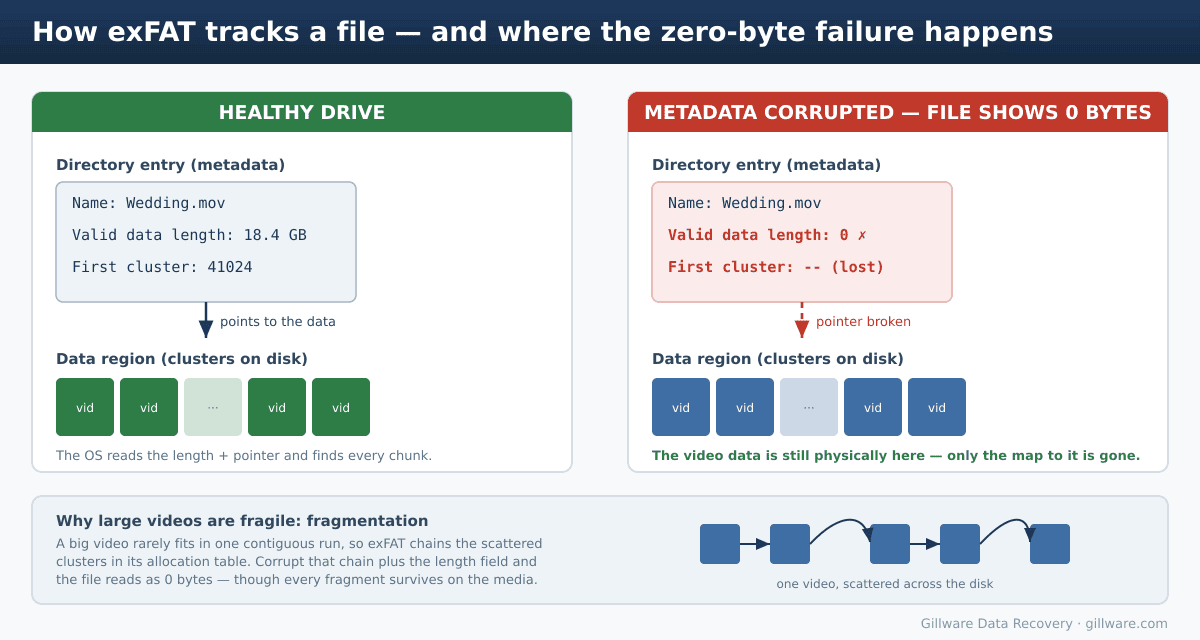
On modern Apple Silicon (M-series) Macs in particular, the way macOS writes exFAT metadata for big files can leave the drive in a state where the directory entry for a file becomes corrupted. The entry that should say “this file is 18.4 GB and starts at this location” instead reports a valid data length of 0 and loses its pointer to the data. Finder dutifully reports what the metadata claims: 0 bytes. The actual video stream, however, is untouched in the data region of the disk. The map is gone; the territory is intact.
This is why a drive can show files with 0 bytes on a Mac while every cluster of the original recording is still physically present. The diagram below shows the difference between a healthy directory entry and a corrupted one.
It is not only single external drives
The same failure shows up on small consumer RAID and NAS enclosures that have been formatted exFAT for cross-platform use. The mechanism is identical: the array’s file system loses track of the file’s length and location, and the video reads as zero bytes even though the underlying data spans healthy disks. Larger or multi-disk arrays are evaluated individually, but the recovery principle is the same.
Why large videos are especially vulnerable
A finished video is rarely stored as one continuous block. As you fill a drive and delete clips, free space gets broken up, and a big file ends up fragmented — scattered across the disk in many pieces. exFAT tracks those pieces by chaining them together in its allocation table. The bigger the file, the longer that chain, and the more there is to go wrong if the metadata is damaged. When the chain and the length field are corrupted together, the file collapses to 0 bytes even though every fragment of the recording survives.
That fragmentation is also why do-it-yourself “undelete” tools so often produce a file that opens but stutters, freezes, or plays for a few seconds and quits. Many of those tools assume a file is stored in one contiguous run. With a fragmented video, they stitch the wrong pieces together and the result is unplayable. Reassembling a fragmented video stream correctly is a large part of what professional recovery does.
What actually happens inside a video file
Understanding the file format explains why these recoveries succeed so often. Modern video formats — MOV, MP4, and MXF — are container files with two essential parts. There is a small index (in MP4/MOV this is the “moov” atom) that records the codec, resolution, frame rate, and the exact location and timing of every frame. And there is the much larger stream (the “mdat” atom) that holds the actual compressed footage.
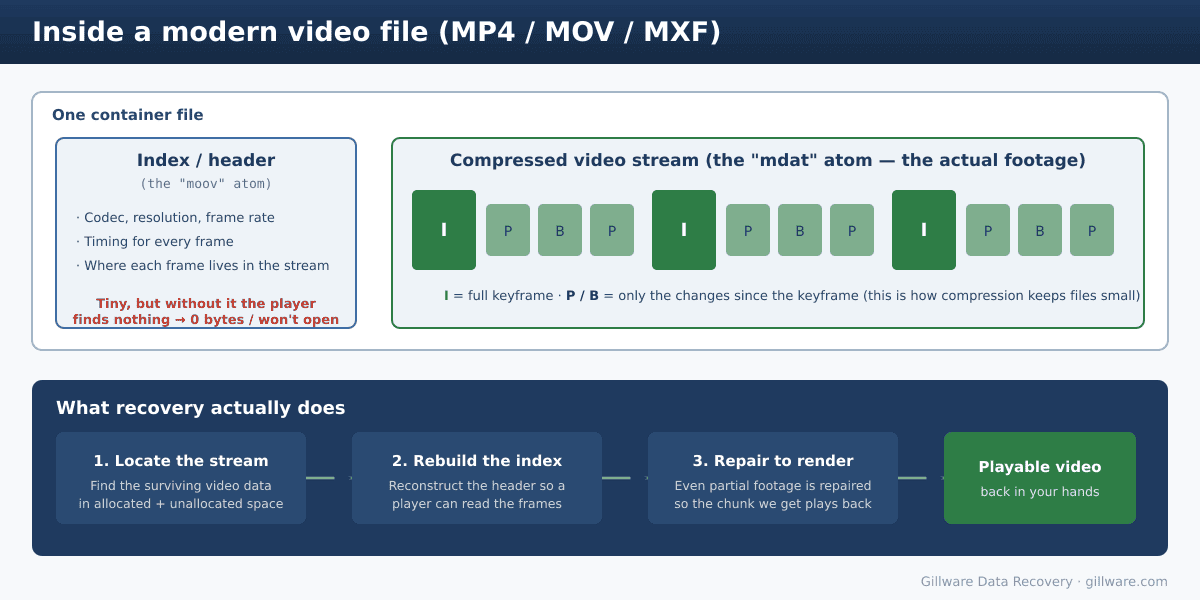
Compression is why the index matters so much. To keep file sizes manageable, formats like H.264 and H.265 store an occasional full keyframe (an “I-frame”) and then, for the frames in between, record only what changed since the keyframe. That dependency between frames means the player needs the index to know where each frame begins and how the frames relate. Lose or corrupt that index — which is effectively what a 0-byte file is — and a player has no idea how to read anything, even though the compressed footage is right there.
A closely related problem can happen the other way around — when a recorder loses power mid-shoot and the index is never written in the first place. We cover that scenario in our guide to recovering an unfinalized video file after a power loss.
This is also the good news. Because the heavy footage almost always survives, recovery is a matter of locating the surviving stream, rebuilding the index so a player can read it, and repairing the result so it renders. Even when only part of a stream survives — say, because some sectors were overwritten before the drive came to us — we can usually repair the recovered chunk so it plays back rather than leaving you with nothing.
What to do — and what not to do — right now
The single biggest factor in how much we recover is whether the surviving video data gets overwritten before recovery begins. Catch it early and these cases go extremely well. Here is how to protect your footage:
- Stop using the drive immediately. Don’t copy new footage onto it, don’t export to it, and don’t keep it mounted as a working scratch disk. Every new write risks landing on the sectors that hold your video.
- Do not run First Aid,
fsck,chkdsk, or any “repair” on the volume. These tools rewrite file system structures and can overwrite or further scramble the very metadata needed to locate your footage. - Do not reformat or re-initialize the drive, even if macOS suggests it. Formatting is the fastest way to turn a recoverable case into a much harder one.
- Do not let recovery software write to the same drive. If you try software at all, never install it on, or save results to, the affected disk.
- Safely eject before unplugging. Improper ejection is a common trigger for exactly this kind of exFAT corruption.
If the footage matters — a paid shoot, an irreplaceable event, an archive you can’t recreate — the safest move after powering down is to let a recovery lab image the drive and work from the copy.
How Gillware recovers 0-byte video files
Our engineers work from a sector-by-sector image of your drive, never the original, so nothing we do can make the situation worse. From that image we locate the surviving video stream across both allocated and unallocated space, reconstruct the index and headers the file needs, account for fragmentation so the pieces go back in the right order, and finally repair the rebuilt file so it renders cleanly in a normal player. Because the underlying footage is usually intact, recovering 0-byte video files from exFAT drives is one of the more successful situations we see — particularly when the drive is set aside quickly.
This work spans the full range of media we handle, whether your footage lived on an external hard drive or portable SSD or on a consumer NAS or RAID enclosure. The diagnosis is the same: the data is still there, and the job is to rebuild the path back to it.
For a standard single external drive, our evaluation is free and the recovery is risk-free — if we don’t recover your data, you don’t pay. Multi-disk arrays are quoted individually after evaluation. Either way, you’ll know what’s recoverable before you commit to anything.
Recovering 0-byte and corrupt video files is one part of our broader video recovery work — the same image-and-rebuild process applies across cameras, recorders, and security systems.
Your Video Isn’t Gone — Let’s Get It Back
Free evaluation. No upfront cost. For standard external drives, you only pay if we recover your data.
Click Here to Recover Your 0-Byte Video Files →
Or call us: 877-624-7206
