
Blackmagic Footage Won’t Open? Recovering BRAW and HyperDeck Recordings

There are two versions of this bad day. In one, you finish a shoot on an URSA or Pocket Cinema Camera, drop the card in your machine, and half of your BRAW clips show black thumbnails and won’t open in DaVinci Resolve — the files are clearly there, the right size, but Resolve acts like they don’t exist. In the other, you’re running ProRes to a HyperDeck on a multi–camera switch, the deck freezes or loses power, and the recording plays back fine on the deck but throws “Error 2002: bad public movie atom” the moment you try to open it on a computer.
Different gear, same root cause — and the same good news: the footage is almost always still on the card or SSD. What’s broken is the structural information a player needs to read the clip, and that can be rebuilt. This guide explains why Blackmagic files stop opening, why BRAW in particular trips up ordinary recovery attempts, and what to do to protect the footage.
Why a Blackmagic clip won’t open
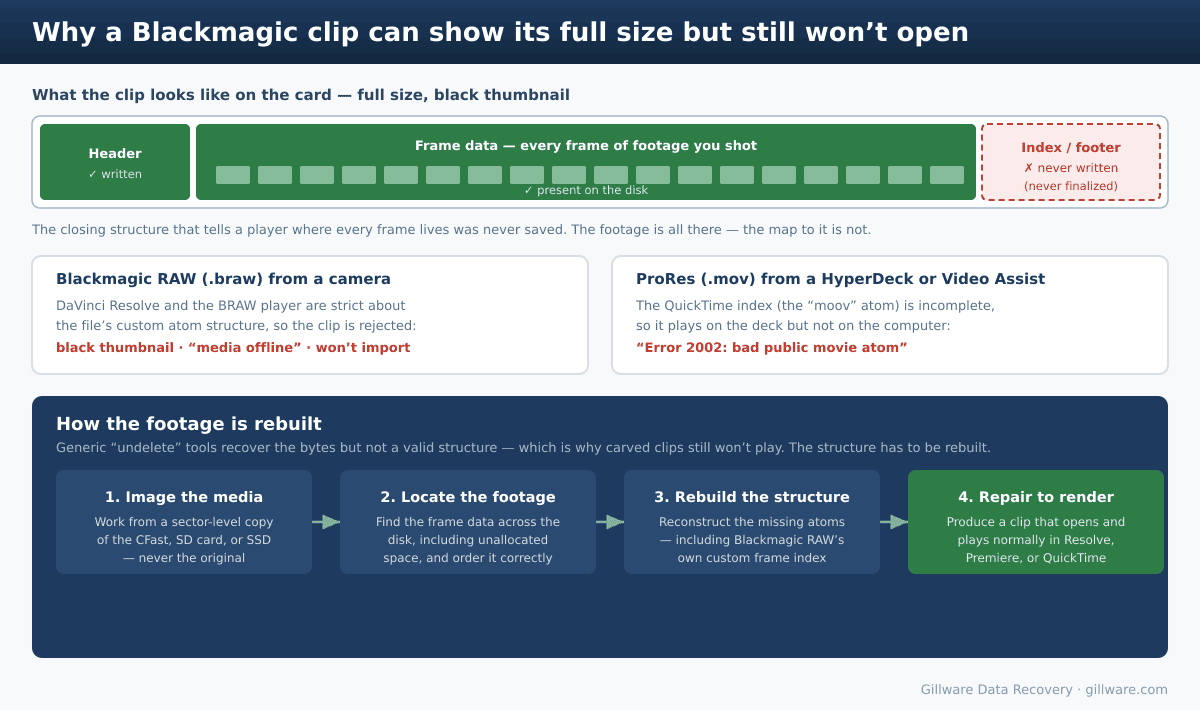
Whether it’s BRAW from a camera or ProRes from a HyperDeck or Video Assist, your footage is written to the card or SSD continuously as you record. The piece that turns that data into a clip a player can read — the index, and in QuickTime–based files the “moov” atom — is written when the recording finalizes, normally when you press Stop. If the camera is switched off before you stop, a battery dies mid–take, a card is pulled, or a deck freezes while writing, that closing structure never gets saved. The frames are on the disk; the map to them is missing.
This is the same underlying failure that affects every file–based recorder, which we cover in our general guide to recovering an unfinalized video file after a power loss. Blackmagic’s formats add a couple of wrinkles worth understanding.
BRAW: why it won’t open in Resolve, and why generic recovery fails
Blackmagic RAW is a container built on a QuickTime–style structure, but with Blackmagic’s own custom atoms — including a frame index that records exactly where each compressed frame and slice lives in the file. DaVinci Resolve and the BRAW player are strict about that structure. When a clip wasn’t finalized, the vital closing atoms are missing, and rather than play what it can, the player simply rejects the file: black thumbnail, “media offline,” or nothing at all. You’ll often see it on a card where the first half of the clips play perfectly and the ones recorded when the battery was fading do not.
This is also why running an ordinary file–recovery or “undelete” utility on the card usually disappoints. Those tools can carve the raw bytes back off the disk, but they don’t reconstruct Blackmagic’s custom atom structure — so you end up with .braw files that show up in a file browser but still won’t open in Resolve. Recovering BRAW properly means rebuilding that frame index, not just pulling the data.
HyperDeck and Video Assist: “bad public movie atom” and frozen records
On the ProRes side, the classic symptom is a file that plays back on the HyperDeck itself but throws “Error 2002: bad public movie atom” in QuickTime, or refuses to import into Premiere or Resolve. That message is QuickTime’s way of saying the moov atom — the index — is incomplete or damaged, which is exactly what an interrupted finalize leaves behind.
Decks can also fail mid–record in ways that aren’t about power at all. Operators have traced frozen recordings to a recorder overheating when its fan fails, to SSDs reaching the end of their usable life, and to media that simply can’t sustain the data rate — any of which can leave a clip that’s full size on the disk but won’t play. The fix for the file is the same in each case; the lesson for the workflow is to use qualified, healthy media and retire SSDs before they wear out. (The same interrupted–recording problem shows up on other external recorders too — we cover the Atomos version in our guide to recovering footage from an Atomos Ninja or Shogun.)
What to do the moment it happens
Because the footage is sitting in unallocated space on the card or SSD, the goal is to avoid writing anything new over it. The most damaging thing you can do is keep using the media.
- Stop using the card or SSD immediately. Don’t shoot anything else onto it — new footage can overwrite the clips you’re trying to save.
- Don’t format it. Decline the camera’s offer to format the card, and don’t accept a “this disk needs to be initialized” prompt on a computer.
- Don’t run a disk “repair” (First Aid,
chkdsk, or a file–system repair utility). One common path to permanent loss is a tool that “fixes” the card’s file system but wipes the footage in the process — and editing the file by hand in a hex editor usually makes things worse, not better. - Set the media aside and label it. For an irreplaceable shoot, hand the original card or SSD to a recovery lab so it can be imaged and worked from a copy.
How Gillware recovers Blackmagic footage
We start by imaging the card or SSD sector by sector and working only from that copy, so nothing we do can reduce your chances. From there we locate the recorded stream — BRAW or ProRes — across both allocated and unallocated space, reassemble fragmented pieces in their correct order, and rebuild the structure the file needs to open: the QuickTime index for ProRes, or Blackmagic RAW’s own custom frame index for .braw. The result is a clip that opens and plays normally in Resolve, Premiere, or QuickTime — not just bytes that sit in a folder. BRAW is more involved than standard ProRes because the format is proprietary, but it is recoverable in many cases.
These recoveries are highly successful, though they can be imperfect: anything that genuinely never reached the disk — the final moments after power was already lost, or frames dropped because the media couldn’t keep up — can’t be recovered. But the body of the shoot is usually all there. We have been doing this work for video professionals for many years across cameras, recorders, and storage modules, including the documented recovery of a live event from a failed recorder module, and the same approach applies to the CFast cards, SD cards, and SSDs Blackmagic gear records to, whether they’re formatted exFAT or HFS+.
Every interrupted–recording case is evaluated individually. The diagnostic and a clear assessment of what’s recoverable are free, and because this is hands–on engineering work, we’ll quote it and show you exactly what we can get back before you commit to anything.
Recovering Blackmagic footage is one part of our broader video recovery work — the same image-and-rebuild process applies across cameras, external recorders, and security systems.
BRAW or HyperDeck File Won’t Open? Don’t Reformat That Card
Set the media aside and talk to us — the footage is usually still on the card. Free evaluation, no obligation.
Click Here to Recover Your Blackmagic Footage →
Or call us: 877-624-7206
