
Btrfs Data Recovery: When the Volume Won’t Mount and the Server Is Down

The call usually comes in around the same time of day. The admin opened a ticket because something went wrong overnight — a power blip, a kernel panic, a host upgrade, a controller reset — and now the server or NAS won’t bring its primary volume back online. The kernel log shows a wall of parent transid verify failed messages, an open_ctree failed at the end, and a filesystem that refuses to mount in any mode the admin has tried. Or, on the Synology side: the DSM dashboard is showing Volume Crashed in red, the storage manager is offering a “Repair” button, and the admin is staring at it wondering whether clicking it is going to help or make things worse.
If that’s the situation you’re in, this article is for you. It covers what’s actually happening when a Btrfs volume goes unmountable, where Btrfs tends to show up in production environments, the failure patterns we see most often in our lab, and — importantly — how engagement and pricing work on this category of recovery, because complex NAS and server recoveries don’t follow the same risk-free model that single-drive recoveries do.
Where Btrfs lives in production
Btrfs has been around since 2007 and stable on disk since 2013, but it took a long time to find the production niches it occupies today. In our lab, the systems we see Btrfs on cluster into a few clear categories:
- Synology DSM — by a wide margin the most common source of Btrfs recoveries we handle. Btrfs has been the default-recommended file system on every Synology NAS that supports it since DSM 6, which covers most “+” and higher models from the past several generations: the DS918+, DS1019+, DS1520+, DS1621+, DS920+, DS923+, DS1821+, and the rack-mount RS series, among many others. Synology’s SHR (Synology Hybrid RAID) configurations are layered on top of Btrfs by default unless the admin specifically chose ext4 at setup time.
- SUSE Linux Enterprise Server and openSUSE — SUSE has shipped Btrfs as the default root file system since 2014, paired with the Snapper tool for automatic pre/post-package-transaction snapshots. A lot of European enterprise infrastructure runs SLES, and the moment you start asking SLES admins what’s on their root partition, the answer is almost always Btrfs.
- Fedora Workstation and Fedora Server — default root file system since Fedora 33 (2020). A meaningful share of developer workstations and self-managed servers in the Red Hat orbit.
- Self-rolled Debian, Ubuntu, and Arch installations where the admin chose Btrfs deliberately for subvolume layouts, snapshot workflows, or copy-on-write semantics. Often single-host file servers, container hosts, or small VMs.
- Specialized NAS distributions — Rockstor is built around Btrfs natively, and TrueNAS Scale supports it as a secondary option behind ZFS.
It’s worth saying clearly what’s not Btrfs, because customers misremember constantly: QNAP’s standard QTS uses ext4 on top of mdadm and LVM, QNAP’s QuTS hero uses ZFS, TrueNAS Core uses ZFS, and Unraid uses independent XFS or Btrfs file systems per disk (not native multi-device Btrfs) with parity protection that’s separate from the file system. If you’re seeing Btrfs-specific error patterns and you think you’re on a QNAP, you’re almost certainly on a Synology.
What makes Btrfs different — and why that matters when it fails
This is the short, conceptual version; we’re not going to turn this into a deep-dive on the on-disk format. The features that make Btrfs attractive in production are the same features that complicate recovery when it fails:
Copy-on-write with generation tracking. Every write to a Btrfs volume produces new blocks rather than overwriting old ones, and every block is tagged with a monotonically increasing transaction ID (the “transid” you see in error messages). Parent nodes in the file system’s B-trees store the expected transid of their children. When a child block’s actual transid doesn’t match what the parent expected, the kernel refuses to mount the filesystem — because the alternative is trusting structurally inconsistent metadata, which is how silent data corruption gets propagated.
That’s exactly what parent transid verify failed on [byte offset] wanted [N] found [M] is telling you: a write was interrupted before the parent’s pointer to the new child block was committed, so the parent still references an old (or unwritten) child generation. The on-disk structure is internally inconsistent. The kernel does the safe thing and stops.
Checksums on metadata and data. Btrfs checksums everything it writes, and verifies on read. Useful when bit-rot or controller weirdness silently corrupts a block — but it also means that a single damaged block in the wrong place can cause the entire mount to fail rather than degrade gracefully.
Subvolumes and snapshots as first-class file system constructs. A snapshot in Btrfs is a writable copy-on-write fork of a subvolume; a subvolume is a named root in the B-tree. Both are deleted by a single fast metadata operation. There’s no recycle bin equivalent at the filesystem layer.
Multi-device support that is sometimes the file system and sometimes not. Btrfs can stripe, mirror, and parity-protect across multiple devices natively — but most production deployments don’t actually use it that way. On Synology in particular, the multi-device RAID is handled by Linux’s mdadm at a layer below Btrfs, with LVM in between. The single-device Btrfs filesystem sits on top of a logical volume that sits on top of an mdadm array. We’ll come back to why that layering matters.
The failure modes we see most often
Across the cases that come through our lab, Btrfs recoveries cluster into a handful of distinct failure patterns. Most admins recognize their situation in one of these:
Power loss or kernel panic mid-write, leading to transid mismatch. This is the canonical Btrfs failure mode and the one driving most of the unmountable-volume cases we see. A server reboots ungracefully — UPS battery exhausted, watchdog reboot, hard crash during heavy I/O — and on the next boot the volume refuses to mount. The kernel reports the transid verification failure described above, follows it with failed to read block groups, and finishes with open_ctree failed. The data is still on disk; the metadata pointing to it is internally inconsistent.
Synology Volume Crashed banner, source unclear. The most ambiguous category. “Volume Crashed” in DSM doesn’t tell you whether the failure is at the mdadm layer (a RAID member dropped or lost its superblock), at the LVM layer (logical volume mapping corrupted), or at the Btrfs layer (the file system inside the logical volume won’t mount). The three look identical in the UI and require three different recovery approaches. Power outages, drive eviction events, and DSM upgrades are common triggers; the underlying cause varies.
SMR-drive eviction triggering a false RAID failure. A specific subcategory of the above, common enough to call out separately. Consumer NAS bays are often populated with Shingled Magnetic Recording drives — WD Reds in certain part-number ranges, Seagate Barracuda, and others — that can stall for 30 to 60 seconds during sustained writes while they internally rewrite shingled bands. The Linux md driver interprets that stall as a dead drive and ejects it from the array. One eviction triggers a degraded state; a second on a different drive during the rebuild makes the array refuse to assemble, and the Btrfs volume above it appears corrupted even though the file system itself is intact.
Accidentally deleted subvolume or snapshot. A btrfs subvolume delete command (or its equivalent through Snapper, DSM’s snapshot manager, or a Cockpit web UI) is fast, irreversible at the UI layer, and walks the subvolume’s tree out of the file system’s live root. The data blocks aren’t immediately overwritten — they’re released to the allocator — so recovery is sometimes possible by locating historical root tree generations from before the deletion. It depends heavily on how much write activity has occurred since.
mkfs.btrfs run over an existing Btrfs filesystem. Usually a recovery attempt gone wrong. An admin Googles the unmountable-volume problem, finds advice suggesting they reformat and “restore from backup,” runs mkfs, and only afterward realizes the backup is incomplete or out of date. The new file system metadata overwrites parts of the old one, but the bulk of the data blocks on the underlying device are typically still intact. This is one of the harder recovery categories, but not always hopeless.
LVM logical volume containing Btrfs accidentally removed or resized. Common on Synology and on Linux servers that use LVM. The logical volume is gone from LVM’s perspective, but the physical extents on disk still hold the Btrfs blocks. Reconstruction involves rebuilding the LVM mapping from the physical volume metadata (which LVM helpfully keeps multiple backups of) and then dealing with the Btrfs volume above it.
Hardware failure of one or more underlying drives. Bog standard at the bottom of the stack, but often what’s actually wrong when an admin thinks the file system broke. A drive starts producing read errors, the controller drops it, and what looks like a Btrfs corruption issue is really a “your RAID is degraded and now you have a second drive going” issue. The Btrfs layer doesn’t have anything to do with the root cause; the data recovery problem is at the hardware layer.
Failed btrfs balance or btrfs device replace mid-operation. A balance operation rewrites every block group; a device replace copies one device onto another. Both involve a great deal of metadata churn, and an interruption — a crash, a power loss, a kill signal at the wrong moment — can leave the file system in a state with partially-relocated blocks that neither old nor new pointers fully describe.
A note on Btrfs RAID 5/6
Native Btrfs RAID 5 and RAID 6 modes are still officially marked experimental in the upstream kernel, and the recent kernel versions explicitly log a warning at mount time. The write hole and a handful of related edge cases are well-documented in the project’s own documentation. We do see RAID 5/6 cases in our lab when admins have deployed it anyway. The recovery work tends to involve significantly more manual stripe reconstruction than a single-device or RAID 1 case. Worth knowing if you’re planning a deployment; not the focus of this article.
Why the Synology stack is its own subcategory
The reason Synology cases warrant their own section isn’t the file system — it’s the layering. A standard Synology storage pool is built as mdadm RAID at the bottom, LVM in the middle, and a single-device Btrfs file system on top. Synology Hybrid RAID adds a wrinkle: the drives are partitioned into multiple slices, each slice group forms its own mdadm array, and the arrays are pooled into a single LVM volume group. A four-drive SHR-1 with mixed capacities can easily have three or four separate mdadm arrays underneath the LVM layer.
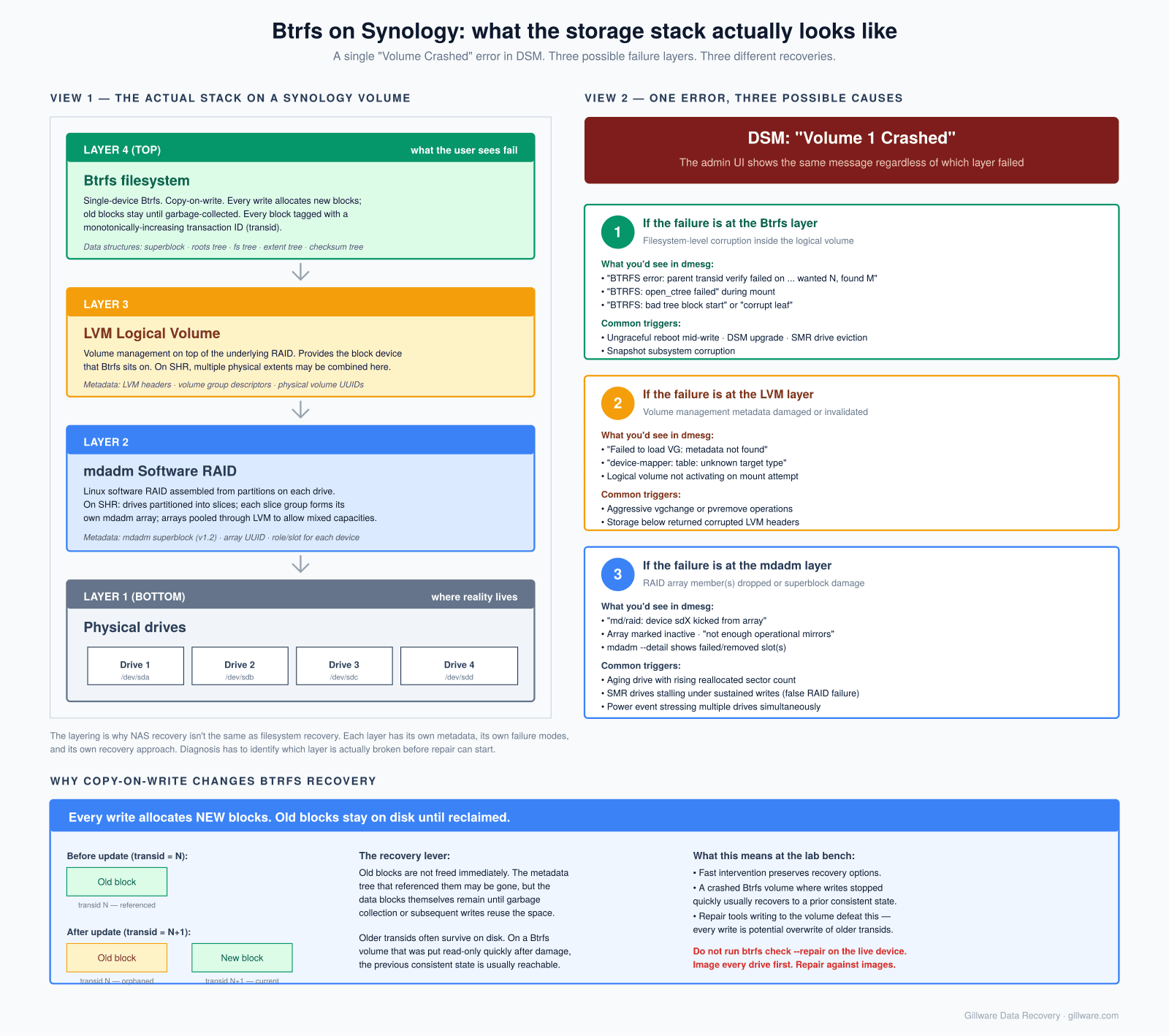
The implications for recovery are substantial. A “Volume Crashed” condition can originate at any of those three layers, and the symptoms look identical from the UI. Worse, Synology runs a customized build of btrfs-progs with proprietary features — quotas, replication metadata, and others — that upstream Btrfs tools don’t recognize. Admins who pull the drives out of a Synology unit and try to recover the data from a live Linux USB stick frequently report errors like unsupported option features (3) or couldn’t open RDWR the moment they invoke btrfs check or similar. The upstream tools aren’t broken; they’re correctly refusing to operate on a file system whose feature flags they don’t understand.
This is why Synology recoveries handled outside of Synology’s own tooling require specialized infrastructure: imaging every drive in the pool, reconstructing the mdadm arrays virtually from the images, recreating the LVM mapping, and then dealing with the Btrfs volume on top — using Btrfs tooling that understands Synology’s feature flags. None of those steps are exotic individually, but they have to be done in order, on imaged copies of the drives rather than the originals, and without any of the operations writing back to the source devices.
What not to do while the volume is offline
If your Btrfs volume won’t mount and the data matters, the temptation to “try one more thing” before calling for help is strong — and most of the things people try in that moment are write operations that close off recovery paths. Some specific ones to avoid:
- Don’t run
btrfs check --repair(or its aliasbtrfsck --repair) on the live device. The Btrfs project’s own documentation cautions against it for good reason; the tool writes to the file system and can convert a recoverable transid mismatch into a permanently inconsistent volume. The same applies tobtrfs rescue zero-logand similar repair subcommands. - Don’t reformat anything. The single most destructive recovery attempt we see is an admin running
mkfs.btrfsover the existing volume after a failed mount, intending to restore from backup, then realizing the backup is incomplete. Reformat is a write operation that overlays new metadata over the old. - Don’t click “Repair” in DSM when a Synology volume is showing as crashed without first understanding which layer of the stack has failed. A repair operation at the wrong layer (rebuilding an mdadm array that’s actually fine, for instance, when the real failure is at the Btrfs layer) writes to every drive in the pool and can compound the original problem.
- Don’t run
mdadm --assemble --forceon a Synology pool that’s failed to assemble normally. Force-assembling stale array members can write conflicting state across the drives that makes virtual reconstruction harder later. - Don’t pull individual drives and try them in a desktop Linux machine as a way to “read the data off” a Synology pool. The single-drive members of a Synology array aren’t independently mountable file systems; they’re stripe or parity members of an mdadm-managed pool. A Linux machine seeing them will offer to assemble or initialize them in ways the original NAS wouldn’t, and those operations can write metadata back to the drives.
- Don’t run upstream
btrfs-progsagainst Synology-formatted Btrfs volumes in write mode, even from a live Linux environment. Read-only operations to inspect are generally safe; anything that might write is not. - Don’t keep retrying the mount in increasingly aggressive modes. Each failed mount attempt with
recovery,usebackuproot, orclear_cacheoptions can write recovery state to the file system that closes off other recovery paths.
The common principle behind all of these: if you don’t know exactly what a tool will write and where, assume it will write something destructive, and don’t run it on the only copy of your data.
What recovery actually looks like in our lab
The shape of a Btrfs recovery depends heavily on which failure category the case falls into, but the early steps are consistent across all of them.
Every drive in the pool is imaged through hardware that won’t write to the source. For Synology and other layered NAS cases, that’s typically all of the drives in the original array, in their original bay order — order matters because mdadm uses it to determine the stripe layout. For single-device Btrfs cases (a SUSE root partition, a developer workstation, a small server), that’s the one drive holding the volume. Imaging is non-negotiable; everything that follows happens against the images, not the original drives.
With clean images in hand, the recovery work depends on the failure type. For transid-mismatch unmount failures, the file system’s own copy-on-write design works in our favor: previous generations of the root tree are still on disk, and identifying a consistent older generation and extracting the file system as it existed at that point is often the cleanest path. Some recent writes are lost — specifically, writes that happened between the chosen historical generation and the crash — but the bulk of the data comes back intact.
For Synology cases, the mdadm arrays are reconstructed virtually from the drive images, the LVM mapping is rebuilt from the physical volume metadata, and the Btrfs file system is then mounted offline against the reconstructed volume. Each of those steps can fail in its own way and require its own targeted recovery work; a case where all three layers cooperate is a fast case, and a case where two or three need substantive reconstruction is a slow one.
For deleted subvolume cases, we look for orphaned tree roots that predate the deletion. For mkfs-over-Btrfs cases, we look for surviving older superblocks and reconstruct what the original file system looked like beneath the new one. For LVM-deleted cases, we rebuild the volume mapping from LVM’s own backup metadata. Each is its own discipline.
The honest range of outcomes: many Btrfs recoveries are highly successful — full file systems extracted with all user data intact. Some are partial — most data recoverable, with some files in damaged regions unrecoverable. A small number are not recoverable at a useful level, generally when destructive recovery attempts have already been made or when multiple hardware failures have compounded. We can usually tell which category a case falls into within the first day of evaluation.
How the engagement works for complex Btrfs and NAS cases
This is the part of the article where we want to be straightforward about how recoveries in this category are priced, because the model isn’t quite the same as the one most data recovery customers are used to from us.
Gillware’s standard engagement for single-drive recoveries is fully risk-free: free evaluation, flat-rate quote in writing before any work begins, and the customer pays only if we successfully recover the data. That model works because a single failed drive is a relatively well-bounded problem — we can predict the work involved with high confidence after the evaluation, and the engineering hours don’t escalate unpredictably.
Complex NAS, server, and Btrfs recoveries don’t always fit that model. A multi-drive Synology pool with simultaneous hardware and file system issues, a SUSE server where someone has run repair tools that wrote destructive changes back to the volume, or a RAID 5/6 Btrfs case with stripe corruption can all involve substantial and somewhat unpredictable engineering hours. For those cases, the engagement typically looks like this:
- The initial consultation is free. We’ll discuss the failure, what symptoms you’re seeing, what you’ve already tried, and what configuration the system is in. No charge for that conversation, no obligation afterward.
- The evaluation phase may be free or fixed-price, depending on the complexity of the system and what’s involved in imaging the drives. We’ll explain which applies to your case before we begin.
- The recovery work itself, on complex multi-drive cases, may carry engineering charges that apply regardless of the final outcome. When it does, we explain the structure clearly before any work starts. You decide whether to proceed on those terms.
- Where the case is a good fit for our standard risk-free model, we’ll use it. Many single-volume Btrfs cases (a SUSE root partition, a single-drive Fedora server, a Synology volume where the underlying hardware is healthy and the failure is purely at the file system layer) do qualify. We’ll tell you which category your case falls into during the consultation.
What we don’t do is take on a complex multi-drive case under a risk-free quote and then surprise you with a different bill at the end. The engagement model is established up front, in writing, before any drive is imaged.
If the data matters, what to do right now
The actions that meaningfully improve recovery outcomes are simple and immediate:
- Power the affected system down. Don’t let it continue to try and recover automatically. Each retry is a potential write operation against the volume.
- Document the error messages you’ve seen — exact wording, especially anything containing the words parent transid verify failed, open_ctree failed, bad tree block, failed to read block groups, or any DSM-specific banner text. Photos of the screen are fine.
- For a NAS, when you pull the drives, label them with their original bay position. On a Synology unit the bay order is critical for reassembly.
- Don’t run any further repair attempts on the live volume — and don’t let anyone else, regardless of how confident they are.
- Call us for a free consultation. We’ll walk through what you have, what’s likely happening, and what realistic outcomes look like before any work begins.
Btrfs is a robust file system and a defensible choice for production storage. Like every file system, it can lose data — through hardware failure, human error, the wrong command at the wrong moment, or a deleted logical unit that took the file system with it. When it does, the recovery is technical, often slow, and not always a clean fit for a fully risk-free quote. But on most of the cases that come through our lab, the data is still there — and a careful, write-protected, layer-by-layer reconstruction gets it back.
Btrfs Volume Won’t Mount?
Free initial consultation. Engagement terms agreed in writing before any work begins. No surprise billing.
mdadm + LVM + Btrfs experts · Synology / SUSE / Fedora · Multi-drive imaging
Or call us: 877-624-7206
