
Intel Optane Drive Recovery: When the Computer Won’t Boot and the Drive Shows as RAW

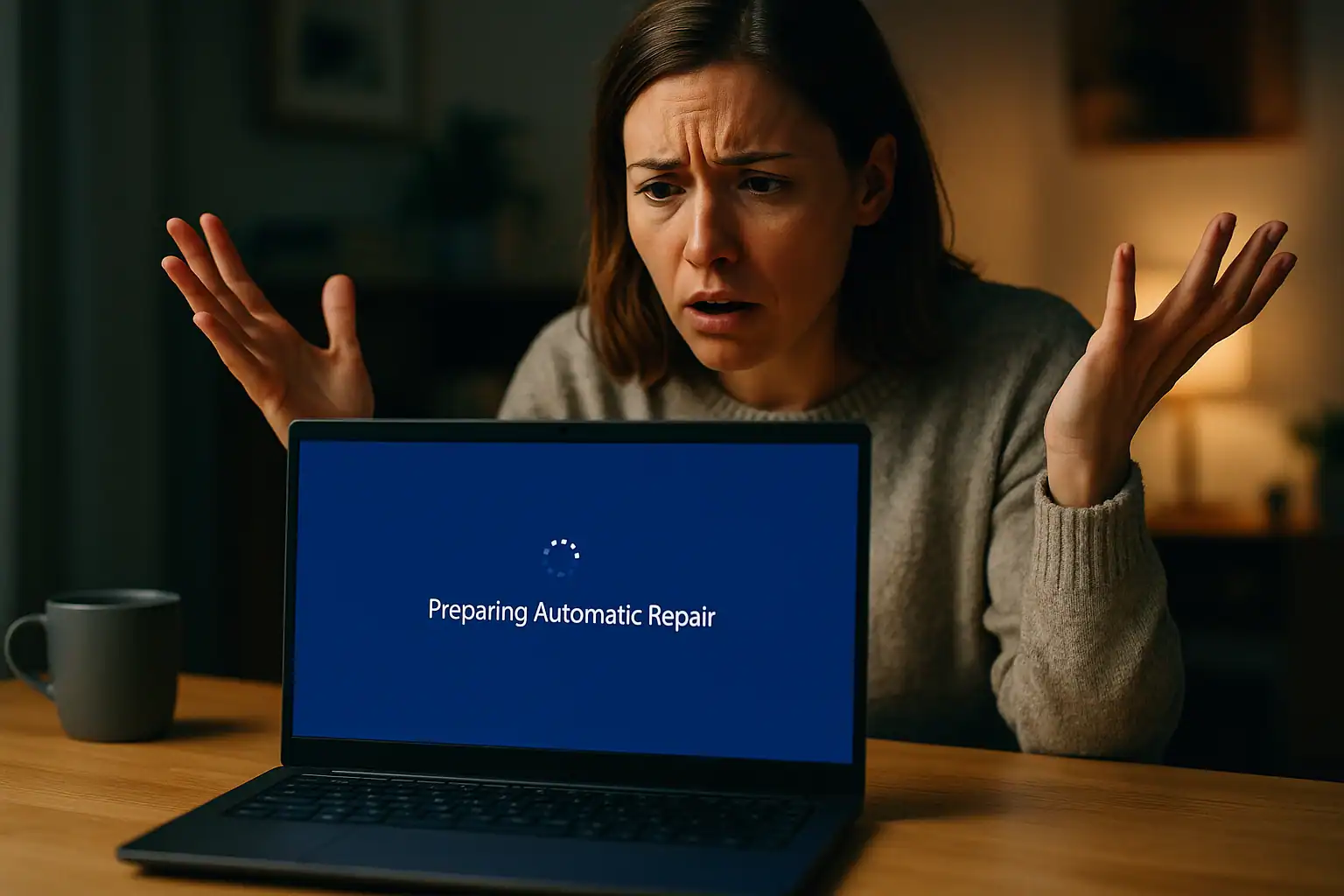
The typical scenario is something like this. The computer was working normally. A Windows update installed overnight, or a planned upgrade to Windows 11 completed, or the laptop was simply restarted after sitting closed for a few days. The next time the computer powers on, it doesn’t boot. Maybe it goes straight into an “Automatic Repair” loop that never finishes. Maybe it gets to a blue screen with an error like PNP_DRIVER_WATCHDOG and reboots. Maybe it stops at “Preparing Automatic Repair” and spins forever. Eventually, an attempt to look at the drive from another computer or a Windows recovery USB reveals the problem: the storage partition shows up as RAW, or it doesn’t show up at all, and only a small portion of the drive — maybe 16GB or 32GB — is visible.
If this matches what you’re seeing, the chances are very high that your computer has an Intel Optane drive inside, and that the Optane configuration has broken. This is one of the most common failure patterns we see in our lab, and it’s the source of a lot of frustration because the well-meaning advice scattered across Intel, Dell, HP, and Microsoft community forums frequently points users toward steps that destroy their data permanently. This guide walks through what’s actually happening, why these drives fail this way (and especially why Windows updates trigger it), what not to do, and what realistic data recovery looks like.
What Intel Optane is, briefly
When we talk about “Optane” in a recovery context today, we’re almost always talking about Intel Optane Memory H10 and H20 hybrid drives — a single M.2 card that physically combines a small Optane module (typically 32GB) with a larger conventional NAND SSD (256GB, 512GB, or 1TB) on the same circuit board. The H10 was the original; the H20 is the newer revision with similar capacity options. Both were sold from roughly 2019 through 2022, when Intel discontinued the Optane product line entirely.
(Earlier Optane configurations also existed where a small discrete Optane module was paired with a separate conventional hard drive on the same machine. Intel discontinued that configuration well before the H10/H20 drives, and it’s rare enough today that almost every Optane recovery we see is an H10 or H20. Everything that follows applies to both, but the H10/H20 hybrid is the focus.)
The important detail for understanding why these drives fail: even though both halves of an H10/H20 live on a single physical card, they appear to the system as two separate drives that are logically combined by Intel Rapid Storage Technology (RST) software running inside Windows. This isn’t a true cache where the NAND holds a complete copy of everything; it’s tiered storage, meaning small regions of the volume live exclusively on the Optane portion and other regions live exclusively on the NAND portion. The metadata that describes how the two halves fit together — which blocks live where, which parts of the file system are on which drive — is maintained by RST. When RST is healthy, the system sees one drive. When RST breaks, the system sees two strangers, and neither one on its own contains a complete copy of anything.
That’s the failure mode. Everything else in this article is a consequence of it.
The pattern: Windows update, then nothing works
Across the cases we see and the forums where these failures are discussed, the trigger is consistent enough to be predictable:
- A Windows 10 cumulative update or feature update installs.
- A Windows 11 upgrade installs (the 22H2 update is particularly well-documented as a trigger).
- A laptop sits closed for an extended period and then refuses to wake / boot.
- A laptop battery is replaced or the system goes through an unrelated repair that involves a power-down.
The common thread is a change of state on the boot drive’s software stack. The Intel RST driver that holds the Optane and NAND portions together either gets updated to a version that’s incompatible with the existing pairing, gets disabled by Windows during the update process, or simply loses its connection to the volume metadata. The next time the system tries to boot, the Optane and the NAND can no longer be assembled back into a single coherent volume. The result is what users see:
- The computer enters an Automatic Repair loop and never recovers.
- Boot fails with errors like
INACCESSIBLE_BOOT_DEVICEorNo bootable device. - Booting from a Windows recovery USB, the storage drive shows as RAW, “not initialized,” or simply doesn’t appear at all — and a small 16GB or 32GB drive shows up where it didn’t seem to be before.
- Booting from a Linux live USB, the drives appear as Intel RSTe RAID members but can’t be mounted.
It’s worth being clear about one thing here: this is the most common Optane failure mode, but it’s not the only one. H10 and H20 drives are still SSDs, and they’re still vulnerable to ordinary physical failures the way any SSD is — NAND wear, controller faults, firmware corruption. In our lab the split is roughly half logical/RST failures of the kind described above and half hardware failures of one of the two halves. The recovery approach differs depending on which kind of failure it is, but the underlying problem is the same: lose either half and the volume is unreadable until the missing half is either reconstructed or physically recovered. That’s the next section.
Why losing either half is fatal: BitLocker and the two-drive trap
If the Optane-and-NAND pairing acted like a normal cache — where the NAND held a complete copy of everything and the Optane just sped things up — losing the Optane would be inconvenient but survivable; you’d still have a full file system on the NAND. That’s not how H10/H20 storage works in practice, and there are two separate reasons it isn’t.
First, the tiered-storage layout. As covered above, this isn’t a cache — small regions of the volume are stored exclusively on the Optane half. Those regions are typically the things Windows touches most frequently: parts of the registry, parts of user-profile metadata, parts of the NTFS structures themselves. Lose access to the Optane half and the file system on the NAND can’t be parsed, because the file system depends on metadata that lives partly on the other drive. Lose access to the NAND half and most of the user’s actual data is gone, because only the small, hot working set is on the Optane.
Second, and more decisive, BitLocker. H10/H20 storage is almost always running with BitLocker enabled — particularly on Dell business laptops, HP business laptops, and any system that was set up with a Microsoft account on Windows 10/11. (BitLocker can be enabled silently as part of OOBE; many users don’t realize their drive is encrypted until something goes wrong.) The critical detail is where BitLocker keeps the metadata that allows decryption. On a normal SSD, BitLocker writes three redundant copies of its key-management metadata to widely separated locations on the drive. On an H10/H20 volume, the RST layer ends up placing all three copies on the Optane half. That makes the consequence stark:
- If the Optane half is lost or unreadable, you cannot decrypt the NAND — no matter how intact the NAND data is, no matter whether you have the BitLocker recovery key, no matter what software you use. The decryption metadata simply isn’t there.
- If the NAND half is lost or unreadable, the Optane half on its own contains only the hot working set — typically OS files, registry hives, and miscellaneous Windows scratch data. Very little of value to the user.
This is why H10/H20 drives behave like RAID-0 from a data-loss perspective: lose either drive and you’ve effectively lost both. It’s also why the standard “just plug the NAND into another machine and copy off the files” approach that works on most failed boot drives doesn’t work here, and why the well-meaning forum advice we’ll cover in a moment is so destructive.
Which machines we see this on
The Optane failure pattern shows up across most of the consumer and small-business platforms that ever shipped with an H10 or H20 drive. The machines we see most often in our lab:
- HP Pavilion and HP Pavilion gaming laptops and desktops
- ASUS ZenBook and ASUS VivoBook laptops
- Dell OptiPlex desktops in the 3050, 5050, 7050, 3060, 5060, 7060 series (Dell specifically validated these for Optane and shipped many with the configuration)
- Dell Inspiron desktops, particularly the 3670
- Dell Vostro small business desktops
- Alienware Aurora R6 and Area 51 R4
- Various Lenovo, Acer, and Toshiba consumer laptops sold 2019–2022 with Optane hybrid storage
If your machine was sold between roughly 2019 and 2022 in a tier above pure budget but below premium ultrabook, and it shipped with what was advertised as a “fast SSD with the storage of a hard drive” configuration, there’s a meaningful chance an H10 or H20 is involved even if you never thought about it. The Optane portion was largely invisible to end users in normal operation — it just made the system feel faster than a conventional SSD by itself.
What not to do
The fastest way to convert a recoverable Optane failure into a permanent data loss is to follow the well-meaning advice that dominates Intel, Dell, HP, and Microsoft community forums on this topic. Specifically:
- Don’t run “Reset to non-Optane” from the BIOS or Intel RST utility. This is Dell’s officially recommended troubleshooting step, and HP’s, and Intel’s. It also explicitly destroys all data on both portions of the drive. Dell’s own knowledge base says so in the fine print: “The option to Reset to non-Optane will clear all data including the operating system on the Hard Drive.” If the data on the drive matters, do not choose this option.
- Don’t run
diskpart cleanon either portion of the drive — also commonly suggested as a fix in Intel community threads.cleanwipes the partition table. Both halves of the drive need their partition tables intact for recovery. - Don’t initialize either portion of the drive when Windows prompts you to. Initialization writes a new, empty partition table over the existing one.
- Don’t run
bootrec /fixmbr,bootrec /fixboot, orbootrec /rebuildbcdagainst the drive in the hope of fixing the boot problem. These commands write to the drive’s boot region — fine on a healthy boot drive, but on an Optane volume where the RST configuration is already damaged, they can finish off the partition metadata recovery depends on. - Don’t run CHKDSK on the storage partition. When it shows as RAW, CHKDSK will offer to fix file system errors. The “errors” it sees are the consequence of the broken Optane pairing, not actual file system errors. Letting it write changes makes things worse.
- Don’t install a clean copy of Windows on the drive to “see if you can get to your files afterward.” A fresh Windows install repartitions the drive. The original data is gone.
- Don’t move the drive to another computer or a USB enclosure to “try and read it that way.” This is the single most data-destroying step in the list, and it’s also the most intuitive thing for a tech-savvy user to try, so it deserves its own warning. H10/H20 drives only work in machines whose chipset is specifically Optane-capable and whose RST is enabled — and that’s not because Intel made them picky for fun. RST reserves a small region at the end of each drive for its metadata, meaning the drive that Windows sees through RST is slightly smaller than the actual physical drive. Take RST out of the equation — by plugging the M.2 card into a different computer, into a USB-to-NVMe enclosure, or even into the original computer with RST disabled in BIOS — and Windows sees the drive’s full capacity, notices that the backup GPT partition table isn’t positioned at the end of the drive where it expects to find one, and helpfully “repairs” the GPT for you. That repair writes over the RST metadata. Once that’s happened, the original RST pairing is gone permanently and the volume can no longer be reassembled. If you suspect Optane is involved and the data matters, don’t plug the drive into anything else. Power it down and have it evaluated as-is.
If you’ve already done one of these things, recovery may still be possible — outcomes depend on what specifically was written to which portion of the drive. But the recovery is harder, and in some cases the data is genuinely gone. The advice on the forums isn’t malicious; it’s just designed to get the computer working again, not to preserve the data on it.
What our recovery process looks like
The Optane recovery workflow in our lab depends on the specific failure type, but the general shape is consistent. The drive arrives. We identify which configuration it is — almost always an H10 or H20 with both portions on a single M.2 card, occasionally one of the older discrete-Optane configurations. Each physical half is imaged independently using hardware that doesn’t depend on the original system’s RST driver to read the drive. Both images are then taken offline and the Intel RST volume format is parsed manually — identifying which blocks lived on the Optane side, which lived on the NAND side, where the BitLocker metadata is, and how everything was combined into the volume the operating system originally saw.
Once the original logical volume is reconstructed offline and (where BitLocker is involved) the recovery key is applied, the file system can be parsed normally and the customer’s files extracted. The data is delivered on a fresh destination drive. The original drive is returned but typically can’t be put back into productive use without a full reset (which would destroy the recovered data again) — so it’s a recovery target, not a repair target.
In cases where one half of the drive has suffered a physical failure (a dead controller, bad NAND, etc.) the recovery becomes a hardware-recovery problem first and an RST-reconstruction problem second. Some of those cases are straightforward; some are not, depending on which half failed and how. We can tell which category your case falls into during the free evaluation, before any work is committed.
A note on cost
Optane recoveries involve real engineering time because of the need to reconstruct the RST volume offline, handle the BitLocker layer, and (in physical-failure cases) bring one half of the drive back to a readable state. They’re generally not the cheapest category of recovery we do, but they’re not at the high end either — most cases land somewhere between low-mid hundreds and low thousands of dollars depending on the specific configuration and whether the failure is logical or physical. The standard Gillware engagement applies: free evaluation, flat-rate quote in writing before any work begins, you only pay if we successfully recover your data. If the quote doesn’t make sense for the specific value of the data on the drive, you can decline and have the drive returned at no charge.
Frequently asked questions
How do I know if my computer has Optane?
If you bought a Windows machine between 2019 and 2022 advertised as having “fast SSD performance with the storage of a hard drive” or with a configuration like “32GB + 512GB” or “32GB + 1TB,” there’s a good chance an H10 or H20 is involved. You can also check from a working Windows install: open Device Manager and look under “Disk drives” for an “INTEL HBRPEKNX” or “INTEL MEMPEK” entry, or open Intel’s Rapid Storage Technology utility if it’s installed. From outside the system, a BIOS or boot menu that shows two separate drives — one small (typically 32GB) and one larger — that the operating system normally sees as one combined drive is the signature.
Why did this only happen after a Windows update?
Windows updates frequently touch storage drivers, and the Intel RST driver in particular is sensitive to mismatches between the version the operating system thinks should be running and the version that actually started up. When the driver fails to load correctly on first boot after an update, the Optane pairing can’t be assembled, and the system sees the two physical drives as unrelated. The Windows 11 22H2 update is the most-documented offender, but the pattern goes back to various Windows 10 cumulative updates over the years.
Can I just disable Optane in BIOS and use the NAND drive normally?
On an H10 or H20, essentially no — and trying to is one of the most common ways customers permanently destroy their own data. The reasons are covered in detail in the “Why losing either half is fatal” section above and in item #7 of the “What not to do” list: disabling RST or moving the drive to a non-Optane environment causes Windows to “repair” the drive’s GPT backup, which overwrites the RST metadata and breaks the pairing for good. If the data on the drive matters, don’t experiment with BIOS changes — get the drive evaluated first.
My computer is in an Automatic Repair loop. Is it safe to let it keep trying?
No. The Automatic Repair process can write to the drive in ways that compound the original Optane failure. The repair process is designed for healthy boot drives with damaged boot configurations, not for Optane volumes where the underlying storage pairing has broken. Every additional repair attempt is a chance for Windows to write changes that aren’t recoverable. Better to power the machine off and remove the drive (or evaluate it externally) than to let auto-repair continue.
Intel discontinued Optane. Does that mean my drive can’t be recovered?
No — the product discontinuation has no effect on data recovery. The hardware still exists, the data structures are still parsable, and labs that work on Optane drives have the tools and knowledge to recover them. What the discontinuation does mean is that Intel is no longer producing replacement modules or supporting the RST software as actively, so the long-term outlook for keeping these machines in service is limited. After recovery, most customers either move their data to a non-Optane system or have the system re-provisioned with a single conventional NVMe SSD.
Can I just buy a new SSD and migrate my Optane data to it?
Yes — and this is generally the right path forward after a successful recovery. Modern NVMe SSDs are large enough and fast enough that Optane’s original performance niche no longer exists; a 1TB consumer NVMe SSD costs less than what H10/H20 drives originally did and outperforms the combined Optane + NAND configuration. Once your data is recovered, replacing the Optane setup with a single NVMe SSD typically restores normal performance and eliminates the failure mode entirely.
Is BitLocker involved?
Almost certainly, on H10/H20 drives. In our lab we can count on one hand the H10/H20 cases we’ve seen where BitLocker wasn’t enabled, even when the customer didn’t know it was on. The important thing to understand is that, on these drives, all three redundant copies of the BitLocker key-management metadata live on the Optane portion — not spread across the volume the way they would be on a conventional SSD. That means if the Optane half is unrecoverable, the NAND can’t be decrypted no matter what, even with the recovery key. Conversely, if you have the BitLocker recovery key and we’re able to read the Optane portion, decryption proceeds normally. If you have the BitLocker recovery key, find it before sending the drive — it’s typically saved to the Microsoft account that was signed in to the machine, or printed/saved when BitLocker was first turned on. Recovery without the key is dramatically harder.
The bottom line
Intel Optane H10 and H20 drives that detect partially, show the storage portion as RAW, or refuse to boot the computer after a Windows update are one of the most consistently recoverable categories of failed storage we work on — as long as no one has tried to “reset” the configuration, “fix” it in another computer, or run repair commands against it before the drive arrives. In the majority of cases the data is still on the drive, both physical halves are still alive, and the problem is logical: the metadata that combines them has broken, and reassembling that metadata requires specialized tools that work outside the original operating system.
The most important thing not to do is follow the standard troubleshooting advice that appears on Dell, HP, Intel, and Microsoft community forums. “Reset to non-Optane,” diskpart clean, fresh Windows installs, Intel RST utility resets, and especially moving the drive to a different computer all do exactly what the symptoms suggest — destroy the existing data so the system can be set up fresh. If you’re past the point of wanting to boot the original Windows install and just need your files back, none of those steps will get you there.
If your Optane-equipped computer has stopped booting and the data on it matters, the safest move is to power the system off, remove the drive if possible, and have it evaluated before anything else is done. Recovery success on these is high when the drive arrives untouched.
