
HPE ProLiant MicroServer Gen10 Plus Data Recovery Services
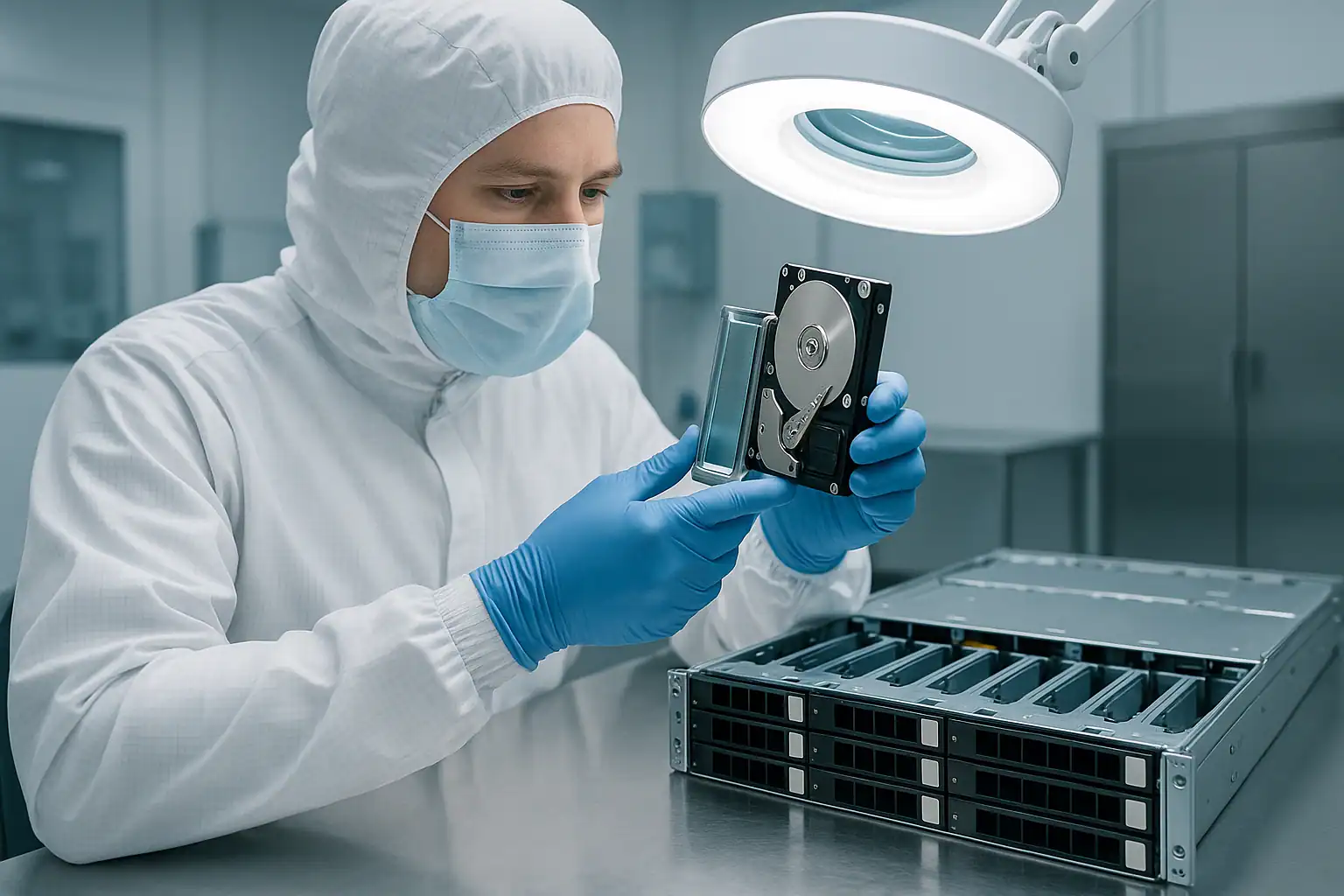
The HPE ProLiant MicroServer Gen10 Plus is HPE’s smallest server — a compact cube about the size of a large lunch box, designed to fit on a desk, under a counter, or in a small cabinet at a small business or home office. Production ran from 2020 onward (Gen10 Plus v1 with Intel Pentium G5420 or Xeon E-2200 series, then Gen10 Plus v2 from 2022 with Xeon E-2300 series), and the platform remains in active deployment across dental offices, law firms, accounting practices, photography studios, churches, restaurants, real estate offices, home labs, and small medical practices.
The MicroServer Gen10 Plus is a meaningfully different beast from the rest of the ProLiant lineup. It uses Smart Array S100i — an Intel Rapid Storage Technology-derived software / chipset RAID controller, fundamentally different from the hardware-RAID Smart Array P408i-a in the DL and ML lines. iLO 5 is not standard — it’s an optional add-on via the iLO Enablement Kit. There’s a single power supply, four non-hot-swap drive bays, and the unit is often deployed by the business owner directly rather than by an IT team. The audience and the failure profile are both distinctive, and this page reflects that.
MicroServer Gen10 Plus-Specific Failure Patterns
Single-drive failures without redundancy
The MicroServer Gen10 Plus ships with four drive bays, but a large share of deployments run with just one or two drives populated — sometimes in a mirror, sometimes as standalone storage. When a single non-redundant drive fails, the data is offline until recovery. We see this scenario constantly: a small business owner notices their server isn’t accessible, calls their local tech, and discovers there was no RAID protecting the data in the first place. Recovery is typically straightforward when the drive is physically intact, but the time pressure is real because the business has no fallback.
Smart Array S100i (Intel RST) metadata issues
The S100i is a software/chipset RAID controller built on Intel Rapid Storage Technology — it’s entirely different from the hardware Smart Array P408i-a found in larger ProLiant systems. S100i metadata sits on the drives in the Intel Matrix RAID format and requires the correct OS driver to read at runtime. When the boot drive or OS gets corrupted, when a drive is moved between systems, or when an attempted firmware update goes wrong, the S100i array can become unreadable even though the underlying drives are intact. Recovery requires reading the S100i metadata directly rather than depending on the controller to present the array.
Synology XPEnology and DSM volume crashes
A large share of MicroServer Gen10 Plus systems run Synology DSM via XPEnology — an unofficial Synology DSM installation supported by enthusiast communities and small businesses that want Synology functionality on HPE hardware. When the DSM volume crashes (failed BTRFS scrub, corrupted Synology Hybrid RAID metadata, failed DSM update, or a drive failure that DSM didn’t handle cleanly), the recovery path is specific to DSM’s storage architecture rather than to traditional RAID. We’ve recovered from countless XPEnology deployments — the underlying drive data is usually intact, but extracting it requires understanding Synology’s SHR, BTRFS, and DSM volume layout.
TrueNAS, Unraid, and Proxmox failures
The MicroServer Gen10 Plus is a popular platform for TrueNAS Core (FreeBSD-based, ZFS storage), TrueNAS Scale (Linux-based, ZFS), Unraid (parity-disk-based JBOD), and Proxmox VE (with ZFS, LVM, or BTRFS underneath). Each of these stores data differently — ZFS pools, Unraid parity disks, Proxmox LVM volumes — and each has its own failure modes:
- ZFS pool corruption from power events on systems without UPS
- ZFS vdev failures when multiple drives in the same vdev fail
- Unraid parity-disk failures followed by a data drive failure (loss exceeding parity protection)
- Proxmox VM disk corruption from underlying storage issues
- BTRFS metadata corruption common after unclean shutdowns
These workloads need recovery approaches matched to the storage layer in use, not generic RAID reconstruction.
Boot drive M.2 NVMe failures
The MicroServer Gen10 Plus has an internal M.2 NVMe slot intended for boot drives. When the M.2 boot drive fails, the system can’t POST or load the OS — but the data drives in the front bays may be completely intact. Customers often assume a server that won’t boot has lost all its data, when in fact the storage drives are fine and just need to be read on a different system. M.2 NVMe drives in MicroServers face the same NVMe failure modes as larger systems (PCIe link errors, namespace corruption, controller failures) but in a more thermally constrained environment.
Single power supply failures and power events
The MicroServer Gen10 Plus has a single power supply — no redundancy — and most small business deployments lack proper UPS protection. Power events hit the system directly. Sudden power loss during writes corrupts file system metadata; repeated power loss accumulates damage; brownouts can damage the PSU itself, leaving the system unable to boot even though the drives are fine. We see PSU failure recoveries regularly — the data is preserved, but the path to extracting it requires bypassing the dead PSU.
Consumer-grade drives in 24/7 deployments
MicroServers are often deployed with consumer-grade drives (WD Red, WD Blue, Seagate IronWolf, Seagate Barracuda, Toshiba consumer drives) rather than enterprise SAS drives. Consumer drives have different reliability characteristics in continuous-operation environments: lower MTBF, different SMART thresholds, and firmware that’s tuned for desktop workloads rather than NAS / server workloads. After several years of 24/7 operation, consumer drives in MicroServers fail at higher rates than enterprise drives in the same environments. The drives are recoverable through our normal cleanroom process; the higher failure rate just means more cases reach the lab.
Thermal issues in poorly ventilated placements
The MicroServer is small enough to be tucked into spaces that don’t breathe well — under desks against walls, in cabinets, on shelves with limited airflow. The chassis cooling is effective when the system has open space around it, but cramped placements lead to elevated operating temperatures, accelerated drive wear, and eventual failure. We commonly see MicroServers come in with dust-loaded intake vents and drives that have been operating hot for years.
Liquid spills, knocks, and theft
Because MicroServers sit on or near desks rather than in locked racks, they experience scenarios rack servers never do: liquid spills from coffee, water bottles, or cleaning supplies; falls from desks or shelves; impact from being knocked over; and theft (they’re small and portable enough to be stolen from offices). Each of these scenarios has a recovery path — liquid-damaged drives, mechanically shocked drives, and drives from theft-recovery cases all come through our lab regularly.
Critical MicroServer Gen10 Plus Error Conditions
Smart Array S100i and Drive Error Messages
| Error / Message | What it means | Data loss risk |
|---|---|---|
| S100i / Intel RST: Volume Status Degraded | One drive in a redundant array failed | Moderate — high if second drive fails before rebuild |
| S100i / Intel RST: Volume Status Failed | More drives failed than the RAID level can tolerate | Critical |
| S100i: Drive Missing / Not Present | Controller cannot detect a drive that was previously part of an array | Moderate |
| S100i: Array Metadata Inconsistent | Drive metadata doesn’t match what the controller expects — common after moving drives between systems | Critical — do not initialize or recreate the array |
| Boot device not found | M.2 NVMe boot drive failed or BIOS lost boot configuration | Low for data drives — data drives are usually unaffected |
| System will not POST | Hardware-level failure preventing boot — often PSU, motherboard, or boot device | Low for data drives — drives can usually be read on another system |
| Drive making clicking, beeping, or grinding noise | Mechanical drive failure in progress | Critical — power off immediately to prevent further damage |
| BTRFS / ZFS / DSM volume crashed or unmounted | Storage layer reported corruption or failure (software-level) | Moderate to Critical depending on extent |
Drive LED Behavior on MicroServer Gen10 Plus
The MicroServer Gen10 Plus uses simpler drive LEDs than the enterprise ProLiants — usually just an activity LED and a fault LED per drive bay. The exact LED behavior depends on whether the system is running with S100i hardware-managed RAID or in a JBOD configuration where the OS manages the drives directly.
| LED Pattern | Meaning |
|---|---|
| Steady green / blue | Drive online and powered |
| Flashing green / blue | Drive activity (reads or writes) |
| Steady amber / red | Drive failed (when in S100i managed configuration) |
| Off | Drive not detected or not powered |
For systems running Synology DSM, TrueNAS, Unraid, or Proxmox, the OS-level interface (web UI) typically gives more detailed drive status than the chassis LEDs. Check the storage management interface in your OS for the authoritative status.
iLO 5 Events (If Equipped)
The MicroServer Gen10 Plus has iLO 5 only when the optional iLO Enablement Kit is installed. If your system doesn’t have iLO, this section doesn’t apply. For systems with iLO 5 installed, the relevant event sources match those of the larger ProLiant Gen10 systems: Smart Storage events, NVMe events, System Environment events, and so on. The Active Health System (AHS) log download remains the most useful diagnostic artifact when iLO is present.
How We Recover Failed MicroServer Gen10 Plus Systems
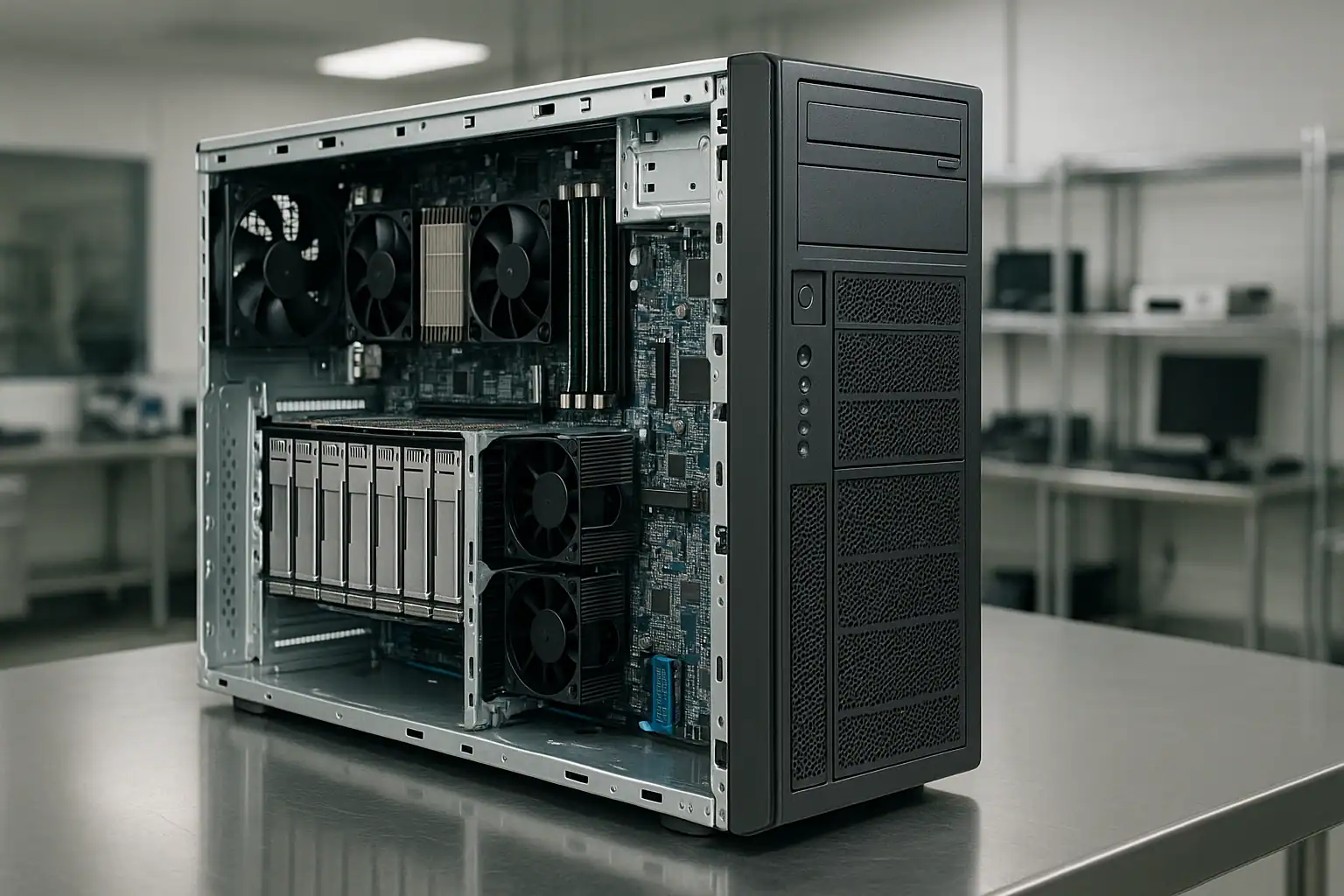
MicroServer Gen10 Plus recoveries follow our standard ProLiant recovery process with adaptations for the unique architecture: free consultation, temporary hardware repairs in our ISO 5 cleanroom, write-blocked forensic imaging of every drive, software-layer reconstruction (S100i, Synology DSM, ZFS, Unraid, Proxmox — whatever the system was running), and file system extraction.
For MicroServer cases specifically, the recovery workflow depends heavily on how the storage was configured:
For Smart Array S100i configurations (Intel RST-based chipset RAID), we read the Intel Matrix RAID metadata directly from the drives and reconstruct the array in software without depending on the controller or motherboard. This is fundamentally different from the P408i-a workflow used on larger ProLiants.
For Synology DSM via XPEnology, we parse Synology Hybrid RAID (SHR) metadata, BTRFS volume structures, and DSM-specific configuration to reconstruct the volume layout. Synology pools, snapshots, and shared folders are all recoverable through this process.
For TrueNAS Core or TrueNAS Scale (ZFS), we import the ZFS pool from the drive images and extract dataset contents directly. ZFS’s checksumming actually helps recovery in many cases because it tells us which sectors have intact data versus corrupted data.
For Unraid, we work with the parity-disk-plus-data-disks architecture, reconstructing missing data from parity where possible. Unraid’s relatively simple storage model (one parity disk + N data disks in JBOD) is forgiving for recovery purposes.
For Proxmox VE, the recovery handles ZFS pools, LVM volumes, or BTRFS subvolumes underneath, then extracts VM disk images (.qcow2, raw, vmdk) for individual VM recovery.
For single-drive deployments (Windows or Linux on a single drive, no RAID), recovery is the most straightforward case: image the drive forensically, then extract the file system contents directly.
Because most MicroServer Gen10 Plus chassis ship in compact form factors that fit easily in a single shipping box, we recommend shipping the entire unit intact when possible. This eliminates customer confusion about drive slot order, preserves any iLO Enablement Kit configuration, and lets us pull drives directly in our lab.
What to Do Right Now If Your MicroServer Gen10 Plus Is Failing
Don’t try consumer data recovery software. Free or inexpensive data recovery software is one of the leading causes of recoverable cases becoming unrecoverable. These tools write to the failing drive, run filesystem repair against potentially corrupted volumes, and can permanently destroy data that was retrievable before they were run. If your server is the only place certain files exist, treat the drives as evidence to preserve, not as targets for experimentation.
Don’t open hard drives. Drives that arrive at our lab with the cover removed are essentially unrecoverable — the internal mechanism cannot tolerate exposure to ambient dust. If a drive is clicking or making noise, power it off and call us; don’t open it.
Don’t recreate the array, accept any “initialize” prompt, or reinstall the operating system. The S100i / Intel RST configuration screen has options to recreate or initialize arrays that will permanently destroy your data. Synology DSM, TrueNAS, and Unraid all have similar destructive options. When in doubt, don’t click anything — ship the unit or call us first.
Don’t run filesystem repair tools. Windows chkdsk, Linux fsck, ZFS scrub on a degraded pool, BTRFS check, Synology DSM repair tools — all can permanently alter metadata that recovery depends on.
If the system won’t POST, the drives are probably fine. M.2 boot drive failures, PSU failures, and motherboard failures all prevent boot but leave the data drives intact. Don’t assume server-won’t-boot equals data-lost — the data drives are independent and usually recoverable.
If drives are clicking, beeping, or grinding, power off and leave them off. Mechanical drives get worse with every minute of runtime. This applies whether the drive is enterprise-grade or consumer-grade.
If the system was exposed to liquid, don’t power it on. Water in the chassis, on the motherboard, or on the drives can cause short circuits that destroy electronics on power-up. The right next step is to ship the unit (powered off, drives in place) for proper cleanroom evaluation.
Don’t try to swap drives between MicroServers or to a desktop PC. S100i arrays, Synology DSM volumes, TrueNAS ZFS pools, Unraid configurations, and Proxmox storage all have specific identifiers that can change in destructive ways when drives are moved between systems. Read the drives in place or ship the whole unit; don’t experiment with swaps.
Mark every drive’s original slot position before removing anything. The MicroServer Gen10 Plus has four drive bays numbered 1-4; the slot a drive came from matters for reconstruction.
Document what was running on the system. The configuration matters more on MicroServers than on enterprise systems because the storage architecture varies so widely: Windows software RAID, S100i hardware RAID, Synology DSM, TrueNAS Core, TrueNAS Scale, Unraid, Proxmox — each needs a different recovery approach. The more accurately you can describe what was running, the faster the consultation moves.
MicroServer Gen10 Plus Configurations We’ve Recovered
- Single-drive Windows 10 / 11 Pro deployments — small office file servers, point-of-sale systems, basic shared storage
- Single-drive Windows Server 2016 / 2019 / 2022 Essentials — small business Active Directory, file shares, basic web hosting
- RAID 1 mirror configurations under Windows software RAID or S100i — redundant small business deployments
- RAID 5 with S100i across three or four drives — small business file servers, larger storage requirements
- Synology DSM via XPEnology with Synology Hybrid RAID (SHR) — the most common XPEnology configuration we see
- Synology DSM via XPEnology with BTRFS volumes and snapshot history
- TrueNAS Core (FreeBSD, ZFS) with RAID-Z1 or RAID-Z2 pools — home labs, photo / video archives, small business backup targets
- TrueNAS Scale (Linux, ZFS) with similar pool configurations
- Unraid with one parity disk and three data drives — mixed-capacity drive deployments, Plex media servers
- Proxmox VE with ZFS or LVM underneath, hosting small business VMs — Windows Server VMs, pfSense, Home Assistant, custom Linux workloads
- MicroServer as a Plex / Jellyfin media server with large standalone drives
- MicroServer as a Veeam Endpoint backup target for a separate primary computer
- MicroServer as a Time Machine backup destination for Mac shops (via AFP or SMB)
- MicroServer running pfSense / OPNsense as a small office firewall and VPN gateway
- MicroServer hosting QuickBooks Enterprise or other small business accounting applications
- MicroServer hosting dental practice management software, legal practice management, and small medical practice EHR systems
- MicroServer with M.2 NVMe boot drive + 4 SATA HDDs — the most common Gen10 Plus configuration
- MicroServer recoveries from liquid spills, drops, theft-recovered units, and fire-damaged offices
Frequently Asked MicroServer Gen10 Plus Questions
I only have one drive and it failed. Is my data lost?
Almost certainly not. Single-drive recoveries are routine work for us — the drive itself usually contains your data, even when it’s no longer accessible from the server. We image the drive forensically in our cleanroom (including drives that are clicking, won’t spin up, or have electronics failures), then extract files from the image. Don’t run any recovery software yet — ship the drive (or the whole MicroServer) and let us preserve the original state.
My MicroServer is running Synology DSM (XPEnology). Can you recover from it?
Yes. XPEnology deployments are common in our caseload. We parse the Synology Hybrid RAID (SHR) metadata, BTRFS volume structures, and DSM-specific configuration to reconstruct what was on the volume — shared folders, snapshots, Synology Drive contents, Photo Station libraries, Surveillance Station footage. The drives themselves contain everything we need; we don’t depend on the XPEnology installation being recoverable.
I’m running TrueNAS on my MicroServer. The pool is degraded. What does recovery look like?
Depends on the failure scope. If your ZFS pool is degraded but still importable, recovery may focus on extracting datasets you care about while the pool is still readable. If multiple drives in a vdev have failed and the pool can’t be imported, we image the drives forensically and reconstruct the ZFS pool from the on-disk metadata. ZFS’s checksums actually help recovery in many scenarios — they tell us which sectors have intact data versus corruption.
I tried recovery software before calling. Did I make it worse?
Maybe, depending on which software and what it did. Tools that only read drives are usually harmless. Tools that “repair” or write to drives often cause permanent damage. If you ran anything beyond read-only tools, stop now and tell us what you ran during the consultation — we’ll evaluate what’s still recoverable. Many cases that came in after software-attempt recoveries still ended successfully, but some were made worse.
My MicroServer was knocked over / had liquid spilled on it / fell off a shelf. What now?
Power it off and leave it off. Don’t attempt to turn it on to see if it still works — that can cause short circuits or aggravate mechanical damage to drives. Ship the whole unit for evaluation. Liquid-damaged, mechanically-shocked, and impact-damaged drives all come through our lab regularly and most are recoverable.
Can I just buy a new drive and copy everything over?
Only if the original drive is healthy enough to copy from. If the drive is failing — clicking, beeping, slow, or producing read errors — attempting a long file-copy operation can finish off the drive entirely. We recommend a proper forensic image first (which we can do in our lab), then copy from the image to your new storage. This protects the original data through the copy process.
I don’t have iLO on my MicroServer. Does that matter for recovery?
No. The iLO Enablement Kit is optional, and many MicroServer deployments don’t have it. Recovery doesn’t depend on iLO — the data lives on the drives, not in the management subsystem. iLO is helpful for remote diagnostics when present, but its absence doesn’t affect what we can recover.
I’m a photographer / videographer and my entire archive was on the MicroServer. Can you get my photos / video back?
Yes, this is a common scenario. Photography and video archives are typically large file collections (TIFFs, RAW files, PSDs, video projects in various formats) on standard file systems. Once we reconstruct the storage layer and extract the file system, your photos and videos extract just like any other files. We’ve recovered countless creative-professional archives from MicroServers.
I’m a small medical / dental / legal practice. Are there special considerations?
Yes. Patient records, dental records, and legal files have privacy and chain-of-custody implications. We handle these with appropriate care — we’re HIPAA-aware, we’re comfortable with attorney-client privilege considerations, and we can provide documentation of our handling process for compliance purposes. Mention your industry during the consultation and we’ll discuss specifics.
What about QuickBooks files? Can those be recovered specifically?
Yes. QuickBooks company files (.qbw) sit on the file system like any other files. Once we reconstruct the array and extract the files, you can open them in QuickBooks on a different machine. Same applies to Sage, Xero local files, and other accounting application files.
My Plex media library is on a MicroServer that died. Can it be saved?
Yes. Media files (movies, TV shows, music, photos) recover the same way any large file collections recover. Whether you were running Plex on a single-drive setup, on an Unraid array, on TrueNAS ZFS, or anywhere else, the underlying media files are recoverable. The Plex database itself (watch history, posters, metadata) is also recoverable as a separate file structure.
My MicroServer was stolen and later recovered by police. The drives are in unknown condition. Help?
We handle stolen-and-recovered cases regularly. The drives may have been removed and reinstalled, may have been powered off improperly for extended periods, or may have suffered physical mishandling. The recovery process is the same — forensic imaging followed by reconstruction — but the case may need extra cleanroom work depending on what the drives experienced.
How can I tell if my MicroServer is a Gen10 (older) or Gen10 Plus?
The Gen10 (without “Plus”) used AMD Opteron processors and a Marvell-based RAID controller; the Gen10 Plus uses Intel Pentium or Xeon processors and the Smart Array S100i. The Gen10 Plus is also slightly smaller and has a different front bezel design. The service tag / product label confirms the model. Gen10 Plus product numbers typically start with P16005, P18584, P18585, P16006, P16007 (Gen10 Plus v2 uses P54644, P54645 and others). A photograph of the label during consultation is the fastest way to confirm.
My MicroServer is the only place certain files exist. How fast can you work?
Most MicroServer recoveries complete in days, not weeks — the configurations are smaller than enterprise rack deployments and the drive counts are limited to four. Our expedited service tier compresses this further when business operations depend on the data. The consultation gives a realistic estimate based on your specific situation and drive condition.
Start Your Free MicroServer Gen10 Plus Recovery Consultation
If your HPE ProLiant MicroServer Gen10 Plus is down, get a free consultation with our team. We’ll walk through your specific configuration — the OS, the storage layout, what failed, what you’ve tried — and tell you honestly what’s possible.
Start Your Free MicroServer Consultation
Free consultation · Clear upfront pricing · ISO 5 cleanroom recovery
Or call 1-877-624-7206 to speak with our team directly.