
Veeam Backup File Corruption: When the Restore Won’t Complete


You ran the restore. Veeam started reading the VBK. Then a dialog appeared:
Failed to decompress LZ4 block: Bad crc (original crc: a61d8c51, current crc: ebf2bfe2).
Or maybe it was this one:
Failed to reload metadata bank. Declared and actual CRC are different for all bank snapshots.
Either way, the restore stopped. Maybe you tried again. Maybe you tried an earlier restore point. Maybe you went all the way back to the full backup at the start of the chain — and got the same error at the same place every time. Veeam Support, if you got that far, may have told you the backup is “broken beyond any repair.” The message is doing exactly what backup software is supposed to do: it detected that the data it was about to restore doesn’t match what was originally written, and it stopped rather than hand you a silently-corrupted recovery.
That’s the correct behavior for a backup tool. It’s also, sometimes, the moment a business runs out of options inside the Veeam ecosystem and starts looking for help outside it.
This page is for IT pros, MSPs, and businesses dealing with Veeam backup files that won’t restore — whether because of hardware failure, ransomware that left the backups partially destroyed, accidental deletion that’s been partially overwritten, or storage-level corruption that Veeam’s checksums correctly refuse to ignore. We’ll cover what the most common errors actually mean, how to distinguish hardware-related corruption from true backup damage, and what professional recovery can do when Veeam’s standard tools have stopped.
The Most Common Veeam Restore Errors and What They Actually Mean
If you’ve been working through a failed Veeam restore, you’ve probably seen one of these messages. Each one points to a different underlying problem, and the right next step depends on which one you’re looking at.
“Failed to decompress LZ4 block: Bad crc”
By far the most common Veeam restore error we see. The full text usually looks like:
Failed to decompress LZ4 block: Bad crc (original crc: a61d8c51, current crc: ebf2bfe2).
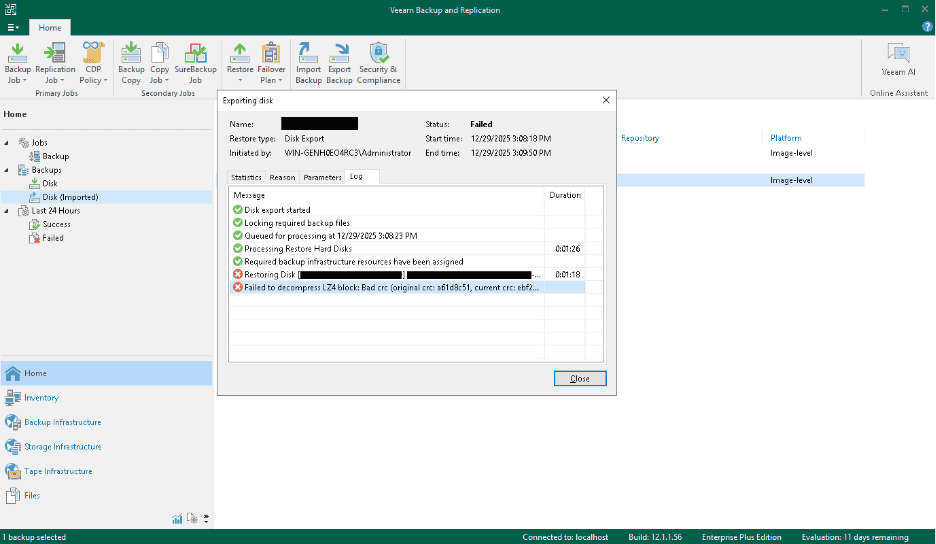
Veeam compresses backup data using LZ4 and stores a CRC checksum for each compressed block. When the restore reads a block, it recomputes the CRC and compares it to the one stored at backup time. When they don’t match — “original crc” vs “current crc” — it means the block on disk is no longer bit-identical to what was originally written. Veeam correctly refuses to decompress and use it.
What causes this:
- Storage hardware that’s silently returning bad data. A failing SSD with worn-out NAND, a hard drive developing bad sectors, a SAS controller with signal integrity issues, even ECC memory that’s not actually correcting errors — any of these can write or return data that differs from what was originally stored. This is the most common single cause.
- An interrupted backup write — power loss, sudden host shutdown, network drop during a copy job — that left a partially-written block.
- Ransomware that touched backup files during the attack, either deliberately or as a side effect of mass encryption.
- Accidental deletion followed by partial recovery from the underlying storage. When backup files are deleted and later recovered from unallocated space, small portions are typically not recoverable. Veeam sees those gaps as CRC failures.
- Bit rot on long-term backup storage — slow magnetic decay or NAND charge loss over time. Less common but real on backups that have sat untouched on the same media for years.
“Failed to reload metadata bank. Declared and actual CRC are different for all bank snapshots.”
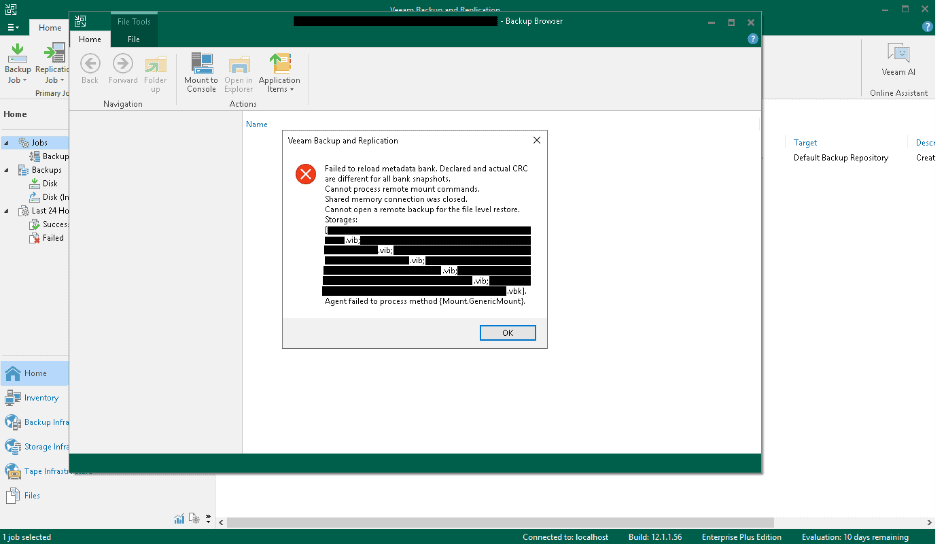
This one is more serious. Veeam stores its backup file metadata — the index that tells the software where each block of data lives within the VBK — in multiple redundant copies. When all copies of the metadata fail their CRC checks, the restore stops before it can even begin. Veeam can’t trust any of the metadata to find the actual data blocks.
This error usually means one of two things:
- The corruption is in a critical metadata region of the backup file — not just user data blocks, but the bookkeeping structures Veeam needs to navigate the file at all. Veeam itself will tell you on its forums that this typically indicates “massive backup storage corruption, or perhaps malicious activity.”
- The file was partially destroyed and partially recovered. Common after ransomware attacks where backups were deleted, then partially salvaged from unallocated space on the underlying storage.
The standard Veeam recovery toolchain can’t proceed from this error. The backup file is, from the software’s perspective, unreadable.
Other restore errors you may see
Beyond the two errors above, Veeam can throw a number of more situational messages during a failed restore:
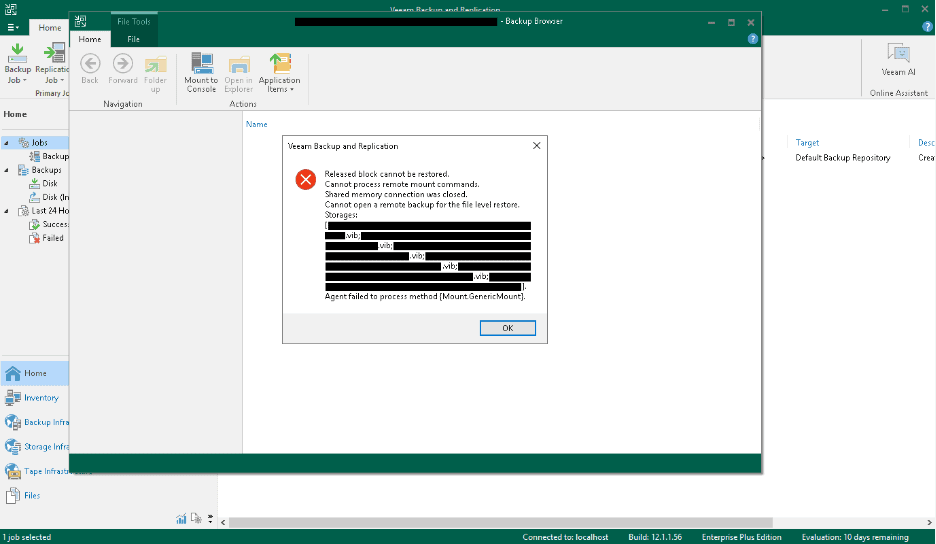
- “Released block cannot be restored” — Veeam encountered a block marked as released (deallocated) that’s being requested by the restore process. Can indicate metadata inconsistency or partial backup file corruption.
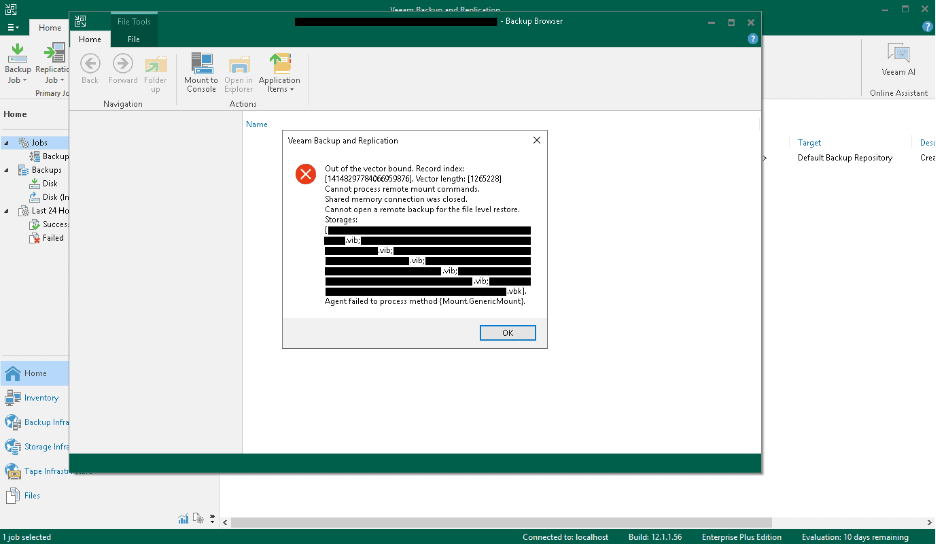
- “Out of the vector bound. Record index: [X]. Vector length: [Y]” — Veeam tried to read an entry from an internal lookup structure and the index pointed past the end of the structure. Usually means the metadata pointing to the data was readable but is referencing locations that don’t exist.
- “Required backup files are missing or temporarily unavailable” — A broken backup chain, where one or more VIB or VRB files in the chain is missing or inaccessible. We have a separate page covering broken Veeam backup chains and missing backup files in detail.
- “Cannot process remote mount commands” / “Shared memory connection was closed” / “Failed to retrieve object hierarchy” / “Agent failed to process method [Mount.GenericMount]” / “Reconnectable protocol device was closed” — These are usually downstream consequences of one of the core errors above: Veeam encountering the underlying corruption mid-operation and tearing down its restore process. The third and fourth screenshots in this article (below) show two of these in context.
The Counterintuitive Truth: Sometimes the Backup Isn’t the Problem
Here’s something we see often enough to mention specifically: a backup file that throws CRC errors on one server may restore perfectly on another. The bytes Veeam is reading don’t match the bytes it expected — but that doesn’t always mean the bytes on disk are wrong. Sometimes the bytes are fine and the storage path that’s reading them is the problem.
Common scenarios where the backup itself is healthy and the hardware is the culprit:
- A failing SSD or hard drive in the backup repository. Bad sectors that haven’t yet been remapped, NAND wear that’s producing intermittent read errors, a drive that’s silently returning corrupted data without throwing a hardware error. The backup software sees CRC failures; SMART may or may not show warnings yet.
- SAS or SATA cable issues. Marginal cables, especially in older server hardware, can produce intermittent bit errors that look like backup corruption. Replace the cable, retry the restore, and the “corruption” is gone.
- A failing storage controller or HBA. Aging RAID cards or host bus adapters can produce signal integrity issues that present as data corruption on the drives they manage. The drives themselves are fine.
- ECC memory faults. When backup files are read from storage into RAM for decompression and CRC verification, faulty RAM can flip bits between read and verify. The drive returned correct data; the RAM corrupted it before Veeam could check.
- Network or fiber channel link errors when the backup repository is remote. CRC errors during reads from a SAN can stem from the network path, not the underlying LUN.
The diagnostic clue: if multiple unrelated backups across the same hardware start showing CRC errors at similar times, suspect the hardware first. A single isolated failure in one job is more likely to be a real backup-side issue. When we work cases where the underlying storage hardware is suspect, addressing the hardware first — stabilizing the drive, replacing the controller, imaging onto known-good storage — often makes the “corruption” disappear entirely.
The Ransomware Scenario
A meaningful percentage of Veeam recovery cases that reach us follow the same arc: a ransomware attack encrypted the primary infrastructure, the attackers also located and deleted (or quick-formatted) the backup repository, and the IT team is now trying to restore from whatever backup files can be salvaged from the underlying storage.
This is recoverable in many cases, with several important caveats:
Shut down the affected appliances and hosts immediately if you suspect an active attack. Modern ransomware doesn’t always finish its work in a single visible burst. Some variants run background processes that continue to scrub drives, encrypt newly-accessed files, or zero out unallocated space hours after the initial encryption phase appears complete. As long as the malware-controlled host is running, your remaining recoverable data is at risk. Pull power if you have to. Don’t reboot. Don’t let the attacker keep working.
Once the system is off, your remaining data is safe. The deleted backup files persist on the underlying storage until something writes new data over them. With the system powered off, nothing is writing — which is exactly what you want during the window between “we discovered the attack” and “the drives are in the hands of a recovery lab.” Keep it off until a recovery plan is in place.
Don’t alter your Veeam configuration after an attack. The Veeam configuration database (typically a Microsoft SQL Server instance or SQL Server Express on the Veeam server) holds the encryption passwords for your backup files. There’s a documented Veeam procedure for extracting saved passwords from a working configuration database. If you reinstall Veeam, change passwords, or rebuild the configuration to “start fresh” after an attack, you may lose access to your own backup file encryption keys — even if we successfully recover the backup files themselves. Leave the Veeam server as it is until a recovery plan is in place. In some cases, recovering the Veeam configuration database itself becomes part of the recovery scope alongside the backup files.
Recovered backup files almost always have some level of corruption. When VBK, VIB, or VRB files are recovered from unallocated space — or from a quick-formatted volume — small regions are typically not recoverable. Backup files are large (often hundreds of gigabytes or terabytes), so even 99.7% recovery still means substantial unreadable regions. Veeam’s standard restore process will refuse to use these files because they fail integrity checks. Specialty recovery work is required to extract usable data despite the gaps.
In the cases we work successfully, the result isn’t “perfect restoration of every file” — it’s “recovery of 99%+ of the files contained in the backup, where the alternative was zero.” For most businesses facing ransomware with destroyed backups, that’s the difference between continuing to operate and shutting down.
When the repository itself was wiped or the immutability setting did not hold. A second pattern we see after an attack is not a deleted backup file but a missing repository: the Linux hardened repository or NAS share was reformatted, the ReFS or XFS volume that held the backup chain was deleted, or an immutable-storage setting that everyone believed was protecting the chain turned out to be misconfigured (an immutability window that had already expired, a repository that was never actually flagged immutable, or an object-storage bucket whose retention lock was removed before the attack). In every one of these cases the software layer is gone, but the backup data is usually still sitting on the underlying disks until something overwrites it. Recovery then starts from the raw volume: reconstructing the file system or the RAID set that held the repository, locating the VBK, VIB and VRB extents, and rebuilding the chain from what is physically present. Our ransomware data recovery page describes how we approach the storage side of these cases, and our Veeam data recovery page covers the service itself.
What not to do while you decide. Do not re-run or re-create the backup jobs, do not reformat or re-initialize the repository volume to “get the appliance back,” do not let a vendor wizard rewrite or re-chain the backup set, and do not expand or rebuild the RAID array the repository sat on. Each of those writes to exactly the space your deleted backups still occupy. Power the repository down, note what was configured (repository type, file system, RAID level, immutability settings) and have the drives or the whole appliance evaluated before anything is written to them.
Why Veeam’s Built-In Tools Stop Where They Do
Veeam’s checksums, integrity streams, and refusal to restore corrupted data aren’t bugs — they’re correct behavior for a backup tool. The job of a backup product is to either restore your data accurately or tell you it can’t. Silently restoring corrupted blocks would be worse than failing the restore, because you’d end up with files that look fine but contain garbage at unpredictable locations.
Software developers can’t realistically code for every eventuality. If Veeam tried to handle every form of corruption, every form of partial-recovery, every weird storage failure mode, every metadata damage pattern, it would stop looking like a backup tool and start looking like a data recovery tool. Those are different products with different design goals, and shipping both inside the same software would make the backup half worse at being a backup. The right design choice for backup software is to focus on doing backup well: making reliable copies, verifying them, and refusing to hand you data that doesn’t pass verification. Recovery from the cases where verification fails is a different specialty.
That’s where we come in. Given that the backup software can’t or shouldn’t restore the data, what can be extracted anyway? That question has a different answer than “can the standard restore complete?” Many partially-corrupted backups contain the vast majority of their original data intact. Extracting that data requires going around Veeam’s standard restore process, working at the VBK file structure level directly, and accepting that some specific blocks will be irrecoverable while reconstructing everything around them.
How Professional Veeam Backup Recovery Works
The process we use for failed Veeam restores has several stages, each protecting the data from being made worse by the recovery attempt itself.
Free consultation to scope the case. We need to understand the specific situation: what Veeam errors are appearing, what’s the underlying storage configuration, what’s already been tried, what’s the time pressure, and whether the case involves recovered-from-deletion backup files or backups that are still in place on the repository. This determines the engagement structure and what’s likely possible.
Stabilizing the underlying storage first. If the backup repository is on hardware that’s failing — drives with bad sectors, controllers showing errors, SSDs with NAND wear — we address the hardware before touching the backup files. In our ISO 5 cleanroom, our engineers perform the temporary hardware-level work needed to make the drives readable, then capture forensic images of every drive through hardware write-blockers. We do all subsequent work against the images. The original storage is never modified.
Recovery of deleted backup files when needed. If ransomware or accidental deletion removed VBK, VIB, or VRB files from the repository, we recover them from the underlying filesystem and unallocated space. The faster the drives come to us after the deletion (or after the system was powered down), the more complete the recovery. We work with NTFS, ReFS, ext4, XFS, ZFS, Btrfs (common on Synology and some QNAP repositories), and other host file systems that Veeam repositories run on, across Windows servers, dedicated Linux backup servers, and NAS appliances from Synology, QNAP, TrueNAS, and others.
Direct analysis of the VBK, VIB, and VRB file structures. When the standard Veeam restore process won’t complete, we work at the file structure level — parsing the backup file’s internal layout, identifying which regions are intact and which are damaged, and extracting the contained virtual machine data (VMDK files for VMware-backed VMs, VHDX for Hyper-V, raw block data for physical-machine backups) directly. This is the work that’s only possible because we don’t need Veeam’s restore process to cooperate; we’re reading the underlying file structure and reconstructing what’s inside.
Virtual disk reconstruction. Once the backed-up virtual disk data is extracted from the VBK, we reconstruct it as a usable VMDK or VHDX file. From there, the data can be mounted, file-system-level recovery can proceed (handling NTFS, ReFS, ext4, XFS, or whatever the guest OS used), and individual files can be extracted.
Honest reporting on what came back. When backups have been corrupted or partially destroyed, recovery is rarely 100%. We tell you what percentage of the file system structure was recovered, what percentage of files came back intact, and what specific data didn’t survive. In one recent ransomware case, we recovered 99.5% of the file system structure and 99.9% of files from backups with substantial unrecoverable regions. That’s typical of what well-handled recovery can achieve; it’s also why we report numbers honestly rather than claiming complete recovery.
What to Do Right Now If Your Veeam Restore Won’t Complete
The first hour or two of decisions often determines what’s recoverable. A few things to do and not do:
If this is a ransomware attack, shut down the affected appliances and hosts immediately. Malware can continue to damage data in the background long after the initial encryption appears complete. Pull power to the Veeam server, the backup repository, and any infected hosts. Don’t reboot — shut down. Once the systems are off, the data on them stops changing, which is exactly the state you want before recovery work begins.
Don’t continue running Veeam operations against a backup that’s throwing CRC errors. Each failed restore attempt may not directly damage the backup file, but if Veeam is configured to “fix” corrupted points (Health Check), running it may invalidate restore points that you might have wanted to extract data from manually. Pause automated maintenance on the affected backup chain.
Don’t delete the “broken” backup files even if Veeam tells you to. Veeam’s “forget” or “delete” operations remove the file references from Veeam’s database, sometimes also deleting the underlying files. Once those files are gone, the recovery option is gone with them.
Don’t reinstall or reconfigure Veeam after an attack. Your Veeam configuration database holds the encryption passwords for your backup files. Reinstalling, changing passwords, or rebuilding the config to “start fresh” can permanently lose access to your own backup file encryption keys — even if the backup files themselves can be recovered. Leave the Veeam server alone until a recovery plan is in place.
Don’t run filesystem repair tools against the backup repository. If you suspect the underlying storage is corrupted, chkdsk, fsck, or ReFS repair commands can make the situation worse by writing changes to a file system that’s already unstable. Image the storage forensically before attempting repair.
Check whether the backup repository drives are healthy. Pull SMART data on every drive in the backup repository. Look for reallocated sectors climbing, pending sectors, uncorrectable errors, or temperature anomalies. If multiple drives in the same chassis are showing warnings, suspect a chassis-level issue (backplane, controller, thermal) rather than coincidental drive failure.
Document what’s happening before you intervene. The specific error messages Veeam is throwing, the Veeam version, the backup repository configuration (file system, hardware RAID or Storage Spaces, immutability settings), what changed recently, what’s been tried, and whether other backup jobs on the same infrastructure are also affected. This information shortens diagnosis significantly.
What Determines Whether Recovery Is Possible
Not every corrupted Veeam backup is recoverable. The honest assessment depends on several factors:
How much of the backup file is intact. A VBK with a few corrupted blocks scattered through user-data regions is highly recoverable. A VBK where the metadata regions are damaged is harder but often still possible. A VBK where extensive portions have been overwritten with new data (because the underlying storage kept being used after the deletion) may not be recoverable in meaningful amounts.
Whether the backup chain is complete. If the full backup (VBK) is intact and only some incrementals (VIB or VRB) are damaged, we can usually recover the VM state at the time of the most recent intact restore point. If the full backup itself is heavily damaged, the chain becomes harder to use.
Whether you have backup encryption enabled, and whether the Veeam config database survives. Veeam backups can be encrypted with a password set in the job configuration. If you have the encryption password, recovery proceeds normally. The password is typically entered once during job setup and then remembered by Veeam — meaning it’s stored in the Veeam configuration database, not in your head. There’s a documented Veeam procedure to extract that password from a working config database. As long as the Veeam server’s configuration is intact, the password is usually recoverable from it. If the config database itself is destroyed or has been altered after an attack, password recovery becomes much harder — and without the password, encrypted backups cannot be decrypted by anyone. Veeam’s encryption is strong and there’s no backdoor.
Whether ransomware encrypted the backup files themselves. Modern ransomware encryption is strong. We can’t break it. What we can sometimes do is recover backup files from before the encryption ran (if shadow copies, snapshots, or earlier versions exist), or recover the files from the underlying storage if the ransomware deleted them rather than encrypting them in place.
How quickly you reached us — and how quickly the affected systems were powered down. The longer a compromised system stays running after the attack, the more damage continues to happen. Once power is off, the clock effectively stops; the data on the drives stays in whatever state it was in at shutdown.
Frequently Asked Questions
Veeam Support told me my backup is broken beyond repair. Can you really do anything?
Often yes. “Broken beyond repair” is accurate from the perspective of Veeam’s standard restore tooling — Veeam (correctly) won’t restore data that fails its integrity checks, and there’s no built-in path to extract data from corrupted backup files. We work at the VBK file structure level directly, which is outside the scope of what Veeam’s tools are designed to do. The fact that the restore won’t complete doesn’t necessarily mean the data inside the file is unrecoverable.
My backup files were deleted in a ransomware attack. Are they gone?
Usually not entirely, if the affected system was powered down before too much further activity occurred. Most ransomware groups delete backup files rather than encrypting each one — encryption of large files takes time, deletion is fast. Deleted files persist on the underlying storage until something writes over their data blocks. As long as the system is off, that overwriting can’t happen.
What if my backups were on a NAS that the attacker quick-formatted?
Quick formats are actually one of the more recoverable scenarios. A quick format replaces the file system’s headers and partition metadata with new empty structures, but it leaves the actual file data in place on the drives, waiting to be overwritten by something else. Counterintuitively, a normal file delete on a modern filesystem (NTFS, ReFS, ext4, Btrfs) is often more destructive to recovery than a quick format, because the delete operation actively zeros out or invalidates the metadata records that track where the file’s data lives. With a quick format, the file system is wiped at a higher level but the lower-level file records frequently remain readable. Either scenario can be recoverable, but quick formats often more so than deletes.
My Veeam repository is on ReFS and ReFS is showing integrity errors. Is the backup corrupted or the file system?
Possibly both, possibly neither. ReFS integrity streams will report corruption when data doesn’t match its stored checksums — but the corruption might be in the underlying storage rather than in the backup file’s data. We investigate both layers. For ReFS-specific recovery scenarios, see our ReFS data recovery page.
My backups are on a Synology, QNAP, or TrueNAS appliance. Same recovery process?
Same fundamentals, with some appliance-specific handling. Synology runs Btrfs by default; QNAP supports both ext4 and ZFS depending on the model; TrueNAS is ZFS-native. Each file system has its own characteristics around how deletes, snapshots, and integrity checks behave, which affects what’s recoverable and how. The forensic imaging and file-structure-level VBK analysis work the same way across all of them; the file-system-level extraction step uses the appropriate tooling for whichever appliance and file system you’re running.
My backups are on a hardware RAID array and the array shows degraded or failed. Can you still recover Veeam data from it?
Yes. RAID-level failures are independent of the backup-software-level data. We image every drive in the array forensically, reconstruct the array in software using our internal tools, then extract the Veeam backup files from the reconstructed volume. From there, the standard VBK recovery process can proceed. See our RAID data recovery and server data recovery pages for more detail on the RAID and server side of this work.
What about Veeam backups on tape?
We recover Veeam data from tape when the tapes are readable. The recovery process involves reading the tapes (sometimes requiring drive-level work if the tapes are damaged), extracting the VBK files, then proceeding with VBK-level recovery as needed.
What’s the difference between VBK, VIB, and VRB files?
VBK is a full backup file. VIB is a forward incremental — additions and changes since the previous backup, used in forward-incremental backup modes. VRB is a reverse incremental — used in reverse-incremental modes where the VBK is always kept synthetically up to date and the older states are stored as VRBs. All three are recovery targets and all three can be corrupted independently. The chain handling differs depending on which backup mode the job was using.
How much does Veeam backup recovery cost?
Every case starts with a free consultation. Pricing depends on the scope: a single moderately-corrupted VBK is a different job from a multi-terabyte repository with multiple damaged backup chains and underlying storage failures. For server-class cases involving extensive engineering time, we provide a clear upfront quote based on projected hours after the consultation. We don’t charge for cases that aren’t feasible.
Can you help with backup software other than Veeam?
Yes. The principles of working at the backup file structure level apply across products. We handle Veeam most often because of its market share, but we work on backup file recovery for Acronis, Veritas, Commvault, Datto, Macrium, and others. The specific tooling differs by format but the approach is the same.
What’s the difference between Veeam Backup & Replication versions for recovery purposes?
Newer Veeam versions (v12 and onward) have made some changes to backup file structure and added features like SOBR with immutable repositories. The recovery work for older versions (v9, v10, v11) is well-understood. For newer versions, the fundamentals are the same with some version-specific handling. Tell us your Veeam version during the consultation.
The Bottom Line
Veeam is excellent backup software. When a Veeam restore stops with a CRC or metadata error, the software is doing exactly what good backup software should do: refusing to hand you data it can’t verify. Backup software focuses on backup, and trying to also handle every possible recovery scenario would make it worse at its primary job. Recovery from the cases where verification fails is a different specialty — that’s what we do.
If your Veeam restore is failing with corruption errors, your backups were destroyed in a ransomware attack, or your backup repository hardware has failed and taken your backups with it, we offer a free consultation to walk through the specifics and tell you honestly what’s possible.
Get a Free Veeam Recovery Consultation
Free consultation · Clear upfront pricing · ISO 5 cleanroom recovery
Or call 1-877-624-7206 to speak with our recovery team directly
