
Nobody repairs a hard drive as a hobby. If you’re looking at this page, something has failed and there’s data on the drive you need back. That makes “hard drive repair” a slightly misleading phrase — the drive itself is almost never worth saving. Modern hard drives cost less than the labor to open one, and a repaired drive is never trustworthy for daily use again. What people actually need is their data back. That’s what we do at Gillware, and we’ve been doing it since 2004.
This page is about physically failed hard drives — the ones with symptoms software cannot fix. Clicking, beeping, silence when powered on, drives that don’t appear in BIOS or appear with the wrong capacity, external drives that took a fall, drives that smell like smoke, drives with electrical damage. If any of that matches what you’re seeing, keep reading. If your drive is otherwise healthy and you accidentally deleted files or reformatted the wrong partition, that’s a different problem — a much simpler one — and software will often get you back to the data. This page is not that.
How to tell you’re not in a software situation
These are the symptoms that mean the physical drive has failed. If you see any of them, don’t run repair software, don’t run chkdsk, don’t try to reformat, and don’t keep power-cycling to “see if it comes back.”
- BIOS doesn’t see the drive at all. You’ve plugged it in, powered it up, and the drive doesn’t appear in your computer’s BIOS or in Disk Management. Sometimes the drive shows up briefly and then disappears. Both mean the drive is not responding to normal commands.
- BIOS sees the drive but reports the wrong capacity. A 4TB drive that appears as 8MB, 0MB, or a garbage number is telling you its firmware can’t read the calibration data on the service area of the platters. This is a firmware-level failure, not something Windows or macOS can talk around.
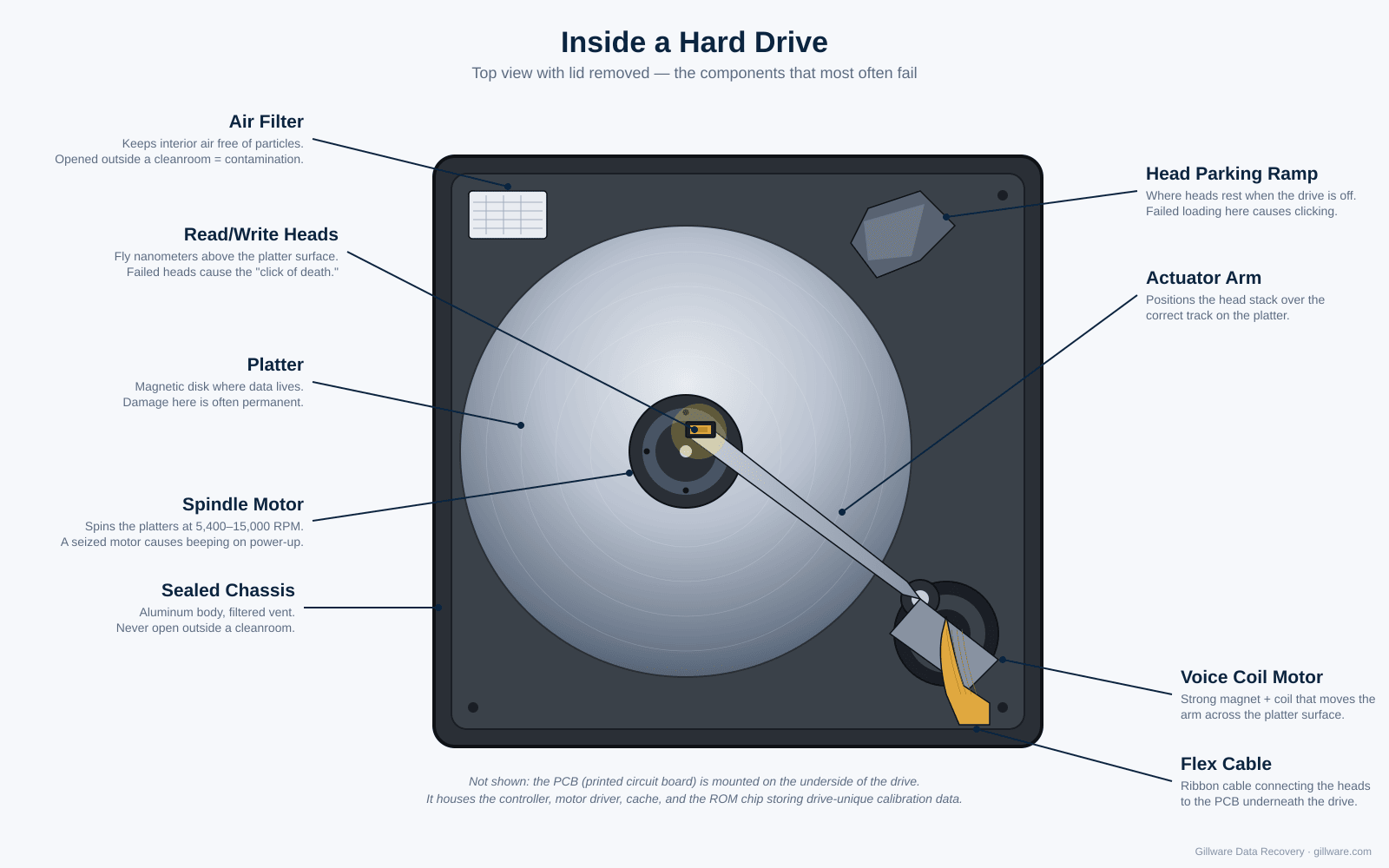
- Clicking or ticking sounds. A steady click every second or two — sometimes called the “click of death” — is the actuator arm trying and failing to load the read/write heads correctly. The heads have failed, or the drive is damaged in a way that stops normal head loading. Every additional power-on cycle makes this worse. Detail on clicking hard drive recovery here.
- Beeping. A high-pitched beep when the drive spins up almost always means the spindle motor is seized, or the heads are stuck to the platters (called stiction). The beep is the motor trying to spin against resistance.
- Silence — nothing happens when powered on. No spin-up, no clicks, no lights on the enclosure. Usually a failed PCB (the small circuit board on the bottom of the drive) or a completely seized motor.
- Dropped or impacted external drive. The drive was working, then it fell off a desk or got knocked while running. External drives don’t survive impact well because the heads are often over the platters when they hit. Even if the drive still spins, the heads may be damaged and scraping the surface.
- Broken enclosure connector. The USB or SATA port on the external case snapped off, or the plastic housing is cracked and the drive rattles inside. The drive itself might be fine — sometimes the fix is as simple as pulling the bare drive out and testing it in a lab. We don’t recommend opening enclosures at home; there’s a real risk of damaging the drive during removal.
- Burnt smell, smoke, or no response after a power surge. A power event — lightning, a surge, a failing power supply, plugging in the wrong voltage adapter — often burns out the PCB. Sometimes it takes out components on the drive itself. There is no software fix for a fried board.
- Water damage or fire damage. Flooding, sprinkler discharge, or fire almost always leaves the platters recoverable if the drive is sent in without being run first. Powering on a wet or contaminated drive can destroy an otherwise recoverable case in seconds.
- Drive gets hot fast, then shuts down. Modern drives have thermal protection. If yours is powering off within seconds of being plugged in, something inside is drawing more current than it should — usually a shorting head or a failing motor.
Why software won’t fix any of this
Every “hard drive repair software” tool on the market — chkdsk, Windows disk repair, and the commercial disk utilities — assumes the drive behaves as a working block device. Their job is to fix filesystem-level issues: corrupted allocation tables, bad sectors that need to be remapped, missing partition entries. Software works one level above the hardware.
When the read/write heads have failed, the controller board is dead, or the firmware on the service area is corrupted, the drive never gets far enough for software to do anything. Windows sees “no device” or “unrecognized device,” and no repair utility can force a broken drive to talk. Worse: running software scans on a physically failing drive keeps the drive powered on and working under load — which accelerates the physical damage. It’s the equivalent of running an engine with no oil to see if it starts.
A good rule of thumb: if the drive is making unusual sounds, running unusually hot, or not appearing normally in BIOS, it’s a physical problem. Stop and get it looked at by a lab.
What repair actually looks like
Real hard drive repair happens inside a controlled environment because the internals of a modern drive have tolerances measured in nanometers, and a single dust particle on a platter surface can wreck a recovery. Our engineers work in an ISO 5 Class 100 cleanroom in Madison, Wisconsin. Depending on the failure, repair work can include:
- Read/write head stack replacement. The most common physical repair. We source a compatible donor drive from our parts library, remove its head stack in the cleanroom, and transplant it into the failed drive. Head replacements often need to happen more than once during a single recovery — each set of heads reads a portion of the platters before wearing out, and we chase the customer’s most critical data across multiple passes. More on read/write head failure recovery.
- PCB repair and adaptives transfer. Modern drives store unique calibration values (adaptives) on ROM chips or NVRAM soldered to the control board. A generic donor PCB will not work. We move the original ROM chip onto the donor board so the drive can read its own platters again.
- Firmware repair. When the service area of the platters is damaged — the section that stores the drive’s boot code and calibration tables — the drive can’t initialize. Specialized tools give us direct access to firmware modules so we can rebuild or bypass damaged sections.
- Platter burnishing. Scratched platters used to mean end-of-recovery. Our platter burnishing technique lets us clean and polish minor scratches so the heads can fly over previously unreadable areas.
- Seized motor recovery. For seized spindle motors, we transplant the entire platter stack into a donor drive that already has a healthy motor. This is delicate work — the platters cannot shift relative to each other during the transfer.
Once the drive is running again in the lab — even briefly — our proprietary imaging platform HOMBRE reads sectors in a fault-tolerant way, prioritizing the customer’s most important files first and working around unstable regions. That matters because a repaired drive is often only good for a few hours of read time before it fails again.
What not to do while your drive is broken
- Don’t keep powering it on. Repeatedly cycling a failing drive is the most common way a recoverable case becomes unrecoverable.
- Don’t open it. A hard drive opened outside a cleanroom is contaminated within seconds. Once dust is on the platters, recovery becomes dramatically harder or impossible.
- Don’t put it in the freezer. The freezer myth keeps circulating online. It doesn’t work, condensation damages the platters during thaw, and it makes lab recovery harder afterward.
- Don’t run repair software on a physically failed drive. See the section above.
- Don’t ship it loose. If you’re sending the drive in, wrap it in an anti-static bag and pad it well. A padded envelope is not enough.
Manufacturers we work with
We recover data from every major hard drive manufacturer:
- Seagate hard drive recovery
- Western Digital hard drive recovery
- Samsung hard drive recovery
- Toshiba hard drive recovery
- Hitachi hard drive recovery
If your drive isn’t from one of these, send it in anyway. Failure modes are broadly similar across manufacturers, and our donor library covers nearly every 3.5″ and 2.5″ drive model produced in the last two decades.
How Gillware handles a failed drive
Every case starts with a free evaluation. You ship the drive in — we can send you a free prepaid label — and one of our engineers opens the drive in the cleanroom, documents the failure, and gives you a firm flat-rate quote. If you approve the quote, we do the work. If we don’t recover the data that matters to you, you don’t pay for the recovery. On a standard single-drive case, the risk is ours, not yours.
Gillware has been recovering data from failed hard drives for more than two decades. Over 2,000 managed service providers and computer repair shops refer their clients to us for cases beyond their capabilities. If your drive is clicking, beeping, dropped, dead, or otherwise not behaving like a working drive, that’s what we do.
Your Hard Drive Is Broken. We Can Get Your Data Back.
Free evaluation. Firm flat-rate quote. No data, no charge on standard single-drive cases. Our engineers see clicking, dropped, dead, and burnt drives every day.
Start Your Free Hard Drive Recovery Evaluation →
Or call 877-624-7206 to speak with a Client Advisor