
Atomos Recording Won’t Play? How to Recover Footage from a Ninja or Shogun

You were recording a concert on an Atomos Ninja in ProRes. About twenty minutes in, the unit quietly stopped recording — no error on screen — and wouldn’t start again. You powered it off and back on, and it offered to recover the broken clip. You tapped recover… and nothing happened. The file is sitting right there on the drive, the right size for twenty minutes of footage, but it won’t move, won’t play, and won’t import into your editor. So is it gone?
Almost certainly not. When an Atomos recording is interrupted, the footage you captured is still written to the disk — what’s missing is the bookkeeping that turns that data into a file an editor can open, and on the harder cases that piece has to be rebuilt by hand. This guide explains why Atomos files stop opening, when the recorder’s own recovery handles it, when it doesn’t, and what to do to give the footage the best chance.
Why an Atomos clip won’t open
Atomos recorders — the Ninja and Shogun families — write your footage to an SSD or caddy continuously as you record, in ProRes, ProRes RAW, or Avid DNx. The piece that makes all of that into a playable QuickTime .mov is the file’s index (the “moov” atom), and it is written when the clip finalizes — normally when you stop cleanly. If the recording is cut off before that happens, the stream is on the disk but the index never gets written, and no player has any way to read it.
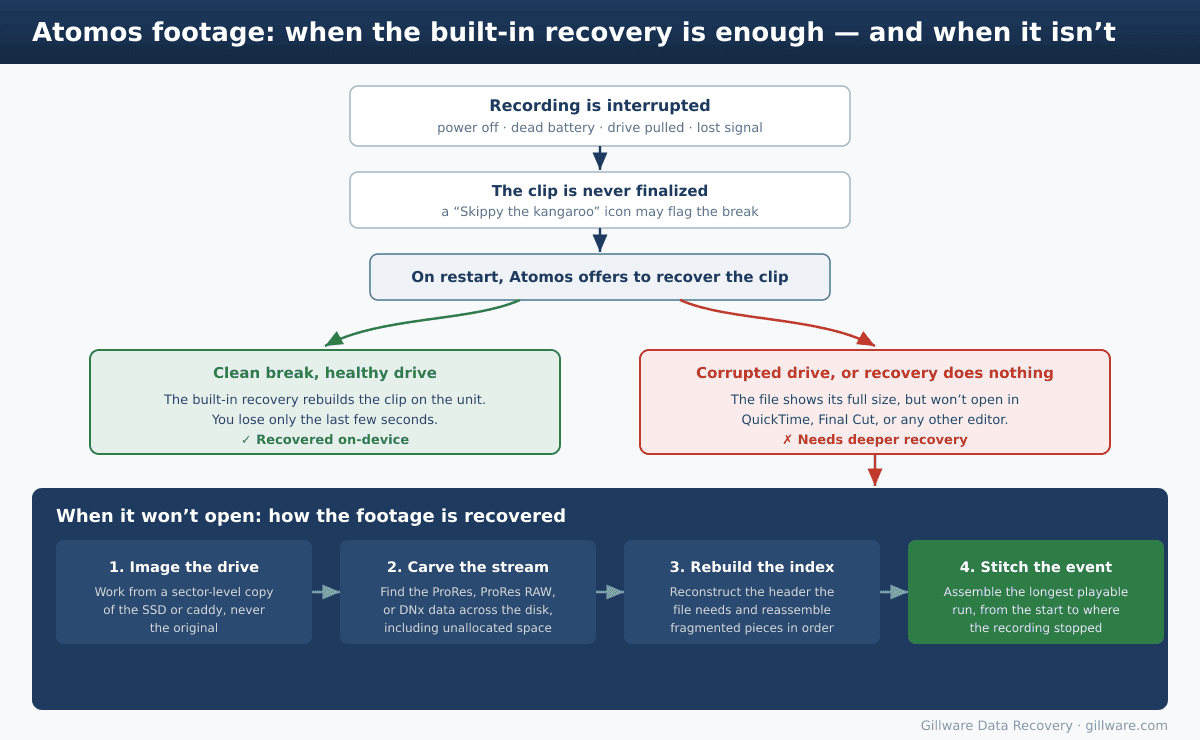
The usual triggers are familiar to anyone who shoots live: switching the unit off with the hardware power button instead of stopping through the menu, a battery dying mid–take, the drive being knocked loose, or the HDMI/SDI signal dropping. Atomos builds in a safeguard for exactly this — the recorder writes continuously and, on restart or playback, offers to recover a clip that didn’t close properly, usually costing you only the last few seconds. When the drive and its file system are healthy and the break was clean, that built–in recovery does the job.
The problem cases are when the drive or its file system is also damaged, or when the in–unit recovery simply doesn’t rebuild the file — you tap recover and it loops, or appears to do nothing. At that point you’re left with a clip that reports its full size but won’t open anywhere. The diagram below shows where the line falls.
This is the same underlying situation that affects any file–based recorder, which we cover in our general guide to recovering an unfinalized video file after a power loss. The Atomos specifics — ProRes RAW, the SSD caddies, the on–unit recovery prompt — are what we’ll focus on here.
Skippy, dropped frames, and media that can’t keep up
Not every Atomos problem is a power loss. A second, separate failure shows up when the recording media can’t sustain the bitrate you’re asking of it — common with high–data–rate ProRes RAW or 4K work on a card or SSD that has slowed down. When the drive can’t keep up, frames get dropped or duplicated, and Atomos flags the break on screen with its yellow kangaroo icon, “Skippy.” The recorder’s anti–shock behavior may also end the current clip and start a new one when it senses a hard interruption.
The result there isn’t an unopenable file so much as a clip with damaged or missing stretches inside it. A few habits sharply reduce the risk: start each shoot with qualified, freshly formatted media, format it in the unit rather than on a computer, don’t delete individual clips on the device, and don’t run the media past roughly 80% full. None of this is unique to Atomos — it’s good practice on any recorder — but it matters most when you’re pushing the highest data rates.
When the built–in recovery isn’t enough
Atomos’s on–unit recovery is genuinely good engineering, and for a clean power loss on a healthy drive it’s often all you need. It reaches its limit in three situations: the drive or file system itself is corrupted, the interruption happened partway through finalizing, or the clip is fragmented across the disk in a way the simple rebuild can’t reassemble. In any of those, the recorder will keep offering to recover and never quite get there — and that’s the signal that the footage needs deeper, sector–level work rather than another tap of the recover button.
What to do the moment it happens
Because the footage is sitting in unallocated space on the drive, the priority is to avoid writing anything new over it. The single most damaging thing you can do is keep operating the media.
- Stop recording to that SSD or card immediately. Don’t shoot the next set or the next day onto it — new footage can overwrite the clip you’re trying to save.
- Don’t let the unit reformat the media, and don’t keep looping the in–unit recovery if it isn’t working. If it didn’t recover the file the first time, repeating it won’t help and risks writing to the drive.
- Don’t run disk error–checking or “repair” tools (First Aid,
fsck,chkdsk) on the drive, and don’t reformat it on a computer. A repair scan can reset the very pointers a recovery depends on — we’ve seen cases turn from straightforward to far harder because a well–meaning error–check ran first. - Set the drive aside and label it. For an irreplaceable shoot, hand the original media to a recovery lab so it can be imaged and worked from a copy.
How Gillware recovers Atomos footage
We start by making a sector–by–sector image of the SSD or caddy and working only from that copy, so nothing we do can reduce your chances. Because the file’s index is missing, we carve through the whole volume to locate the recorded stream — ProRes, ProRes RAW, or DNx — across both allocated and unallocated space, work out the codec and frame structure, reassemble fragmented pieces in their original order, rebuild a working container around the data, and stitch together the longest continuous run of the event we can. ProRes RAW is more involved than standard ProRes because the format is proprietary, but it is recoverable in many cases.
These recoveries are highly successful, though they can be imperfect: anything that genuinely never made it to disk — the final seconds after the power was already gone, or frames lost to media that couldn’t keep up — can’t be conjured back. But the body of the event is usually all there. We have been doing this work for video professionals for many years across every kind of recorder and storage module, including the documented recovery of a live event from a failed recorder module, and the same approach applies to the drives and SSDs Atomos units record to, whether they’re formatted exFAT, APFS, or HFS+.
Every interrupted–recording case is evaluated individually. The diagnostic and a clear assessment of what’s recoverable are free, and because this is hands–on engineering work, we’ll quote it and show you exactly what we can get back before you commit to anything.
Recovering Atomos footage is one part of our broader video recovery work — the same image-and-rebuild process applies across cameras, external recorders, and security systems.
Atomos Recording Won’t Open? Don’t Reformat That Drive
Set the SSD aside and talk to us — the footage is usually still on the disk. Free evaluation, no obligation.
Click Here to Recover Your Atomos Footage →
Or call us: 877-624-7206
