
Hard Drive Data Recovery Services
When a hard drive stops working, you don’t always know how bad it is — only that the device that was holding your photos, your tax records, your business files, or your customers’ data is no longer doing its job. Maybe it’s clicking. Maybe Windows or macOS doesn’t see it anymore. Maybe an external drive that worked yesterday spins up, hesitates, and powers itself back down. Maybe a server array dropped two drives at once and won’t rebuild. Whatever you’re seeing, you’ve landed in a stressful spot looking for honest information — and you’re in the right place.
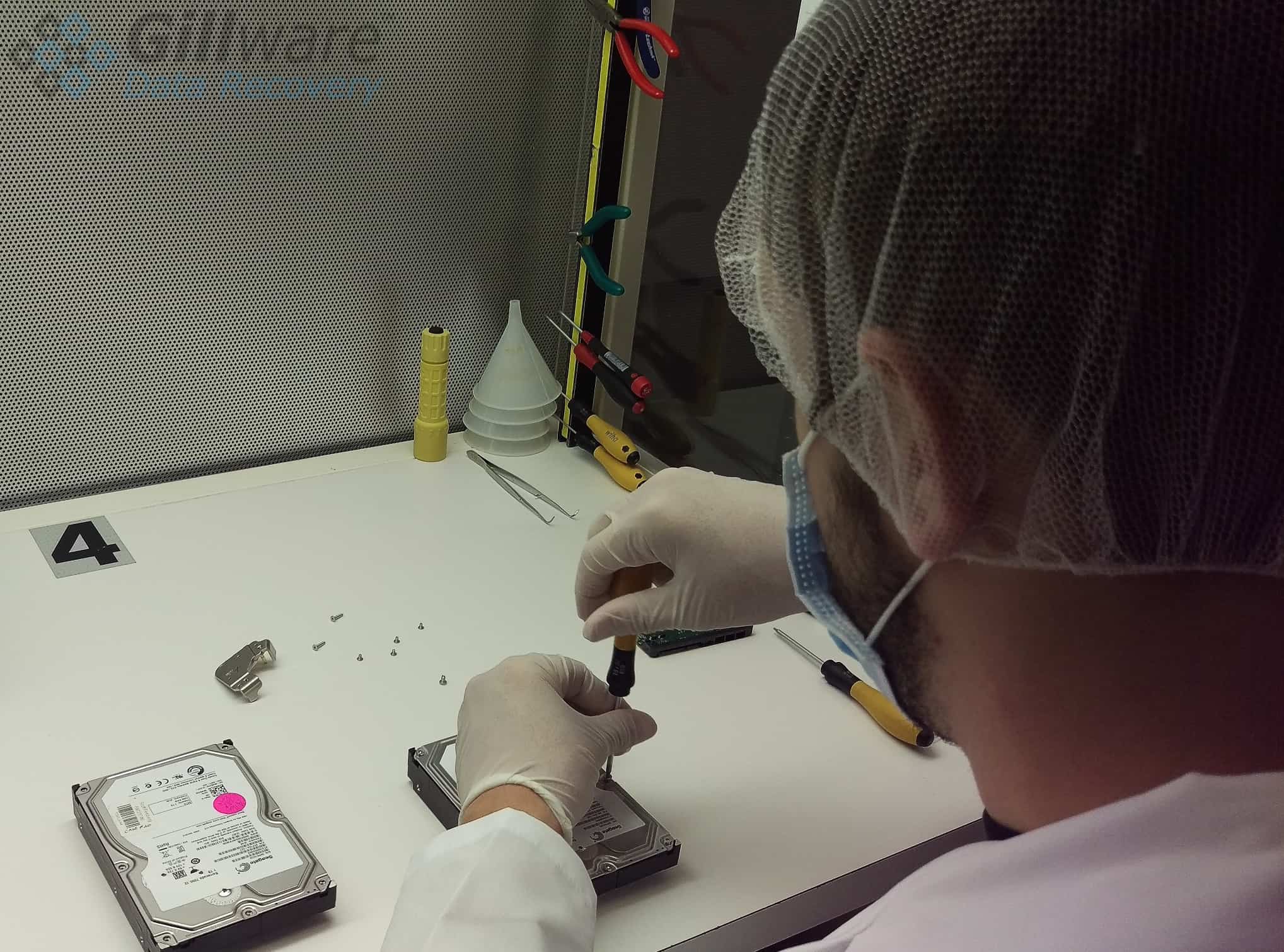
Gillware has been providing professional hard drive data recovery services since 2004 — more than two decades of work on every major manufacturer, every common failure pattern, and a long tail of unusual cases other labs declined. Our engineers spend their days in our ISO-certified cleanroom and on our imaging benches, recovering data from drives in conditions that range from “won’t quite mount” to “physically catastrophic.” This page walks through how hard drives actually fail, what each failure pattern looks like from the user side, what you should avoid doing before professional help arrives, and how our recovery process works. It also links out to dedicated pages for the nine hard drive manufacturers we work on most.
How a Hard Drive Actually Works (a Short, Useful Anatomy)
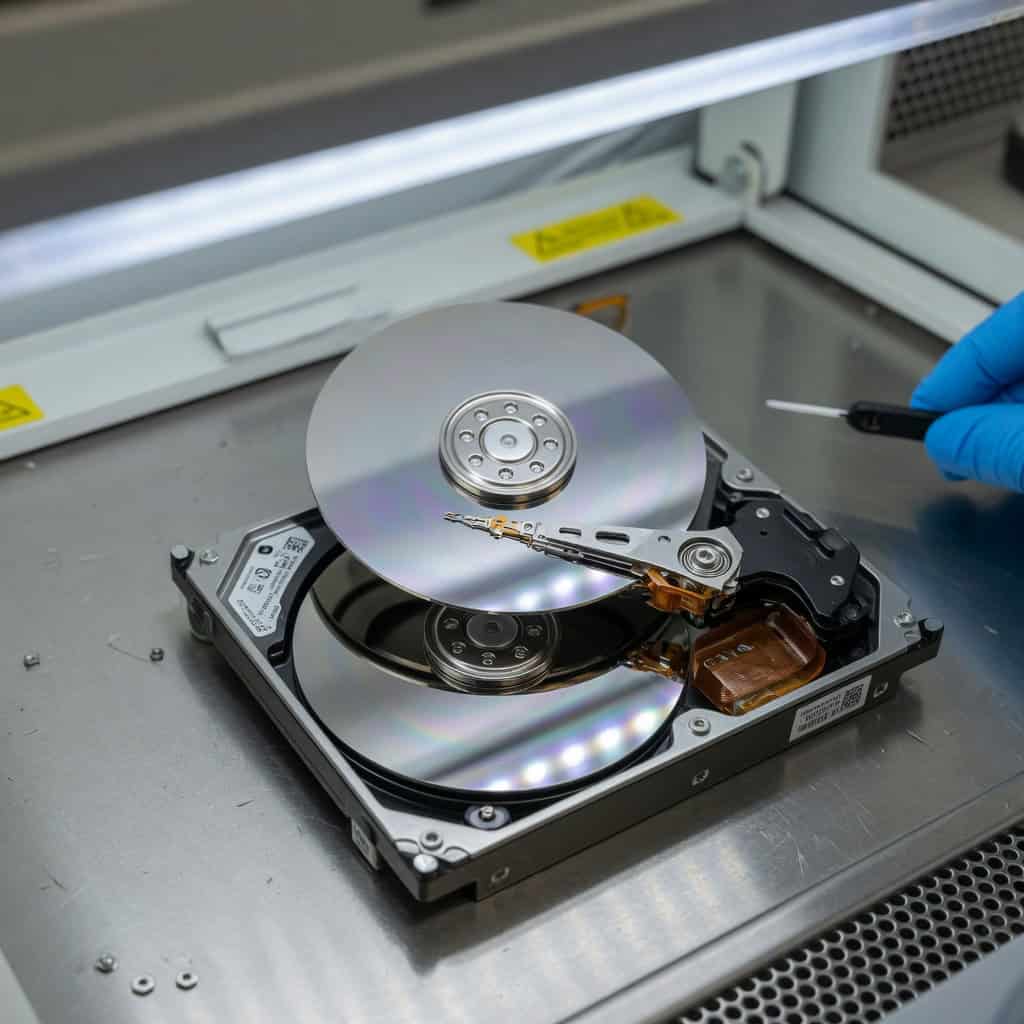
Understanding why hard drives fail is much easier if you know what’s inside one. A modern hard disk drive is a remarkable piece of mechanical and electronic engineering packed into a small sealed enclosure. Inside that enclosure are a few major components — and almost every failure we see traces back to one of them.
The platters are the round, mirror-finish disks that store your data magnetically. There can be one platter or as many as ten, stacked on a single shaft. They spin at 5,400, 7,200, or — on enterprise drives — up to 15,000 RPM. The platter surfaces are precisely coated with magnetic media just a few atoms thick. Damage to that coating is catastrophic.
The read/write heads are tiny sensors mounted on the ends of the actuator arm. They fly above each platter surface on a cushion of air just nanometers thick — closer than you can see with the naked eye. When you hear about a “head crash,” what’s happened is one of those heads has contacted the platter surface during operation, scraping the magnetic coating and almost always damaging the head as well.
The spindle motor spins the platters. The voice coil motor moves the actuator. Beneath the drive is the printed circuit board (PCB), which carries the main controller, motor controller, cache memory, and a small ROM chip that holds firmware unique to that exact drive. That firmware — particularly the service area stored in reserved tracks on the platters — contains calibration data, defect maps, and translation tables that the drive needs in order to present itself to your computer as a storage device at all.
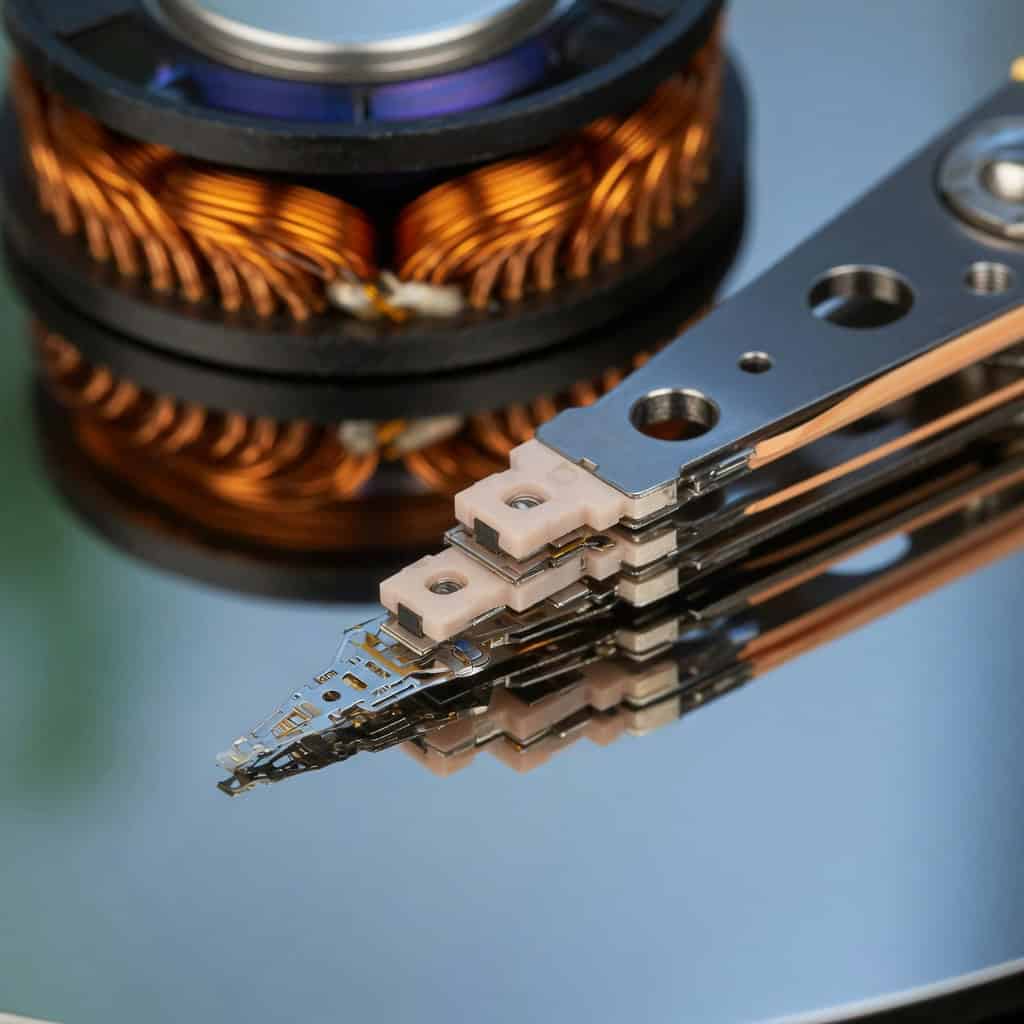
That’s the whole machine, simplified: platters, heads, motors, electronics, and firmware. Every failure we discuss below is a failure of one of those parts — or, frequently, several of them at once.
The Most Common Hard Drive Failure Conditions
The list below covers the failure patterns we see day in and day out at the Gillware lab. Some have audible signatures. Others are silent and only show up as system behavior. Identifying which one is happening to your drive is the first step toward understanding how recoverable it is.
Mechanical Head Failure (the “Clicking” or “Beeping” Drive)
The most common reason a drive stops working is that one or more of its read/write heads has failed. Heads can degrade gradually — slowly producing more and more read errors before final failure — or they can fail suddenly, often when a drive is bumped, dropped, or experiences a power event. When the heads can’t read calibration data on the platters at startup, the drive will retry over and over, retracting the actuator and slamming it back, producing the unmistakable rhythmic clicking sound. On some drives — particularly Western Digital externals — failed initialization produces a faint repeating beep from the spindle motor instead of a click.
A clicking or beeping drive needs to be powered off immediately. Every additional power-on cycle gives a failing head the opportunity to gouge the platter underneath it, turning a routine head-swap recovery into a much harder platter-damage case. We cover the diagnostic specifics on our beeping hard drive data recovery page.
Spindle Motor and Seizure Failures
If you plug in a drive and hear nothing — no spin, no click, perhaps a faint whine that fades — the spindle motor may have seized. This is most common on drives that have sat unused for months or years, where lubricant has migrated or hardened. It is also common after physical drops, where the precision bearings inside the motor have shifted. A drive that won’t spin up is a candidate for what we call a platter swap — moving the platter stack into a donor drive’s motor assembly under cleanroom conditions, with sub-millimeter alignment required to keep the platters readable. Read more on our hard drive motor failure page.
PCB and Electronic Failures
The circuit board on the underside of a hard drive carries the entire intelligence of the device. When something goes wrong electrically — a power surge, a failed component, a short circuit from a USB-bridge enclosure with a damaged port — the drive may show no signs of life at all. No spin, no detection in BIOS, sometimes a burnt smell, occasionally a visible scorch mark on the PCB itself. Drives connected during electrical storms or power outages are particularly vulnerable; see our notes on hard drives that stop working after a power outage.
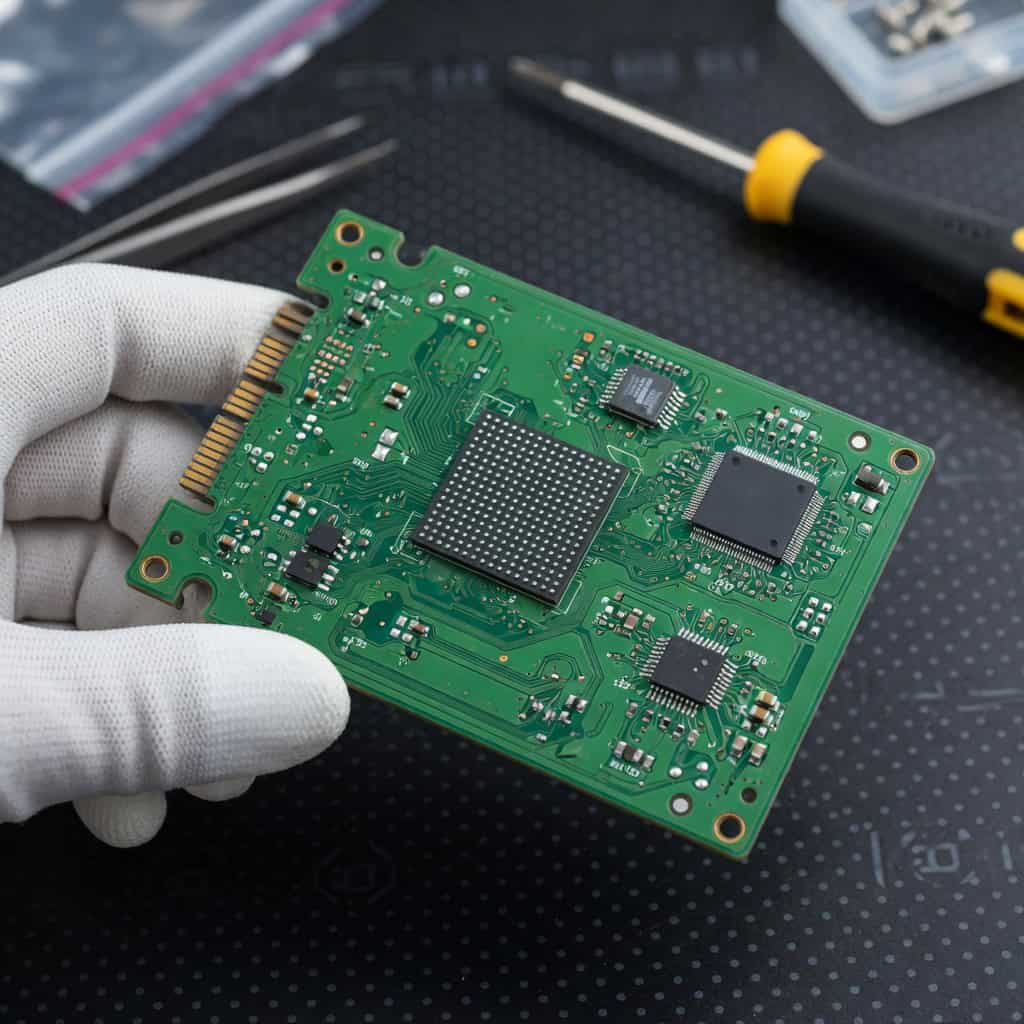
What makes PCB failures tricky is that you can’t simply swap the board with one from an identical model. Modern hard drive PCBs carry a small ROM chip with adaptive calibration data unique to the platters and heads in that specific drive. Without transferring that ROM — or carefully matching firmware revisions — a “donor” PCB will either refuse to work, work briefly and corrupt data, or in the worst case damage the heads. This is why DIY PCB swaps so often turn small problems into big ones.
Firmware and Service Area Corruption
Every hard drive carries a small operating system of its own, stored partly in PCB ROM and partly in reserved tracks on the platters known as the service area. This firmware contains the drive’s defect map, its translator (which maps logical sector addresses to physical platter locations), SMART data, and security configuration. When service area structures become corrupted — and certain drive families, including some Seagate F3-architecture models, are notorious for this — the drive may spin up perfectly but never reach a “ready” state. It may identify itself with the wrong capacity, hang BIOS for minutes at boot, or report itself by a different model name than what’s on its label.
Firmware-level recovery requires direct access to the drive’s diagnostic interface and tooling that can read and rewrite service area modules. It is one of the most technically demanding categories of recovery, and it is almost always invisible from the user side — the drive simply “doesn’t work.”
Bad Sectors and Gradual Degradation
Not every drive fails dramatically. Many fail slowly, accumulating bad sectors over months or years. The first signs are usually behavioral: slow file copies, applications that hang briefly when reading certain files, Windows freezes that resolve on their own, photos that open with corrupted regions. SMART attributes — reallocated sector count, pending sector count, uncorrectable errors — will be climbing in the background, even if you’ve never looked. Eventually the drive crosses some threshold where the operating system can no longer mount it cleanly, and you arrive at the front door of professional data recovery.
The right response to a degrading drive is to image it first, read from the image second. Every read attempt on a failing drive can produce more bad sectors. We do this in our lab on hardware imaging tools designed to read drives in any order, retry intelligently, and skip past unreadable regions instead of pounding on them.
Logical Failures and Filesystem Corruption
Not every data loss situation involves hardware failure. Plenty of drives show up at our lab in perfect mechanical condition but with their data inaccessible: a partition that suddenly reads as RAW; a directory that’s empty when it shouldn’t be; an accidental format; a Windows install that overwrote a Mac filesystem; a ransomware encryption event; a deliberate deletion by an angry employee. These cases call for deleted data recovery rather than physical repair, but they share one important rule with hardware cases: stop using the drive immediately, before the deleted data is overwritten.
Physical Damage: Drops, Water, Fire, and Power Surges
Hard drives are not designed to be dropped while running. The flying-head architecture is incredibly precise, and the kinetic energy of a fall from a desk — even a few inches — is more than enough to drive a head into the platter at full operating speed. We also see drives damaged by water (laptops in puddles, externals in floods, NAS units in basement leaks), by fire (the platters often survive surprisingly well; the PCB and connectors rarely do), and by lightning strikes that travel up power and USB lines. Each of these scenarios is recoverable in many cases — but each one demands a different approach. Platters with surface scratches, in particular, require specialized techniques covered on our scratched platter data recovery page.
What Not to Do When Your Hard Drive Fails
Most of the worst hard drive cases we see started as something simpler — and got worse because of well-intentioned but damaging early steps. A few rules:
- Don’t keep powering it on. Every power-on cycle is another opportunity for a marginal head to fail, a degraded sector to spread, or a firmware fault to write something it shouldn’t. If you suspect a hardware problem, stop using the drive.
- Don’t run chkdsk, fsck, or repair utilities on a failing drive. These tools assume the underlying hardware is healthy and that any problems are filesystem-level. On a drive with mechanical issues, they can make things dramatically worse by writing repair structures into damaged areas.
- Don’t open the drive yourself. The interior of a hard drive needs to be cleaner than an operating room. Particles invisible to the eye — skin flakes, ordinary household dust — are large enough to wedge under a flying head and tear the platter. Cleanroom work is what cleanrooms are for.
- Don’t put it in the freezer. The freezer trick is a persistent piece of internet folklore. It does not fix mechanical failures. The condensation that forms when the drive warms back up does, however, cause additional damage.
- Don’t swap the PCB unless you know how to transfer the ROM. Modern drives need the unique adaptive data from the original PCB’s ROM. Swapping boards without it is a common cause of secondary head damage.
- Don’t keep writing to a drive after accidental deletion or formatting. Deleted files are recoverable until something overwrites the underlying sectors. The longer the drive stays in use, the smaller the recoverable fraction.
What Professional Hard Drive Recovery Actually Looks Like
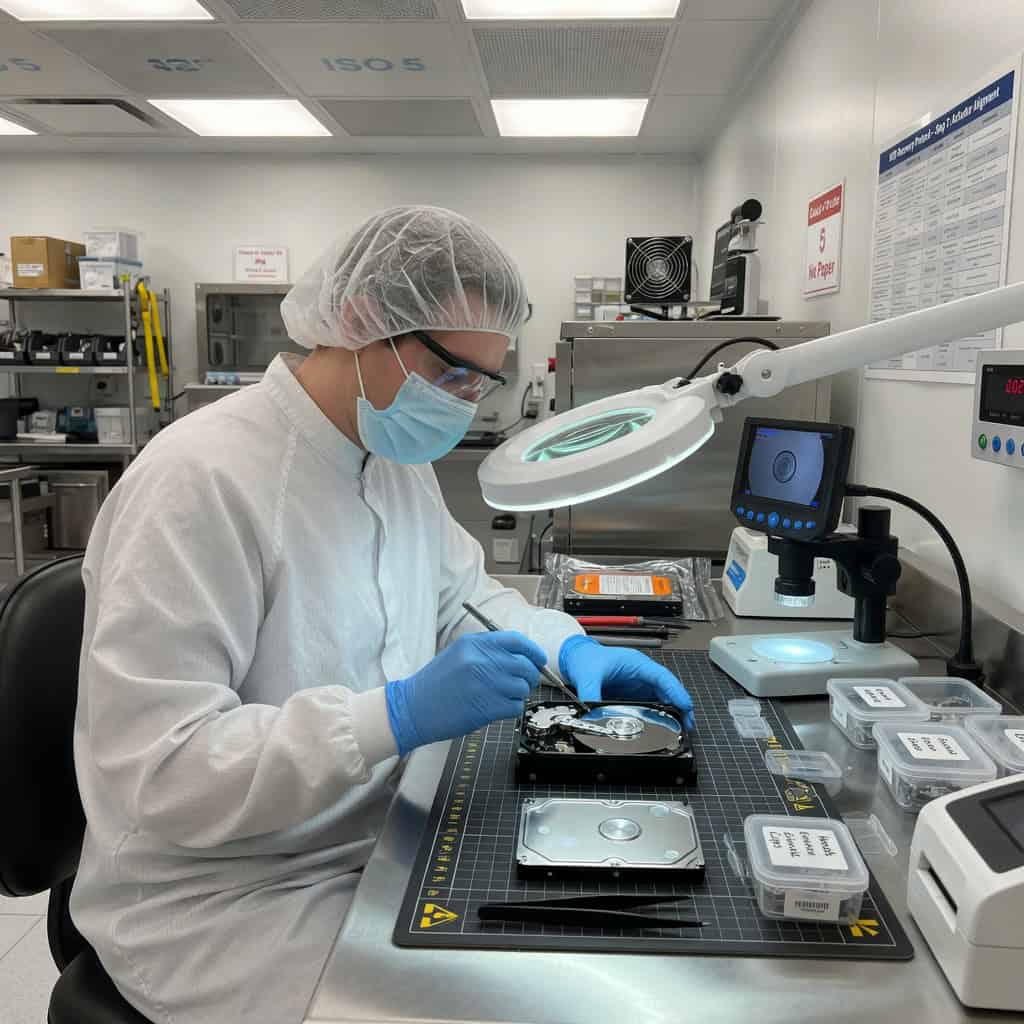
Every drive that arrives at Gillware begins the same way: with a free, no-obligation evaluation. We open intake, log the drive, and assign it to an engineer for diagnosis. That engineer determines what’s actually wrong — mechanical, electronic, firmware, logical, or some combination — and what specific work would be required to recover data. You receive a written quote with a firm price for the recovery effort before any work proceeds. Nothing happens to your drive without your approval.
If you approve the work, the path depends on the diagnosis. A drive with a head failure goes into the cleanroom for a head swap, using donor parts from our extensive donor inventory built up over more than two decades. A drive with firmware corruption goes to a firmware specialist with the tools to read and rewrite service area structures. A drive with PCB damage gets the ROM chip transferred — sometimes with additional component-level repair on the board itself. A drive with logical corruption gets imaged sector-by-sector to a stable target, and the data reconstruction happens against that image without any further stress on the original.
The deliverable is a verified copy of your recovered data, returned on a target drive of your choice. We provide a file listing so you can confirm what’s there before the case closes. For standard single-drive recoveries, our model is straightforward: no data, no charge. If we cannot recover usable data from your drive, you do not pay for the attempt. (Complex multi-drive arrays and forensic engagements carry different terms, which we explain up front.)
Hard Drive Recovery by Manufacturer
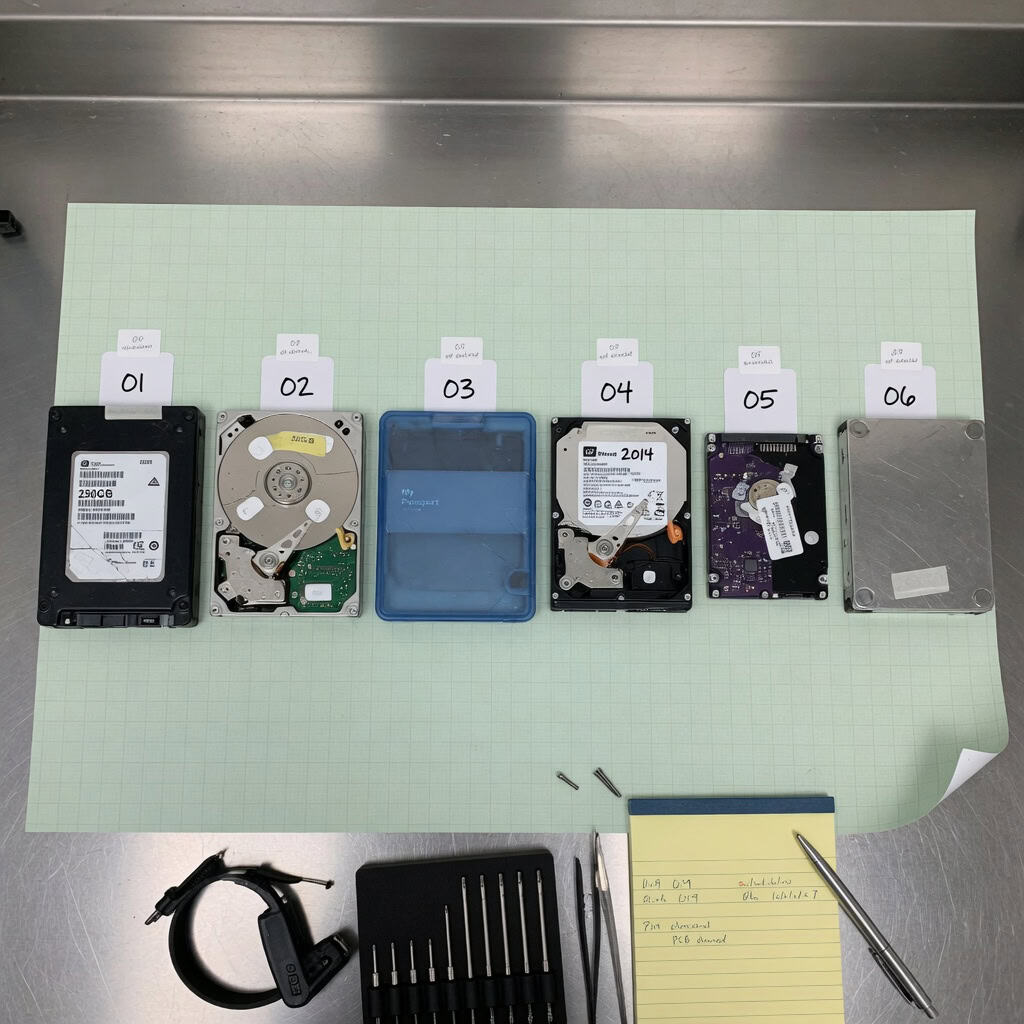
Every hard drive manufacturer has its own engineering quirks, signature failure patterns, and recovery considerations. Below is a quick guide to the nine manufacturers we work on most often, each with a link to a dedicated page that goes deeper into models, common failure symptoms, and recovery process specifics for that brand. If the failed device is a solid-state drive rather than a spinning hard drive, see our SSD Data Recovery page instead.
Western Digital Hard Drive Data Recovery
Western Digital is the most common brand we see at the Gillware lab, both because of its enormous market share and because its product line spans nearly every storage category — from enthusiast internal drives (WD Black, Blue, Red, Purple, Gold) to consumer externals (My Passport, My Book, Elements, Easystore) to NAS-grade drives that end up in every brand of RAID enclosure. WD’s failure profile is broad: head stack issues on aging Caviar drives, USB-bridge complications on My Passport externals (where the encryption is performed by the bridge chip, not the drive itself, making PCB swaps especially risky), helium-filled enterprise drives with seal failures, and SMR-related performance collapses on some Blue and Red models. Our WD page covers the model-by-model details and links to dedicated pages for the most-requested products like My Passport.
Seagate Hard Drive Data Recovery
Seagate runs Western Digital close in lab volume. The Barracuda line is the dominant desktop drive; IronWolf and SkyHawk serve the NAS and surveillance markets; FireCuda blends spinning storage with SSD cache; Exos sits in enterprise arrays; Backup Plus, One Touch, and Expansion cover the external storage shelf. Seagate’s most distinctive recovery challenge is firmware: certain F3-architecture generations are notorious for service area corruption that causes drives to spin up but never present a valid identity. We’ve also seen heat-related head failures on densely-packed Barracuda models and USB-bridge translation issues on the consumer external lines. Our Seagate page covers the major model families and includes a dedicated page for the Barracuda series.
Toshiba Hard Drive Data Recovery
Toshiba is the third major hard drive manufacturer still in active production, with strong positions in the desktop (P300, X300), surveillance (S300), NAS (N300), enterprise (MG series), laptop (MQ series), and external (Canvio) markets. Toshiba drives have a reputation for solid mechanical engineering, but they’re not immune to the standard failure list — actuator-related head problems, PCB shorts on USB-powered externals, and surface contamination after physical impacts. Toshiba is also the brand we see most often inside OEM enclosures from third parties, which means a Toshiba recovery sometimes starts with identifying what’s actually inside an unbranded external case. The Toshiba page walks through the major model lines and what each one tends to fail with.
Samsung Hard Drive Data Recovery
Samsung exited the spinning-disk business in 2011, selling its HDD division to Seagate, but Samsung-branded drives are still in heavy circulation — Spinpoint internal drives from the HD, HM, and HE families, and the M3 Portable, P3, and D3 Station external lines. Most Samsung HDDs we see now are aging into their second decade, with all the wear-related failures that implies: degraded heads, firmware translator drift, controller chip failures on the PCB. Older Spinpoints have a distinctive failure mode where the drive identifies but reads only zeros — a service area issue that requires direct firmware access to address. Our Samsung page covers the still-common models and the recovery paths that work on them.
Hitachi Hard Drive Data Recovery
Hitachi’s hard drive business — first as Hitachi Global Storage Technologies, then as HGST after the 2003 acquisition from IBM, and ultimately folded into Western Digital — produced the Deskstar desktop line, the Travelstar 2.5-inch laptop line, and the Ultrastar enterprise series. Hitachi drives generally have a reputation for solid mechanics, and we see fewer of them per capita than WD or Seagate. When they do fail, common patterns include PCB shorts, scratched platters on dropped Travelstars (a common laptop drop scenario), and helium leakage on first-generation sealed Ultrastars. The Hitachi page covers the model families and the specific recovery considerations for each.
Maxtor Hard Drive Data Recovery
Maxtor is a discontinued brand — Seagate acquired Maxtor in 2006 — but Maxtor drives still arrive at our lab regularly, almost always pulled from older desktop PCs, archived OneTouch external enclosures, or estate-sale computers that haven’t been powered on in years. The drives we see (DiamondMax internals, OneTouch externals) are aging units with the failure profile to match: motor wear, head degradation, PCB component aging. The added complication is parts scarcity — donor Maxtor drives are no longer manufactured, so our recovery work draws on the donor inventory we’ve accumulated over years. The Maxtor page covers what’s still possible on these older drives and what the recovery process looks like for legacy hardware.
Quantum Hard Drive Data Recovery
Quantum’s hard drive business ended in 2001 when Maxtor acquired it, but Quantum drives — Fireball, Atlas, ProDrive, Bigfoot, and others — were enormously popular through the late 1990s, and they still surface at our lab in equipment recoveries, archival projects, and forensic engagements. These are the oldest mainstream drives we routinely handle, and the recovery challenges are mostly about age: dried lubricants, capacitor aging on PCBs, and the genuine scarcity of donor parts. Quantum recoveries draw on a different kind of expertise than current-generation drives, but the underlying physics of the platters has not changed — the data is usually still there if the drive can be coaxed into reading it. The Quantum page walks through what’s involved.
IBM Hard Drive Data Recovery
IBM sold its hard drive business to Hitachi in 2003, but IBM-branded Deskstar and Travelstar drives are still out there — and the IBM era includes one of the most infamous failure patterns in hard drive history: the Deskstar 75GXP and 60GXP series, whose platter coatings tended to degrade catastrophically over time. We still see these drives, and the recovery process for them is built specifically around the unique challenges of coating degradation. We also see Travelstar laptop drives from the IBM ThinkPad era, which fail with the standard mix of head, motor, and PCB problems any laptop drive accumulates over twenty years. The IBM page covers both eras.
Buffalo NAS and Hard Drive Data Recovery
Buffalo’s strength is network-attached storage rather than bare drives, and the bulk of our Buffalo work comes from LinkStation, TeraStation, DriveStation, and MiniStation units. The recovery challenges here are usually NAS-specific: XFS filesystem corruption, RAID array degradation when two drives in a RAID 5 enclosure fail in close succession, firmware bricks where the NAS unit will no longer boot, and individual drive failures within otherwise healthy arrays. The drives themselves are typically Western Digital or Seagate units rebadged as Buffalo, which means physical recovery uses the same techniques as bare-drive cases, but the array reconstruction is the harder part of the work. The Buffalo page covers both the device-level and the array-level recovery scenarios.
Start a Free, No-Obligation Evaluation
If your hard drive has failed, the next step is straightforward and costs you nothing. We open a case, log your drive, perform a diagnostic evaluation, and provide a written quote with a firm price before any recovery work begins. There is no charge for the evaluation, and there is no obligation to proceed. If you decide not to move forward, we return the drive to you at no cost. If you do move forward, the standard single-drive engagement is governed by our no-data, no-charge model: if we don’t recover usable data, you don’t pay for the attempt.
More than two decades of work on every brand, every common failure pattern, and a long tail of unusual cases — we’d like to take a look at yours.