
Seagate Drive Detected but Slow, Frozen, or Failing Mid-Copy: A Recovery Guide for Barracuda, Backup Plus, and Expansion Owners

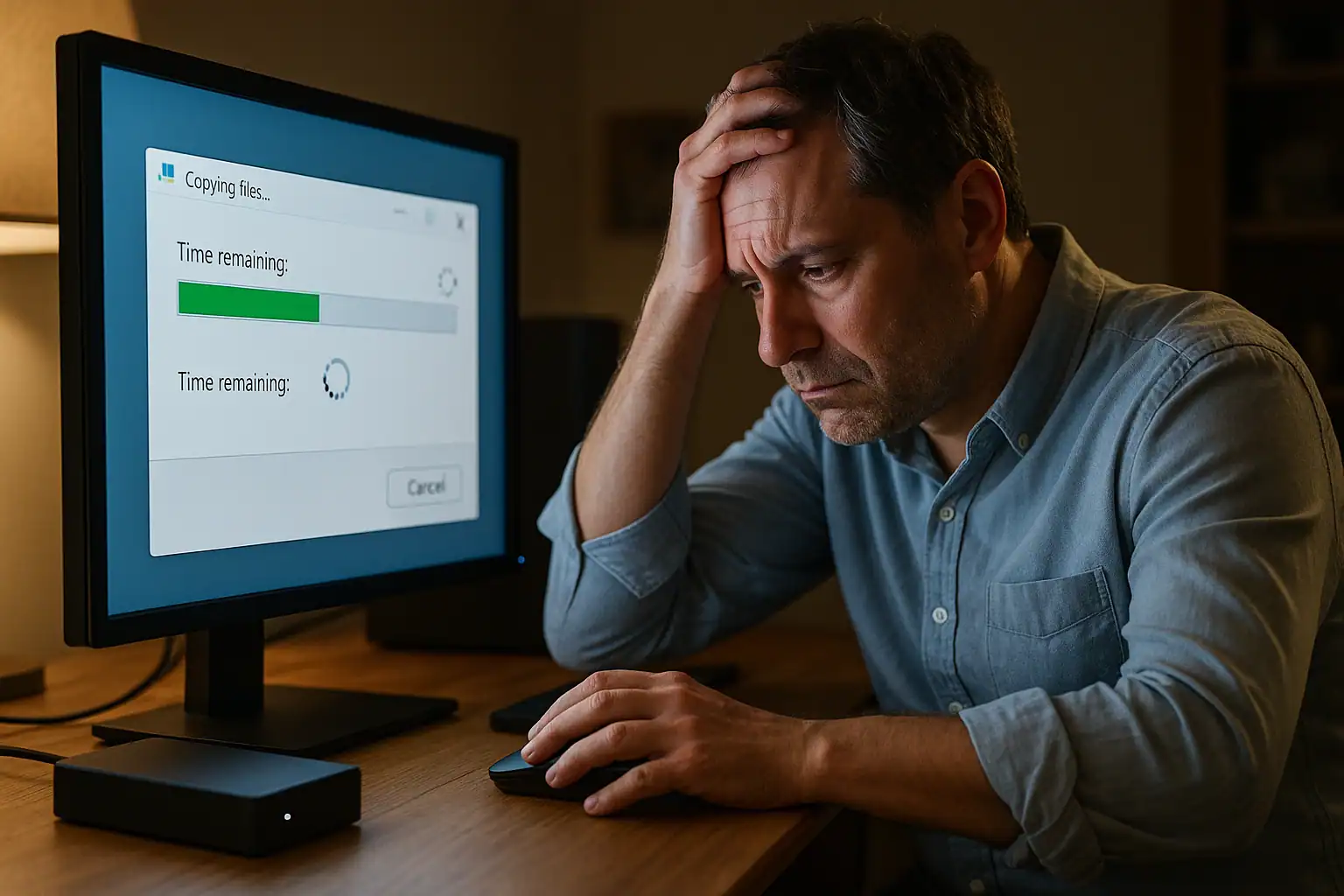
A Seagate hard drive that’s failing outright — a drive that won’t power on, isn’t detected by the computer, or makes a clicking sound — is at least clear about what’s wrong with it. The Seagate drives we see most often in our lab are something different: drives that almost work. They detect normally. They show up in Disk Management or Finder with the right model number and the right capacity. They might let you open a folder, list the files, even start copying things off. And then they slow to a crawl, freeze the computer, lose the connection, or drop files midway through a transfer. Sometimes they come back the next day and work for an hour before doing it again.
This in-between failure mode — detected but not really functional — is one of the most common reasons Seagate drives end up in data recovery labs, and across our case history it’s also one of the most successfully recoverable when handled correctly. The reason it’s so common has to do with how these drives age, and the reason it’s so successfully recovered has to do with what’s actually wearing out inside them. This guide walks through what’s happening, which Seagate models we see most often, the difference between desktop, laptop, and external versions of the same problem, and what to do (and not do) once your Seagate drive starts behaving this way.
The pattern: detect, then slow, then disappear
The classic version of this failure looks like this:
- The drive detects normally on first connection. It shows up in BIOS (for an internal drive) or in Windows Disk Management / macOS Disk Utility (for an external).
- File Explorer or Finder shows the drive with the correct capacity and either lets you browse files or shows the drive as RAW / not initialized.
- If you can browse files, opening a folder takes far longer than it should. A directory listing that should be instant might take 30 seconds, a minute, or longer.
- Attempting to copy files off the drive starts normally, then slows down, stalls completely, throws read errors, or causes the computer to freeze entirely.
- The drive sometimes disappears from the OS after extended use and reappears after the computer is restarted, only to do the same thing again.
Customers describe it in language like “files were taking too long to load and my laptop kept freezing,” “shows the icon for the hard drive for a while, then it disappears,” and “started getting error messages about individual files and then the backup just stopped.” On the lab side, our engineers see this presentation week after week, and across the major Seagate product lines.
Why Seagate drives fail this way
Three failure mechanisms account for the great majority of the slow-then-fail Seagate cases we see, and they often appear in combination:
Bad sectors accumulating beyond the drive’s ability to remap them. Every modern hard drive has a small pool of spare sectors that the controller silently uses to replace sectors that have gone bad over time. While that pool isn’t exhausted, you’d never notice — the drive just reallocates and keeps going. Once the pool runs out, every additional bad sector becomes a hard read error visible to the operating system, and the drive starts spending huge amounts of time re-trying failed reads before either succeeding (slowly) or giving up. The slow behavior is the drive trying its hardest to read sectors that no longer want to be read. One of our case studies involved a Seagate Barracuda ST2000DM001 that detected normally but had over a million bad sectors — the drive was spinning fine, but most of what was on it had degraded.
Slow or stuck read/write heads. Inside every mechanical hard drive, a stack of read/write heads floats nanometers above the spinning platter surface. As drives age, the heads can lose precision in how they position themselves over tracks, in how cleanly they read the magnetic transitions, and in how reliably they respond to the controller’s commands. A drive with a marginal head assembly can still detect, still report the correct capacity, and still read from sectors that happen to be easy — but reading anywhere off the head’s “comfort zone” becomes glacially slow, and any read error sends the drive into long retry loops.
Firmware-level degradation. Seagate consumer drives use firmware that’s stored partly on the drive’s platters themselves, in a region the drive accesses immediately at spin-up. As the platters wear, the firmware region can develop bad sectors of its own, leading to drives that detect normally but periodically fail to load critical firmware modules. One of the most documented examples of this is the ST2000DM001 and its larger sibling ST3000DM001 — these drives use a design with a media cache region that proved less reliable than the surrounding platter, and Backblaze’s published reliability data showed the ST3000DM001 with failure rates roughly 5.7 times higher than industry-comparable drives. The behavior people see in the field with this specific issue is exactly the pattern this article describes: drive detects fine, drive reads slowly, drive sometimes drops out of the operating system entirely.
The combination of these three issues — sector pool exhaustion, marginal heads, and firmware-on-platter degradation — is what produces the canonical “detects but doesn’t really work” Seagate failure. The good news is that all three are recoverable failure modes in most cases, because the underlying data is still on the platters; the drive just can’t read it on its own anymore.
Which Seagate models we see most often
Across the cases that come through our lab, the Seagate lineup that produces the slow-then-fail pattern is concentrated in a few specific product lines:
Desktop drives (3.5″ internal):
- Barracuda — the most-seen line by a significant margin. Drives we routinely recover include the ST2000DM001 (2TB), ST1000DM003 (1TB), ST10002M010, ST31000528AS (1TB older), and ST3750528AS (750GB). The Barracuda line covers Seagate’s mainstream consumer desktop drives, and the older 7200 RPM models from roughly 2010–2015 are heavily represented in our case mix.
- BarraCuda Pro and FireCuda — newer Seagate desktop lines. Less frequent than the standard Barracuda but appear regularly.
- IronWolf — Seagate’s NAS-targeted line. We see fewer of these as standalone failures (NAS drives are more commonly recovered as part of a RAID set), but individual IronWolf drives with the slow-detect pattern do show up.
Laptop drives (2.5″ internal):
- Older laptop Barracuda and Momentus drives — the ST9320325ASG (320GB, frequently shipped in early-2010s Mac Minis) is one example we’ve seen. Laptop drives of this generation tend to fail in the same slow-then-bad-sector pattern, sometimes accelerated by the heat and vibration of laptop use.
External drives (USB-connected):
- Backup Plus and Backup Plus Slim Portable — among the most common external Seagates we recover. Specific part numbers we’ve seen include the STDR1000200 (1TB Backup Plus Slim Portable) and STDR1000102 variants.
- Expansion Portable / Expansion Desktop — Seagate’s second consumer external line. Specific cases have involved the STGX2000400 (2TB Expansion Portable), STEA2000400 (also 2TB Expansion Portable), and the larger Expansion Desktop drives in 4TB through 22TB capacities.
- FreeAgent — an older Seagate external line. Still in service in some households and small offices; we see occasional cases where the underlying drive inside the FreeAgent enclosure has degraded to the slow-detect state.
- GoFlex — older modular external line. Same internal mechanics as the contemporaneous Backup Plus.
The thing worth knowing about Seagate externals: in almost every case, the “external drive” is a standard Seagate internal hard drive inside a USB-to-SATA enclosure. The failure modes are the same as the equivalent internal drive — bad sectors, marginal heads, firmware-on-platter degradation — and the recovery approach is the same as well. The enclosure itself rarely fails; the drive inside it does.
Variations across form factors
A few specific behaviors to call out, because they vary by where the drive lives:
Desktop drives that develop this pattern often cause the computer to hang at boot, take an extremely long time to load the operating system, or freeze when accessing certain folders or files. SMART utilities may show the drive as “OK” or “Caution” depending on how bad the sector count has gotten — a passing SMART status does not mean the drive is healthy, only that it hasn’t crossed certain thresholds yet.
Laptop drives with the slow-detect failure cause the entire laptop to feel sluggish or to freeze intermittently. Because laptops sleep, hibernate, and power-cycle far more than desktops, a failing laptop drive can present as a “computer that won’t wake from sleep” or “boots only sometimes” pattern, when the actual underlying problem is the drive struggling to come up.
External drives showing this pattern tend to be discovered when the user tries to back up to the drive, copy files off it, or browse a folder that contains a lot of small files (like a Photos library or a video project folder). The first symptom is often a copy that gets partway through and stops. The drive may be perfectly accessible for small operations and only fail under sustained load.
What not to do
A few things to avoid that can turn a recoverable Seagate drive into an unrecoverable one:
- Don’t keep retrying the same operation. If a copy fails partway through, restarting it sends the drive back through the same bad-sector territory it just struggled with. Each retry is mechanical stress on heads that may already be marginal, and on a sector pool that has no spares left.
- Don’t run CHKDSK or Disk Utility’s First Aid. Both tools assume a healthy drive with a sick file system. On a Seagate that’s developing bad sectors, the repair tools’ write operations can finish off marginal sectors that still held recoverable data. Specifically on Seagate Barracudas in the slow-detect state, running CHKDSK frequently makes the situation worse.
- Don’t try to “clone” the drive with consumer software while it’s still in this state. Most consumer disk-cloning tools (the ones that ship with new SSDs, for example) are designed for healthy drives and will retry failed reads many times before giving up — turning what should be a one-time read attempt into thousands of stress operations per bad sector. Professional imaging hardware avoids this; consumer tools do not.
- Don’t defragment the drive. Defragmentation involves heavy read and write activity across the entire surface. On a drive that’s already struggling to read its existing data, defrag is a way to accelerate the failure.
- Don’t leave the drive powered on if it isn’t being used. Continuous spin time on a marginal drive is risk. If you can’t use it productively and you can’t get the data off yourself, the drive should be powered off until it can be evaluated.
- Don’t open the drive. The platters inside are precision-engineered to nanometer tolerances. A single dust particle in the wrong spot destroys data permanently.
Why these recoveries succeed at high rates
Recovery outcomes on the Seagate slow-detect failure pattern are among the best in our lab. The underlying reason is structural: the data is still physically present on the platters. The drive’s own ability to read it has degraded, but the magnetic signal hasn’t gone away — it’s just become harder for the drive to retrieve cleanly. Professional recovery uses imaging hardware that can:
- Issue read commands at the controller level rather than through the operating system, avoiding the OS timeouts that cause “slow” drives to be unusable.
- Skip bad sectors after a configurable retry limit, then return to them later under more favorable conditions, rather than blocking on a sector indefinitely the way standard OS reads do.
- Read sectors directly from the platter at a lower level when the drive’s firmware is in the way.
- In cases of head degradation, replace the head assembly with donor parts from compatible drives, in a controlled cleanroom environment, so the platters can be read with new, healthy heads.
The combination of careful imaging at the hardware level, the ability to work around firmware issues, and (when needed) physical component replacement is why drives that look hopeless on a desk in front of a frustrated user become routine recoveries in a properly equipped lab.
What our recovery process looks like
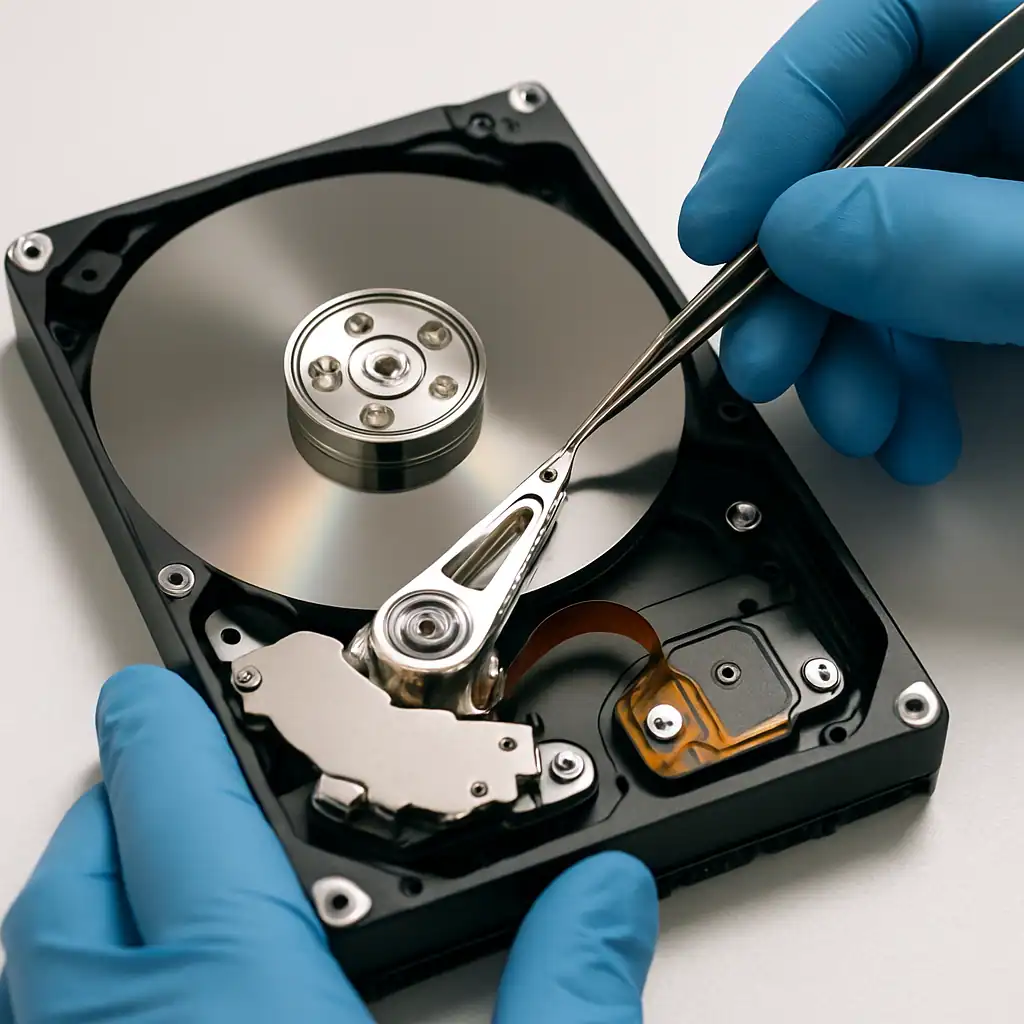
The Seagate slow-detect cases follow a fairly consistent workflow in our lab. The drive arrives. It’s connected to professional imaging hardware that can talk to the drive at a level below the OS. The drive’s firmware state is checked, and if the firmware has degraded, the drive is sometimes worked around by reading data using the drive’s controller in a different mode. Sector-by-sector imaging proceeds, with the system marking bad sectors for later retry rather than blocking on them. If the drive’s heads are too marginal to image the full surface, the heads are replaced with donor parts in a cleanroom environment, and the imaging is restarted from the section of the drive that wasn’t yet reached.
Once a complete image of the drive has been built (or as complete an image as is possible), the file system is reconstructed from the image, and the customer’s files are extracted and delivered on a fresh destination drive of their choosing. The original drive is returned but is not recommended for further use — once a drive has gone through this kind of degradation, it isn’t a drive we’d trust with future data.
A note on cost
Recovery costs for the Seagate slow-detect failure pattern depend heavily on how far the degradation has progressed and whether head replacement work is required. Cases where the drive is still able to be imaged through the original heads — just slowly, with software working around the bad sectors — are at the lower end of the pricing range. Cases that require donor heads and cleanroom work are higher, because the engineering time and parts cost real money.
The standard Gillware engagement applies: free evaluation, flat-rate quote in writing before any work begins, you only pay if we successfully recover your data. If the quote doesn’t make sense for the specific value of the data on the drive, you can decline and have the drive shipped back at no charge.
Frequently asked questions
My Seagate drive shows as healthy in SMART tools. Why is it so slow?
SMART reports against thresholds set by the drive manufacturer, and those thresholds are generally lenient. A drive with several thousand reallocated sectors and many more pending sectors can still report a passing SMART status. What you’re seeing in the real-world slow behavior is the drive’s actual condition, which can be substantially worse than SMART’s overall summary suggests. Pay attention to the specific Reallocated Sectors Count, Pending Sectors Count, and Uncorrectable Sectors Count attributes rather than the overall pass/fail. Any nonzero growth in those numbers is meaningful.
How long will my Seagate drive last in this state?
There’s no reliable timeline, but the trend is universally one-direction. Drives in this state get worse, never better. Bad sectors don’t heal. Heads that are losing precision don’t regain it. Firmware regions that are wearing don’t repair themselves. The right question isn’t “how long will it last” but “how much risk are you willing to take with the data on it before backing up or evaluating it.”
Is it safe to use a Seagate drive that’s behaving this way?
For data you don’t need to keep, sure — the drive will often continue to be usable in a degraded state for weeks or months. For data that matters, no. Every additional minute of use risks crossing a threshold where recovery becomes more expensive or less successful.
Are some Seagate models more failure-prone than others?
Yes, and the difference is well-documented. The ST2000DM001 and ST3000DM001 generation of Barracuda drives (manufactured roughly 2011–2013) had failure rates several times the industry norm, leading to a class action lawsuit on the 3TB model and a long tail of recovery cases that continues to this day. Other Seagate generations have had specific issues too — older 7200.11 drives had a famous firmware bug that bricked drives outright (the “SD15” issue), and various Backup Plus generations have shown firmware quirks. That said, most Seagate consumer drives that have been in service for five or more years are reaching the age where this kind of degradation becomes statistically common, regardless of model.
My Seagate external drive is slow, but the underlying SATA drive is fine when I take it out of the enclosure. What’s going on?
This is rare but does happen. Seagate external enclosures use a USB-to-SATA bridge chip, and on some models that chip can fail or develop firmware issues while the internal drive is healthy. If removing the drive from the enclosure and connecting it directly to a computer via SATA produces normal performance, the failed component is the enclosure rather than the drive. That said: on the great majority of Seagate external cases we see, the underlying drive is the failed component, not the enclosure.
Can I just clone the drive to a new one with cloning software?
If the drive is healthy, sure. If the drive is in the slow-detect failure state, no — most consumer cloning software is designed for healthy drives and will retry failed reads indefinitely, which on a marginal drive accelerates the failure. Professional imaging hardware specifically handles failing drives differently, with configurable retry limits and the ability to skip and return rather than block. If the data matters and the drive is failing, image with the right tool or have it professionally recovered.
What’s the difference between this article and the case where the drive doesn’t detect at all?
Different failure mode, different recovery approach. A Seagate that doesn’t detect at all has typically failed in a way that involves the controller board, the spindle motor, or a head crash — recoverable, but requiring component-level repair before any data can be read. The drives this article is about still detect and still spin; they just can’t reliably read their own data. Those are usually less expensive recoveries because no physical repair is needed before imaging — just careful imaging and patience.
The bottom line
A Seagate hard drive that detects but doesn’t work right — slow file access, mid-copy failures, freezing the computer, intermittently disappearing and reappearing — is one of the most common drive failure patterns we see, and one of the most successfully recovered. The data is still on the platters. The drive’s ability to read it on its own has degraded. With professional imaging hardware and (when needed) cleanroom head replacement work, recovery success on this category of failure is high.
The most important thing not to do is keep using the drive in this state. Every additional read attempt, every CHKDSK run, every “let me try one more time” copy is stress on a drive that’s already on borrowed time. If the data on the drive matters and you don’t have a current backup elsewhere, the safest move is to power the drive down and have it evaluated.
