
Laptop Data Recovery: Disk Not Initialized

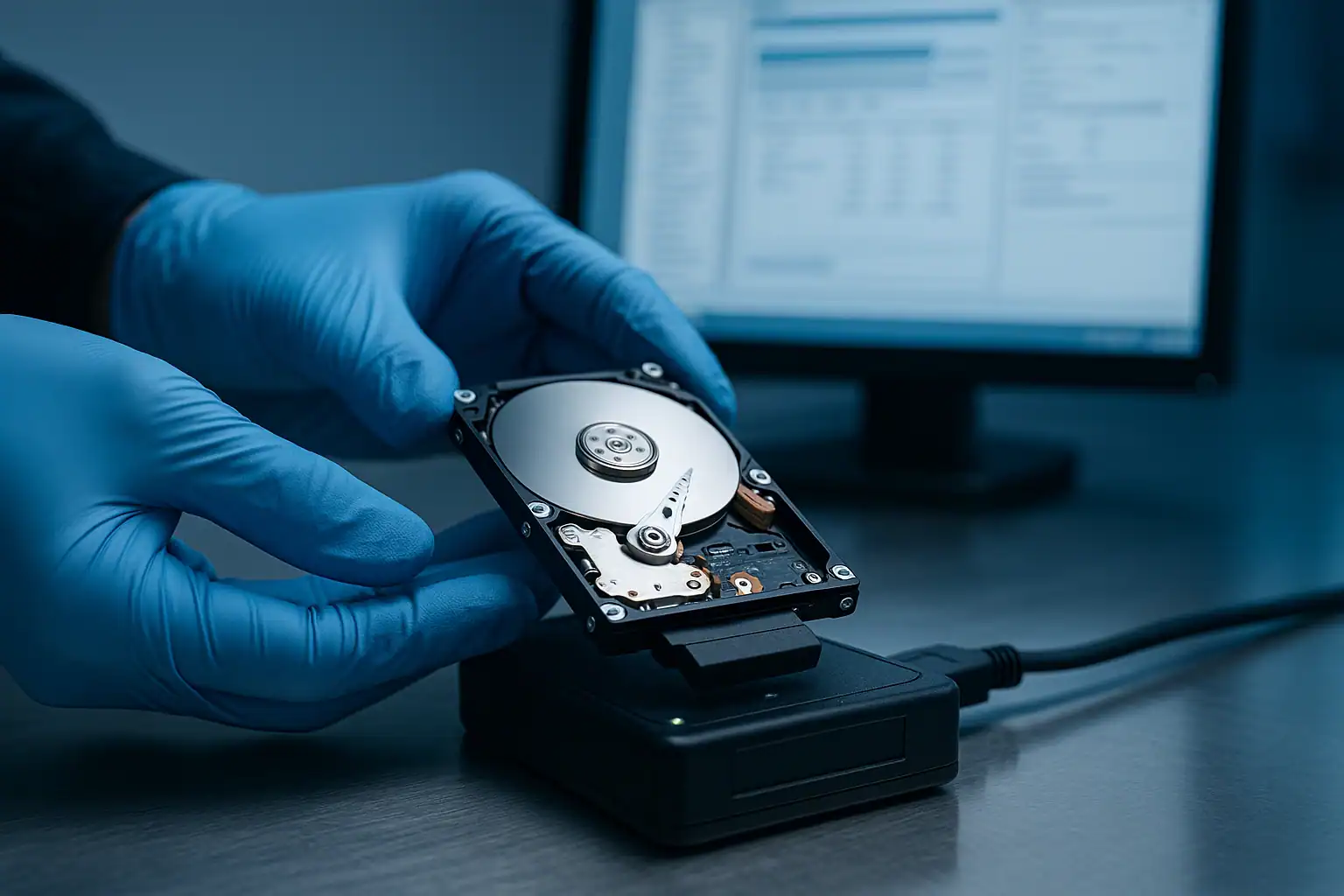
You plug in your hard drive — maybe an external drive, maybe a laptop drive you removed and connected through an enclosure — and Windows Disk Management shows it as “Not Initialized.” A dialog box appears asking whether you want to use MBR or GPT partition style. Or you right-click the drive and see “Initialize Disk” as the only available option.
Click “Initialize Disk” and you’ll likely lose access to all your files permanently.
This page explains what “not initialized” actually means, why initializing your drive is exactly the wrong response, and what to do if you have data on a drive Windows is asking you to initialize.
What “Not Initialized” Actually Means
When you initialize a hard drive in Windows Disk Management, the operating system writes a new partition table — either an MBR (Master Boot Record) or GPT (GUID Partition Table) — to the very first sectors of the drive. This partition table tells Windows where partitions begin and end on the drive, what file systems they contain, and how to find the data within them.
An “uninitialized” drive, from Windows’ perspective, is one where Windows can’t read a valid partition table. The drive may be brand new, may have come from a non-Windows system, or — most relevantly for our purposes — may be a previously-used drive whose partition table has become corrupted or unreadable.
The critical distinction: if your drive previously had data on it and is now showing as “not initialized,” the data is almost certainly still there. What’s missing is the partition table that tells Windows where to find it.
Clicking “Initialize Disk” writes a new, empty partition table over the old one. The old partition information — the locations of your partitions, the file system metadata, the index of every file you stored — is overwritten. The data files themselves remain on the drive for a while longer, but without the partition table and file system structures, finding them becomes dramatically harder.
Why Drives Show as “Not Initialized”
Several scenarios commonly produce this state:
Failing drive hardware
The partition table lives at specific physical locations on the drive — typically the first few sectors. As drives age, those sectors can develop read errors. The drive itself may be 95% healthy, but the specific sectors holding the partition table have become unreadable. Windows tries to read the partition table, fails, and reports the drive as not initialized.
This is the most common scenario we see at our recovery lab — drives that worked normally for years suddenly show as not initialized after a power cycle, a sudden disconnect, or just one too many bad sectors developing in the wrong place.
Sudden disconnects or power events during writes
If a drive was being written to (formatting, partitioning, file copying with large queue depths) when power was lost or the cable was yanked, the partition table can be left in a partially-written state. The next time the drive is read, Windows can’t make sense of the partial structure and reports it as not initialized.
Connection issues making the drive appear damaged
Bad USB cables, marginal SATA cables, failing USB ports, or unreliable USB-to-SATA adapters can produce intermittent read failures that look identical to a damaged partition table. The drive shows as not initialized one moment and works fine the next. This pattern is worth ruling out before assuming the drive is damaged — try a different cable, a different port, a different computer.
Drive came from a non-Windows system
Drives formatted with APFS (modern Mac), HFS+ (older Mac), ext4 (Linux), or other non-Windows file systems will show as not initialized on a Windows computer because Windows doesn’t natively understand the partition styles or file systems. The drive isn’t damaged — it just speaks a language Windows doesn’t read.
USB-to-SATA bridge issues on external drives
External drives that report as not initialized but have important data are sometimes suffering from an issue with the USB-to-SATA bridge chip inside the enclosure, not the drive itself. The internal drive may be perfectly healthy, but the bridge is presenting it incorrectly to the operating system. Recovery in this case may involve preserving the original interface or carefully bypassing it.
Malware or partition-table manipulation
Some malware deliberately corrupts partition tables. This is less common than the other causes but worth ruling out, especially if other systems on the same network have shown signs of malware activity.
What to Do (and Not Do) Right Now
The first and most important action: don’t click Initialize Disk.
This is what Windows is suggesting, and it’s what’s offered as the easy fix in most online guides. It’s also the action that turns a routine recovery into a difficult one. Once the new partition table is written, the old one is overwritten — recovery becomes a matter of reconstructing the partition layout from scratch, which is much harder than recovering from a drive where the partition table just couldn’t be read.
Don’t run chkdsk or any “repair” utility. These tools can’t help on a drive that Windows doesn’t yet have mounted, and attempting to force them can make things worse.
Don’t reformat the drive. Format dialogs that appear after refusing to initialize are equally destructive — they write new file system structures over the existing data.
Rule out the simple stuff first:
- Try a different cable (especially for external drives — cable failure is surprisingly common)
- Try a different USB port, ideally directly on the motherboard rather than through a hub
- Try the drive on a different computer (rules out OS-level issues and confirms the drive’s behavior)
- If the drive came from a Mac or Linux system, try reading it on that system or use software that supports those file systems on Windows
If the drive still shows as not initialized after those checks, the issue is the drive or its enclosure — not the cable or computer. From here, the next move depends on the data.
If the data is replaceable — you have backups, the drive was empty or had unimportant files — going ahead and initializing is fine. You’re choosing convenience over the possibility of recovery, which is reasonable when the stakes are low.
If the data is irreplaceable — family photos, business documents, the only copy of important files — stop here. Don’t initialize. Don’t format. Don’t run consumer recovery software either, especially if the drive is making any unusual sounds or shows other signs of physical distress. Professional recovery preserves the data through forensic imaging rather than risking it through repair attempts.
What Happens If You Already Clicked Initialize
Recovery is still often possible — even after the initialize action — but it’s more difficult than if you’d stopped before clicking. Here’s what to know:
Stop using the drive immediately. Don’t write any new files to it. Don’t copy data to it. Don’t run any disk operations on it. The original data is still physically on the drive in most locations, but every new write to the drive risks overwriting still-recoverable data.
Don’t format the drive on top of the initialization. Some users, after initializing, see the drive as “unallocated” and then format it to “fix” the problem. This compounds the damage by writing new file system structures over data that was still recoverable.
The recovery path is reconstruction, not repair. Without the original partition table, we have to scan the drive looking for the signatures of file systems and individual files. This works — it’s what data recovery labs do for cases like this — but it takes longer than recovery from a drive with intact metadata and recovers somewhat less of the original directory structure.
How Professional Recovery Handles “Not Initialized” Drives
When a “not initialized” drive comes to our lab, the recovery process works to preserve everything that’s still recoverable:
Forensic imaging through hardware write-blockers. The first step is always capturing a bit-for-bit image of the entire drive through a hardware write-blocker — a device that physically prevents any writes back to the source. The original drive is never modified. All subsequent work happens against the image.
Hardware repairs when needed. If the drive has developed bad sectors that prevent imaging, our engineers perform temporary hardware-level repairs in our ISO 5 cleanroom — head transplants, PCB repairs, firmware adjustments — just long enough to capture a clean image. The drive doesn’t need to be restored to long-term function; it just needs to be readable long enough.
Partition table reconstruction. Our internal tools scan the forensic image for the signatures of NTFS, FAT32, exFAT, ext4, HFS+, and other file systems. Even without the original partition table, the file systems themselves contain structural information that lets us identify where each partition began and ended.
File system extraction even from incomplete metadata. Once the partitions are identified, our tools parse whatever file system metadata survived and reconstruct a database of every file on the drive. This works even when the MFT or other critical structures are partially damaged.
Data delivered on new media. Recovered data comes back on a healthy drive — never restored to the source drive, which has demonstrated it can’t be trusted with critical data anymore.
Specific “Not Initialized” Scenarios
External hard drive shows as not initialized
The most common scenario we see. Usually caused by partition table corruption from sudden disconnects, age-related bad sector accumulation in the first sectors of the drive, or USB-to-SATA bridge issues in the enclosure. Recovery is typically straightforward when handled correctly.
Laptop drive shows as not initialized after removing from laptop
When you remove a laptop drive and connect it through an enclosure or adapter to read its contents, “not initialized” sometimes appears even when the drive was working in the laptop yesterday. Causes include partition table corruption (the laptop wasn’t booting due to drive issues — that’s why you removed it), enclosure incompatibility with the drive, or developing physical failure of the drive itself.
SSD shows as not initialized
Less common but more serious. SSDs don’t develop bad sectors the way hard drives do — when an SSD reports as not initialized, the cause is usually controller failure or NAND damage, both of which can rapidly progress to total drive failure. Don’t delay.
New drive shows as not initialized
A genuinely new drive with no data on it is supposed to show as “not initialized” — that’s the normal state for a factory-fresh drive. Initialize it freely. The concern is only when a previously-used drive shows as not initialized.
RAID drive removed from server shows as not initialized
This is normal and expected. RAID member drives don’t have traditional Windows partition tables — they have RAID metadata that Windows doesn’t understand. Don’t initialize a drive that was part of a RAID array. The recovery for those scenarios involves array reconstruction, not Windows partition operations.
Frequently Asked Questions
What’s the difference between “not initialized” and “RAW”?
“Not initialized” means Windows can’t read a valid partition table — it doesn’t know where partitions begin and end on the drive. “RAW” means Windows can see partitions but can’t recognize the file system within them. Both indicate metadata damage, but at different levels. Recovery for both starts with the same fundamental approach: forensic imaging followed by reconstruction.
I clicked Initialize Disk but didn’t format. Is my data lost?
Probably not entirely. Initializing writes a new partition table but doesn’t usually overwrite the file data or the partition contents — those still sit there waiting for new partitions to be created. Recovery becomes more difficult but is typically still possible. Stop using the drive immediately and get a professional evaluation before doing anything else.
I clicked Initialize, then formatted, then realized I needed the data. Help?
Recovery is still sometimes possible but progressively harder. The actual data files survive longer than the metadata; if you haven’t written anything new to the drive, the file contents may still be recoverable through file-signature-based recovery. Don’t write anything else to the drive and get an evaluation as quickly as possible.
The drive shows as not initialized but I can still see it in Disk Management. Isn’t that proof it’s healthy?
Not necessarily. Showing up in Disk Management means the drive can communicate basic information about itself (size, vendor) to the operating system. It doesn’t mean every sector is readable. The partition table sectors are specifically what Windows is failing to read.
Should I try recovery software on a “not initialized” drive?
For replaceable data: it’s reasonable to try a reputable recovery tool once. For irreplaceable data: skip the software, especially if the drive is showing any signs of physical distress. Software recovery can stress an already-failing drive enough to make professional recovery harder.
Can a drive go from “working fine” to “not initialized” overnight?
Yes, and it’s common. Drives can develop bad sectors at any time, and when the bad sectors happen to land on the partition table, the change from working to not initialized is instantaneous from your perspective. This is why backup matters — drive failure rarely gives advance warning.
The Bottom Line
“Not initialized” is Windows telling you it can’t read the partition table on your drive — not telling you the drive is empty or new. If the drive had data on it before, the data is almost certainly still there, just inaccessible. The action Windows is suggesting (Initialize Disk) is exactly the wrong response when you want to preserve that data.
If your drive shows as not initialized and you have data on it that matters, the safest action is to disconnect the drive and get a professional opinion before doing anything Windows recommends.
Get a Free Recovery Evaluation
No upfront cost · You only pay if we recover your data
Or call 1-877-624-7206 to speak with a recovery specialist
