
The Request Could Not Be Performed Because of an I/O Device Error [Solved]

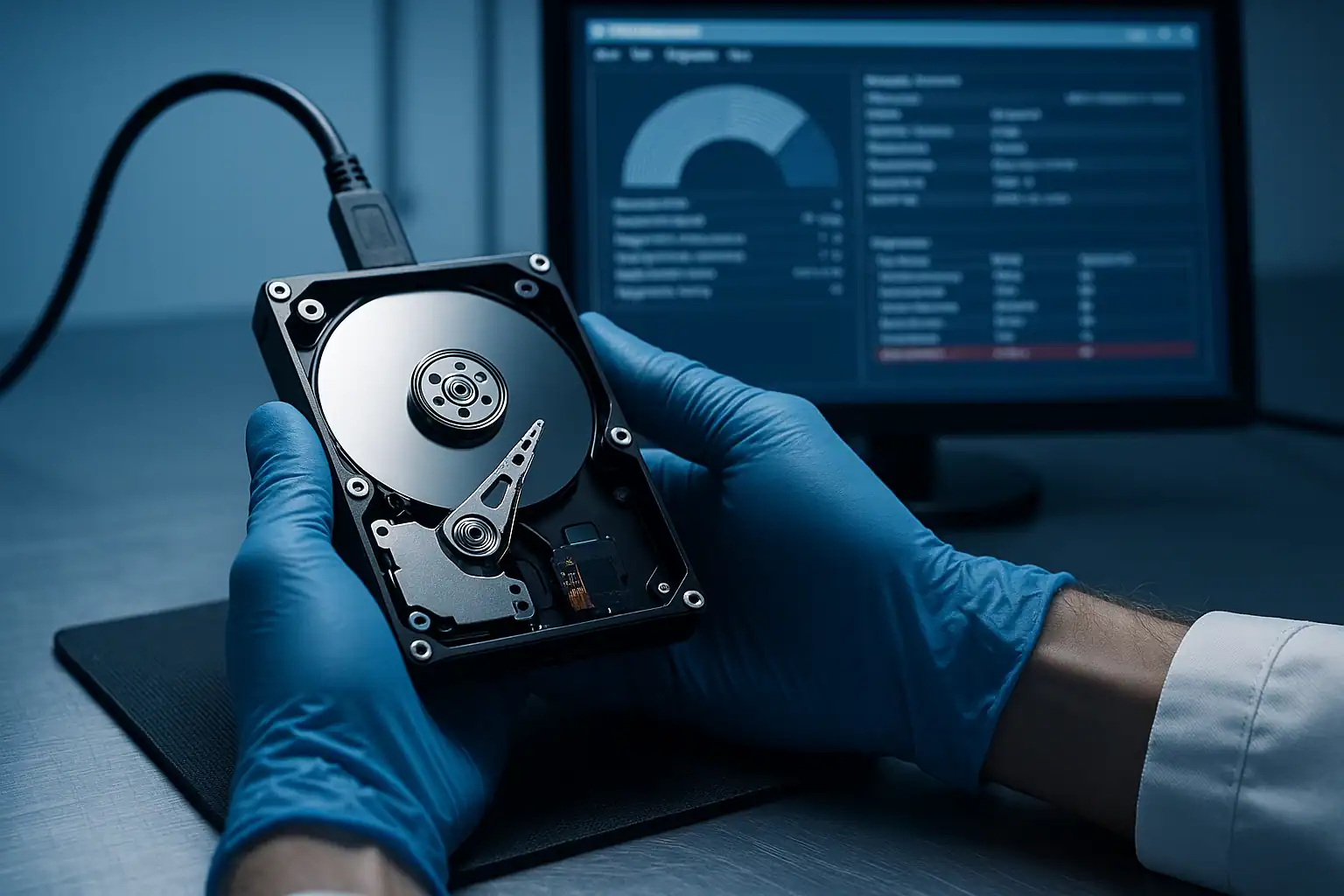
I/O device error on your drive?
If the data matters, stop running chkdsk, reformatting or imaging tools. Those can push a failing drive over the edge. Call us first, and we’ll diagnose it for free.
“The request could not be performed because of an I/O device error.” If you’ve seen that message in Windows, you’re not alone — it’s one of the most common errors a failing drive will throw, and one of the least informative. Windows knows something went wrong between the operating system and the storage device. It just can’t tell you what.
This page explains what an I/O device error actually means, what causes it, why some of the common “fixes” can make things worse, and when professional recovery is the right next step.
What an I/O Device Error Actually Is
“I/O” stands for input/output. An I/O device error happens when your operating system attempts to read data from or write data to a storage device — a hard drive, SSD, USB flash drive, SD card, optical drive — and the attempt fails. The drive should have responded with the data or with confirmation of the write, and instead the operation didn’t complete.
The error appears in different forms depending on what you were trying to do:
- “The request could not be performed because of an I/O device error”
- “Error 0x8007045D”
- “I/O Error” in disk imaging or backup software
- “Cyclic redundancy check” (CRC) errors during file copies
- “Data error” when reading specific files
All of these point to the same underlying problem: your computer can’t reliably communicate with the storage device. The specific message varies, but the diagnostic implications are similar.
What Causes I/O Device Errors
I/O errors fall into roughly four categories, in increasing order of severity.
Connection or cable issues
The simplest cause: the physical connection between your computer and the drive is intermittent or damaged. Common scenarios include a frayed USB cable on an external drive, a loose SATA connector inside a desktop, a worn USB port, or a USB hub that can’t reliably supply power to the drive.
Diagnostic clue: I/O errors that come and go, or that resolve when you reseat the cable or try a different port, are usually connection issues.
Driver or operating system issues
Outdated USB controller drivers, corrupted Windows installations, or compatibility issues between drive firmware and the operating system can produce I/O errors even when the drive itself is healthy. The 4K-native external drives that became common around 2013 caused widespread I/O errors on Windows 7 systems that didn’t support the larger sector size — a software compatibility issue, not a drive failure.
Diagnostic clue: I/O errors that appear on one computer but not another (when the drive works fine elsewhere) often point to a driver or OS issue.
File system corruption
The drive’s file system — the NTFS, FAT32, or exFAT structures that organize data on the drive — can become corrupted from improper shutdowns, sudden disconnects during writes, or power events. The drive itself works, but specific reads fail because the file system structures point to invalid locations.
Diagnostic clue: I/O errors that affect specific files or folders consistently, while other parts of the drive work fine, often point to file system damage.
Failing drive hardware
The most serious cause, and unfortunately one of the most common. Hard drives develop bad sectors over time. When the operating system tries to read a bad sector, the drive’s firmware attempts to retrieve the data through various error-correction mechanisms; when those fail, the OS gets an I/O error.
Diagnostic clues: I/O errors that get worse over time, errors paired with unusual sounds (clicking, beeping, grinding), or errors on a drive that’s running unusually hot. Hard drives with multiple developing bad sectors are in active failure — the error rate accelerates as the drive deteriorates.
SSDs can also produce I/O errors, usually from NAND failure or controller issues. The trajectory is similar: errors appear gradually, then accelerate as the underlying issue worsens.
Why “Fixing” an I/O Error Can Destroy Your Data
Search “I/O device error fix” and you’ll find articles recommending several approaches. Some are reasonable; others can be catastrophic for a drive that’s actually failing.
Running chkdsk on a failing drive is the most common way data gets lost. Chkdsk works by reading every sector of the drive and “repairing” inconsistencies it finds. On a healthy drive with minor file system damage, this works fine. On a drive with bad sectors and developing hardware failure, chkdsk reads the bad sectors repeatedly, which can push partial failure into total failure. Worse, chkdsk sometimes “repairs” by writing zeros to bad sectors — permanently destroying data that might have been recoverable.
Reformatting destroys the file system that recovery depends on. Even a “quick format” overwrites the partition table and master file table, replacing them with empty structures. The actual file data isn’t immediately overwritten, but the index that locates it is gone.
Disk image software running on a failing drive can accelerate failure. Backup utilities that read the entire drive in one continuous pass put significant stress on already-marginal hardware. Drives that might have lasted long enough for a careful, prioritized recovery can fail completely partway through an imaging attempt.
Repeatedly plugging and unplugging an external drive throwing I/O errors can damage the controller. Each connect-disconnect cycle is a small electrical event. On a drive whose USB-to-SATA bridge is already failing, repeated cycles can finish it off.
What to Do When You See an I/O Device Error
The right response depends on how important the data is and what other symptoms the drive is showing.
First: try the easy fixes that don’t risk the drive.
- Try a different USB cable (especially for external drives — cables fail surprisingly often)
- Try a different USB port on the computer, ideally directly on the motherboard rather than through a hub
- Try the drive on a different computer to rule out OS or driver issues
- Check Device Manager for warnings on USB controllers; update drivers if needed
If none of those resolve the error, the drive itself is the problem. From here, the next move depends on what’s at stake.
If the data on the drive isn’t critical: running chkdsk or attempting recovery software is reasonable. You’re accepting some risk in exchange for the possibility of getting back to a working state without involving a recovery lab.
If the data on the drive is irreplaceable: stop. Don’t run chkdsk. Don’t reformat. Don’t run disk repair utilities. The wrong action on a drive that’s developing bad sectors can turn a routine recovery into an impossible one.
If the drive is making any unusual sounds — power it off immediately. Clicking, beeping, or grinding noises paired with I/O errors mean mechanical failure. Every minute the drive runs in that state is an additional risk to the platters where your data lives.
Seeing I/O errors and need the files? Send us the drive and we’ll diagnose it for free.
How Professional Recovery Handles I/O Errors
When a drive throwing I/O errors comes to our lab, the recovery process protects the data at every step:
We diagnose before we read. The first step is determining what’s actually wrong — bad sectors, controller issues, mechanical damage, file system corruption, or some combination. Each cause requires a different approach, and the wrong approach can make things worse.
We address hardware issues in our cleanroom when needed. Drives with mechanical failures get temporary stabilization (head transplants, PCB work, firmware adjustments) just long enough to capture a clean image. These steps aren’t meant to restore the drive to long-term use — they’re meant to make the drive readable.
We use forensic imaging through hardware write-blockers. Every drive is connected through a device that physically prevents any writes back to the source. We capture a bit-for-bit image of the entire drive, then do all recovery work on the image. The original drive is never modified.
We use specialized imaging that handles bad sectors gracefully. Standard disk imaging tools fail when they encounter a bad sector. Our tooling can mark a bad sector, skip it, retry it later with different parameters, and continue imaging the rest of the drive. The result is a maximally complete image even from drives with substantial bad-sector damage.
We reconstruct file systems from partial data. Even when the file system itself is damaged, our internal tools parse the recovered data directly, identify file structures by signature, and extract individual files even when the volume itself wouldn’t mount.
I/O Errors on Different Storage Types
The error message is the same, but the underlying cause and recovery approach vary significantly by storage type.
External hard drives (WD My Passport, Seagate Backup Plus, LaCie, etc.): Most common cause is USB-to-SATA bridge issues or USB cable problems. After cable swaps, the next likely cause is the drive itself developing bad sectors. The bus-powered nature of portable externals makes them vulnerable to power-related issues that don’t affect desktop drives.
Internal hard drives: SATA cable issues are a common easy fix. If the drive throws I/O errors on a known-good SATA cable, the drive itself is the problem.
SSDs: Less common but more serious when they appear. SSDs don’t have moving parts, so I/O errors usually indicate NAND failure or controller issues — both of which can rapidly progress to total failure. SSDs throwing I/O errors should be backed up and replaced as quickly as possible.
USB flash drives: Controller failures and NAND wear are common causes. Flash drive controllers have less internal redundancy than larger drives, so partial controller failures often present as persistent I/O errors with no path to recovery through normal means. Professional recovery for flash drives often requires chip-off work — desoldering the NAND chips and reading them directly.
SD cards and microSD cards: Similar to USB flash drives, plus the additional issue of physical contact damage. SD cards used in multiple devices often develop contact issues that present as intermittent I/O errors.
Optical drives: I/O errors during disc reads usually mean either disc damage (scratches, exposure to light/heat for CD-R/DVD-R) or laser assembly degradation in the drive itself. Optical media recovery is its own specialty.
Frequently Asked Questions
Can I fix an I/O device error myself?
Sometimes — depends on the cause. Cable issues, port issues, and driver problems are typically fixable without risk. File system corruption is fixable but riskier (chkdsk can compound the problem on a failing drive). Hardware failure usually requires professional recovery; DIY attempts tend to make hardware failures worse.
Is my data lost if I keep getting I/O device errors?
Not necessarily — but it’s at risk. The longer a failing drive runs, the more data becomes unreadable. If the I/O errors are persistent and the data matters, getting the drive evaluated quickly is the right move.
Should I just buy a new drive and start over?
If the data is replaceable, that’s often the most economical answer. If the data is important, get the data off before replacing the drive — once the failing drive is fully dead, recovery options narrow significantly.
What if I/O errors only happen with specific files?
Usually indicates bad sectors at the physical locations of those specific files. The drive is failing but hasn’t fully failed yet. The smart move is to back up everything else from the drive immediately (before more bad sectors develop), then either accept the loss of the specific files or send the drive to recovery for the specific files.
Are I/O errors a sign my SSD is about to die?
Yes, usually. SSDs don’t develop bad sectors gradually the way hard drives do — when SSDs start throwing I/O errors, they typically fail completely within days or weeks. Back up immediately.
What about I/O errors during Windows installation or system imaging?
Same diagnostic logic applies: cable, drive, or controller. The added complication is that if the I/O error appears during an OS install, you may not be able to complete the install at all, which means using a different drive becomes a necessary part of the troubleshooting.
The Bottom Line
An I/O device error is a symptom, not a diagnosis. The underlying cause ranges from simple (bad cable) to serious (failing drive). The mistake to avoid is running aggressive “repair” tools on a drive whose specific problem you haven’t identified — those tools can permanently destroy data that careful recovery would have saved.
If your I/O errors persist after basic troubleshooting (different cable, different port, different computer) and the data on the drive matters, professional recovery is the safer path. We offer a free consultation to walk through your specific situation and tell you what’s possible.
Still seeing I/O errors? Let’s get your files back.
Our highly experienced engineers strive for the highest success rates in the industry. Send us the device and we’ll diagnose it for free.
- More than 20 years recovering data from failed drives
- Trusted by 1,500+ IT professionals nationwide
- Whatever failed, we’ve seen it hundreds of times
- Pay only if we meet your recovery goals
